
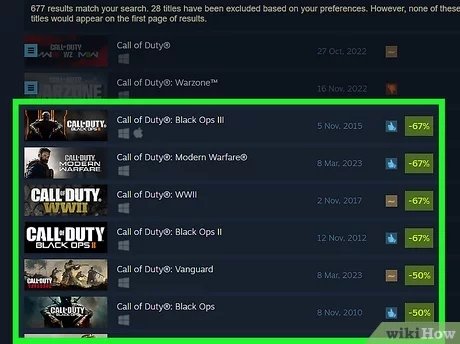
To buy a game on Steam, navigate to the game’s page on the Steam store, add it to your cart, and then complete the purchase using your preferred payment method.
Ready to dive into a new gaming adventure? Figuring out how to buy a game on Steam might seem daunting if you’re new to the platform, but it’s actually very simple.
This guide will quickly walk you through the steps needed to acquire that next must-play title. The process is user-friendly and fast, letting you get into the action in a matter of minutes.
Let’s explore the straightforward steps to buy a game on Steam so you can begin your next adventure.

How to Buy a Game on Steam: A Step-by-Step Guide
Okay, so you’re ready to dive into the amazing world of PC gaming, and Steam is your gateway! It can seem a little tricky at first, but don’t worry. Buying games on Steam is actually quite easy once you know how. This guide will walk you through everything, from creating an account to actually getting that game into your library. Let’s get started!
Creating Your Steam Account
Before you can buy anything, you need a Steam account. Think of it like creating an email address, but for games! Here’s how you do it:
Going to the Steam Website or App
First, you need to go to the Steam website. You can do this by typing store.steampowered.com into your web browser. Or, you can download the Steam app for your computer directly from the website. The website is a good place to start, but the app makes playing games super convenient once you have them.
Clicking “Login” and “Join Steam”
On the website or in the app, look for the “Login” button in the top right corner. Since you don’t have an account yet, you’ll want to click “Join Steam” right below it.
Filling in the Necessary Information
Now, Steam will ask you for some important details, like:
- Your Email Address: Make sure it’s a real email address, because Steam will send you a confirmation link.
- Your Country of Residence: This helps Steam show you the correct prices and games for your region.
- A Strong Password: Create a password that’s hard for others to guess. Use a mix of letters, numbers, and symbols.
- Confirming you’re not a robot: This is a common safety check, often a simple box to tick or a picture puzzle to solve.
Verifying your Email Address
After filling in the details, Steam will send you an email with a link. Click the link in the email to confirm your email address and activate your new Steam account. You are now ready to log in and begin your game-buying journey!
Navigating the Steam Store
Now that you’ve got your account set up, it’s time to explore the Steam store. This is where all the games live! Here’s a breakdown of how to find your next favorite game:
Using the Search Bar
The most straightforward way to find a specific game is using the search bar. It’s usually at the top of the Steam page. Just type in the title of the game you’re looking for, and Steam will show you the results.
Browsing Categories and Genres
If you don’t have a specific game in mind, you can browse through Steam’s categories and genres. On the left side of the page, you’ll see lists like “New & Noteworthy,” “Top Sellers,” “Coming Soon,” and genres such as “Action,” “Adventure,” “RPG,” and many more. Click on these categories to see what’s available. It’s a great way to find new games you might enjoy.
Exploring Featured Games and Deals
Steam always has featured games and special deals on their homepage. These are often highlighted with big, colorful banners. Keep an eye on these, because they can lead to some great savings! Steam also has seasonal sales during holidays like Summer, Autumn, and Winter, so it’s a good idea to check Steam during those times for some big discounts.
Utilizing the Steam Discovery Queue
A useful tool that Steam provides is the Discovery Queue. Based on the games you’ve played in the past, and the games on your wishlist, Steam will suggest games they think you might like. You can often find hidden gems this way, which you wouldn’t find otherwise.
Understanding Game Pages
After you’ve found a game that catches your eye, it’s time to check out its page. Each game on Steam has its own page filled with details. It’s super useful to learn how to read these pages before you buy, to make sure the game is right for you.
Reading Game Descriptions
The most important part of the game page is the description. This section gives you an overview of what the game is about, how it plays, and what makes it special. Take your time to read it so you understand what you’re buying. Sometimes, there are short stories too!
Checking System Requirements
Before you buy a game, you need to make sure your computer can run it. Every game on Steam has system requirements. These requirements tell you things like:
- Operating System: Is it Windows, Mac, or Linux?
- Processor (CPU): How fast does your computer’s brain need to be?
- Memory (RAM): How much short-term memory does your computer need?
- Graphics Card (GPU): How powerful does your computer’s picture-making card need to be?
- Storage Space: How much space on your computer’s hard drive is needed?
Steam will tell you both minimum and recommended requirements. If your computer only meets the minimum requirements, the game might still run, but it might not run smoothly or have the best graphics. Meeting the recommended specs will give you the best experience. If your computer doesn’t meet at least the minimum specs, it might not be able to run at all!
Looking at Screenshots and Videos
Most game pages will have pictures and videos of the game in action. These visuals can help you get a better idea of what the game looks like and how it plays. Check them out to see if the game’s style and graphics appeal to you.
Reading User Reviews
User reviews are opinions from people who have already played the game. These reviews are super helpful to get an idea of how good the game is. Look for patterns in the reviews, are people mostly happy with it? Are there common problems being mentioned? Keep in mind that some people have different opinions and tastes, so not everyone will agree on a game’s quality.
Checking Game Tags
Tags are keywords that help describe the game. They can tell you the game’s genre, style, or features. For example, “Singleplayer,” “Multiplayer,” “Open World,” “Puzzle,” or “First-Person Shooter.” These can help you figure out if the game is something you might like.
DLC and Bundles
Often, you’ll see that games come with extra content, called DLC (Downloadable Content), or are available in bundles with other games. A DLC is like an add-on to a game, adding more levels, characters, or items. Bundles are often a good way to save money by getting a group of games for a discounted price. Check carefully what’s included in each before you buy.
Adding Games to Your Cart
Once you’ve found a game that you want to buy, it’s time to add it to your cart. This is just like shopping online for anything else!
Finding the “Add to Cart” Button
On a game’s page, you will see a green button that says “Add to Cart.” It’s usually near the price of the game. Click this button to place the game in your virtual shopping cart.
Viewing Your Cart
After clicking “Add to Cart”, a popup should appear on your screen, you’ll also be able to view your cart by clicking the shopping cart icon at the top right of the steam page. In your cart, you will see all the games you’ve selected and the total cost. This is a great moment to double check that you’re buying the correct games and the correct versions, before going further.
Removing Games from Your Cart
If you change your mind about a game, you can remove it from your cart. Just click the “Remove” button next to the game in your cart. You can also update the number of copies you wish to purchase.
Choosing Your Payment Method
Now it’s time to pay for the games in your cart! Steam offers several different payment options. Here’s what you need to know:
Credit or Debit Cards
You can use most major credit and debit cards to buy games on Steam. Simply select the credit or debit card option, then fill in your card number, expiration date, and the security code on the back of your card. Make sure you double-check that you have entered the information correctly.
PayPal
If you have a PayPal account, you can use it to pay for games on Steam. Select PayPal as your payment method, and Steam will redirect you to the PayPal website to log in and complete your purchase.
Steam Wallet
The Steam Wallet is a digital wallet connected to your Steam account. You can add funds to your Steam Wallet using different methods, and then use the funds to buy games. This is useful if you don’t want to use your credit card directly. To add funds to your wallet you can use your credit card, but also with Steam Gift Cards. Steam Gift Cards are usually sold in physical retail stores that sell video games, but also online on different websites.
Other Payment Methods
Steam sometimes offers other payment options, depending on your region. These might include things like direct bank transfers or payment services specific to your country. Check the payment options available to you on the checkout page.
Entering Payment Information
No matter which payment option you choose, you’ll need to enter some information. Be careful when typing your details, and make sure everything is correct before proceeding. You might also need to confirm your purchase through your bank or payment provider’s app, depending on security protocols.
Finalizing Your Purchase
You’re almost there! You’ve got games in your cart and chosen a payment method. Here’s how to complete your purchase:
Reviewing Your Order
Before you click the final button, Steam will show you a summary of your order. Make sure all the games are correct, and that the total amount is what you expect. This is your last chance to make changes before you complete the purchase.
Agreeing to the Steam Subscriber Agreement
Before making a purchase, you’ll need to agree to the Steam Subscriber Agreement. This is a legal document that sets out the rules for using Steam. It’s usually a checkbox next to a text that says “I agree to the Steam Subscriber Agreement” or similar.
Clicking “Purchase”
If everything looks good, click the “Purchase” button to complete your order. Depending on your payment method, you may need to enter an additional security code, verify via your banking app or redirect to another website to complete. Once the payment goes through, Steam will add the games to your library.
Downloading Your Games
After purchasing, the game will be placed in your Steam library. To play, you have to first download the game, this will take some time, depending on the size of the game and the speed of your internet connection.
Accessing Your Games
Congratulations! You’ve successfully bought a game on Steam. Now, let’s get into playing it!
Going to Your Library
To find your newly purchased game, you need to go to your Steam library. It’s usually at the top of the app or website. When you click on “Library”, you’ll see all the games you own. This is where you can install them, launch them, and update them.
Installing and Launching Games
In your library, click the game you want to play. If you haven’t downloaded it yet, click “Install”. Steam will then download the game to your computer. Once the game is installed, the “Install” button will change to “Play”. Click the “Play” button to launch your game and get started.
Managing Updates
Steam automatically checks for updates for your games. If there’s an update, it will automatically start to download it when you launch the game. You can also manually check for updates by right-clicking a game in your library, selecting “Properties”, and then going to the “Updates” tab.
Troubleshooting Issues
Sometimes you might have problems playing your games. If that happens, here are a few common solutions:
- Restart Steam: Close the Steam app completely and open it again. This is usually the first step in fixing a lot of problems.
- Restart Your Computer: Sometimes, simply restarting your computer can fix issues.
- Verify Game Files: Right-click the game in your library, select “Properties”, then go to the “Local Files” tab and click “Verify integrity of game files.” This checks the game data and can fix corruption problems.
- Update Your Graphics Drivers: Having the newest drivers for your graphics card is super important to prevent issues.
- Check Online Forums: Often, other players have had the same issues and have found solutions. Steam forums or the game’s official website are good places to look.
Steam Features to Explore
Steam has a lot more to offer than just buying games! Here are some cool features that you may find helpful:
The Steam Workshop
For some games, Steam offers a “Workshop” feature. This is where players can upload and download things like new levels, items, and modifications (or “mods”) for their games. This extends the life and replayability of your games by letting you play them in new ways.
Steam Community
Steam has a large community of players. You can chat with other gamers, join groups about your favorite games, and even participate in discussions. The Community section also allows you to share your game screenshots and videos.
Trading and Market
Steam allows you to trade items between players for many of the games you play. Also you can sell in-game items on the Steam Market, or buy items using your Steam Wallet balance.
Steam Achievements
Many games on Steam have achievements, these are like little challenges you can complete in games. This adds an extra layer of fun to playing, and also tracks how good you are at games.
Cloud Saves
Steam saves your game progress in the cloud, this means that you can continue playing on a different computer, and not loose any of your progress. Cloud saves is a standard and important feature for all modern gaming systems, and is essential for seamless gaming.
Steam Cloud and Remote Play
The Steam cloud system allows you to access your game saves across multiple computers, and play your games on different machines than they are installed on. By installing the Steam Link app on your phone, tablet, or television, you can actually play games on a different screen.
Buying games on Steam is an easy process, and allows you to have a fantastic gaming experience. Once you get the hang of the basic steps, you can begin building up your library of wonderful games!
How To Buy Games On Steam – Full Guide
Final Thoughts
To buy a game on Steam, first locate the desired title in the store. Then, add it to your cart. Proceed to checkout and choose your preferred payment method.
Complete the purchase, and your new game will be added to your Steam library. This process is how to buy a game on steam and starts your gaming journey.
Remember to check system requirements before buying. enjoy the game you just purchased.

