
To buy Game Pass for a child account, you need to purchase it through a parent or guardian’s Microsoft account and then share it with the child’s account via family settings.
Wanting to get your child into the world of Game Pass? It’s a great way to access many games, but it can be a little confusing to set up for a child’s account. The process involves purchasing the subscription with your account then sharing the benefits with your kid’s profile. This short guide will clarify how to buy Game Pass for child account easily, ensuring a smooth gaming experience.

How to Buy Game Pass for a Child Account
Getting Xbox Game Pass for your child can open up a whole world of exciting games! It’s a fantastic way to give them access to lots of different titles without having to buy each one individually. However, buying Game Pass for a child account is a little different than buying it for yourself. You need to consider family settings, permissions, and the best way to manage the subscription. Let’s dive into everything you need to know.
Understanding Child Accounts and Family Settings
Before you even think about buying a Game Pass, it’s important to understand how child accounts work within the Xbox/Microsoft ecosystem. Child accounts are designed to keep kids safe online and manage their gaming experience. Here are the key aspects:
What is a Child Account?
A child account is a Microsoft account specifically set up for a person under a certain age (usually 13, but it can vary by region). This account is linked to a parent’s or guardian’s Microsoft account, which allows the adult to control various settings and permissions. This includes things like screen time, spending limits, and who your child can communicate with online. Think of it like having a remote control for their gaming world!
Parental Controls
Parental controls are essential for managing a child’s gaming experience. They provide parents with the ability to:
- Set screen time limits: Decide how much time your child can spend playing games each day or week.
- Manage spending: Control how much money your child can spend on games or in-game purchases.
- Filter content: Restrict access to age-inappropriate games and content.
- Manage communication: Choose who your child can communicate with online.
- View activity reports: See what your child has been playing.
These controls are not just about restriction; they’re about creating a safe and balanced gaming environment. You can set these up through your Microsoft account on the Xbox console, through the Microsoft website, or through the Xbox Family Settings app on your phone.
Methods to Purchase Game Pass for a Child
There are several ways you can purchase Xbox Game Pass for your child, each with its own advantages. Let’s break down the most common methods:
Using the Parent’s Account
The most common method is purchasing the Game Pass subscription using the parent’s Microsoft account and then sharing it with the child’s account. This is a very easy way to do it. When you do this:
- The parent manages payment: The subscription charges go directly to the payment method associated with the parent’s account.
- Centralized management: You, as the parent, can keep track of the subscription status and cancel it if necessary, all from your account.
- Family Sharing: This method uses the Xbox Family Settings to share the subscription benefit with the child’s account.
Here’s how to do it step-by-step:
- Log in to your Microsoft account: On your Xbox console, the Microsoft website, or the Xbox app, log in using your parent account credentials.
- Purchase Game Pass: Navigate to the Xbox Game Pass section and purchase the subscription you want. There are different tiers like Game Pass for Console, Game Pass for PC, and Game Pass Ultimate, which includes both. Select the one that fits your needs.
- Set up family sharing: If you don’t already have a family group, create one. Add your child’s Microsoft account to your family group. On the Xbox console, this can be done through settings > account > family settings. On the website, go to your Microsoft account and look for family.
- Enable sharing: Once your child’s account is part of your family group, the Game Pass benefits should automatically extend to their account. If needed, there is an option for sharing the subscription inside family settings, ensure that it’s enabled.
After you do this, your child will be able to download and play any game in the Game Pass library while they are logged into their account.
Buying a Gift Card for Game Pass
Another option is to purchase an Xbox gift card and let your child use that card to redeem and buy a Game Pass subscription. This method gives your child a little more control, but the parent still has oversight. It’s like giving them cash that they can only use for Game Pass. This can be a good choice if you want to teach them about budgeting or just want them to manage their subscription a bit more themselves.
Here’s how this works:
- Purchase an Xbox Gift Card: You can buy these at many retailers, both physical and online, or you can buy them directly from the Microsoft store. Make sure the gift card amount covers the cost of the Game Pass subscription that you want.
- Redeem the gift card: Give the gift card to your child or, if you’re redeeming it for them, you will need to log into their Microsoft account on the Xbox console or the Microsoft website or app. Navigate to the redeem code section, enter the code from the gift card, and then add the money to the account.
- Purchase Game Pass: With the money added to their account, your child can now go to the Game Pass section and purchase the subscription using the gift card funds.
This method works very well if you want to manage how much money your child spends by pre-loading it through the gift card. Also, you will have the same level of control over the subscriptions with parental controls.
Using a Subscription Code
Similar to gift cards, you can purchase a digital code for Xbox Game Pass and then redeem it on the child’s account. This is helpful if you can’t find a gift card, or if the retailer has a special deal on subscription codes. Usually these codes can be bought on online retail stores or from Microsoft directly.
Here is how you should do this:
- Purchase the subscription code: Buy a Game Pass subscription code from a retailer or the Microsoft store.
- Redeem the code: Log into your child’s Microsoft account and go to redeem code section. Enter the code and activate the subscription.
This method is simple and straightforward, like using a gift card. The downside is you have to manually redeem the code each time when the subscription time is over.
Choosing the Right Game Pass Option
Xbox Game Pass comes in a few different flavors, and the best option for your child will depend on their gaming habits and what devices they use. Here’s a look at the options:
Game Pass for Console
This subscription gives your child access to hundreds of games on their Xbox console. They can download and play games directly on their console without needing to buy them individually. This option is great if your child primarily plays on an Xbox console. There are different tiers, such as the basic game pass or the ultimate version, make sure you check the prices and offers.
Game Pass for PC
This version gives access to a library of PC games. It’s a great option if your child also plays games on their computer. It also allows you to play all of the PC titles that are included in the game pass subscription, so you are getting a lot of great games at a reasonable price.
Game Pass Ultimate
The Game Pass Ultimate subscription is the best of both worlds! It includes all the benefits of Game Pass for console and Game Pass for PC. Plus, it includes Xbox Live Gold, which is needed for online multiplayer on the Xbox console. It also has the xCloud game streaming service, which allows you to play games on mobile phones, tablets or PCs through cloud gaming. If your child plays games on different devices and also enjoys playing online with friends, then this is the most popular option, and gives the most value.
Comparing the Options
Here’s a table to help you compare the different Game Pass options:
| Feature | Game Pass for Console | Game Pass for PC | Game Pass Ultimate |
|---|---|---|---|
| Games on Xbox Console | Yes | No | Yes |
| Games on PC | No | Yes | Yes |
| Xbox Live Gold | No | No | Yes |
| Cloud Gaming (xCloud) | No | No | Yes |
| Price | Lowest | Medium | Highest |
Think about where your child plays the most, and what their gaming habits are. If you have to choose between the three options, then many people think that Game Pass Ultimate is the best for overall value.
Managing Your Child’s Game Pass Subscription
Once you have bought your child a Game Pass subscription, there are still a few things you need to think about to manage it effectively:
Setting Spending Limits
Even with Game Pass, your child can still make in-game purchases. You can set up spending limits using the parental controls for their account. This will help ensure they don’t accidentally buy stuff without your permission. You can control the spending by using a parent account. If they try to purchase something they don’t have permission to, you will get a notification.
Monitoring Game Usage
You can check activity reports to see how much time your child spends playing each day. This helps ensure a balance between gaming and other activities. Monitoring your child’s activity can help ensure they are not playing something that is too inappropriate, or playing too much in a short amount of time.
Canceling the Subscription
If you decide you no longer want the subscription, make sure you cancel it before the next billing cycle. This is usually managed from the parent’s Microsoft account. You can cancel the subscription on the console, on the website or on the Xbox mobile app. Make sure you cancel it on the parent account not the child’s account, because the parent’s account will be the one that was actually charged for the subscription.
Dealing With In-Game Purchases
Sometimes, your child might try to make an in-game purchase that you don’t want them to have. Here’s how you can manage these:
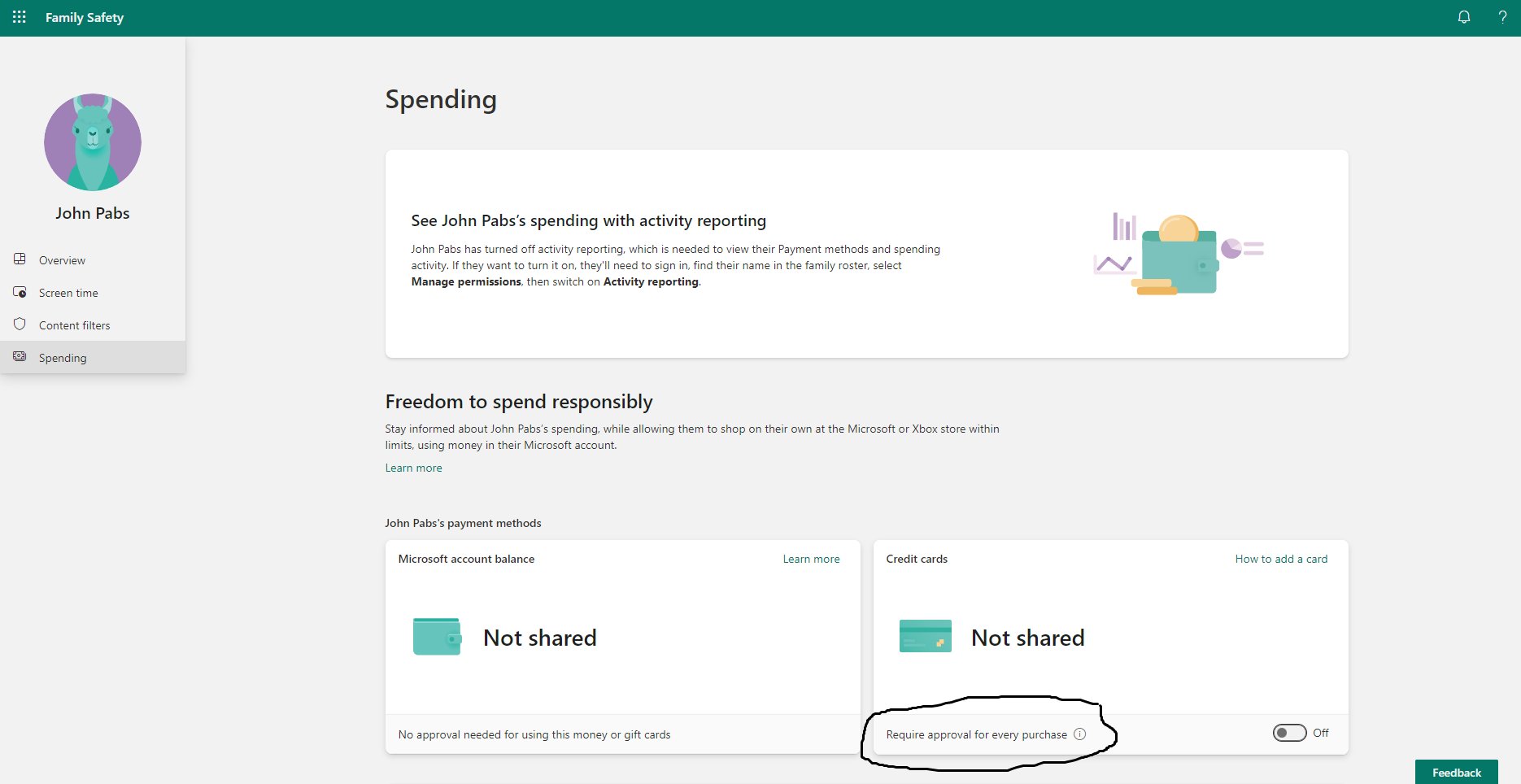
- Require approval: You can set up family settings to require approval for every purchase, so your child needs your permission to buy anything with real money.
- Set spending limits: Put a monthly limit on how much your child can spend.
- Review transactions: Check the transaction history regularly to make sure everything is okay.
Tips for a Smooth Game Pass Experience
Here are a few additional tips to ensure your child has a positive experience with Game Pass:
- Discuss Game Choices: Talk with your child about which games they want to play, and help them choose ones that are age-appropriate.
- Balance Gaming with other Activities: Make sure gaming is part of a balanced routine that includes schoolwork, physical activity, and social interactions.
- Educate About Online Safety: Discuss the importance of staying safe online and not sharing personal information with strangers.
Buying Xbox Game Pass for a child account is a manageable task if you are careful. By understanding how child accounts and family settings work, you can select the right subscription method and manage their gaming safely and responsibly. Remember, having these discussions is an important part of their gaming experience and can help keep them safe and happy while they play.
Require adult approval for purchases
Final Thoughts
To buy game pass for a child account, first, the parent or guardian must purchase the subscription on their own Microsoft account. Then, share it with the child’s account through the family settings. Ensure the child’s account is properly set up in the Microsoft family.
With the subscription active on the parent’s account, the child’s account can then access the benefits. This grants access to games via sharing. These steps detail how to buy game pass for child account.

