
To buy games for Meta Quest 2, you can use the Meta Quest app on your phone or the headset’s built-in store, purchasing them with a linked payment method.
Ready to dive into virtual worlds? Getting new games for your Meta Quest 2 is actually quite simple. Many folks are eager to know exactly how to buy games for meta quest 2, so here is the breakdown.
You have two main options for purchasing: using the Meta Quest app on your phone or directly through the headset store. Both methods provide easy ways to browse and add new exciting titles to your library.

How to Buy Games for Meta Quest 2
Getting new games for your Meta Quest 2 is like opening a door to brand new worlds! Whether you want to swing through cities as a superhero, solve puzzles in a mysterious land, or just dance to your favorite tunes, there’s a game out there for you. This guide will show you all the different ways you can get those awesome VR experiences onto your headset.
The Official Meta Quest Store
The most common place to find Meta Quest 2 games is the official Meta Quest Store. Think of it as the main app store for your VR headset. You can access it in a couple of ways: directly on your Quest 2 itself, or through the Meta app on your phone or tablet. Let’s explore both.
Shopping Directly on Your Meta Quest 2
Putting on your headset and exploring the store is very easy. Here’s how you do it:
- Put on your headset: Make sure your Quest 2 is charged and turned on.
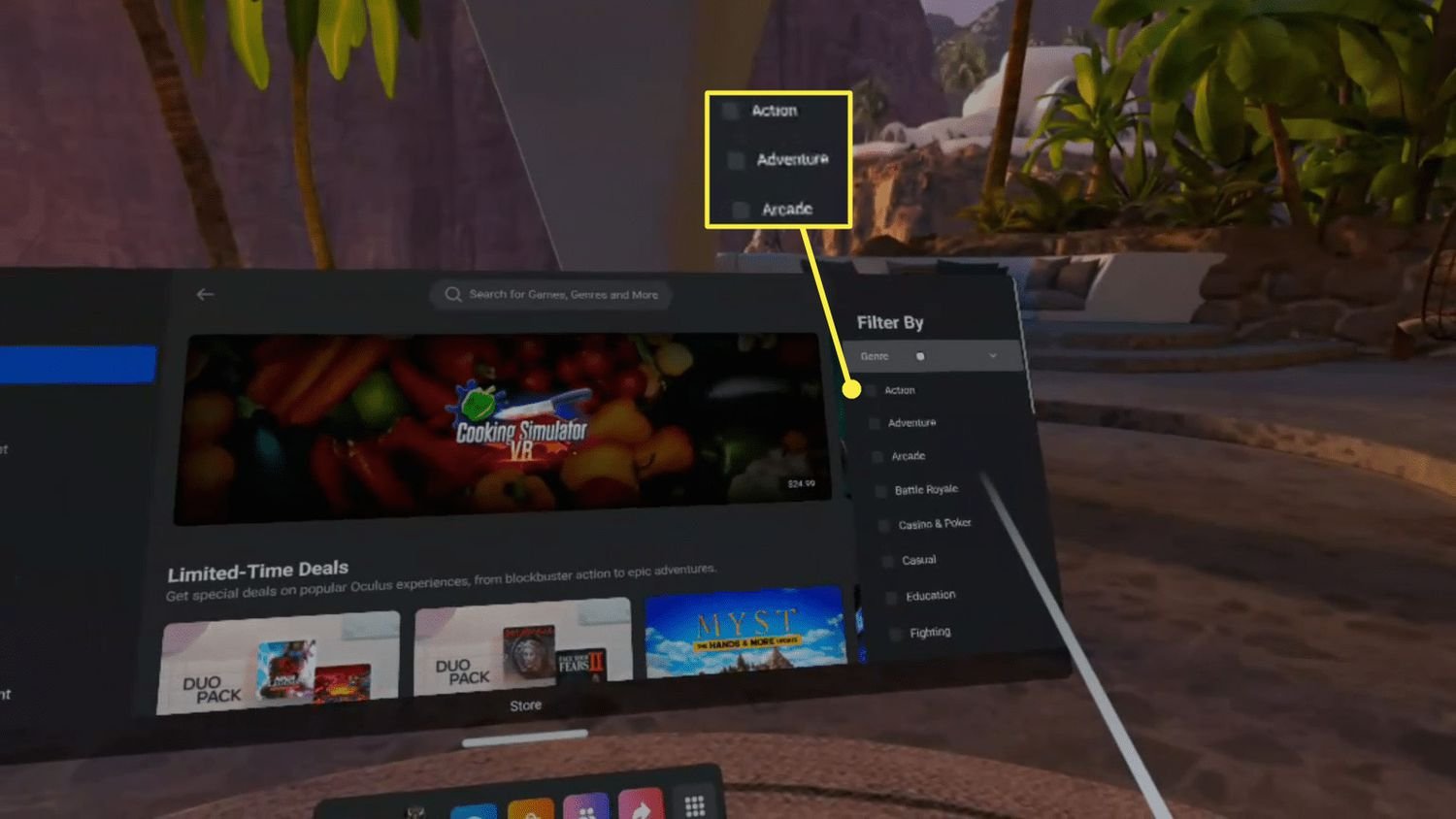
- Navigate to the Store: Using your controllers, look for the “Store” icon in the main menu. It usually looks like a shopping bag.
- Browse or Search: You’ll see a selection of featured games, new releases, and top charts. You can browse through categories or use the search bar to find specific titles.
- Check out game details: Once you find a game that interests you, click on it to see its price, read descriptions, view screenshots, and watch trailers. You can also look at user reviews to see what others think.
- Purchase your game: If you like the game, click the buy button. You may need to add a payment method if you haven’t already.
- Download and Play: After you buy the game, it’ll automatically start downloading and installing on your headset. Once it’s done, you’ll find it in your Library, ready to play.
Important tips for buying on your headset:
- Use your headset comfortably: Make sure the headset is adjusted properly so you can see the store clearly and navigate with ease.
- Wi-Fi is important: Make sure you are connected to a stable Wi-Fi network to ensure the game downloads smoothly.
Shopping Through the Meta App
Another way to get games is by using the Meta app on your phone or tablet. This can be handy when your headset isn’t nearby or you’re on the go.
- Get the Meta app: If you don’t have it yet, download the Meta app from the Apple App Store or Google Play Store.
- Connect your headset: Make sure your headset is connected to the app. If they aren’t connected, you’ll need to log in with the same Meta account you use on the headset.
- Find the Store: On the app, navigate to the “Store” tab or the “Games” section. It’s usually located at the bottom or in the menu.
- Search and Browse: Just like on the headset store, you can search for specific games or browse through categories.
- Review and Buy: Tap on the game you’re interested in, check out the details, and then buy it.
- Install the game: After buying the game, it will begin downloading to your Meta Quest 2 as long as your headset is on and connected to WiFi.
Tips for using the app:
- Manage downloads: You can check the download progress of your games in the app.
- Remote purchases: You can buy games from anywhere as long as you have a Wi-Fi connection, and they’ll be waiting for you on your headset when you’re ready.
Understanding Game Prices and Payment Methods
Meta Quest games can range in price from free to pretty expensive depending on the game. Some games are even on sale sometimes, so it’s good to keep an eye out for deals. Knowing how pricing works and the payment methods is essential.
Game Pricing
- Free games: There are a bunch of free games and demos available in the store. These are a great way to try out different genres without spending any money.
- Paid games: The majority of games have a price tag. Prices can vary based on the game, the features, and popularity.
- Sales and Discounts: Keep an eye out for sales events, bundles, or seasonal discounts where games might have a lower price.
- Bundles: Sometimes you will find that many games come as a bundle. This is a great option for starting a collection if you want to experience many different titles.
Payment Methods
Meta accepts different payment methods, making it easy to buy games. Here are the commonly accepted options:
- Credit and Debit Cards: Most major credit and debit cards like Visa, MasterCard, and American Express are accepted.
- PayPal: You can link your PayPal account to buy games as well.
- Meta Quest Store Credit: If you’ve received gift cards or store credit, you can use them to purchase games.
Setting up your payment: You need to add your payment details in your Meta account settings. You can do this on your headset or in the Meta app.
Exploring App Lab: Finding Hidden Gems
The official store isn’t the only place where you can find fun games! Meta has something called App Lab, and it’s a place where developers can post games that aren’t quite ready for the main store. It’s like a treasure hunt for unique VR experiences. These games are often experimental and sometimes they are really fantastic but need more polish.
What is App Lab?
- Experimental games: Games on App Lab are in development or in the testing phase. They’re usually less polished than the ones in the main store, but they can be very inventive.
- Variety: App Lab can have an amazing variety of games, from indie experiences to cool fan-made projects.
- Not easily found: App Lab games won’t show up in the main Meta Quest Store unless you know the exact name. You’ll typically find out about them through social media or on different forums.
Finding and Buying App Lab Games
- Direct links: App Lab games usually have a direct link that takes you to their page. When someone shares a link, you can click on it using your headset, or paste the link in your app browser.
- Search by name: If you know the exact name of an App Lab game, you can search for it in the store.
- Sideloading: Sideloading is when you install a game not available on the official store. This process requires some technical steps, and it opens you up to a wider range of game options. However, it’s important to be careful because sideloaded games may not always be safe.
Tips for using App Lab:
- Read reviews: Since these games aren’t as vetted as those in the main store, it’s a good idea to check for reviews to avoid any unwanted surprises.
- Be open to the unexpected: Some App Lab games might have bugs, but they often bring unique experiences that you cannot find elsewhere.
Sideloading Games onto Your Quest 2
Sideloading games is a different way to get VR experiences on your Quest 2. It lets you put games that aren’t found on the official store directly onto your headset. This method can require extra steps, but it opens the door to a variety of creative VR experiences.
Understanding Sideloading
- Unapproved content: Sideloading involves installing content that is not reviewed or approved by Meta.
- Developer mode: To sideload, you have to enable developer mode on your Meta Quest 2.
- Computer needed: Sideloading typically requires a computer and extra software.
- Risk involved: You should be careful as sideloading can expose your headset to security risks and potentially cause software problems if not done correctly.
How to Sideload Games
- Enable Developer Mode: First, you’ll need to enable developer mode on your Meta Quest 2 through the Meta developer website.
- Install required software: Then, you will install the necessary software onto your computer to help sideload games. This might include the Meta developer tools, also called ‘ADB drivers’.
- Connect your headset: Connect your Quest 2 to your computer using a USB cable.
- Install the game: You then move the game file to your headset through the necessary program or tools.
- Find in your library: Sideloaded games will appear in the ‘Unknown Sources’ section of your library.
Tips for sideloading safely:
- Reliable source: Download from safe and trustworthy sources.
- Read reviews: Always read comments before you install anything from outside the official store.
- Research: Make sure you understand the steps. There are plenty of guides available online.
Game Demos and Free Experiences
Before buying a full game, you might want to try a demo. Demos are free versions of a game that let you experience a small part of the action. They are really helpful if you’re not sure if a particular game is a good fit.
Finding Game Demos
- In the store: Many game pages on the Meta Quest Store will have an option for you to try a free demo.
- Free to play games: Several games are free to download and play but might contain in-app purchases to access more content.
- App lab: Some App Lab games are also free to try, or might offer a trial version before buying.
How to use Demos:
- Download: Search the store for free demos or trials.
- Try it out: Give the demo a try and see if you like the game, or want to buy it.
Gift Cards and Gifting Games
Sometimes, you might want to give someone a game or get a gift card to use on your account. Meta allows you to do this, which can be a great way to share experiences.
Buying Meta Quest Gift Cards
- Where to buy: You can buy Meta Quest gift cards from various retailers online and in physical stores. These cards usually come in different denominations.
- Redeeming a gift card: To use a gift card, you go to your account settings on the headset or in the app, and input the code.
Gifting Games to Others
- Through the app: You can gift a game to a friend or family member through the Meta app. Just find the game, and click the “gift” option. You’ll need their Meta account info.
- Gift option: Make sure to select the game carefully and that you are gifting it to the correct person, you can not undo a gift.
Managing Your Purchased Games
It’s great when you have a collection of amazing games, but it’s good to know how to manage them. From checking your library to getting refunds, here’s what you need to know:
Your Game Library
- Finding your games: All games you purchase will appear in your library. You can access your library on the headset or in the app.
- Filtering options: You can filter your library to find specific games, or to see only apps you’ve installed.
- Downloading: From your library you can easily install, or reinstall any apps.
Refunds and Returns
- Refund Policy: Meta has a refund policy, but it’s best to look it up to see what their specific rules are.
- Contact support: You should contact Meta support to start a refund request, be sure to check if your purchase meets the requirements.
- Reason for refund: Usually, refunds are allowed if you have not played the game for too long. If the game was not as described, you might also be able to get a refund.
Keeping Your Games Updated
- Automatic updates: Most of the time, games will update automatically.
- Manual updates: If the updates are not set up to be automatic, you’ll need to update them manually through the headset.
- Checking for updates: Always be sure to check for new updates, you might be missing out on new content or bug fixes.
Buying games for your Meta Quest 2 can be a lot of fun. There are multiple ways to explore new titles, and with time you will quickly discover all the great experiences virtual reality can offer.
How to Buy Games on Meta Quest 2
Final Thoughts
To buy games for Meta Quest 2, you can use the Meta Quest mobile app or the headset itself. The app allows you to browse the store and make purchases. You will need a linked payment method.
Inside the headset, navigate to the store using the controller. Find the games you want, and follow the purchase prompts. It’s simple and direct to purchase and start enjoying VR.
This guide shows how to buy games for meta quest 2. Both methods ensure a quick and easy experience for acquiring new VR titles. Pick your preferred way to access the Meta store.

