
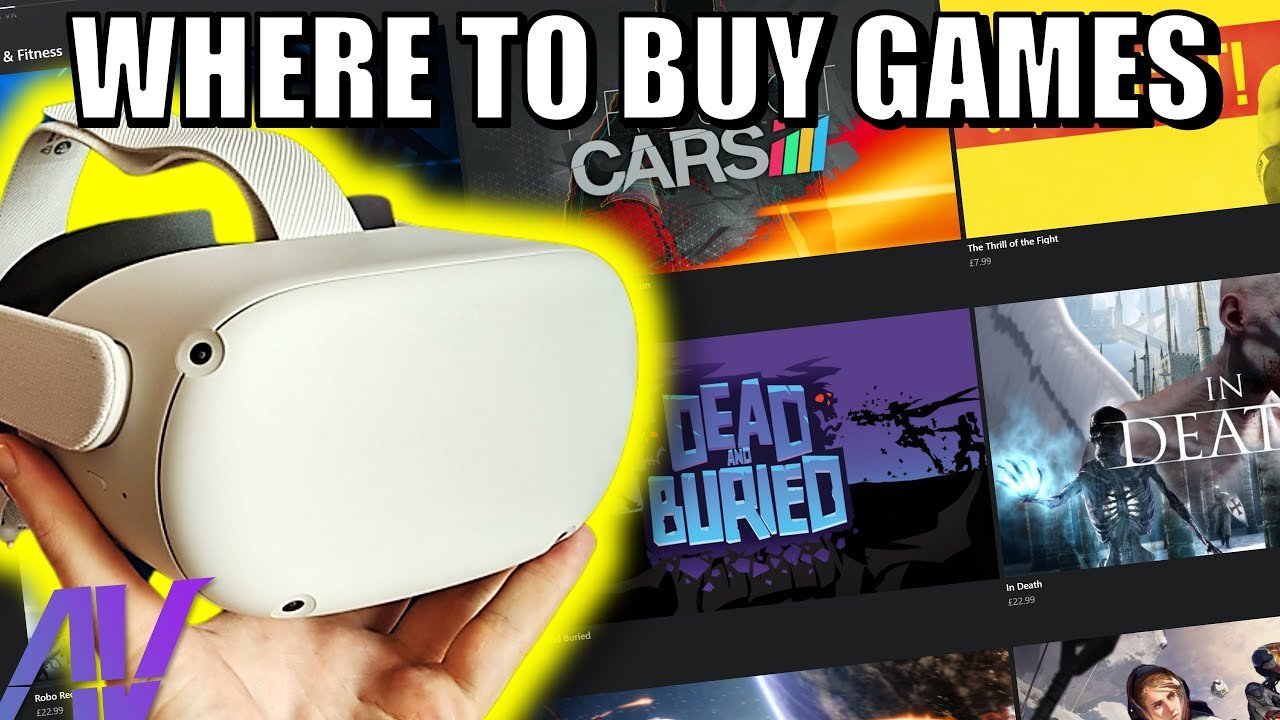
To buy games for your VR headset, use the specific store app associated with your device, like the Meta Quest Store, SteamVR, or PlayStation Store.
Ready to dive into virtual worlds? Figuring out how to buy games for vr headset might seem daunting at first, but it’s actually quite simple once you know the process. Each VR platform has its own dedicated store where you can find and purchase games.
Typically, you will navigate the store interface using your headset’s controllers. Browsing various titles, you can select your desired game, view details, and proceed with the purchase.
This process gives you access to amazing VR experiences.

How to Buy Games for Your VR Headset
Okay, you’ve got your shiny new VR headset, and you’re ready to jump into some amazing virtual worlds. But how exactly do you get those games? It’s not like popping a disc into a console anymore. Buying VR games is mostly digital, and it can seem a little confusing at first. Don’t worry; we’re here to guide you through it! Think of it like shopping online, but instead of clothes or toys, you’re buying fantastic experiences. This guide will help you understand where to find games, how to pay for them, and how to make sure they work with your specific VR headset. We’ll also talk about different stores and some tips for saving money. Let’s get started!
Understanding Your VR Headset’s Ecosystem
Before you can buy any games, it’s important to know what kind of VR headset you have. Each headset has its own way of delivering games, like a special store just for that headset. Think of it like different kinds of video game consoles, like a PlayStation or Xbox. Each one has its own shop. This is important because not all games work on all headsets.
The Meta Quest Family (Quest 2, Quest 3, and Quest Pro)
If you have a Meta Quest (it might be called an Oculus Quest, or Meta Quest 2, Quest 3, or Quest Pro), you’ll mostly use the Meta Quest Store. This store is built right into your headset, and you can access it using the main menu. Sometimes, you can also buy games from their website using a computer, phone or tablet. These games are made to work perfectly with Meta Quest headsets, giving you the best experience. Meta Quest headsets are known for being standalone; meaning they don’t require a computer to play games, but they can also connect to computers to play other games.
SteamVR (for PC-Powered Headsets)
If your headset is connected to your computer, like the HTC Vive, Valve Index, or many Windows Mixed Reality headsets, you’ll probably be using SteamVR. Steam is a popular platform for computer games, and they also have a huge collection of VR games. You can buy and manage these games through the Steam application on your computer. If your headset works with SteamVR, you might also find other platforms that provide compatible games but Steam is the most common.
PlayStation VR and PlayStation VR2
If you have a PlayStation VR or PlayStation VR2, you will buy games through the PlayStation Store, just like you would buy any other PlayStation game. You can access it using your PS4 or PS5 console. This is where you find all the games that are specially designed for the PlayStation VR system.
Other VR Platforms
There are a few other less common VR platforms, but generally, they also have their specific stores. The important thing is to figure out which store goes with your headset. If you’re unsure, check the instruction manual that came with your headset, or visit the website of the headset maker.
How to Find Games on Your VR Platform
Now that you know which store you need, let’s look at how to actually find games. Each store is organized a little differently, but they all usually have similar features.
Using the Built-in Store (Meta Quest, PlayStation VR)
The easiest way to find games on a Meta Quest or PlayStation VR is to use the store inside the headset itself.
Turning on your Headset: Put on your headset and make sure it’s fully turned on.
Finding the Store: Look for the store icon in the main menu. It might look like a shopping bag or a store front.
Navigating the Store: Once you’re in the store, you’ll see sections for new games, popular games, and games that are on sale. You can often browse through categories like action, adventure, puzzle games or sports.
Using the Search Bar: If you already know what game you want, use the search bar to quickly find it.
Reading Descriptions and Reviews: Before buying a game, click on it to read its description. Look at the screenshots and watch trailers. Read what other people thought about the game to help you decide if it is the right one for you.
Using a Computer or Phone (Meta Quest, SteamVR)
You can also search for games using a computer or a phone for the Meta Quest Store, and that is required for SteamVR. Here’s how:
Meta Quest Website: Go to the Meta website on your computer or phone. Find the “Games” or “Store” section. You can browse, just as you would on your headset. When you decide to buy a game, you can buy it from your phone, and it will be ready to play on your headset.
Steam Website or Application: You’ll need to install the Steam application on your computer if you don’t already have it. Once you are in the application or website, go to the Store, and find the “VR” section. You can browse and buy games as usual, and when you start the game on your computer, it will work with your VR headset.
Keywords to Use When Searching for VR Games
When searching for games, think about the kind of experiences you like. Here are some keywords that you might want to use:
Action Games: Look for keywords like “shooting,” “fighting,” “sword,” “adventure” or “combat.”
Puzzle Games: Try searching for “puzzles,” “logic,” “brain teasers” or “escape room” type of games.
Sports Games: You can find games using keywords like “basketball,” “tennis,” “golf,” “racing” or “fitness” games.
Story-Driven Games: Use keywords like “story,” “adventure,” “fantasy,” “sci-fi” or “role-playing” games.
Relaxing Games: Search for “meditation,” “nature,” “exploration,” “calming” or “simulation” games.
Multiplayer Games: Use keywords like “multiplayer,” “co-op,” “online” or “social.”
Buying and Paying for VR Games
Now that you’ve found some games you like, it’s time to buy them. The process is very similar to buying anything online.
Adding Games to Your Cart
Click the “Add to Cart” or “Buy” Button: Once you have selected a game, look for a button that says “Add to Cart” or something similar. If you see a price tag, that also is usually the button to buy the game.
Review Your Cart: Before you complete your purchase, make sure you have the right games. Double-check the titles and prices.
Payment Methods
Each store offers different ways to pay. Here are some common ones:
Credit and Debit Cards: Most stores accept Visa, MasterCard, American Express, and other major credit and debit cards.
PayPal: Many stores accept PayPal, a popular online payment service.
Store Credit or Gift Cards: Some stores let you buy gift cards or have store credit that can be used for purchases.
Mobile Payment Systems: Some stores accept Google Pay or Apple Pay.
Completing Your Purchase
Enter Your Payment Details: You’ll need to enter your credit card details, or PayPal information. Be sure to enter them carefully and accurately.
Confirm Your Purchase: Once you’ve entered your payment info, you will have to review and confirm your purchase, and then the game will be available for download.
Download the Game: After buying a game, it usually starts to download automatically. If not, you will need to go to your game library and manually start downloading the game.
Making Sure Games Work with Your Headset
It’s important to make sure that the games you buy are going to work with your specific headset. This isn’t usually a problem if you are buying games from the main store for your headset, but if you are using a computer to buy and play games, this becomes important.
Checking Game Compatibility
Look for the Platform Icon: On the game page, look for icons that show what headset the game is compatible with. For example, the Meta Quest store will show the Quest icon. Steam will show which platforms that they work with.
Read the System Requirements: If you’re using a PC-powered headset, look for the system requirements for the game. This will tell you how powerful your computer needs to be to play the game. Look for requirements that match your computer.
Read Reviews from Other Users: Check reviews from people who have a similar headset to yours and make sure the game worked well for them.
Make Sure the Game Has a VR Mode: If you’re buying a game from a regular computer store like Steam, make sure the game has “VR support” so that you can play it in virtual reality. Some games might look the same, but only some of them have virtual reality.
What to Do if a Game Doesn’t Work
Sometimes a game might not work, even if it’s supposed to. Here are a few things you can try:
Restart Your Headset: Try turning your headset off and then on again. Sometimes that can fix the problem.
Restart Your Computer: If you’re using a PC-powered headset, try restarting your computer as well.
Update Your Software: Make sure that your headset software, SteamVR software and your computer software are up to date.
Contact Support: If nothing else works, you can try to contact customer support for the platform where you purchased the game.
Tips for Saving Money on VR Games
VR games can sometimes be expensive, but here are some tips to save money:
Look for Sales: VR stores often have sales and discounts, especially around holidays. Check the store every few days to look for deals.
Check Bundles: Sometimes you can buy multiple games together in a “bundle” for less money than buying them separately.
Check Humble Bundle: Humble Bundle sometimes offer VR bundles, and you might find some good deals.
Free Games: Sometimes stores have free demos or free games, so be sure to check those out.
Wait for Price Drops: If you don’t need to play a game right when it comes out, wait a little bit and the price may go down.
Use Coupons and Promo Codes: Before you purchase a game, search online for coupons or promo codes. Sometimes you can find them that way.
Managing Your Game Library
Once you have bought several games, you will need to keep track of them all. This is called managing your game library.
Downloading and Installing Games
Downloading: Usually, after buying a game it will begin downloading automatically.
Finding Downloads: If the download doesn’t start automatically, you can look for a “Downloads” section in the store or library.
Starting a Download: If you find the game you want, and it hasn’t started downloading, click on the “Download” button to start.
Installation: Usually, the game installs automatically after download.
Organizing Your Library
Using Folders or Categories: Some platforms let you create folders or categories to organize your games. You can have one folder for action games, one for sports games, and so on.
Using the Search Bar: The search bar can be very helpful in finding specific games when your library gets too big.
Favorite Games List: Most stores have a feature where you can make a “Favorite” list of games, and can always be found easily.
Keeping Your Games Updated
Automatic Updates: Most platforms update your games automatically.
Checking for Updates Manually: If you are having a problem, you can also check for updates manually. Usually, the option is available in the store or library.
Buying games for your VR headset can be a very fun process once you understand where to look and how to buy. Knowing your headset, browsing the store, completing your purchase, and making sure the games work can make all the difference. Remember to take advantage of sales to save money and to keep your game library organized. With these tools, you will be well prepared to dive into new and amazing virtual worlds. Enjoy your games!
How to Buy Games on Meta Quest 2
Final Thoughts
To buy games for your VR headset, use the headset’s dedicated store. Browse various titles and make your selection. Usually, you will need to use a linked account to purchase.
Consider your platform such as Steam, Meta Quest, or PlayStation VR when thinking about how to buy games for vr headset. Confirm compatibility. Payment methods generally include credit cards and digital wallets. You can also sometimes buy game codes from online retailers.

