
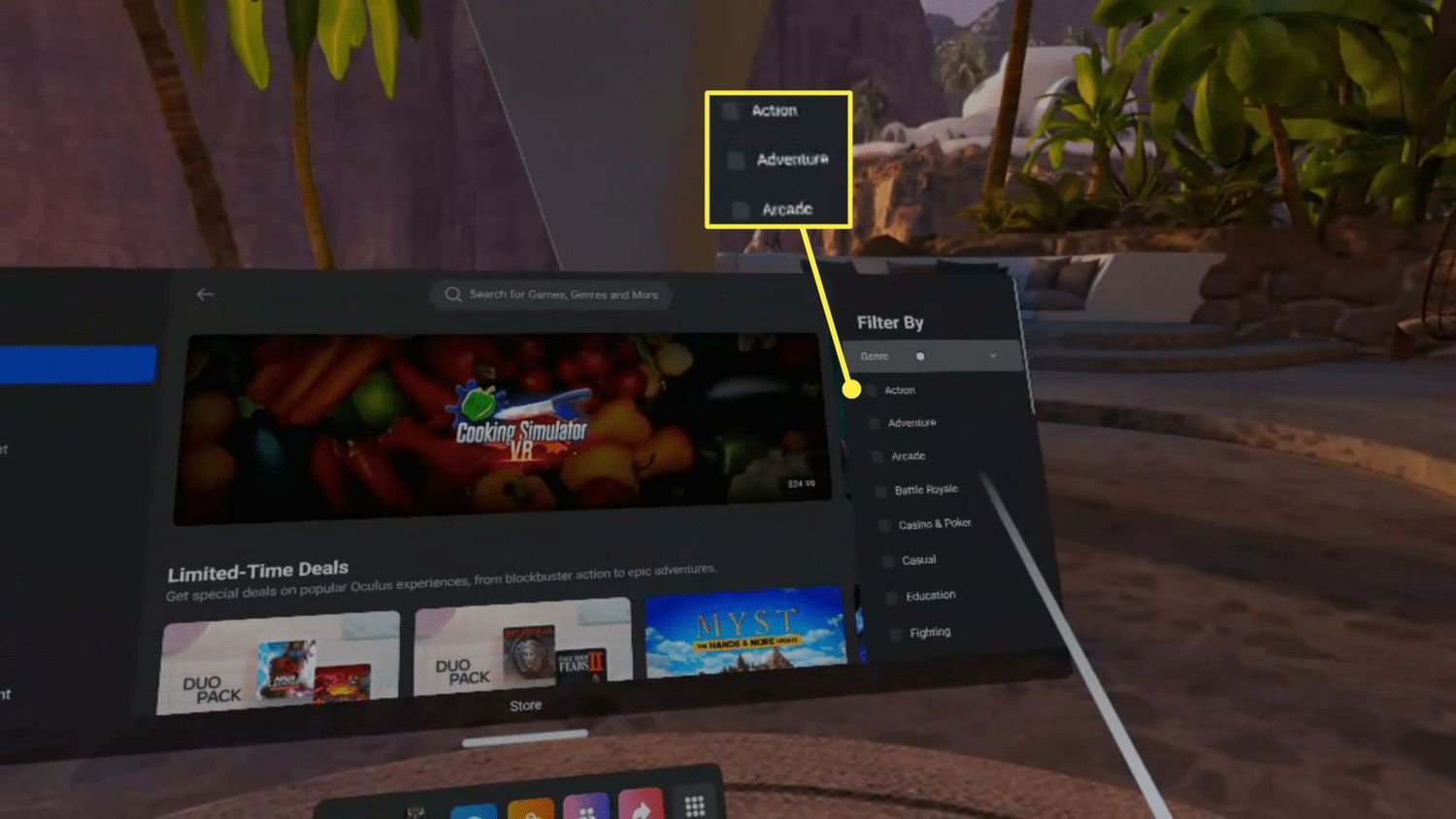
To buy games on Meta Quest 2, you can use the Meta Quest mobile app or the headset’s built-in store. Simply browse, select a game, and complete the purchase with your linked payment method.
Ready to jump into immersive worlds? Getting new experiences for your Meta Quest 2 is quite easy. You might wonder how to buy games on Meta Quest 2. It’s a straightforward process that I’m going to walk you through.
You can purchase new games directly from the headset, or through your phone using the Meta Quest app. The app is a convenient option for browsing titles on the go. Then, you can install the games on your headset later.

How to Buy Games on Meta Quest 2
Ready to dive into amazing virtual worlds on your Meta Quest 2? Buying games is how you get to experience all the fun. It’s actually pretty easy once you know the steps. This section will guide you through everything you need to know, from browsing the store to finally playing your new game.
Understanding the Meta Quest Store
The Meta Quest Store is your gateway to all the games and experiences available for your headset. It’s like an app store, but just for VR. Think of it like a giant arcade in your home, and the games are all the fun things you can play. The store offers lots of different kinds of games, from action-packed adventures to relaxing puzzle games. You can find something for everyone.
Accessing the Store
You can reach the Meta Quest Store in a couple of ways:
- On your Headset: This is the most common way. When you put on your Quest 2, you’ll see a menu. One of the options is the “Store.” Just click on it, and you’re in!
- On the Meta Mobile App: You can also browse the store using the Meta app on your phone or tablet. This is great for checking out new releases or buying games when you’re not near your headset.
- On a Web Browser: The Meta Quest store is also accessible through a web browser on your computer. This method can be useful for seeing the details of the game on a larger screen.
Navigating the Store
Once you’re in the store, you will see many games. The store is organized to help you find what you’re looking for:
- Featured: This section shows games that are popular, new, or on sale. It’s a great place to start if you’re not sure what you want.
- Categories: Games are grouped by type, such as “Action,” “Adventure,” “Puzzle,” or “Multiplayer.” This makes it easy to find games you know you like.
- Search Bar: If you already know the name of a game, you can type it into the search bar to find it directly.
- Ratings and Reviews: Before buying a game, you can see what other people think by checking their ratings and reviews. This helps you choose good games.
Different Ways to Pay
To buy games on the Meta Quest 2, you need to set up a payment method. Here are the common ways to do that:
- Credit or Debit Card: This is a common payment option. You can use Visa, Mastercard, or other major credit and debit cards.
- PayPal: If you have a PayPal account, you can use it to buy games as well.
- Meta Store Credits: Sometimes you might get store credit as a gift or through a promotion. You can use this credit to buy games.
Adding a Payment Method
Here is how to add a payment method:
- Go to the Meta Store using your headset, the mobile app, or a web browser.
- Click on your profile.
- Find the “Payment Methods” or “Payment Settings” option.
- Choose to add a new payment method, and follow the prompts.
Make sure that your payment information is correct and up to date so you can buy games without any issues.
Finding the Perfect Game
With so many games available, how do you pick the right ones? Here are some tips to help you choose:
Read Reviews and Ratings
Before buying a game, read what other people have said about it. Look at the star ratings and read some reviews to see if people liked the game and why. Pay attention to any common complaints or praises.
Watch Gameplay Videos
Many games have gameplay videos on their store pages. Watching these videos lets you see what the game is like before you buy it. It helps you see if the gameplay and graphics are appealing to you.
Consider the Genre
Do you like action games, puzzle games, sports, or something else? Thinking about what types of games you usually enjoy helps you choose games that you’ll like in VR as well. If you enjoy fast-paced shooting games, try one that is action packed. If you like to solve puzzles, then check out the puzzle games.
Check the Price
Games range in price, so look at the price before you add anything to your cart. You can look for sales or special deals. Sometimes you can find good games at a lower price, which is a good way to try out new things without spending too much.
Look at the Game’s Description
Read the game’s description thoroughly. It will give you key details about the storyline, features and game play style. This can help you decide if it’s the game for you.
Check Compatibility
Ensure that the game is compatible with your Meta Quest 2 headset. Sometimes certain games might require newer hardware or updates. Checking the requirements will make sure that the game will work correctly on your device.
The Buying Process
Once you have found a game you want to buy, here are the steps to purchase it:
- Go to the game’s page in the Meta Quest Store.
- Click the price button. This will add the game to your cart.
- Go to your cart. It is usually in the top right hand corner of the store.
- Review your order. Make sure you’re buying the right game at the right price.
- Click “Checkout” or “Buy Now.”
- If you haven’t already entered a payment method you will need to do so here, if you have then it will show what method you have saved.
- Confirm your purchase. After your purchase is complete, the game will begin downloading to your Meta Quest 2.
Downloading and Installing Games
After you buy a game, you will need to download and install it to your headset. Here’s how that happens:
Automatic Downloads
Usually, games will start downloading automatically after you purchase them. You’ll see a notification on your headset showing the download progress. Make sure your headset is connected to the internet, and that it has power to download without interruption.
Checking Download Status
If your game does not download automatically, or if you want to check how the download is going, follow these steps:
- Go to your library on your Meta Quest 2.
- Find the game you just bought. If it’s still downloading, it will say “Downloading” or “Installing”.
- If you are having issues with a download, you can usually pause and restart the download.
Storage Space
Before you buy a game, you might want to look at the storage size that it uses, especially if you have limited space on your headset. You can check the storage size in the game’s description on the store. You will want to make sure that you have enough space on your headset.
Launching and Playing Your New Game
Once your game is downloaded and installed, it’s time to play!
Accessing Your Game
To find your game, follow these simple steps:
- Go to your library on your Meta Quest 2.
- Find your new game.
- Click on the game to launch it.
Game Controls
Each game will have its own unique controls, so it’s a good idea to take a look at the instructions before you start. The controls usually involve using the hand controllers or your voice. There is often a tutorial within the game that can help you learn the basics.
First Time Playing
When you start a game for the first time, make sure you have enough space around you to move safely. This way you don’t accidentally hit anything while you are playing. Some games might have options for a sitting position, or a standing position. Choose which one is best for you.
Troubleshooting Common Issues
Sometimes you might have problems buying or installing games. Here are some solutions for common problems:
Payment Issues
If your payment is not going through, try these steps:
- Make sure your credit card details are entered correctly.
- Make sure that your credit card has not expired.
- Try using a different payment method, like PayPal, if available.
- Contact your bank or credit card provider to make sure that there are no issues.
Download Issues
If the game download is stuck or slow, try the following:
- Check that your internet connection is stable and working properly.
- Pause and restart the download.
- Restart your Meta Quest 2.
- Free up some space on your headset if you are running out of space.
Game Launch Problems
If you have problems launching a game, try these tips:
- Make sure the game has fully downloaded and installed.
- Restart your Meta Quest 2.
- Check that your headset software is up to date.
- Contact Meta support if the problem persists.
Keeping Your Games Up to Date
Developers often release updates for games. These updates might fix issues, add new content or improve the gameplay. It’s important to keep your games up to date to enjoy them to the fullest.
Automatic Updates
Most of the time, your games will update automatically when your headset is connected to the internet and turned on. This ensures that you have the latest versions of your games.
Checking for Updates
Sometimes you might need to check for updates manually. To do so:
- Go to your library on your Meta Quest 2.
- Find the game you want to update.
- If there’s an update available, you’ll see an option to update the game.
Make sure you have enough space on your headset to install new updates.
Exploring Free Games and Demos
Before you buy, you might want to explore free games and demos. These are great ways to try different types of games without spending any money. Meta Quest Store regularly offers demos, giving you a taste of full games. You can find many good quality free games on the store too, these can be a good place to start if you are new to VR gaming.
Finding Free Content
To find free games or demos:
- Look for the “Free” section in the Meta Quest Store.
- Check the game descriptions, some games will have a demo version.
- Pay attention to any promotions, Meta often has free or discounted games for a limited time.
Trying out free games and demos can help you find new favorites and it can help you understand what kind of games you like.
Managing Your Game Library
As you buy more games, it’s important to know how to manage your game library. This includes uninstalling games, organizing your library, and more.
Uninstalling Games
If you need to free up space on your headset, you can uninstall games you are not playing. Here’s how:
- Go to your library on your Meta Quest 2.
- Find the game you want to uninstall.
- Click on the three dots.
- Choose “Uninstall” or “Remove”.
- Confirm the uninstall.
Remember that you can always download a game again if you decide to play it later, as long as you have purchased the game.
Organizing Your Library
As you collect more games you might want to organize them into different folders or categories. Meta allows you to organize them in different ways like by recently played or alphabetically, this will help you to find the games you are looking for more easily.
Buying games on the Meta Quest 2 is a smooth process, that opens up a world of VR fun. Take time to learn all the things on the store and you will soon be an expert. By following these steps, you can start enjoying your VR experience.
How to Buy Games on Meta Quest 2
Final Thoughts
Buying games on Meta Quest 2 is straightforward. You can use the Meta Quest app on your phone or the headset itself. Browse the store, select a title, and complete the purchase. Remember to use a valid payment method linked to your account.
The headset interface also offers a direct purchase option. Navigate to the store within your Meta Quest 2 and you will see all the available titles. The simple process allows you to easily buy games on Meta Quest 2.

