
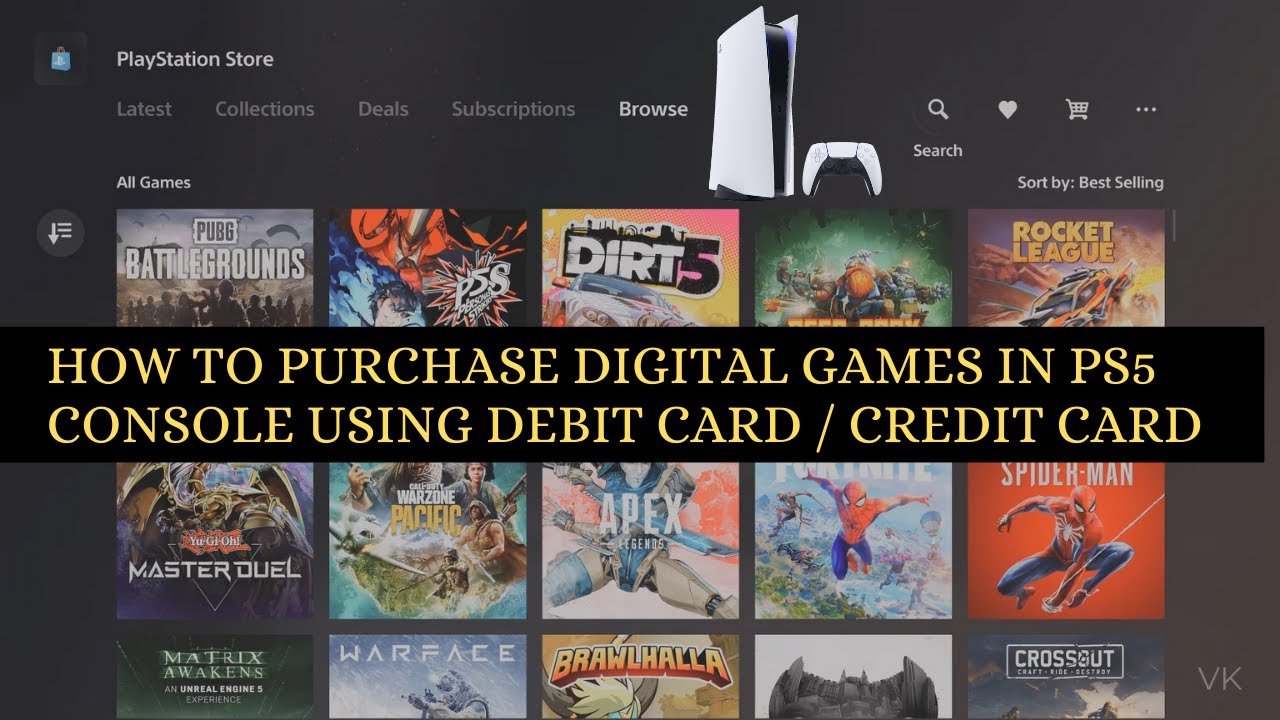
To buy games on PS5 digital, use the PlayStation Store on your console. Browse, select the game you want, and complete the purchase using your payment method.
Ready to expand your digital library on the PlayStation 5? You are on the right page if you want to know how to buy games on ps5 digital. This process is actually very simple and can be done right from your console. We will guide you through each step.
You don’t need to leave the comfort of your couch to acquire new digital adventures. The PlayStation Store provides a user-friendly interface for browsing and making purchases. Let’s get started on how to buy games on ps5 digital.

How to Buy Games on PS5 Digital
So, you’ve got your shiny new PlayStation 5, and you’re ready to dive into some amazing games! But instead of heading to the store, you’re thinking about going digital. Smart choice! Buying games digitally on your PS5 is easy, convenient, and lets you start playing right away. This guide will walk you through everything you need to know about purchasing games from the PlayStation Store, right from your console. Get ready to level up your digital gaming knowledge!
Navigating the PlayStation Store
The PlayStation Store is your go-to place for buying digital games. Think of it like a giant online game shop just for your PS5. It’s where you’ll find all the latest titles, indie gems, add-ons, and even some free games! Let’s explore how to get around.
Accessing the Store
First things first, you need to get to the PlayStation Store. It’s super simple:
- Turn on your PS5 and make sure you’re signed in to your PlayStation Network account.
- From the home screen, use your controller to scroll through the main menu.
- You’ll see an icon that looks like a shopping bag; this is the PlayStation Store icon. Select it.
- You will be taken to the PlayStation Store.
Exploring the Store
Once you’re inside, you will see different sections, such as :
- Featured: This is where you’ll find the newest games, top picks, and special promotions.
- New Games: Check here for the latest releases.
- Deals & Promotions: Looking for a bargain? This section is for you! You can often find big discounts.
- Games: Browse through all the games available, with different categories you can choose from like Genres, Release dates etc.
- Add-ons: Find extra content for your games, like new levels, characters, and outfits.
- Search: Use the search bar at the top if you know exactly what you’re looking for.
Use the left joystick or the directional buttons on your controller to navigate up, down, left, and right. Press the ‘X’ button to select something.
Finding the Right Game
With so many games to choose from, it can be a bit overwhelming. Here are some tips to help you find something you’ll love:
Using Search
If you have a specific title in mind, the search bar is your best friend. Type in the name of the game or a keyword, and the store will show you matching results. It’s fast and accurate!
Browsing by Category
If you’re not sure what you want, browsing by category is a great idea. You can filter by:
- Genre: Like action, adventure, sports, racing, RPG, strategy, and many more.
- Price: Filter by the price to find games in your budget range.
- Release Date: Looking for new releases or older favorites?
- Rating: See what others think about different games.
Checking Game Details
Before you buy, it’s smart to look at the game details page. On each game’s page, you’ll find:
- Price: How much does the game cost?
- Description: What’s the game about? What does it include?
- Screenshots/Videos: See what the game looks like before you commit.
- User Reviews: See how other players have rated it.
- Age Rating: Important for making sure the game is suitable.
Reading User Reviews
User reviews can be very helpful. They will give you information about what the game is like, and whether it is fun to play. Always try to check user review before you purchase the game. Do not just check rating. Read through the reviews. You will get better understanding what to expect from the game.
Adding Funds to Your PlayStation Wallet
Before you can buy a game, you will need to have funds in your PlayStation wallet. You have several ways to add money.
Using a Credit or Debit Card
This is a common and easy method. You can add your card directly to your account.
- Go to your account settings. Usually, you can find this in the top right of the PlayStation main menu.
- Look for “Payment Management” or a similar option.
- Choose “Add Credit Card”.
- Enter all of your credit card information like the card number, expiry date, security code etc.
- Save the information and make sure everything is correct.
Redeeming a PlayStation Store Gift Card
Gift cards are great gifts or a good way to budget your gaming expenses.
- Go to the PlayStation Store and find the ‘…’ menu.
- Select “Redeem Codes”.
- Scratch off the back of the gift card to see the code.
- Enter the code carefully and press redeem. The funds will be added to your wallet instantly.
Using PayPal
If you have a PayPal account, you can connect it to your PlayStation account for easy payments.
- Go to “Payment Management” in your account settings.
- Select “Add PayPal”.
- Follow the instructions to link your PayPal account.
Choosing the Correct Payment Option
Once you’ve added your preferred payment method, select the right method to use for purchasing. Make sure everything is correct before you proceed to checkout.
The Purchase Process
Okay, now you have found your game and added funds to your wallet. It’s time to make the purchase!
Adding Games to Your Cart
When you find a game you want to purchase, click “Add to Cart”. You can purchase multiple games at once. If you want to buy only one game, just go to checkout instead of adding to cart.
Proceeding to Checkout
Once you are ready to buy, follow these simple steps:
- Go to your cart (the shopping bag icon) and check everything is correct. Make sure you are buying the right game and there are no mistakes.
- Select “Proceed to Checkout”.
- Double-check the payment method and amount.
- Click “Confirm Purchase” to finalize your order.
Downloading Your Game
After the purchase is successful, the download will start automatically. You can check the download status by selecting “Downloads” or in your “Game Library”.
Playing Your New Game
Once the download is done, you can find the game on your PlayStation home screen, in your game library. Simply click the game and start playing.
Managing Your Digital Games
Now that you’re building your digital game library, it is good to learn how to keep things organized and what are other options with your digital games.
Game Library
All the games that you purchase are stored in your game library. It’s like your own personal game shelf.
- You can access your Game Library from the main menu on your PS5.
- You can see a list of all the games that you own.
- Click on a game to start playing it.
Redownloading Games
If you uninstall a game for some reason, don’t worry. You can always download it again.
- Go to your Game Library.
- Find the game you want to download.
- Click the download button.
Automatic Downloads
Your PS5 can often download games even while it’s in rest mode. This means your new game will be ready to play when you are! Check your download and updates settings to ensure automatic downloads are enabled.
Managing Storage
Digital games can take up a lot of space. Here’s how to keep an eye on storage:
- Go to “Settings” on your PS5.
- Find “Storage”.
- You can see how much space your games and apps are using and uninstall some apps or games that you no longer need.
- You can also use external storage solutions for more space, such as an external hard drive.
PlayStation Plus
Consider getting a PlayStation Plus subscription. This gives you access to:
- Free monthly games that you can download and play.
- Online multiplayer access so you can play games with your friends.
- Exclusive discounts on many games.
- Cloud storage for your game saves, so that you don’t lose progress if anything goes wrong with your console.
Tips for Smart Digital Game Buying
Let’s talk about a few tips to make your digital purchases even better:
Checking for Sales
PlayStation Store often has sales with big discounts on lots of games. Always check the “Deals” section before buying a game. Sometimes you can find big discounts for games. Save money by waiting for the sales!
Wishlists
If you are not sure you want to buy a game or can’t afford to buy it right now, add it to your wishlist. That way you can keep track of games you want and wait for a sale to buy them.
Game Pre-Orders
If you are excited about a game that hasn’t been released yet, you can pre-order it. Pre-ordering will give you some benefits, such as early access to the game or a game bonus content. You can also download the game in advance, so you can play it when it is officially released.
Understanding Game Editions
Many games come in different editions like the standard, deluxe or collectors edition. Each version offers different content, like bonus add-ons, in-game items, and digital art books. Read the details carefully to know what each version offers and then choose the version you want to buy.
Be Patient
New game prices can be higher, but they often go down after a few months. Sometimes it is better to wait a bit before buying a new game to see if the price goes down.
How to buy Digital Games in PS5 for Beginners
Final Thoughts
You can buy PS5 digital games directly through the PlayStation Store on your console. Browse, select your game, and proceed to checkout with your payment method. The game will then download and install.
Another method involves using the PlayStation app on your mobile phone. You can make a purchase there, and the download will start on your PS5 if it’s connected to the internet. This provides a convenient way to find and add to your library remotely.
In conclusion, knowing how to buy games on PS5 digital involves using the PlayStation Store on the console or the mobile app, these options offer ease to purchase and download directly to your console.

