
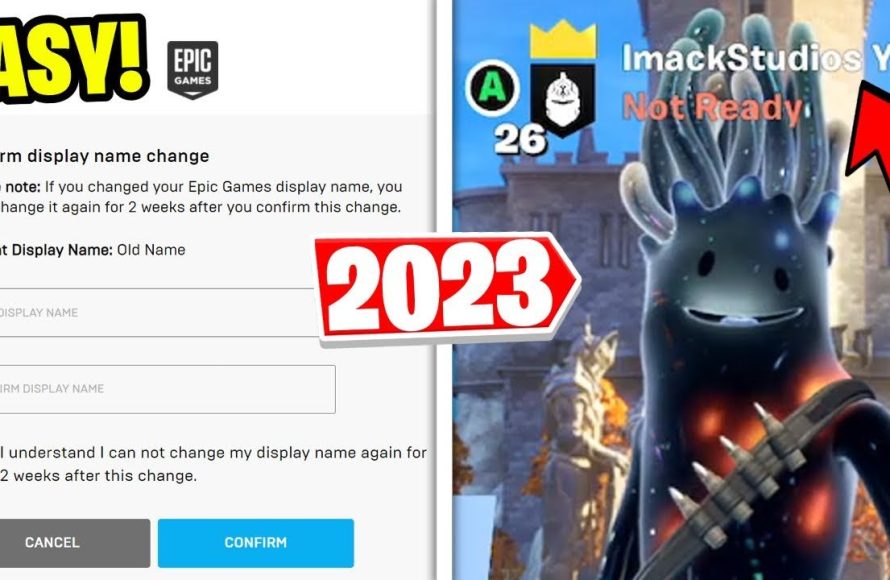
To change your Epic Games display name, you need to navigate to your account settings on the Epic Games website and find the display name option to edit it.
Ever wanted a new persona in the Epic Games universe? Maybe your old nickname doesn’t quite fit anymore, or you simply want a change. Thankfully, the process of how to change epic games display name is quite straightforward. Let’s explore how you can get a name that truly represents you.
You can easily update this within your account settings, without any complicated steps. This simple change can refresh your gaming experience. Get ready for your new digital identity.

How to Change Epic Games Display Name
Changing your Epic Games display name is like giving your online persona a fresh coat of paint! It’s how your friends and fellow gamers recognize you in Fortnite, Rocket League, Fall Guys, and all the other cool games connected to your Epic Games account. Maybe you’ve had the same name since you first signed up, and you’re ready for something new. Maybe you accidentally chose a silly name and now want to be taken a bit more seriously. Whatever the reason, it’s a super simple process and we’ll walk you through it step-by-step. You don’t need to be a tech whiz to do this.
Understanding Your Epic Games Display Name
Before diving into the how-to, let’s make sure we’re all on the same page. Your Epic Games display name is what everyone sees when you’re playing a game connected to the Epic Games platform. This name is not the same as your email address or your account login name. Think of it as your nickname for the gaming world. So, while you may log in using “[email protected]”, your friends will see you as “AwesomeAce” or whatever cool name you picked. There are certain things to remember when choosing a new display name. Make sure that your new display name adheres to the rules set by Epic Games, it cannot contain any kind of profanity or any kind of hate speech.
Why Change Your Display Name?
People have different reasons for wanting a new display name. Here are a few common ones:
- Personal Preference: Maybe you just don’t like your old name anymore. Tastes change, and it’s normal to want a name that better fits your style.
- Reputation: Sometimes, a name you chose as a kid might not be suitable anymore. A serious gamer might want a more professional sounding name.
- Branding: If you’re streaming or making game content, you might want a consistent brand across all your platforms.
- Mistakes: Let’s be real, we’ve all made mistakes choosing a name when we were new to a game. It’s okay to want to fix it!
The Step-by-Step Guide to Changing Your Epic Games Display Name
Now, let’s get to the good part: how you actually change your name! There are two primary methods to achieve this, using the Epic Games website and by logging into the Epic Games launcher itself, we are going to discuss both of them in great details. These methods are simple and user-friendly. The steps are almost identical, but we are going to explore both separately.
Method 1: Changing Your Display Name Through the Epic Games Website
This is a quick and easy way to change your Epic Games display name. Here’s how:
-
Go to the Epic Games Website: Open your favorite web browser (like Chrome, Firefox, Safari, or Edge) and go to the official Epic Games website. You can do this by typing www.epicgames.com into your address bar. Make sure you go to the official website for security purposes and always be aware of phishing websites.
-
Sign In to Your Account: Once on the website, find the “Sign In” or “Login” button usually located in the top right corner of the page. Click it and enter your email address (or username) and password associated with your Epic Games account. If you signed up through a connected account like Facebook or Google, click the relevant button.
-
Go to Account Settings: After you have successfully logged in, hover over your account name, which is at the top right of the page, and this will reveal a dropdown menu. Locate and click on the “Account” option, that will direct you to your account settings.
-
Navigate to General Settings: On the left sidebar of your account settings, there are several options. Select “General”. This option is usually at the top of the list and contains all of the basic information regarding your account.
-
Find Display Name: Scroll down within the General settings until you find the “Display Name” section. This section will show your current display name. To the right of it, you will see an “Edit” button or an “Pencil” icon. Click on this button or icon.
-
Enter Your New Display Name: A text box will pop up. This is where you enter your new desired display name. Make sure you enter the name you really want because you might not be able to change it again for a while. Remember Epic Games’ display name rules— keep it appropriate and friendly.
-
Save Changes: After entering your new display name, you will see a “Save Changes” button. Click on this button. The website might ask you to confirm your change or verify your account before it changes the display name.
-
Check Your New Display Name: After clicking “Save Changes”, your new display name should appear in place of your old one. You should also now see your new name when you play any Epic Games linked game. If you do not see the change right away, close and reopen your game or restart your Epic Games launcher.
Method 2: Changing Your Display Name Using the Epic Games Launcher
Many gamers prefer to use the Epic Games Launcher, which is a desktop application. If you primarily play on your computer, using the launcher to change your display name might be more convenient. This process is almost identical to changing the display name through the Epic Games website. Here is how you can do it:
-
Open the Epic Games Launcher: If you don’t have the launcher yet, you’ll need to download it from the Epic Games website and install it on your computer. If you already have it, open the launcher. It is usually a shortcut with a blue Epic Games logo, on your desktop.
-
Sign In to Your Account: After you open the Epic Games launcher, if you are not already logged in, click the “Sign In” or “Login” button usually located in the bottom left corner of the page. Enter your email address and password associated with your Epic Games account, or sign in through one of the connected social accounts.
-
Access Your Account Settings: Once logged in, look for your account name in the bottom left corner of the screen. Click on your name and a pop-up will appear. Select the “Manage Account” option from this pop-up.
-
General Settings: This action will open a window that takes you to the account settings page in your default web browser. If you are already logged in, it will directly take you to the Account settings page, otherwise, it might ask you to login again. Now, select the “General” tab from the left menu.
-
Locate Display Name: Scroll down the “General Settings” page to find the “Display Name” option. You’ll notice your current display name displayed. To its right, you will find an “Edit” button or a “Pencil” icon.
-
Enter Your New Name: Click the edit button/icon. A text box will appear. Type in your desired new display name. Make sure it is the name you really want, following the rules for acceptable names provided by Epic Games.
-
Save Changes: Once you enter your new display name, click the “Save Changes” button below the text box. Your new display name should now appear. Again if you do not see the new name right away, close and reopen your game or restart your Epic Games launcher.
Important Things to Remember When Changing Your Display Name
While changing your display name is generally easy, here are some essential things to keep in mind:
- Cool Down Period: There is a specific cool-down time between display name changes. You can’t just keep changing your name every day. It is often specified that you can change your name only once in two weeks. However, this may be subject to change at the Epic Games discretion. After you change your name once, you may see the exact cool down period on the same page. This is why it is so crucial that you choose the right name and the one you are going to stick with for a while.
- Name Availability: The display name you want might already be taken by another user. If this happens, you will need to try a different name. You may try adding different numbers or underscores to the name that you want.
- Name Rules: Epic Games has specific rules for display names. Your name cannot include profanity, hate speech, or anything that violates their terms of service. Failing to adhere to these rules may result in account restrictions. So, it is important that you choose your display name wisely and adhere to the terms of service.
- Visual Name Issues Sometimes, your name might look okay but may not display correctly in some games due to character compatibility. If you have special characters in your name, these might look like squares or symbols in some games. So, stick to basic characters or letters whenever possible.
Tips for Choosing a Great Display Name
Choosing a great display name is a big part of your online identity. Here are a few tips to help you make the right choice:
- Make it memorable: A name that’s easy to remember is always good. It helps your friends find you easily.
- Reflect your style: Choose something that matches your personality or how you want to be seen in the gaming world.
- Keep it simple: Avoid overly complex names. The easier it is to read, the better.
- Check availability: Before settling on a name, see if it is already in use by another user. If it is, you might need to get a bit creative with your choice.
- Consider all your games: Your Epic Games display name will be used across multiple games. Pick a name that works for everything you play.
Potential Problems and Solutions
Even with the best guides, sometimes things don’t go as planned. Here are some potential issues you might face and how to solve them:
- Display Name Not Updating: Sometimes, the change in display name might not be reflected immediately in the game. If your name hasn’t changed in the game, try these steps:
- Close the game and re-launch it.
- Log out of your Epic Games account and log back in.
- Restart your computer or console.
- Wait for some time, as changes can sometimes take a few minutes to sync.
- Unable to Save Changes: If you can’t save changes, it could be because:
- Your new name might be too long.
- Your new name might have inappropriate characters.
- You might have recently changed your name and have to wait for the cooldown period.
- Name Already Taken: If the name you have chosen is already taken, you need to choose a different one. Try adding numbers, underscores, or slight variations to your desired name.
- Name Violates Policy: If your name violates the Epic Games rules, it won’t be accepted. You’ll need to choose a name that is appropriate.
Keeping Your Account Secure
While changing your display name is fun, keeping your Epic Games account secure is also very important. Here are a few tips to keep in mind:
- Use a strong password: Make sure your password is long, complex, and hard to guess. Use a mix of upper case, lower case letters, numbers, and special characters.
- Enable Two-Factor Authentication (2FA): Turn on 2FA to add another layer of security. This means that even if someone has your password, they will still need a code from your phone to access your account.
- Avoid Phishing Links: Always access the Epic Games website directly by typing the address into your browser. Do not click on links from unknown sources.
- Keep your email secure: Make sure that your email associated with your Epic Games account is also secure.
Changing your Epic Games display name is a straightforward process that lets you personalize your gaming experience. Whether you’re doing it for a fresh start, a bit of fun, or to match your growing gamer identity, understanding these simple steps will help you get there smoothly. Remember to follow Epic Games’ guidelines and you’ll be enjoying your new name in no time!
How To Change Name on Epic Games
Final Thoughts
Changing your Epic Games display name is simple. Access your account settings on the Epic Games website. Locate the display name section. Enter your new desired name and save the changes.
Remember, you can only change it once every two weeks. So, choose carefully. This action will update your name across all Epic Games products. The process for how to change epic games display name is straightforward and quick.

