
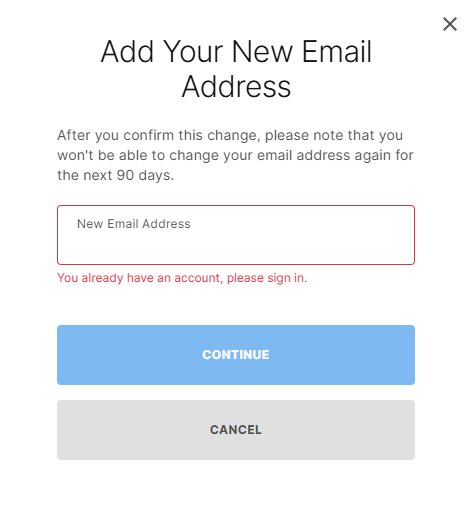
To change your Epic Games email, go to your account settings on the Epic Games website, find the email address section, and update it with your new email.
Ever found yourself needing a different email address for your gaming account? Changing your primary contact information for Epic Games is simpler than you might think. It’s crucial for account security and ensures you receive all important updates. We will guide you through the process of how to change my epic games email.

How to Change My Epic Games Email
Changing your Epic Games email address is something you might need to do for several reasons. Maybe you’ve switched to a new email provider, or perhaps you want to use a different address for your gaming accounts. Whatever the reason, it’s a pretty straightforward process, and we’re here to guide you through it step-by-step. This article will cover everything you need to know about changing the email connected to your Epic Games account, ensuring you can get back to playing your favorite games without any hassle.
Why Change Your Epic Games Email?
Before we jump into the ‘how,’ let’s quickly discuss the ‘why.’ There are many legitimate reasons why someone might want to change their email on Epic Games. Here are a few common scenarios:
- Switching Email Providers: Maybe you’re moving away from a free email service and want to use a more premium provider, or vice-versa. This is a very common reason.
- Security Concerns: If you suspect your current email account might be compromised, updating your Epic Games email address is a good security measure.
- Personal Preference: You might simply prefer using a different email address for your gaming activities, perhaps one that’s less cluttered.
- Old Email Address: Perhaps you no longer have access to the email address originally used when you created the Epic Games account.
Understanding why you might need to change your email can help you appreciate the importance of knowing this process.
Things to Know Before You Start
Before making any changes, there are some important considerations to keep in mind. Knowing these beforehand will help you have a smooth and successful email change:
Valid Email Address is a Must
The first and most important thing to remember is that the new email address you intend to use has to be a valid, working email address that you have access to. You will need to confirm the email through a verification link to ensure the process goes through. If you use a fake or inactive email, you will not be able to confirm your new address, and the change process will not complete. Make sure you have access to the inbox of your new email.
Password Requirements
You also need to know your current Epic Games password. You will be asked to input it during the email change process to verify that you are the true owner of the account. If you do not remember it, you’ll have to go through password recovery before you can change your email. If you have forgotten the password, you can use the ‘Forgot Password’ option that is also located on the login page.
No Active Games Running
It’s always a good idea to close down any running Epic Games applications before you make an account change. It will help to prevent potential conflicts and ensures the process completes without any disruptions. For example, it’s better to close the Epic Games launcher when you’re working on changing your email.
Be Careful of Phishing
Always verify the website’s URL when logging into your Epic Games account and making these changes. Make sure you are only changing the details using the official Epic Games site, which is epicgames.com. Phishing attempts can lead to your account details being compromised. Be careful and double-check everything. Do not enter your username, password, or email into any suspicious sites.
Confirming the Change
After initiating the email change, Epic Games will send a confirmation email to your new address. You will need to click the link in that email to finalize the change. This confirms that you own the new email and prevents unauthorized people from changing the email address on your account. Make sure you follow through with the email verification.
Step-by-Step Guide: Changing Your Epic Games Email
Now that you know all the important things, let’s dive into the actual steps of changing your email address. The following process is detailed and easy to follow:
Step 1: Access Your Epic Games Account
First, you’ll need to go to the official Epic Games website. Open your web browser and navigate to epicgames.com. Once on the website, you’ll need to log into your account. If you are already logged in, you can proceed. If not, you will need to use the “Sign In” button. Make sure you are only logging into the authentic website.
Step 2: Go To Account Settings
Once you are logged into your account, you need to access your account settings. To do this, locate your username at the top right corner of the screen. Click on it. A dropdown menu will appear. In this menu, you will see an option labeled ‘Account.’ Click on ‘Account.’
Step 3: Access General Account Settings
This action will take you to a new page. This is your account settings page. On the left side of the page you’ll notice a list of options. You should be on the ‘General’ page by default. This is where we’ll find the option to change the email address associated with your account.
Step 4: Change Your Email Address
On the ‘General’ settings page, you’ll see a section that displays your current email address. There should be an “Edit” button near your email address. It is usually written in smaller letters and may be located beside your email. Click on “Edit” (or something similar like a pencil icon). This action will allow you to change it.
Step 5: Input New Email and Verify
A small pop-up window or input field will appear when you click on edit. Here, you’ll need to enter the new email address that you want to use. Be very careful and make sure you type it correctly. Once you are sure that you’ve entered the email correctly, you’ll likely need to confirm by re-typing the new email address, before clicking submit. After submitting the new address, Epic Games will send a confirmation email to that new email.
Step 6: Confirm the Change via Email
Now, you need to go to your new email address’ inbox. You should find a new email from Epic Games. In that email, there will be a verification link. It could also be a button to click. Click this link to verify that the new email belongs to you. Without this confirmation, your email will not be changed.
Step 7: Email Change Completed
Once you click the link in the email, you’ll be redirected to the Epic Games website, and you should see a message confirming that your email address has been changed successfully. You may have to log in using your new email. Make sure you remember it.
What to Do if You Encounter Problems?
Sometimes, the process might not go as smoothly as we’d hoped. Here are a few common problems and what you can do about them:
Email Not Received
If you do not receive the confirmation email from Epic Games, first, make sure you’ve typed in the email address correctly. You can double check the email you entered by going back to the ‘General’ page in the settings. The new email will be visible, but unconfirmed. Check that you have not made a typo. Also, check your spam or junk folders. Sometimes, these emails end up there. If after checking all of this, you still cannot find it, try requesting a new confirmation link. You can do so by following the instructions provided. If the issue persists, it’s best to contact Epic Games support for additional help.
Error Messages
If you encounter an error message, carefully read it. The error message will usually give you a hint about the problem. Most likely, you have missed a step, or entered incorrect details. Double check all the steps again. If the problem persists, it would be a good idea to reach out to Epic Games customer support for help.
Account Issues
If you encounter any serious issues with your account, like you cannot log in after you change email, or if your account is locked, it is recommended to contact Epic Games support. They will have the tools necessary to help you recover your account or solve any other issues that may have occurred.
Tips for a Smooth Email Change
Here are a few extra tips to make the entire process even smoother:
- Use a Reliable Email Service: Always use a trusted and secure email service. This is key for account security and smooth communication.
- Keep a Record: Keep a record of your new email, password, and when you made the change. This helps with memory and security.
- Double-Check Details: Take an extra minute to make sure the email address you enter is 100% correct. Typos are common, and can lead to issues.
- Patience: If things don’t go as planned, be patient. Take a break, review all the steps again, and try again. If that doesn’t work, contact support.
Changing your Epic Games email address is a simple process when you know the right steps. Remember to always double-check the details, keep your account secure, and follow the steps carefully. With this guide, you’ll be able to manage your account with ease.
By following the steps outlined, you should now be able to successfully change the email associated with your Epic Games account. Remember, your account information is important, so take the time to do it right. This will help ensure you can continue enjoying your games.
How To Change Email Address In Epic Games – Full Guide
Final Thoughts
To change your Epic Games email, you must first log in to your account. Then, navigate to the account settings page. You will see an option to edit your email.
After you click the email edit option, Epic Games will likely send you a verification link. Follow this verification link to confirm the change. This process is key for how to change my epic games email successfully and securely.
You must confirm this email address change from your current inbox. After the confirmation, your email will be successfully changed.

