
To change what monitor Steam games open on, adjust the primary display setting in your operating system, or configure specific game launch options within Steam.
Ever found your favorite Steam game launching on the wrong screen? It can be quite frustrating, especially when you’ve meticulously arranged your multi-monitor setup. We’ve all been there, wanting our games to play on the specific monitor we choose. This article addresses precisely that: how to change what monitor steam games open on.
It is a simple fix once you know how to get it done. Sometimes, the default settings just don’t cut it. We’ll show you clear, easy to follow instructions to get your gaming experience right where you want it, every time.

How to Change What Monitor Steam Games Open On
Ever fired up your favorite Steam game, only to have it appear on the wrong screen? It’s a common hiccup, especially if you have more than one monitor. Thankfully, you don’t have to put up with this frustrating experience. There are several ways to take control and make your games launch exactly where you want them. Let’s explore the different methods to change which monitor your Steam games appear on, step-by-step.
Understanding Monitor Configurations
Before diving into specific solutions, it’s helpful to grasp how your computer handles multiple displays. Your operating system (Windows, macOS, or Linux) sees each monitor as a separate screen. It assigns a primary monitor, which is usually where your desktop icons, taskbar, and most applications initially appear. Games often default to this primary display. However, you can easily adjust this setup.
Primary vs. Secondary Monitors
Think of your primary monitor as the “main” screen. It’s the one your computer pays the most attention to when you boot up. Your secondary monitors are extensions of this primary screen. You can move windows and applications freely between all your displays, but the primary monitor usually gets priority for launching new windows, and thus, new games.
Here’s a simple breakdown:
- Primary Monitor: Where your computer loads initially, usually with the taskbar and desktop icons.
- Secondary Monitor(s): Additional screens connected to your computer, used to extend or mirror the primary display.
How Windows Manages Multiple Monitors
Windows uses display settings to control multiple monitors. You can find these settings by right-clicking on your desktop and choosing “Display settings” (or going to Settings > System > Display). Here, you’ll see a visual representation of your connected screens. Each monitor is assigned a number (usually 1, 2, 3, and so on). You can also adjust the layout, resolution, and scaling settings for each monitor in this window. Most importantly, you can identify which monitor is currently designated as your “main display,” or primary monitor. Understanding these details helps you change which screen your Steam games use.
Changing the Default Display Settings in Windows
The most direct way to influence where your Steam games launch is by changing your primary monitor setting in Windows. This forces most games and applications to open on your selected screen, assuming they don’t have a specific configuration set. Here’s how you do it:
- Right-click on your desktop and choose “Display settings.”
- In the display settings window, you’ll see a visual representation of your monitors. Click the screen you want as your primary display. If the monitor is not shown as you expect, click the “Identify” button, this will display a number on each screen, use it to determine the exact screen to choose from the visual display.
- Scroll down the page to the “Multiple displays” section. Under “Multiple displays,” check the box next to “Make this my main display.”
- Click “Apply” at the bottom of the page to save the changes. Your chosen monitor is now the primary display, and many applications will try to open there by default.
Remember that you might need to move any open windows or applications over to your new primary screen after you make this change.
Using Steam’s Built-In Settings (Game Specific)
Sometimes, even with the correct primary monitor set in Windows, a particular Steam game might stubbornly open on the wrong screen. Luckily, Steam provides a way to override default behavior for individual games. You can use Steam’s Launch Options to fine-tune how a game starts.
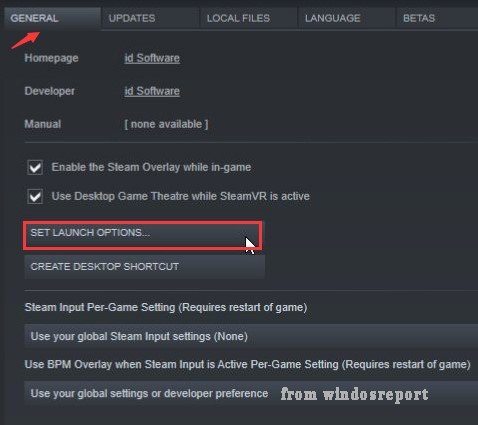
Accessing Launch Options
Launch options are special commands you can give to a game before it starts. Here is how to access them:
- Open Steam and go to your Library.
- Right-click the game you want to configure.
- Choose “Properties” from the menu.
- In the Properties window, click the “General” tab.
- At the bottom of the General tab, you’ll find the “Launch Options” text box.
Common Launch Options for Monitor Selection
While there isn’t a single, universal launch option to choose a specific monitor by number, here are the most common methods and associated code snippets.
- -windowed : This command will start the game in a windowed mode, allowing you to move the window to the desired monitor. After launching windowed, you can switch to fullscreen in the game’s settings. This approach works for most games.
- -popupwindow : This will start the game in a borderless window mode, effectively looking like fullscreen but technically running in a window. This also allows you to move the game between your monitors easily.
Note that some games might not properly respect the -windowed or -popupwindow commands, or may have their own method of picking a monitor to display on. Always experiment and consult game-specific forums, if needed.
Example
Let’s say you have two monitors, and you want your game to open on the second monitor using the -windowed approach:
- In the Steam Library, right-click on the game you want to set up.
- Choose “Properties.”
- Go to the “General” tab.
- In the “Launch Options” box, type: -windowed
- Close the Properties window and launch your game. The game should open in windowed mode.
- Move the window to the monitor you want it on. Then you can go to the in-game graphic settings and choose the ‘full screen’ option, and many games will remember the location next time you play.
Note: For many games you can simply launch in windowed mode, and then maximize the window on the desired display, and many will remember that screen the next time you start the game.
Using Game-Specific Video Settings
Many games offer specific in-game settings that let you choose which monitor they use. These options vary from game to game, but they are often found in the video or display settings menu. This is how most games handle full screen mode in particular. This method may be the best long term for your gaming experience.
Locating In-Game Video Settings
Each game has a different menu structure, but you can usually find display settings in a section labeled like the following:
- Video
- Graphics
- Display
- Screen
Common Video Settings
In the video or display settings, look for options that allow you to choose the display that the game is using. Options may include some of the following:
- Display: A drop-down menu that lists your available monitors by number (e.g., Monitor 1, Monitor 2).
- Screen: A selection to pick the particular display you want the game to appear on.
- Monitor: Similar to “Display,” but often used in older games.
Select the monitor you want the game to use, then save the changes. Many games remember these settings for future game launches.
Using Borderless Window Mode In-Game
As an alternative to the previously mentioned steam launch command, some games may offer a “borderless window” or “borderless fullscreen” display mode in their own graphics settings. This mode will run the game in a window that occupies the full screen and doesn’t have a border. When a game runs like this, you can move it to any display, and many will remember the location.
Using Third-Party Applications
If the methods mentioned previously aren’t working or you need more advanced control, some third-party applications can assist with managing your game windows and monitor selections. Here are some popular ones you might want to consider.
DisplayFusion
DisplayFusion is a powerful monitor management tool that provides a wide variety of display features, including options to define which application window goes to which monitor. You can even create rules based on the application name or window class. This app is very flexible and customizable, and will work for much more than just your games.
Actual Multiple Monitors
Actual Multiple Monitors is another tool that offers several features to make working with multiple displays easier. It lets you manage which windows and applications are shown on which monitor, so you can customize your game setup.
Windowed Borderless Gaming
This app can help if your game doesn’t have its own borderless window mode. Windowed Borderless Gaming helps you quickly force any windowed application to run in a borderless fullscreen window, which then allows you to move between different displays, and maximize or full screen the game window, effectively moving it to a different display. This application is much more focused on gaming than other applications.
While many of these applications are not free, they often provide many other features beyond monitor management. Always research any third-party application, and proceed carefully with downloads from the internet.
Troubleshooting Common Problems
Sometimes, even after making the necessary changes, your Steam games might continue to launch on the wrong monitor. Here are some common issues and how to troubleshoot them:
Game Launching on the Wrong Monitor Despite Correct Primary Display
Even if you have set the correct primary monitor, some games may try to open on a monitor they were used to being on, or they may try to open on the primary monitor regardless of your display preferences. In this case, you may need to experiment with the techniques from earlier: Steam Launch Options (especially -windowed), or forcing a borderless or full screen option in the in-game graphic settings menu.
In-Game Display Settings Not Saving
If your game’s display settings don’t seem to save, try these things:
- Run the game as an administrator: Right-click on the game’s executable file and select “Run as administrator.” This can give the game permission to modify configuration files.
- Check the game’s configuration file: Some games store their settings in a configuration file. You can sometimes directly change the saved display settings by modifying this configuration file. You can try to locate the configuration file by looking in the games folder for things that end in .cfg, .ini or .xml, and open them with a text editor, searching for display settings. Note: You should make a copy of this file before making changes to it, just in case something goes wrong.
- Try running the game in a different window mode: If full screen is not saving settings, try borderless window or windowed mode, and make the change there. Sometimes one setting will work where another does not.
Games Not Working Correctly After Moving
When moving an application between displays, sometimes the mouse or other controls will stop working, or the display might become distorted or stretched. This is usually due to the game trying to scale the window up to the monitor’s new display resolution. If this occurs, you should be sure to select the correct resolution in the games graphic settings menu. You may need to restart the game to apply the change, so that it has the correct window to start with. In some cases, you may also try switching the game between windowed, borderless or full screen modes in the in-game settings, or using -windowed steam launch option.
Multiple Displays in Windows Configuration Are Incorrect
If your monitor is not shown in the visual representation of your displays, or you see unexpected behavior, you may need to reconfigure your displays by using the ‘Detect’ button in the display settings. You may also need to uninstall the video drivers and reinstall them, or confirm that each display is correctly connected and powered on.
Changing what monitor Steam games open on might seem tricky at first, but it’s usually quite simple. By adjusting settings in Windows, using Steam Launch Options, or utilizing game-specific video menus, you can easily take control of your gaming experience. Don’t be afraid to experiment with these different methods to find what works best for you and your setup. Remember to check for game-specific solutions and explore third-party tools if needed. With a little effort, you can avoid frustrating issues and enjoy your games on your chosen display.
How to Open Game on Second Monitor on Steam (Full 2024 Guide)
Final Thoughts
To change your game’s display, alter settings within the game or your PC. Game settings often have display options; pick your preferred monitor there. Alternatively, adjust your display settings in Windows; set your main monitor.
You can also use Steam’s launch options for specific games to force a specific display. This method provides another way to control what monitor you are using. This addresses how to change what monitor steam games open on, making it easier to game on the right screen.

