
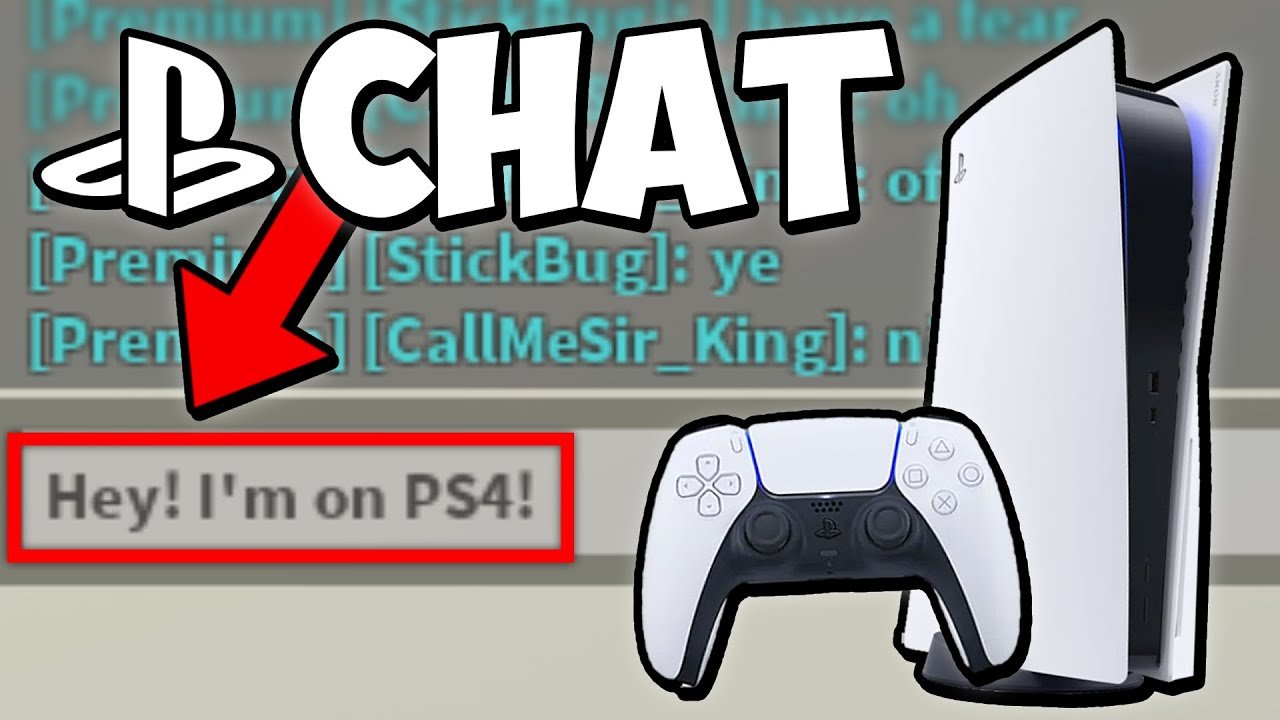
To chat in game on Roblox PS4, you must use the virtual keyboard, which is accessed by pressing the touchpad button on your controller, then typing your message and pressing send.
Ever found yourself wanting to communicate with other players on Roblox using your PlayStation 4 but not quite sure how to get started? It can be a bit tricky if you’re new to the system, but we’ll guide you through the process. Understanding how to chat in game on Roblox PS4 is key to connecting with your friends and collaborating with teammates. This simple guide will make sure you’re ready to talk in no time.

How to Chat In Game on Roblox PS4
Let’s dive into the exciting world of chatting on Roblox when you’re playing on your PlayStation 4! It’s super fun to talk to your friends and other players while you’re building amazing things or exploring cool games. But sometimes, figuring out how to do it can feel a little tricky. Don’t worry, we’re here to help! This guide will walk you through everything you need to know about how to communicate with others in Roblox games on your PS4.
Understanding the Roblox Chat System on PS4
Before we get into the how-to, let’s quickly talk about how Roblox chat works on your PS4. Unlike playing on a computer or phone, you won’t be able to just type with a keyboard. The PS4 uses different methods to let you chat, and it’s good to understand them.
Text Chat Limitations
The main thing to remember is that the standard text chat you see on other devices isn’t fully available on PS4. This means you won’t be able to bring up a text box and type out long messages quickly. This difference exists because the controller design and gameplay on PS4 are different than using a keyboard. So, don’t worry if you can’t find a place to type! We’ll show you the available options, which mostly involve a special menu for selecting pre-made phrases.
Methods for Chatting on Roblox PS4
Okay, so how can you communicate with other players on your PS4 Roblox adventures? There are primarily two methods you’ll be using:
Using the Quick Chat Menu
This is the most common way to chat on Roblox PS4. The quick chat menu contains a bunch of pre-written phrases that you can quickly select to express yourself. Here’s how you use it:
- Enter a Roblox Game: Start by playing a Roblox game like you normally would.
- Access the Chat Menu: Once you are in the game, look for the chat bubble icon or a prompt on your screen that tells you how to open the chat menu. Usually, it’s by pressing a specific button on your controller. Often, this button is the “D-pad up” button. It can also sometimes be the “L1” button (the button on the top left). You might see it displayed on your screen as you begin a game, so pay attention to any hints.
- Navigate the Menu: When the menu opens, you’ll see a list of ready-made phrases grouped into different categories (like greetings, reactions, needs, and directions). Use the directional buttons or the left analog stick on your controller to move between these categories and the phrases within them.
- Select a Phrase: Once you’ve found the phrase you want to say, press the “X” button to choose it. Your character will say the phrase in the game and other players will see it appear above your head or in the chat window (if one is present within the game).
- Exit the Menu: After you’ve chosen your phrase, press the button that closes the menu which is often the “Circle” button.
Understanding the Categories: The phrases within the quick chat menu are usually grouped to make it easier to find what you need:
- Greetings: These are for saying “hello,” “hi,” “goodbye,” and things like that.
- Reactions: Use these to express feelings like “happy,” “sad,” “surprised,” or “angry.”
- Needs: These phrases might say “I need help,” “follow me,” or “where is it?”
- Directions: Phrases here are useful for telling others to “go here,” “look there,” or similar instructions.
Practice Makes Perfect: It might take a few tries to get used to how the quick chat menu works. Don’t worry if you pick the wrong phrase at first. Keep practicing, and you’ll get the hang of it quickly.
Game-Specific Phrases: Some Roblox games might have their own custom phrases in the quick chat menu, adding unique interactions specific to that game. So, don’t be surprised if the options vary a bit from one game to the next. This helps keep the chat relevant to what’s happening in the game.
Using Voice Chat (If Available)
Some Roblox games on PS4 allow voice chat. This lets you speak directly to other players using a headset or microphone. If you see an option for voice chat in the game or when you are starting a game, here’s how to use it:
Enabling Voice Chat
Not all Roblox games support voice chat on the PS4, and if they do support voice chat they might have a setting you need to toggle first, here’s how you can generally activate voice chat:
- Check in-game Settings: When you start a game, head to the in-game settings menu (if available). Look for anything related to “voice chat,” “microphone,” or “audio.”
- Toggle the Option: If the game supports voice chat and you find the option, make sure it’s switched to “on” or “enabled.”
- Headset Connection: Make sure your headset or microphone is properly plugged into your PS4 controller or console. Check the settings on your Playstation itself to ensure you are correctly connected.
Using Voice Chat
Once voice chat is enabled, using it is pretty straightforward:
- Speak Clearly: Speak clearly and directly into your microphone.
- Adjust Volume: Some games let you adjust the microphone and speaker volumes in the game settings, you can change these if you need to.
- Be Respectful: When using voice chat, remember to be respectful and polite to other players. Not everyone will want to hear you talking, and it’s good to avoid anything that might be offensive or mean-spirited.
- Mute Option: In most games, there is an option to mute other players if you don’t want to hear their voice chat.
Not All Games Support Voice Chat: Again, keep in mind that many Roblox games do not support voice chat on PS4. The majority of players will be using the quick chat menu, so it’s good to be comfortable with that method. Even if you see voice chat as an option in the settings, make sure that the particular game supports voice chat; otherwise, it might not work. If voice chat is not available, you’ll need to rely on the quick chat menu to communicate.
Troubleshooting Common Chat Issues
Sometimes, you might run into problems with the chat on your PS4. Here are a few common issues and how to fix them:
Chat Menu Not Appearing
If the quick chat menu isn’t showing up, try these steps:
- Check Controller Buttons: Make sure you are pressing the right button. It is usually the D-pad up button or the L1 button. Try each and see which one opens the chat menu.
- Restart the Game: Sometimes, a simple restart can fix the problem. Close the Roblox game and relaunch it.
- Check Game Settings: See if there’s a setting related to the chat menu that might be accidentally disabled. Go to the in-game settings and look for anything related to “chat” or “interface”.
- Check Controller Connection: Make sure your controller is properly connected to your PS4 and charged if it is a wireless controller.
Voice Chat Not Working
If voice chat is not working:
- Check Microphone Connection: Make sure your headset is properly plugged into your PS4 and that the microphone is in the correct position. Check your PlayStation device settings to make sure that the headset is connected and that the correct mic is being used.
- Adjust Game Settings: Go into the game settings and adjust the volume levels for both the microphone and speaker.
- Test Your Microphone: Use your PS4’s audio test function to make sure your microphone is actually working. This will rule out hardware issues.
- Restart Game and Console: Sometimes, simply restarting the game and/or your PlayStation console can fix minor issues.
- Game Specifics: Double-check that the game you are currently playing actually supports voice chat, as some do not.
Other Players Can’t Hear Me
If other players say they can’t hear you in voice chat:
- Microphone Check: Verify your microphone works by doing the test mentioned above.
- Volume Levels: Check your microphone volume in both your PS4 settings and the game settings. Make sure the volume isn’t set too low or is muted by mistake.
- Game Settings Again: Some games have a push-to-talk feature. If this is the case, make sure the correct button is being used, or that push-to-talk is turned off in the settings.
- Headset Check: Try a different headset to see if the problem is with your current headset.
Chat Text Isn’t Showing Up
If you can send quick chat messages, but they don’t show up on the screen for other players:
- Check Game Settings: See if the game has settings that hide chat text. It could be that there’s an option that accidentally turned off the chat display.
- Internet Connection: Make sure your PlayStation has a stable internet connection. If your connection is unstable or slow, messages might not be sent correctly.
- Game-Specific Glitches: If it seems like a problem with a particular game, it might be a bug that the developers need to fix. Try playing another game to see if the problem persists.
- Restart Game: Close the game, then re-open it to see if the issue is resolved.
Tips for Effective Communication on Roblox PS4
Here are some helpful tips to make your communication more effective on the PS4 version of Roblox:
- Be Patient: Using the quick chat menu can take some time to get used to. Be patient with yourself and others as you all learn the best way to use it.
- Use Simple Phrases: Since you have limited choices, stick to short and simple phrases when chatting. Complex messages can be difficult to convey through the quick menu.
- Use Context: Try to pick the phrases that best match what you are doing in the game. When you give more context to your chat, it is easier for people to understand you.
- Be Respectful: Always be polite and considerate when talking to other players. Even if you’re only using pre-set phrases, try to choose phrases that are positive and friendly.
- Combine Chat with Actions: To make communication even better, combine your chat messages with your actions in the game. For example, if you say, “Follow me,” also start walking to show where to go.
- Use Emojis: If the game supports emojis in the chat, use them to add some emotion and expression to your messages.
- Learn Common Abbreviations: Some players might use common abbreviations such as “lol” (laugh out loud) or “brb” (be right back). If you recognize these abbreviations, it will help you understand messages that are not part of the quick menu.
- Report Bad Behavior: If you run into other players who are being mean or abusive, report them through the in-game reporting system. This will help keep Roblox a safe place for everyone.
- Use Voice Chat Wisely: If you are using voice chat, be sure that it is clear and not noisy for other players. Respect other people’s choices about using voice chat or not.
Chatting on Roblox PS4 may feel different from other platforms, but it’s easy to get the hang of. By using the quick chat menu, voice chat (when available), and following the advice above, you’ll be able to communicate successfully and have a fun time with all of your fellow players! Remember that communication is the key to teamwork in many games, and knowing how to talk to your friends or teammates in Roblox will help you succeed in many games.
With a little practice, you’ll be chatting like a pro on your PS4 in no time. Now, go have fun, make friends, and build some cool stuff!
ROBLOX PS4/PS5 How To Chat in Game – Simple Guide
Final Thoughts
To chat on Roblox PS4, you must connect a USB keyboard to your console. Once connected, press the forward slash “/” key. This opens the chat window where you can type your messages.
After typing your message, press the enter key to send it to other players in game. Remembering these steps simplifies communication in your favorite Roblox games. The keyboard remains the primary method for ‘how to chat in game on roblox ps4’.

