
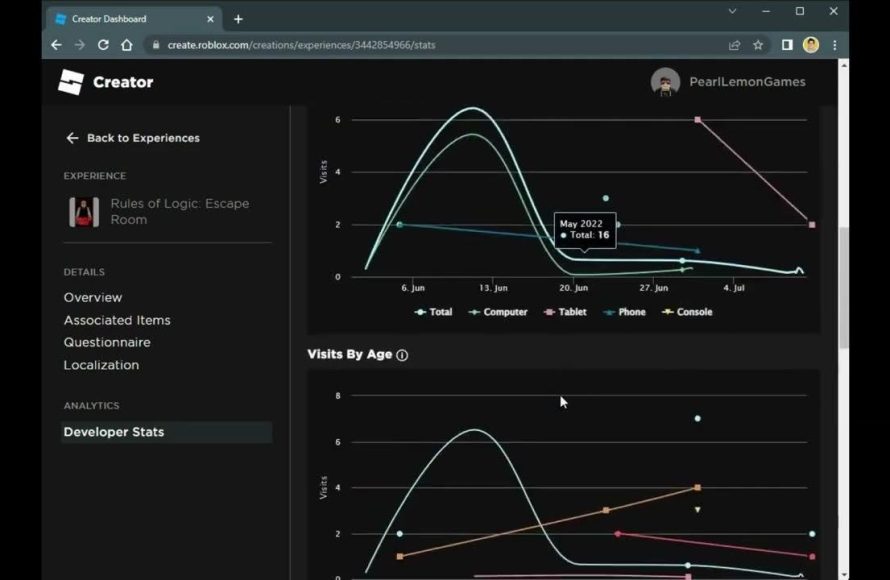
You can check game stats on Roblox by going to the game’s page, where you’ll find information like player count, favorites, and visits.
Ever wondered how popular that Roblox game you love actually is? Figuring out how to check game stats Roblox isn’t complicated at all. Knowing how many players are actively playing, the number of favorites, and the total visits can give you a good picture of a game’s popularity. These details are easily accessible on the game’s main page.
This information allows you to explore which games are most engaging within the Roblox community. It gives you useful insights into the game’s success. Now, let’s explore exactly where to find this data.

How to Check Game Stats Roblox
Okay, so you’re playing tons of awesome games on Roblox and you’re curious about how well you’re doing? Maybe you want to see how many times you’ve won a round, or how much experience you’ve gained. That’s totally normal! Luckily, Roblox gives you several ways to check your game stats. It’s not always super obvious where to look, so let’s dive in and explore all the places you can find those juicy numbers.
Understanding Game Stats
Before we jump into how to find them, let’s talk about what “game stats” actually are. Game stats are basically like a report card for your playtime in a specific Roblox game. These numbers track your progress, performance, and even some of the items you might’ve collected along the way. Different games track different things, so the exact stats you see will change depending on what you’re playing. Here are some common types of stats you might encounter:
- Wins: How many times you’ve won the game.
- Losses: How many times you’ve been defeated.
- Kills/Eliminations: How many other players you’ve taken out (in combat-focused games).
- Deaths: How many times your character has been defeated.
- Experience Points (XP): How much progress you’ve made towards leveling up.
- Coins/Currency: How much in-game money you’ve earned.
- Items Collected: How many of a particular item you have picked up.
- Time Played: How long you’ve spent playing the game.
Keep in mind, not every game shows all of these stats, and some games might have their own unique stats to track. Some games also use special terms for these basic ideas; for instance, instead of “kills”, a game might call them “takedowns.”
Checking Stats Within the Game
The most common way to find your game stats is directly inside the Roblox game you’re playing. Most game developers add a place in the game for you to view this information. Here’s what you should usually look for:
In-Game Menus and Interfaces
Many games have an in-game menu you can open. This is often done by clicking a button in the corner of the screen, or pressing a key on your keyboard (like Esc, Tab, or a letter like ‘M’ or ‘I’). Inside these menus, look for something labeled “Stats,” “Profile,” “Leaderboard,” or something similar. Here’s what you might find:
- The Pause Menu/Escape Menu: Often, pressing the Esc key will open the pause menu and it usually has stats information.
- Buttons on the Screen: Sometimes a button with a gear, or a person’s image, will lead you to stats.
- Key Bindings: Check the game’s instructions, it might tell you a key you can press for stats.
Once you locate this, you should see your in-game stats. It can look different in every game.
Leaderboards
Some games don’t have a specific stats screen, but they do have leaderboards. Leaderboards show how players rank against each other, and they often display your own stats right there in the list. To find leaderboards, look for:
- A button or sign that says “Leaderboard” or “Rankings.”
- Often, the leaderboard will appear on screen at the end of a round.
- Sometimes, these are not available in the main game menu.
Leaderboards often show:
- Top players of the game based on wins, points or currency.
- Your own rank/position within the playerbase.
- Your individual stats next to your username.
You might see the number of wins or kills, or your placement on the board. Even if the game doesn’t have a “stats” screen, you’ll often see some of your stats on the leaderboard.
The In-Game User Interface (UI)
Sometimes, game stats are displayed directly on your screen while you play, without needing to open a menu. This can be in the form of:
- On-Screen Scoreboards: Some games have scoreboards that update as the game happens.
- Stats Counters: Some games display number counters somewhere on the screen, tracking the amount of coins or other things.
- Overlays: Information might pop up to show important stats, particularly when you achieve something.
These on-screen displays can help you keep track of your progress without having to pause the game.
Using the Roblox Website
While most game stats are tracked within the game itself, the Roblox website offers a few general ways to see data related to your play history. You won’t see detailed stats for every single game, but you can see some overall information, and here’s how to check those:
Your Profile Page
The Roblox website does not have a dedicated place to view all of your stats. But, one location to see some information is your profile page. To find your profile page, follow these steps:
- Go to the Roblox website and log into your account.
- Click on your profile picture or username in the top right corner.
- Click on your profile from the dropdown menu.
On your profile page, you’ll see a few sections that relate to your game playing:
- Recent Activity: This shows games you’ve recently played and lets you easily jump back in.
- Creations: This shows the experiences you have created.
- Favorites: The games that you have marked as favorites.
Checking Experience Information
The Roblox website doesn’t give specific in-game stats on a game-by-game basis, but sometimes, games will post updates about stats on the game’s page itself.
Here’s how to look for this information:
- Go to the Roblox website and log into your account.
- Click “Discover” or “Games” in the left navigation menu.
- Search for the name of the game you want to check.
- Click the game’s icon or title.
Once you’re on the game’s page, look for the following:
- About Section: Some game creators write some information about game progress or new updates in this part of the page.
- Updates Log: Some games have an update log where they may provide insight on new data or adjustments to game mechanics, which might include information about player stats or game data.
Why No Full Stats on the Website?
The main reason the Roblox website doesn’t show in-depth stats for all games is that each game is unique and tracks different things. The creators of each game have the control over what information is tracked and how it’s shown. Therefore, the best place to find those details is within the game itself.
Understanding Third-Party Sites and Tools
Now, you might find some websites or apps that claim to offer ways to see Roblox game stats. These aren’t official Roblox products, and they should be approached with some caution. Here’s what you should know:
Unofficial Websites
Some websites claim to offer more detailed stats than Roblox itself provides. However, it’s important to be very careful with these sites. Here’s why:
- Security Risks: Some unofficial sites can be dangerous and try to steal your personal information, including your Roblox account login. Never give your Roblox username or password to a third-party site.
- Inaccurate Information: The information they provide might not always be correct, since they aren’t officially connected to Roblox.
- Malware and Viruses: Some of these sites might contain harmful software that can hurt your computer.
The best practice is to avoid unofficial websites promising to show Roblox game stats. Stick to the information provided in the game and on the official Roblox website.
Apps and Browser Extensions
Similar to third-party websites, there might be apps or browser extensions that promise to show game stats. Be cautious about these as well:
- Security Concerns: These extensions and apps can sometimes be harmful and steal your personal information.
- Not Official: These are not created by Roblox, so they may not work well.
- Unnecessary: They usually just show the information you can see in game, so they aren’t usually needed.
Remember, your security is important! Avoid downloading and using any unverified apps or extensions.
Tips for Finding Game Stats Effectively
Okay, now that you know where to look, here are some helpful tips to make finding your game stats easier:
Read Game Instructions
Most games have some instructions. These might be found in the game itself, on the game’s Roblox page, or in a chat area where players talk. Reading instructions can reveal how to find stats, and it may also tell you about the stats available in that specific game.
Try Different Keys and Buttons
Often, there isn’t one single key that works for every game. If the ‘Esc’ key doesn’t work, try ‘Tab,’ ‘M,’ or ‘I’. Test out different keys to see if any of them bring up a menu or stats panel.
Ask Other Players
If you can’t find the stats, ask in the game’s chat. Other players can usually point you in the right direction, and they can help you figure out the best way to see the information.
Check Regularly
Game stats often get updated, especially after each round or game session. Check your stats often to keep track of your progress and see how you’re improving.
Example: Finding Stats in a Popular Game
Let’s look at an example using a popular Roblox game (for this example, we will pretend “AdventureQuest” is a game): Let’s say you want to see your stats in “AdventureQuest”.
- Join the game “AdventureQuest” on Roblox.
- Press the ‘Esc’ key on your keyboard to open the pause menu.
- Look for a button or tab labeled “Stats” or “Profile”.
- Click on it to view your character’s stats, such as number of wins, kills, coins, and levels.
- You might also find a “Leaderboard” button in the menu, which will show your rank in the game and possibly even some of your stats.
As you can see, you usually need to look in the in-game menu to find game-specific stats. The steps will be a little bit different for every game, but the basic approach is the same: look for menus, buttons, and information in the game.
Checking your game stats on Roblox is a fun way to see how you’re doing, track your achievements, and set new goals. Knowing where to look and understanding the types of stats you’ll find can make your Roblox experience even better! Remember, the most important thing is to have fun and enjoy playing the games.
How To Check Roblox Game Stats | See Roblox Player Stats (2024)
Final Thoughts
Checking game stats on Roblox involves navigating to the game’s page and finding the stats section. You can see things like player visits, favorites, and player counts there. These provide a quick overview.
Some games offer in-game stat tracking. These are accessed within the game itself, often through a menu or interface. Explore the options to understand game data.
Therefore, knowing how to check game stats roblox simply requires using the game page or the in-game features. You can easily find helpful gameplay information this way.

