
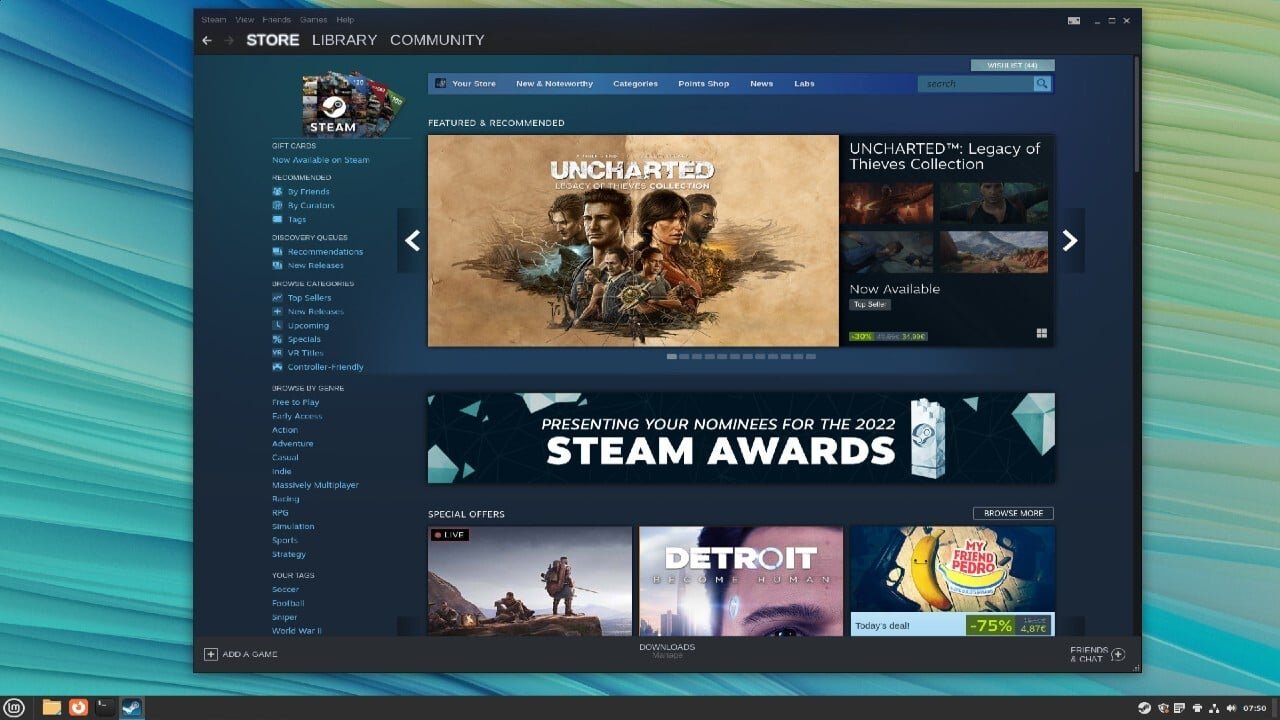
You can check if a Steam game works on Linux by visiting its store page and observing the platform icons below the game title, specifically looking for the SteamOS/Linux icon. Additionally, check user reviews and reports on community forums.
Wondering if that awesome game you spotted on Steam will run on your Linux machine? It’s a common question and many face this same situation. Thankfully, finding out is simpler than you might imagine. This article will guide you through a couple of quick methods on how to check if a steam game works on linux before you even think about clicking that purchase button.
We’ll cover the visual cues directly on the store page. Also discuss the invaluable user feedback from other Linux gamers. This ensures a smooth gaming experience.

How to Check if a Steam Game Works on Linux
So, you’re thinking about gaming on Linux? That’s awesome! Linux is a great operating system, especially for those who like to tinker and have control over their computers. But, before you get too excited and start buying all the games, you need to know if those games will actually work on Linux. Unlike Windows, not every game is made to run on Linux. So, let’s dive into how you can figure out if your favorite Steam games will play nicely with your Linux system.
Understanding Linux Compatibility on Steam
First, let’s talk about why some games work on Linux and others don’t. Games are built using special programming, and some of that programming is specific to Windows. It’s like having two different kinds of puzzle pieces; a Windows piece won’t fit into a Linux puzzle. However, there’s good news! Many developers are now making their games work on both Windows and Linux. This is usually done in a couple of ways:
- Native Linux Support: The game is built to work directly on Linux. This is the best case scenario because the game will usually run very well.
- Proton Compatibility: Proton is a special tool made by Valve (the people behind Steam). It’s like a translator; it takes the Windows instructions and makes them understandable for Linux. This helps many Windows games work on Linux, but sometimes it’s not perfect.
The Steam Store: Your First Stop
The easiest and first thing you should do is visit the Steam store page for the game you are interested in. Steam gives us clues right there!
Checking for the SteamOS/Linux Logo
Look closely at the game’s page on the Steam Store. Under the game title and a little below the main images of the game you will find the operating system logos. The logos that are present on the page indicates that the game runs on that particular operating system. If you see the SteamOS/Linux logo there, it means the game is either natively supported for linux, or it is supported by proton. If you are a linux user, and you see SteamOS/Linux logo then you don’t need to check for any other things.

Note: The image above is an example, look for similar logo on game’s page.
Reading the System Requirements
If you didn’t find the SteamOS/Linux logo, don’t worry. Scroll down the page a little further, and you’ll find the “System Requirements” section. This section is super important. Here, you’ll see a list of the things your computer needs to have to run the game, such as what kind of processor, graphics card, and so on. Most importantly, there will be a section for operating systems and here you can see if the game supports linux. If Linux is listed as a supported operating system then, the game will very likely to work on your Linux system. Note that some times some games may be missing system requirement details, in that case don’t panic, just keep reading this article there are some other ways to check for compatibility.
Using Steam Play and Proton
Even if the game doesn’t have the SteamOS/Linux logo or mentions Linux support directly, there’s still hope! This is where Proton comes in. Steam Play lets you try playing Windows games on Linux through Proton. Here’s how you can check:
Checking ProtonDB
ProtonDB is a community-driven website that keeps track of how well games work with Proton. It’s a fantastic resource. Here’s how to use it:
- Go to the ProtonDB website.
- Search for the game you want to play.
- The page for the game will show you reports of how well the game runs with Proton on Linux. You will see a rating given to the game, for example Platinum, Gold, Silver, Bronze, and Busted. Platinum means that the game runs perfectly. Gold means it runs with little issues. Silver means it may require a bit of work or may have a few glitches. Bronze mean major problems or requires workarounds, and Busted means the game does not work at all.
- Look at the comments section to see the problems people have faced with the game, and solutions if any.
ProtonDB is very helpful because it gives real-world information from other Linux gamers, so you know exactly what to expect.
Trying the Game Yourself (with Steam Play)
If a game looks like it might work with Proton based on ProtonDB, the next step is to try it yourself! Steam makes this easy:
- Open the Steam client on your Linux computer.
- Go to Steam menu and click on settings.
- Click on the “Steam Play” tab.
- Check the box that says “Enable Steam Play for all other titles”
- Click “Ok” to save the changes.
- Now, find the game you want to try. Click the install button.
- Once it’s downloaded, try to run it and see if it works!
Don’t be afraid to try games even if they don’t have a perfect rating on ProtonDB. Sometimes, you might have better luck than others because of your computer setup.
Using the Steam Deck Verified Program
The Steam Deck is a portable gaming device that runs on Linux. Steam has a verification program for games that work well on the Steam Deck. While this doesn’t directly mean the game will work perfectly on your Linux desktop, it is a very good indication that the game works flawlessly on Linux.
Looking for the Checkmarks
When you browse games on Steam, you might notice small checkmarks next to some games. There are four checkmarks:
- Green Checkmark (Verified): This means that the game works perfectly on Steam Deck, so it will very likely to work perfectly on your Linux desktop.
- Yellow Checkmark (Playable): This game works on Steam Deck, but might require some settings tweaks or have some graphical errors. You can try this on your Linux computer too and see if it works.
- Gray Question Mark (Unsupported): The game is not supported for the Steam Deck and might have problems running on Linux as well.
- Unmarked (Unknown): The game has not been tested for Steam Deck, but it can run on Linux if it is supported by SteamOS/Linux or Proton.
Keep these checkmarks in mind when selecting games. If a game is Verified or Playable for Steam Deck it is likely to run well on your Linux system too.
Considering Native Linux Games
Sometimes, you might find games that are specifically made for Linux. These games usually run very smoothly because they are built to work directly with Linux. They don’t need Proton, so you can expect higher performance. However, there are a lot more games that are built for windows platform and these games uses proton to work on Linux. You can find games built for Linux in several ways:
- Steam store: When you go to Steam store, click on search and then in the operating system option select linux, this will show you all of the games that work with linux.
- Dedicated Linux gaming news websites: Websites dedicated to covering linux gaming news are very helpful in finding new games that run on linux. You can try searching on internet for ‘linux gaming news’ and you will find a number of them.
Troubleshooting Common Issues
Even if a game should work, sometimes you might have issues. Here are some things to try if you have problems:
Updating Your Graphics Drivers
Sometimes, older graphics drivers can cause problems. You need to make sure your graphics card drivers are up-to-date. This usually needs to be done through your operating system software settings. If you need help updating the drivers, search on the internet by typing “How to update graphics drivers on \[Your Linux Distribution name]
Using Different Proton Versions
Steam lets you choose which version of Proton to use for a game. Sometimes, an older or newer version might work better.
- Right click the game in the steam library and select properties
- Go to the compatibility tab.
- Check the box “Force the use of a specific Steam Play compatibility tool”
- Select another version of Proton from the drop-down menu
- Try running the game again.
Looking for Community Help
If you’re still having trouble, the Linux gaming community is great! There are lots of online communities where people discuss issues and solutions for running games on Linux. Websites like reddit forums are great way to find help.
Checking Game-Specific Guides
Sometimes specific games will have guides or tutorials on how to make them run on Linux. A simple web search might surface these solutions and guide you along the way.
Keep Learning and Experimenting
Linux gaming is constantly getting better! New games get Linux support, and Proton improves all the time. Don’t be afraid to try new things and explore. By checking the Steam Store, using ProtonDB, and experimenting, you’ll find that a lot of games can work great on Linux.
Remember, you are not alone! There’s a big community of Linux gamers out there who are happy to help. So, have fun, explore new games, and enjoy gaming on Linux!
How to Check if a Steam Game Is Available on Linux
Final Thoughts
To check if a Steam game works on Linux, first look at the game’s store page. Find the Steam Play icon, this indicates Linux support.
Alternatively, you can utilize ProtonDB, a community database. It details game compatibility, with user ratings indicating how well games perform via Proton.
Finally, testing the game yourself provides the most definitive answer. Install the game and see firsthand if it functions correctly. Therefore, you now know how to check if a steam game works on linux.

