
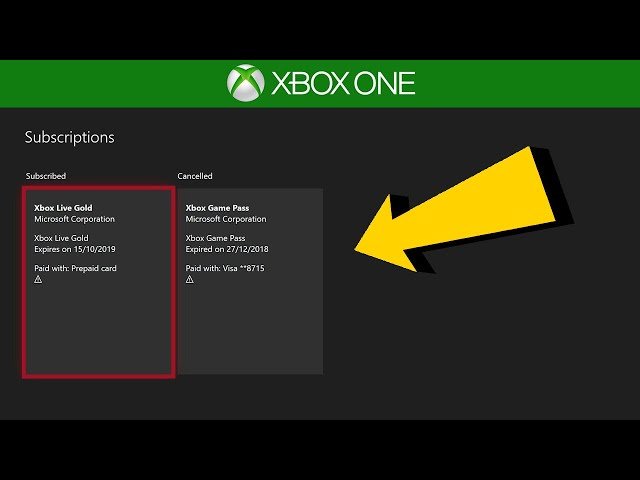
To check if you have Game Pass, visit the Xbox website or app, and sign in to your Microsoft account. Your active subscriptions, including Game Pass, will be displayed there.
Ever wondered if you’re currently enjoying the benefits of Xbox Game Pass? Maybe you signed up a while ago and are unsure of its status. It’s easy to lose track of subscriptions, especially with so much going on. Many people often ask how to check if I have game pass, and it can be a surprisingly simple process.
Let’s clear up the confusion and make sure you are ready to dive into your games. This guide quickly explains how to see your active subscriptions. Knowing where to look saves you time and gets you gaming faster.

How to Check If I Have Game Pass
Ever wondered if you still have Xbox Game Pass? It’s super easy to lose track with all the fun games to play! Don’t worry, we’ll walk you through all the ways you can check. It’s like being a detective, but instead of solving mysteries, you’re finding out about your awesome game access. Let’s jump right in!
Checking on Your Xbox Console
The most common way to check if you have Game Pass is directly on your Xbox console. It’s like checking your mailbox – you know the information is waiting for you right there! Let’s see how to do it:
Using the Guide Button
This is the quickest method. Follow these simple steps:
- Press the Xbox Button: That’s the glowing Xbox button in the center of your controller. It will open the guide menu.
- Look for the Game Pass Icon: At the top of the screen (usually on the far left), you should see a little icon that looks like a Game Pass logo. It’s a green rectangle with the words “Game Pass” on it.
- See if You’re a Member: If you are a member of the Game Pass, this icon will tell you. It might show you information like your subscription expiration date or give you an option to view the game pass catalog. If it does not show this, then you may not have Game Pass subscription.
Navigating Through the Dashboard
Another way is to go through the dashboard. Here’s how:
- Go to the Home Screen: Make sure you are at the main dashboard.
- Find the “My Games & Apps” Section: Look for a section on the main screen that says something like “My Games & Apps” and select it.
- Look for the Game Pass Tab: In the “My Games & Apps” menu, you’ll often see a section or a tab for Game Pass. Click on it. If your subscription is active, you will see your current status. If not, you will likely see an invitation to subscribe.
Remember that the specific menus and layouts might slightly vary depending on your Xbox console model and system updates, but these general steps should work across the board.
Checking on the Xbox App (Mobile)
Did you know you can also see your subscription details on your phone? The Xbox mobile app is very handy. It’s like having a mini Xbox in your pocket. Let’s learn how:
Downloading the Xbox App
First, make sure you have the app on your phone. If not, download it from your app store (Google Play Store for Android, App Store for Apple iOS). Once downloaded:
- Open the App: Tap on the Xbox app icon.
- Sign In: Log in with the same Microsoft account you use on your Xbox.
Finding Your Subscription Information
After you have logged in:
- Tap Your Profile Picture: In the app, tap on your profile picture. It is usually located on the bottom-right corner of your screen.
- Go to “Settings” or “Profile”: A menu will appear. Select settings, there you have to see for profile option.
- Locate the “Subscription” or “Game Pass” Section: You are now in the profile section. Check for a “Subscription” or “Game Pass” option, click on it. You’ll find your subscription details here. If you have Game Pass, you’ll see it listed along with its expiration date. If you don’t, it will show the option to subscribe.
The Xbox app is a convenient way to check your subscription and also manage game downloads remotely when you’re away from your console.
Checking on the Xbox App (PC)
If you prefer playing on your computer, the Xbox app for PC has you covered! It provides quick and easy access to subscription details. It’s like having a second console on your computer.
Getting the Xbox App for PC
If you haven’t already, download the Xbox app from the Microsoft Store. This is the best way to access Game Pass titles on your computer. After installation:
- Open the Xbox App: Click on the Xbox app icon on your computer.
- Sign In: Log in using the same Microsoft account you use for your Xbox or other Microsoft services.
Viewing Your Subscription
Once you are logged into the PC app:
- Click on Your Profile Icon: In the top right of the screen, you will see your profile icon (it can be your avatar or name). Click on it.
- Go to “Settings” : From the menu, select the “Settings” option.
- Find “Subscriptions”: Within the settings, look for an area named “Subscriptions”. Click on it.
- Review Your Membership: It will display all your Xbox subscriptions including your Game Pass status. If you have an active Game Pass subscription, you will see it listed along with its expiration date. If not, it will give the option to subscribe.
This PC app is great for finding and playing games on your computer, and keeping your subscriptions in check.
Checking on the Microsoft Website
You can also verify your Game Pass status via the Microsoft website. It’s helpful to know that you can access these details from any web browser. Let’s see how it is done:
Accessing Your Microsoft Account
- Go to the Microsoft Website: Open a web browser and go to Microsoft’s official website.
- Sign In: Click on “Sign in” option in the top right corner and log in with the Microsoft account used for your Xbox and game subscriptions.
Locating Your Subscriptions
After logging in:
- Find “Services & Subscriptions”: Look for an area or a section called “Services & subscriptions”. Usually found in the account dashboard. Select it.
- Review Your Game Pass Status: Your active subscriptions, including Game Pass, will be listed here. You can view details about its status, how long you have left, and renew it as needed. If it doesn’t display the option to renew, it means your subscription might be inactive.
This way, you can check your subscriptions on any computer or phone with an internet connection.
Understanding Different Types of Game Pass
It’s important to know there are different Game Pass options, and understanding these can be crucial when checking your subscription. It’s like having different levels of membership to a club. Let’s explore the different tiers:
Xbox Game Pass for Console
This plan lets you play games on your Xbox console. You get access to a variety of games from the Game Pass catalog. It’s perfect for console gamers.
Xbox Game Pass for PC
This is specifically for playing games on your Windows PC. It is like the console Game Pass but for computer. It’s for anyone who prefers to game on their computer rather than their console.
Xbox Game Pass Ultimate
This is the best of both worlds! It combines Xbox Game Pass for console and PC. It also includes Xbox Live Gold (now Xbox Game Pass Core), which is needed to play online multiplayer games. And this includes Cloud Gaming also for supported games. This option offers a lot of value to gamers.
When checking your subscription, pay attention to which Game Pass option you have. This can help you understand what platforms and features you are entitled to. For example, having Game Pass for Console won’t give you access to PC games and vice versa.
What to Do If Your Game Pass Has Expired
Sometimes your Game Pass may have expired. It’s like forgetting your library card is due. No worries, here’s how to deal with it:
Recognizing an Expired Subscription
You will usually know your Game Pass has expired by:
- Messages on your Console/PC: Your Xbox will show messages prompting you to renew if you try to play a game.
- Inability to Play Game Pass Titles: You won’t be able to launch and play Game Pass games that you previously had access to.
- Subscription Status: On the Xbox app or the website, your subscription will show as “expired.”
Renewing Your Subscription
Here’s how to renew your Game Pass:
- Choose Your Renewal Method: You can renew it from your console, Xbox app (both mobile and PC), or through the Microsoft website.
- Select the Subscription: Select the Game Pass tier (Console, PC, or Ultimate) that you want to renew.
- Complete the Payment: Follow the on-screen instructions to complete your purchase. You may use your credit/debit card, or gift cards.
Once renewed, your Game Pass benefits should be available again. You’ll be back to gaming in no time!
Troubleshooting Common Issues
Sometimes things don’t go as planned. If you’re having trouble checking your Game Pass, here are some things to try.
Internet Connection Problems
Make sure that you have an internet connection, if you want to check if you have Game Pass online.
- Check Your Network: Ensure that your console, PC, or phone is connected to the internet. You can try restarting your modem or router if there are internet issues.
Incorrect Account Login
It’s important to make sure you’re logging into the right account:
- Double-Check Your Account: Sometimes people have multiple Microsoft accounts. Make sure that you are logged in to the one that has your Game Pass subscription on all your devices.
- Try Signing out and in: Sometimes a simple logout and login can solve the issues.
System or App Glitches
Like any piece of software, there might be minor bugs:
- Restart Your Device: Turn off your console, PC, or phone and turn it back on.
- Update Your Software: Make sure your console, the Xbox app, and your operating system are up-to-date.
Contacting Support
If you have tried all the steps and you are still facing the same problems, contact customer support for professional help.
- Visit Xbox Support: Go to the Xbox support page on the Microsoft website. They have helpful articles and contact information for support.
Don’t feel shy to reach out to the support team, they are there to help!
Checking your Game Pass status is easy once you know where to look. Use any of these methods depending on which device is convenient for you at that moment.
How to View When Game Pass Expires on Xbox One Account (Easy Tutorial)
Final Thoughts
To quickly confirm your Game Pass status, navigate to your Microsoft account settings on your console or PC. You must find the subscriptions section.
This area displays all active memberships including Game Pass. If it’s listed, you are all set.
Alternatively, on your Xbox console, check the Game Pass tab. This will show your current subscription status. This is how to check if i have game pass.

