
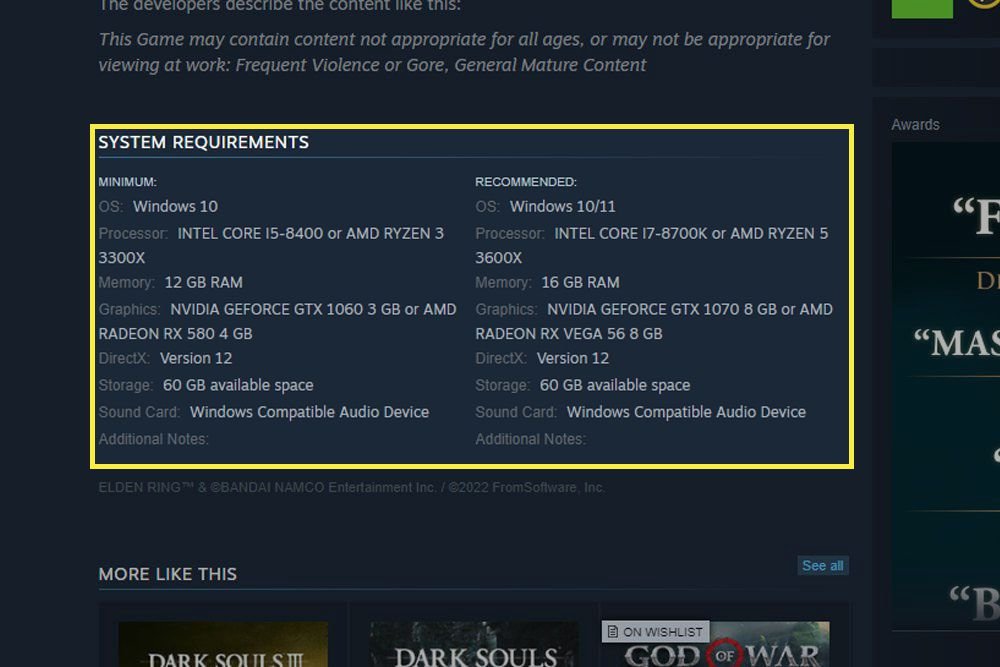
To check if your PC can run a game, compare your computer’s specifications (CPU, GPU, RAM, OS) against the game’s minimum and recommended requirements listed on its store page.
Wanting to play a new game can be exciting, but will your computer handle it? Many gamers face this question, wondering how to check if my PC can run a game. The answer isn’t always straightforward, but there are simple methods you can use. Knowing your computer’s specs and matching those against a game’s requirements is essential before purchasing. Let’s look at that.

How to Check if My PC Can Run a Game
So, you’ve got your eye on that shiny new game, the one everyone’s talking about. But before you hit that “buy” button, a crucial question lingers: “Can my computer actually play this game?” It’s a common worry, and luckily, it’s one we can easily address. You don’t need to be a tech wizard to figure this out. This guide will help you learn simple methods to check if your PC meets the game’s requirements, so you can avoid frustrating lag or, worse, a game that won’t even start.
Understanding System Requirements
Every game has a set of “system requirements.” These are like a checklist of the hardware and software your computer needs to run the game properly. Think of it like a recipe – you need specific ingredients to bake a cake; similarly, your PC needs certain components to play a game. These requirements are usually split into two categories:
Minimum System Requirements
The minimum system requirements are the absolute bare minimum your PC needs just to get the game to start and play, even if it’s not at its best performance. If your PC only meets the minimum requirements, you can expect to play the game at lower settings, with potential slowdowns or lower visual quality. It’s like driving an old car; it gets you there, but it’s not going to be a smooth, fast ride.
Recommended System Requirements
The recommended system requirements, on the other hand, are what the game developers suggest for an optimal gaming experience. Meeting these requirements means you can usually play the game at higher graphical settings, with smooth frame rates and no major performance issues. It’s like driving a sports car – fast, smooth, and a pleasure to use.
Typically, these requirements include:
- Operating System: The version of Windows, macOS, or Linux your computer needs.
- Processor (CPU): The brain of your computer, responsible for processing instructions.
- Memory (RAM): The short-term memory your computer uses to run programs.
- Graphics Card (GPU): Handles the graphics and visuals of the game.
- Storage (Hard Drive or SSD): The space needed to install the game.
- DirectX Version: A collection of APIs that Windows uses for multimedia.
Finding the System Requirements
The easiest place to find a game’s system requirements is on the game’s official website or the store where you are buying the game, such as Steam, Epic Games Store, or GOG. These stores will have a dedicated section for system requirements on the game’s page. Here’s where to look on some popular platforms:
- Steam: On a game’s store page, scroll down to find the “System Requirements” section.
- Epic Games Store: The system requirements are usually located at the bottom of the game’s product page.
- GOG: Look for the “System Requirements” tab below the game’s description.
- Official Game Website: The game’s site usually has a dedicated page for requirements, often in the “Support” or “FAQ” section.
How to Check Your PC’s Specifications
Now that you know what the game needs, it’s time to see what your computer has. Checking your PC’s specifications is simple, whether you’re using Windows or a Mac.
Checking Your Specifications on Windows
Windows offers a few straightforward ways to view your computer’s specs:
Using the System Information Tool
- Type “System Information” in the Windows search bar and click on the app.
- You’ll see a window full of details about your PC. Look for the following:
- Operating System: The OS name and version (e.g., Windows 10 or Windows 11).
- Processor: The name and speed of your CPU (e.g., Intel Core i5-10400F or AMD Ryzen 5 5600X).
- Installed Physical Memory (RAM): The amount of RAM you have (e.g., 8 GB or 16 GB).
Using DirectX Diagnostic Tool
- Type “dxdiag” in the Windows search bar and press enter.
- Click “Yes” if prompted.
- This opens the DirectX Diagnostic Tool. You’ll find these details:
- Operating System: Under “System Information,” you’ll see the OS details.
- Processor: Also under “System Information,” you’ll see your CPU details.
- Memory: The amount of RAM is listed in “System Information.”
- Display: The “Display” tab provides graphics card information (e.g., NVIDIA GeForce GTX 1660 or AMD Radeon RX 580).
Using Task Manager
- Press “Ctrl + Shift + Esc” keys simultaneously to open Task Manager.
- Go to the “Performance” tab.
- You’ll find:
- CPU: Select “CPU” to view the name and model of your processor.
- Memory: Select “Memory” to see how much RAM you have.
- GPU: Select “GPU” to view your graphics card details.
Checking Your Specifications on macOS
Apple makes it quite simple to check your Mac’s specs:
- Click the Apple logo in the top left corner of your screen.
- Select “About This Mac.”
- A window appears with a general overview of your system. Click “More Info…” or “System Report” for more details.
- Look for the following:
- Operating System: The macOS version (e.g., macOS Monterey or macOS Ventura).
- Processor: The name and speed of your CPU (e.g., Apple M1 chip or Intel Core i7).
- Memory: The amount of RAM you have (e.g., 8 GB or 16 GB).
- Graphics: The name and model of your graphics card (e.g., Apple M1 integrated graphics or AMD Radeon Pro 5500M).
Comparing Your PC Specs with Game Requirements
Now that you have both the game requirements and your PC’s specs, it’s time for comparison. This is where you put the two pieces of information side by side.
Let’s go through each component to see how they match up:
Operating System
Make sure your PC’s operating system matches or is higher than the game’s requirement. For example, a game needing Windows 10 will work on Windows 11, but might not work on Windows 7.
Processor (CPU)
Comparing processors can be a bit tricky because their names and numbers do not always tell the full story. Generally, a higher number in the processor model usually indicates better performance. Websites like PassMark and UserBenchmark can provide more detailed comparisons if you are unsure if your CPU is powerful enough.
Memory (RAM)
This one is straightforward: your PC’s RAM should be equal to or greater than the game’s requirement. If the game requires 8 GB of RAM, having 16 GB means you are good. If you have less RAM, the game might struggle, or might not even start.
Graphics Card (GPU)
The graphics card is crucial for gaming. Similar to processors, comparing them can be complicated. You can use sites like VideoCardBenchmark and TechPowerUp to compare your GPU with the recommended graphics cards for the game. The numbers and letters in the model name often signify the level of power – higher numbers usually indicate better performance.
Storage Space
Ensure your computer has enough free storage for the game. If the game needs 50 GB, make sure your hard drive or SSD has at least that much available. Having extra storage space is always a good idea. If your main drive is full, you may consider adding a hard drive or SSD.
DirectX Version
Most games now require at least DirectX 11 or 12. You can check your DirectX version in the DirectX Diagnostic Tool as described earlier.
Using Websites for PC Game Compatibility Checks
If you prefer a more hands-off approach, there are several websites designed to automatically check your PC’s specs and compare them to game requirements.
Can You RUN It
Can You RUN It is a popular website that provides easy compatibility checks. Simply search for the game you want to play, and the website will check your computer’s specs against the game’s minimum and recommended requirements. It can even recommend upgrade options if you’re falling short.
Game Debate
Game Debate is another helpful website where you can compare your PC specs with a game’s system requirements. It gives a detailed breakdown of how your PC stacks up and can even tell you what settings the game might run on.
What if Your PC Doesn’t Meet the Requirements?
Don’t be too disheartened if your PC doesn’t meet the requirements. Here are a few things you can do:
- Lower the Game Settings: If you meet the minimum requirements, you can try lowering the graphics settings (resolution, texture quality, effects) to increase performance.
- Upgrade PC Components: Consider upgrading specific components, such as your RAM, graphics card, or CPU. Graphics cards often provide the most significant improvement in gaming performance.
- Check for Game Patches: Sometimes, game developers release patches that optimize performance or fix issues. Make sure to keep your game updated.
- Play at Lower Resolution: Lowering the in-game resolution can reduce the load on your graphics card.
- Close Unnecessary Applications: Shut down background programs that are consuming system resources, like browser windows, to free up RAM and processing power.
Checking if your PC can run a game doesn’t have to be a daunting task. By understanding your computer’s specifications and comparing them to the game’s requirements, you can ensure a smooth and enjoyable gaming experience. There are many tools and websites to help you with this process. If your pc is not powerful enough to play your desired game, you always have the options to upgrade your PC components, lower the game’s settings, or look for game that your pc can easily handle. With a little know-how, you can be gaming in no time.
How To Find Out If Your PC Can Run A Specific Game [Simple]
Final Thoughts
Checking a game’s system requirements against your PC’s specs is essential. You must compare the minimum and recommended lists with your CPU, GPU, RAM, and OS.
Use websites like Can You Run It to automate this comparison. This method quickly identifies if your PC can handle the desired game.
Ultimately, knowing how to check if my pc can run a game prevents disappointment. Comparing specs is the best way to ensure smooth gaming.

