
To close a frozen game on PC, you can try pressing Alt + F4, using Task Manager (Ctrl + Shift + Esc), or force-quitting through the game’s specific application window in the taskbar if it is showing an option.
Frustration mounts when your game freezes solid, leaving you staring at a static screen. It’s a common PC gaming headache, and you need to know how to close a frozen game on pc effectively. This situation demands a quick resolution so you can get back into the action.
We’ll explore a few methods for forcefully shutting down the unresponsive application. These techniques will help you regain control and prevent further system problems when this occur.

How to Close a Frozen Game on PC
We’ve all been there. You’re deep into a game, maybe battling a tough boss or exploring a vast world, and then… freeze. Your screen becomes a still image, unresponsive to your frantic clicks and key presses. It’s frustrating, but don’t worry! This article will teach you several ways to close that stubborn frozen game on your PC, so you can get back to playing (hopefully without another crash!).
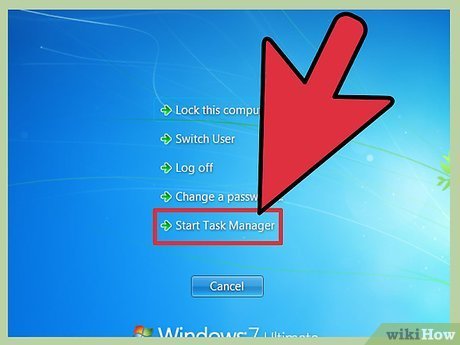
The Classic: Ctrl + Alt + Delete
This is the first method most people try, and for good reason – it’s often the most reliable. The Ctrl + Alt + Delete combination is like a magic key that opens up a special menu on your computer. When you press these three keys together, Windows shows you a screen with several options.
Using Task Manager
One of the most useful options on the screen is “Task Manager.” Click on it, and you’ll see a window showing all the programs running on your computer. You might see a long list of apps, but focus on finding the frozen game. Often, the game will say “(Not Responding)” next to its name.
Here’s how to use Task Manager:
- Press Ctrl + Alt + Delete.
- Click “Task Manager.”
- Look for the frozen game in the list of processes.
- Click on the game’s name to select it.
- Click the “End Task” button at the bottom right of the window.
- Wait a moment. The game should close, and you’ll return to your normal desktop.
Sometimes the game might take a while to close even after you click “End Task.” Be patient and avoid clicking repeatedly, as this might confuse your system.
Alternative Key Combinations
If Ctrl + Alt + Delete isn’t working, don’t give up! There are a few other key combinations you can try that might bring up Task Manager or close the game directly.
Ctrl + Shift + Esc
This key combination directly opens the Task Manager window, skipping the extra step of selecting it from the Ctrl + Alt + Delete menu. If you’re confident that you want Task Manager right away, this is a great shortcut. It’s especially helpful if the Ctrl + Alt + Delete screen isn’t loading quickly.
Alt + F4
The Alt + F4 combination is often a faster way to close an active window. It might close a frozen game if it’s recognized as the active window. Try pressing Alt + F4 once. If it doesn’t respond, give it a moment before trying again. Repeatedly pressing Alt + F4 won’t be more effective and can sometimes cause more problems. It’s a good first thing to try before resorting to Task Manager.
The “Force Quit” Method – When Task Manager Fails
Sometimes, a game will freeze so badly that even Task Manager won’t close it properly. The game might not respond to any commands, making it appear like a “dead process.” When that happens, you might need to use a more forceful approach to close it.
Using the Command Prompt
The Command Prompt is like a text-based way to talk to your computer. It might look intimidating, but we’ll guide you through it step-by-step.
Here is how you can do this:
- Type “cmd” in the Windows search bar.
- Right-click on “Command Prompt” and select “Run as administrator”. This is essential for this method to work correctly.
- A black window will appear. In this window, type the command
tasklistand press Enter. This command shows a list of all running programs (just like Task Manager, but in text format). - Look for the name of your frozen game. Note down the ‘Image Name’ and ‘PID’ (Process ID) of the game. The Image Name is the name of the .exe file, and the PID is a unique number that identifies that process to the system.
- Now, type the command
taskkill /F /IM image_name.exeortaskkill /F /PID pid_number, replacing “image_name.exe” with the name of the .exe file you wrote down. Make sure to use the exact image name, including the extension (.exe), for example,taskkill /F /IM game.exe. If you are using the PID, usetaskkill /F /PID 1234, replacing 1234 with the actual PID of the frozen game. The/Fmakes sure the process is forcefully killed. - Press Enter. This command will forcefully end the frozen process. If successful, the command prompt should show you that the task was closed.
Be extremely careful when using Command Prompt commands, as you can cause serious system errors if you use the wrong command. Only type what we tell you to type.
Using PowerShell
PowerShell is similar to the Command Prompt but more powerful. It can also forcefully close a frozen game, sometimes more reliably than the Command Prompt.
Here’s how to use PowerShell:
- Type “powershell” in the Windows search bar.
- Right-click on “Windows PowerShell” and select “Run as administrator.”
- A blue window appears. In this window, type the command
Get-Process | Where-Object {$_.MainWindowTitle -like "game_name"}, replacing “game_name” with part of the game’s title. For example, if the frozen game title is “My Awesome Game,” you might typeGet-Process | Where-Object {$_.MainWindowTitle -like "Awesome"}orGet-Process | Where-Object {$_.MainWindowTitle -like "Game"}. This command is going to look for the processes using the title of the frozen game window. - PowerShell will display the process, showing information such as its name and process ID (PID). Note down the PID.
- Now, type the command
Stop-Process -Id pid_number -Force, replacing pid_number with the actual PID you wrote down in the previous step. For example, if the PID was 5678, you would typeStop-Process -Id 5678 -Force. - Press Enter to close the process.
PowerShell is helpful because it is more precise in finding processes by name and is often a little more forceful than the Command Prompt’s taskkill command.
When Nothing Else Works – A Last Resort
In rare cases, a game might freeze so badly that none of the methods mentioned above will work. The game might have locked up your entire system, so none of the keyboard commands work. This can happen if the game is using all of your computer’s resources.
The Power Button (Use with Caution!)
The absolute last resort is to press and hold the power button on your computer for about 5 to 10 seconds. This will force your computer to shut down. This is a hard shutdown and can cause problems if you do this too often. If you had any unsaved work or any running processes, they will be terminated without saving. Use this only as a very last option.
After your computer shuts down, wait a few seconds before turning it back on.
Preventing Future Freezes
While these methods can help you close a frozen game, it’s better to try to prevent freezes from happening in the first place. Here are some things you can do:
Check Your Computer’s Specs
Make sure your computer meets the minimum and recommended specifications for the game. If your computer is below the minimum specs, it will struggle to run the game correctly, causing performance issues and eventually leading to crashes. Games require a lot of processing power (CPU and GPU) and memory (RAM), so ensure that your hardware can handle the demands of the game.
Update Your Graphics Drivers
Outdated graphics drivers are a common cause of game crashes and freezes. Graphics drivers are software that tells your graphics card how to work with games. Manufacturers regularly release updated drivers that fix bugs and improve performance. Make sure you’re using the latest graphics driver. You can usually find driver updates on the website of your graphics card manufacturer (NVIDIA, AMD, or Intel).
Here’s how to update your drivers:
- Go to your graphics card manufacturer’s website.
- Find the driver download section.
- Search for your specific graphics card model.
- Download and install the latest driver.
- Restart your computer.
Monitor Your PC’s Temperature
Overheating can cause a lot of problems, especially when gaming. Games require a lot of processing power, and that can generate heat inside your computer. Make sure your computer has enough ventilation and is not sitting on a surface that blocks airflow (like a blanket or carpet). You can also install software to monitor your computer’s temperature. If you notice your temperatures are too high (above 80 degrees Celsius for the CPU or GPU), you need to allow better ventilation or clean the fans. A build up of dust can cause your computer to heat up more than normal. Ensure to clean the fans and vents at least every 6 months. Consider using a cooling pad if you’re playing on a laptop.
Close Unnecessary Programs
Running other applications at the same time as your game can put a strain on your computer and increase the chances of a freeze. Close any unnecessary programs before starting your game. Things like web browsers, word processing documents, and music players can use up computer resources. So it’s beneficial to close those before running your game.
Check for Game Updates
Game developers regularly release updates that fix bugs and improve performance. An outdated game can be more likely to freeze. Make sure your games are updated to the latest version. Check on the game launcher or through the game itself for updates. Sometimes, you have to manually tell it to check for updates.
Verify Game Files
Sometimes, the game files can become corrupted or damaged, causing freezes and crashes. Most game launchers (like Steam, Epic Games, or GOG) have an option to verify the game files. This option checks the files and will re-download any damaged or missing files. This is a great way to ensure all your game data is intact and works correctly. Look for this option in the settings or options section of the game launcher. If using Steam, right click on the game and go to properties, then locate “Installed Files” and the “Verify integrity of game files”.
Lower Graphics Settings
If your computer struggles with the game, lower the graphics settings in the game’s options menu. Lowering settings such as resolution, texture quality, shadow details, and other graphics settings can ease the stress on your system. Start with small changes and see if that has an effect on the game’s performance. It’s beneficial to do this to ensure that the game runs smoothly and reduces the chance of freezes.
Reinstall The Game
As a last resort, if all else fails, consider uninstalling and reinstalling the game. Sometimes the game files can become corrupted and cannot be fixed by verifying files. Reinstalling the game gives you a fresh install. However, make sure you have saved any game files or progress before uninstalling.
Dealing with a frozen game can be really frustrating, but by understanding these techniques, you’ll be better equipped to handle it and get back to the action. Remember to be patient and try each method carefully, and always ensure your computer and games are up to date. Happy gaming!
Here's how to force close a frozen game! 🥶🥶
Final Thoughts
To close a frozen game on pc, try pressing Alt + F4 first. This often forces the application to close. If that fails, you can press Ctrl + Shift + Esc to open Task Manager.
In Task Manager, find the game under the “Processes” tab, then select it and click “End Task”. This will shut down the unresponsive game. If you still have issues, restarting your computer is a final option for how to close a frozen game on pc.

