
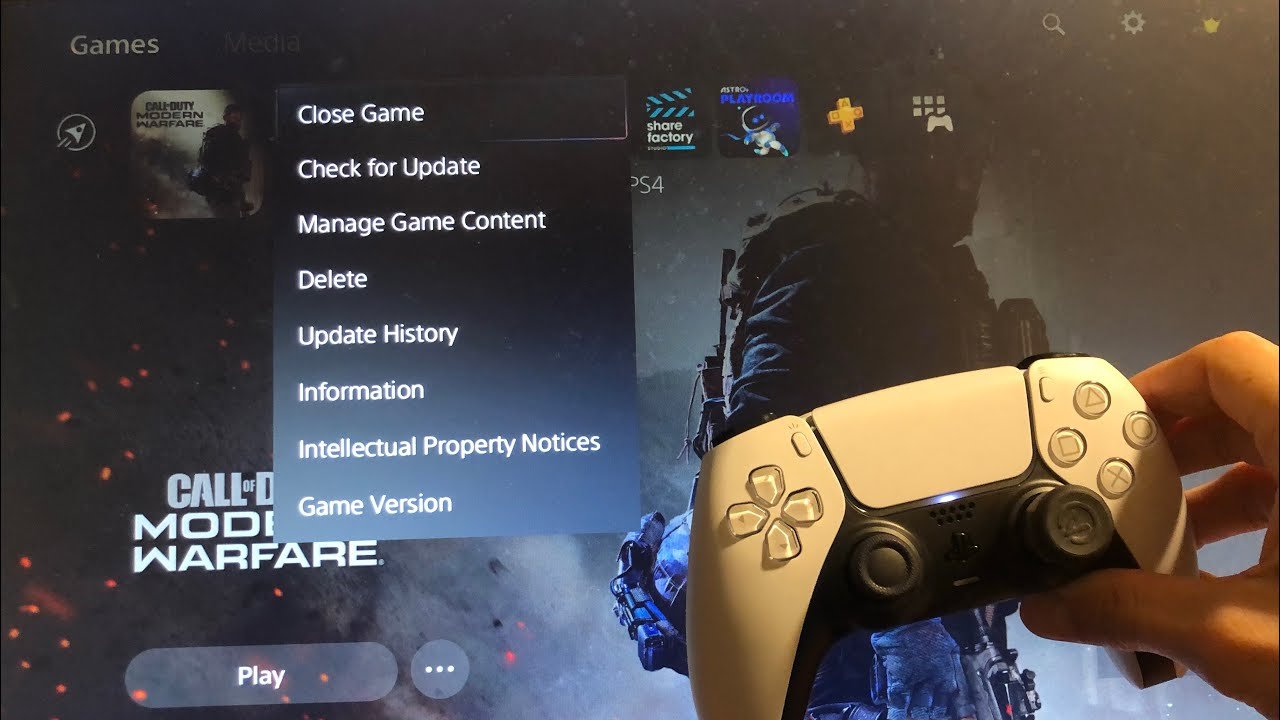
To close a game on PS5, press the PlayStation button, navigate to the game tile, press the options button, and select ‘Close Game’.
Ever found yourself lost in a digital world on your PS5, only to realize it’s time to stop playing? Figuring out exactly how to close game on PS5 can sometimes feel a little confusing at first. Many players wonder about the proper way to exit to avoid any problems.
Thankfully, the process is actually quite straightforward and easy to remember once you know the steps. It involves just a few button presses, and you’ll be back to the main PS5 menu in no time.

How to Close a Game on PS5: A Complete Guide
Have you ever been deep into a game on your PlayStation 5, and then needed to switch to a different one or just stop playing for a while? Knowing how to properly close a game is super important. It helps keep your PS5 running smoothly and prevents any problems. Think of it like closing a book when you’re done reading – you wouldn’t just leave it open, right? This guide will show you exactly how to close your games on the PS5, so you can play worry-free!
Why It’s Important to Close Games Properly
It might seem easier to just switch to a different game or turn off your console without closing the one you were playing first, but that’s not a good idea. When you leave a game running in the background, even if you’re not actively playing it, it can still use some of your PS5’s power. This can cause several issues:
- Slowdowns: The game keeps using the console’s memory (RAM) and processing power, making your PS5 run slower and possibly causing glitches or freezes.
- Overheating: If many games are left running in the background, it can strain the console and cause it to get too hot.
- Lost Progress: Some games might not automatically save if you don’t close them correctly. This could mean losing some of your hard-earned progress.
- Battery Drain (Controller): Leaving games running will keep your DualSense controller connected. This can drain its battery quicker.
So, as you can see, taking the few seconds to correctly shut down your game helps ensure your PS5 performs great and that you don’t lose anything!
The Main Methods for Closing Games
There are several ways you can close games on your PS5. Each method is easy, and you’ll quickly get the hang of them. We’ll walk through the most common and useful ways.
Using the PlayStation Button
This is the most common method and the one you’ll use most of the time. Here’s how it works:
- Press the PlayStation Button: While you’re in a game, press the PlayStation button in the middle of your DualSense controller. This takes you to the Control Center.
- Navigate to the Game: Use the directional buttons or the left joystick to move to the game icon on the bottom of the screen. It will be the last game you were playing.
- Press the Options Button: Once the game is selected, press the Options button on the right side of your DualSense controller. This button has three horizontal lines on it.
- Select “Close Game”: A menu will pop up. Use the directional buttons or left joystick to navigate and select “Close Game.”
- Confirm Closing: A confirmation message might appear, select ‘OK’ or ‘Close’ option to confirm that you want to close the game. The game will now close, and you’ll be taken back to the PS5 home screen.
Using the Home Screen Game Icon
Sometimes you might already be on the home screen. In this case, closing the game is still a breeze:
- Navigate to Game Icon: On the PS5 home screen, find the game’s icon that you want to close. It’s usually on the “Recently Played” row, but you can also find it in your game library.
- Press the Options Button: Once the game icon is highlighted, press the Options button (the one with the three lines) on your controller.
- Choose “Close Game”: From the menu that appears, select “Close Game”.
- Wait for it: The game will close and you’ll be back at the home screen.
Using the Quick Menu
The Quick Menu is another fast way to close a game. Follow these steps:
- Press the PlayStation button: Press the PlayStation button on the controller, this will take you to the control center.
- Select the Game Card: In the control center, navigate using the directional buttons or the left joystick to highlight the game card. It shows you the name and icon of the game you’re currently playing.
- Press Options Button: Once you’ve highlighted the game card, press the Options button on your controller.
- Choose “Close Game”: Select “Close Game” from the menu that appears and the game will close.
- Go back to home screen: You will be redirected to the PS5’s home screen once the game is closed.
Closing Games While in Another Application
Sometimes, you might be using an app, like a streaming service, while a game is still running in the background. In this case you can easily close the game:
- Press the PlayStation Button: Press the PlayStation button to go to the Control Center.
- Select the Game Card: Find the game card for the game you want to close. The game’s name will be displayed.
- Press the Options button: Press the Options button on your controller.
- Choose “Close Game”: Select the “Close Game” option.
- The game closes: The game will close and you’ll go back to the app or the home screen.
When a Game Doesn’t Want to Close
Sometimes, a game might be a bit stubborn and not close right away. This is rare, but it can happen. Here are a few things you can try if a game doesn’t close using the methods above:
Force Closing with the PlayStation Button
This is very similar to the main method, but it’s a little more direct:
- Press the PlayStation Button: While the game is running, press the PlayStation button.
- Find the Game Card: Navigate to the game card in the Control Center.
- Press and Hold Options: Instead of just pressing the Options button, press and hold it down for a few seconds.
- Close Game Option: You’ll see a slightly different menu appear. Select “Close Game” to force it to shut down.
Restarting Your PS5
If a game is still not closing, restarting your PS5 is a way to make sure everything shuts down properly. It’s like giving your console a fresh start:
- Press the PlayStation Button: Press the PlayStation button on your controller to go to the Control Center.
- Go to the Power Menu: Select the “Power” icon (it looks like a circle with a line through it) at the right end of the menu.
- Select Restart: Choose “Restart PS5”. Your console will shut down and start up again. This should close any stubborn games.
Important: If your PS5 is completely frozen and the controller is not working, you can also hold the power button on the console itself for about 10 seconds, this will force a restart. Only use this method if other methods fail as you can lose unsaved game data.
Tips for Managing Multiple Games
Many of us like to have several games ready to play. Here are some extra things to keep in mind when you’re switching between different games:
Closing Games Regularly
Make it a habit to close games when you’re finished with them. Don’t let them run in the background while you’re doing other things. This helps keep your PS5 running quickly and smoothly.
Using the Game Library
Your game library is a great place to manage your games. You can quickly see all the games you have and close them if needed. You can find it by:
- Going to the home screen,
- Navigating to the right using the controller,
- Selecting the “Game Library” icon on the far right (it looks like a stack of discs).
From there you can easily select a game and close it down.
Checking the Control Center
The Control Center is your best place to see what’s running and what needs to be closed. Get used to checking it regularly to make sure there aren’t too many games running in the background.
Saving Often
Make sure to save your game progress frequently. Many games have auto-save, but it’s always good to manually save often as a backup, just in case. This helps prevent any progress loss if you have to quickly close your game or if you experience a crash.
Common Mistakes to Avoid
To make sure you close games properly and safely, let’s look at some of the common mistakes players make:
Not Closing Games Before Switching
A very common mistake is to just switch to another game without closing the previous one. This is not good for your console’s performance, remember to always close the game.
Turning Off the Console Without Closing Games
Another common mistake is to simply turn off your PS5 when you’re done playing, without closing any game. It’s best to always close the games before shutting down.
Ignoring Performance Issues
If you notice your PS5 is running slow or getting hot, it might be because many games are open in the background. If this happens, close all the games that are open.
Closing games properly on your PS5 is a small thing, but it can make a big difference in how well your console runs. By following these easy steps, you can keep your PS5 running smoothly and enjoy your favorite games without any problems. Remember to close games when you are done with them, and you’ll be gaming happily!
PS5: How to Close Games & Applications Tutorial! (For Beginners) 2024
Final Thoughts
To close a game on your PS5, press the PlayStation button on your controller. This will open the Control Center. From there, select the game you want to close and press the options button. Then, choose “Close Game” from the menu.
Alternatively, you can close the game from the home screen. Highlight the game, press the options button, and select “Close Game.” These straightforward methods will help you understand how to close game on ps5 effectively. Always be sure to save your progress first.

