
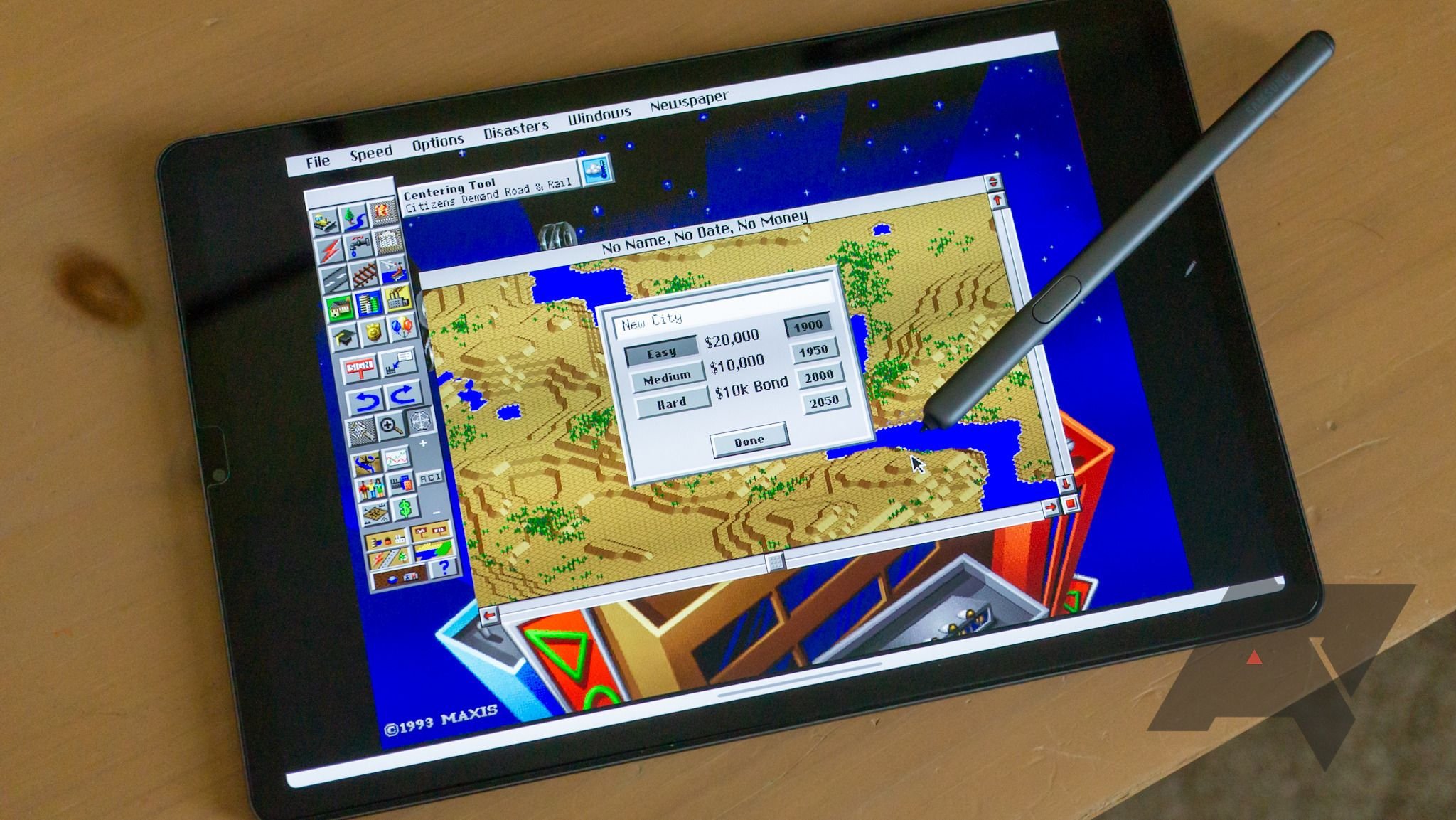
Playing DOS games on a Chromebook requires installing a DOS emulator application, like DOSBox, typically available through the Google Play Store or as a Linux app.
Remember those classic DOS games? The pixelated graphics and catchy tunes still hold a special place in many hearts. You might think that these gems are relegated to old computers, but there’s good news! It’s entirely possible to learn how to play DOS games on Chromebook.
The process involves using emulation software. With the right setup, you can quickly get back to your favorite retro titles. Enjoy revisiting these gaming classics right on your Chromebook.

How to Play DOS Games on Chromebook
So, you have a Chromebook and a hankering for some classic DOS gaming? Awesome! You’re not alone. Many of us fondly remember the pixelated graphics and catchy tunes of games like Doom, Prince of Persia, and SimCity. While Chromebooks don’t run DOS games natively, thankfully, with a little know-how, it’s totally possible to get your retro gaming fix. This article will walk you through several straightforward methods, ensuring you can dive back into those golden oldies quickly and easily. Let’s explore how you can bring your favorite DOS titles to your Chromebook!
Using DOSBox: The Classic Emulator
The most common and generally considered the best way to play DOS games on a Chromebook involves using an emulator called DOSBox. DOSBox is a special program that makes your Chromebook think it’s an old DOS computer, allowing you to run those games. Think of it like a translator, letting your Chromebook understand the old DOS language. It’s powerful, versatile, and, most importantly, it’s free! Let’s get started.
Installing DOSBox on Your Chromebook
First, you need to get DOSBox onto your Chromebook. There are a couple of ways to achieve this, but the most direct method is using the Linux environment. Chromebooks running Chrome OS have the capability to use Linux apps, and we’ll utilize this feature to install DOSBox. If you haven’t yet enabled Linux, you’ll need to do that first. Here’s how:
- Go to your Chromebook settings. You can do this by clicking on the clock in the bottom right corner of your screen and then selecting the settings cog icon.
- Find the “Linux (Beta)” option in the left sidebar. It may be listed under “Advanced” settings.
- Click “Turn On.” Your Chromebook will now walk you through the process of installing Linux, this might take some time, be patient.
- Once Linux is successfully installed, a terminal window will open. Think of it as a command center where you can type in commands to make your computer do things.
Now, with Linux enabled, you can install DOSBox. Inside the terminal window, type the following command and then press Enter:
bash
sudo apt update && sudo apt install dosbox
This command tells the Linux system to check for updates to the list of programs it knows about, and then it installs the dosbox package.
You may be prompted to enter your password to confirm the install. If that’s the case, do so. The installation might take a little time, depending on the speed of your internet connection. Be patient and avoid closing the terminal. After the install finishes, you will have successfully added DOSBox.
Getting Your Games Ready
Now that you have DOSBox installed, you need some games to play. You’ll probably need to do a bit of research to find games online. A lot of DOS games are freely available these days as “abandonware”. Make sure to download your games from safe and trusted websites. These games usually come as ZIP files that contain the necessary files to run.
When you’ve downloaded your game file(s), place the zip file into your Linux files folder which you will see in the ‘Files’ app of the chromebook. A great practice is to create a ‘Games’ folder inside the Linux Files folder so it can be easier to find and organise your game files. Next, you will need to extract the contents of that ZIP archive. Usually, you will need to right-click on that ZIP file, and select ‘Extract’. Then specify the Games folder which we created as the location to extract the files. Usually the main game executable will end with the extension ‘.exe’ or ‘.com’, such as ‘prince.exe’. Take note of the name as you will need this later.
Configuring DOSBox to Run Your Game
Before diving into your new DOS games, you will need to mount the directory where the game is located and then run the executable file of the game. Think of ‘mounting’ like making a folder visible and accessible for DOSBox.
Launch DOSBox by simply typing dosbox in your terminal and then pressing Enter. A DOSBox window will appear. This window looks a little like an old DOS computer screen, it is black with some text displayed at the top.
In the DOSBox window, type the following command to mount the directory of where your game is located: mount c /home/yourusername/Games . In this command, replace yourusername with your actual Linux username. For example, if your username was ‘gamer’, your command would look like mount c /home/gamer/Games
After pressing Enter, you will now see a message saying the directory ‘c’ is mounted.
Next, you will need to enter into the c drive by simply typing c: and pressing enter.
Now you can enter into the directory where the game files are located by using the cd command. For example, if the game folder was named ‘prince’, type cd prince .
Finally, enter the name of the executable. For example, if the game executable was prince.exe, type prince.exe and press Enter.
If all went well, your game should launch.
Troubleshooting Common DOSBox Issues
Sometimes, things don’t go as planned. Here are a few issues you might encounter with DOSBox:
Game is too fast: If your game is running ridiculously fast, DOSBox has a handy feature to slow it down. You can press Ctrl+F11 to slow the game down, or Ctrl+F12 to speed it up.
Game sound issues: If you do not have any sound, or you are getting very crackly sound, you can alter the DOSBox configuration file. The config file is usually called dosbox-0.74-3.conf or something very similar and is located in the .dosbox folder in the Linux files. The config file is a text file, which you can open using any text editor, such as ‘Text’. Look for the line starting sbtype= and change the value to sbtype=sb16. This option provides a better sound emulation. Save the change to the config file and try running your game again.
Game refuses to launch: Sometimes, the program you downloaded might not be an executable file or it might not be in the correct location in the folder. Recheck that your executable file name matches exactly what you have typed into DOSBox. Try opening another game you have already working, to see if the problem is with that particular game. Make sure that when you downloaded the game that you selected to download the right version for PC.
Don’t worry; these issues are usually easy to resolve with a little bit of tweaking. The DOSBox website and community forums are great resources if you need additional assistance, and it is also very easy to find YouTube guides online if you are having any troubles.
Using an Online DOS Emulator
If you prefer to avoid installing anything on your Chromebook, you can use online DOS emulators. These websites allow you to play many classic DOS games directly in your browser. This option is usually the easiest method for users who don’t feel comfortable with Linux, or are experiencing troubles with DOSBox installation.
How to Use Online DOS Emulators
Using online DOS emulators is incredibly simple:
- Open your favorite web browser on your Chromebook (Chrome, of course).
- Search for “online DOS emulator” on the internet. A few will pop up. The most popular ones are the Internet Archive, or JS-DOS.
- Browse the websites’ game libraries, select your game and click to play it.
- The games usually load instantly and you can play directly in your browser.
The downside of online emulators is that you will be restricted to the games that the website provides, and you won’t be able to play games that you’ve downloaded or own. But, for many users, this is an ideal solution because it doesn’t require any technical know-how or any installation process.
Pros and Cons of Online Emulators
Here is a table showing the good and bad things of online emulators:
| Pros | Cons |
|---|---|
| No installation required | Limited game selection |
| Easy to use | May have performance issues |
| Accessible on any device | Some websites contain ads |
| Instant access to games | You cannot play your own games |
Overall, online DOS emulators are great for quick gaming sessions without any hassle.
Advanced Configurations with DOSBox
If you’re comfortable with more technical options, DOSBox allows for many advanced configurations to fine-tune your gaming experience.
Customizing DOSBox Configuration Files
DOSBox comes with a configuration file that you can customize. This file is usually located in your Linux files folder inside a directory called .dosbox. The filename of the config file is usually called dosbox-0.74-3.conf or something very similar. Here are some tweaks you might consider:
Changing screen resolution: You can adjust the resolution of the DOSBox window to better fit your screen. In the config file, you can find parameters for the output, which you can change. For example, changing ‘output=surface’ to ‘output=opengl’ can sometimes improve graphical performance.
Improving sound quality: As mentioned before, the sbtype parameter can be set to sb16 for more accurate sound reproduction. You can also tweak other audio settings to address any sound issues you are experiencing.
Adjusting CPU speed: The core parameter allows for adjustment of the emulated CPU speed of the DOS computer, by using the ‘cycles’ parameter. If your game is running way too fast, you can reduce this setting to slow the game down.
Be cautious when changing these settings, make sure you are creating backups before you alter the original file. The DOSBox website provides excellent documentation to help you with the changes.
Using DOSBox Frontends
If you find the command-line interface of DOSBox a little daunting, consider using a DOSBox frontend. These frontends provide a graphical user interface for managing DOS games. Some popular frontends include D-Fend Reloaded and LaunchBox. It is possible to install these frontends on Linux, although some are more tricky than others. These frontends allow you to add your games to the frontend software and simply select them to play, without having to manually type in commands.
Tips for Optimizing Performance
To make your DOS games run smoothly on your Chromebook:
Close unnecessary apps: Make sure to close any other applications that you don’t need, as these may be taking resources from the processor, which in turn will make your games slower.
Adjust DOSBox settings: Tweaking DOSBox settings as mentioned previously can improve the speed.
Update your Chromebook: Keep your Chromebook updated with the latest version of Chrome OS, as this can improve performance across all areas of the device.
By experimenting with these settings and tips, you can fine-tune your DOS gaming experience for optimal performance on your Chromebook.
You now have all the know-how and information to have your chromebook be the new best way to play DOS games! Whether you opt for the classic emulator DOSBox, or you chose an easier route by playing games directly in your browser, you are ready to play some of the best games ever created. Have fun!
How to Play DOS Games on Chromebook
Final Thoughts
You can play DOS games on your Chromebook using DOSBox. First, install a DOS emulator from the Chrome Web Store. Then, download your desired game’s files.
Next, configure DOSBox to correctly mount your game files. Finally, you can launch the game and enjoy classic PC experiences. This is how to play dos games on chromebook, giving you access to many retro titles.

