
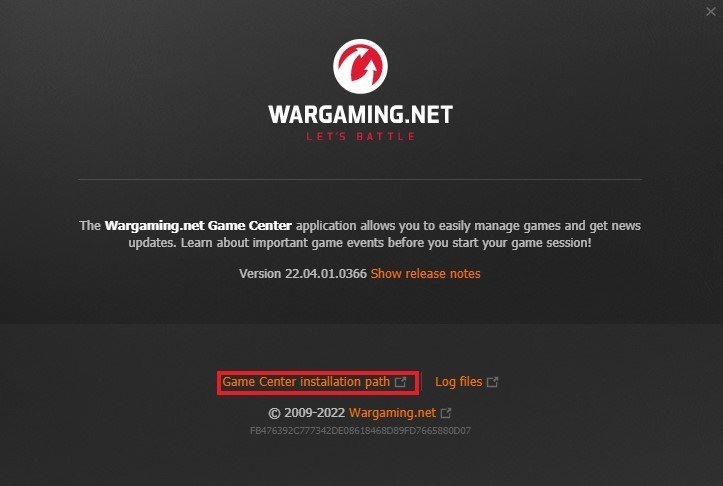
To completely uninstall Wargaming Game Center, you must first close the application, then go to your system’s “Add or Remove Programs” or “Apps & Features” and uninstall it from there. Afterward, navigate to the folder where it was installed and delete any remaining files.
Are you looking to remove the Wargaming Game Center from your computer? Perhaps you’ve decided to try other games or maybe you just need space. Either way, learning how to completely uninstall Wargaming Game Center is crucial for a clean system.
This guide gives you simple steps to remove the program and any lingering files. We will ensure it’s gone completely, reclaiming precious disk space and keeping your system tidy. You will find the entire process quite straightforward.

How to Completely Uninstall Wargaming Game Center
Okay, so you’ve decided to say goodbye to the Wargaming Game Center. Maybe you’re making room for new games, or perhaps you’re just tidying up your computer. Whatever the reason, it’s super important to remove it properly. Just deleting the program’s folder isn’t enough, as that can leave behind bits and pieces that can sometimes cause problems later. Don’t worry, we’re going to go through all the steps to make sure it’s completely gone, like a ninja in the night. Let’s get started on making sure your system is clean and ready for whatever comes next!
Understanding Why Complete Uninstallation Matters
Before we jump into the “how,” let’s chat about the “why.” Think of your computer as a very organized room. When you install a program, it’s like putting a new set of toys in that room. If you just pull the toys out and leave all the packaging and small bits behind, the room won’t be as tidy as it could be. Programs like Wargaming Game Center, like many others, often spread files across different parts of your computer. These bits help the program work smoothly, but when you uninstall, they can stick around. These leftover files can take up space and sometimes slow your computer down. Plus, if you try to reinstall the game later, these files might cause conflicts or make the installation go haywire. By removing everything properly, we are making sure the room is completely clean and ready for whatever comes in the future.
The Standard Uninstall Method: Using the Control Panel (Windows)
The first step in getting rid of Wargaming Game Center is using the usual uninstall method on Windows. It’s like the front door for removing programs. Here is how you do it step by step:
- Close the Game Center: Make sure the Wargaming Game Center isn’t running. Check the little icons in the bottom-right corner of your screen (the system tray). If you see the Wargaming icon, right-click on it and pick “Exit.”
- Open the Control Panel: Click on the Start button (the Windows logo on the bottom left of your screen), type “Control Panel”, and then click on the Control Panel app.
- Go to “Programs”: In the Control Panel, click on “Programs” or “Programs and Features.” If you see “Uninstall a program” or something like that, click it.
- Find the Game Center: You should see a list of all the programs installed on your computer. Look for “Wargaming Game Center” or something similar.
- Uninstall: Click on “Wargaming Game Center” to select it, and then click “Uninstall” at the top. A window will pop up asking if you are sure; just click “Yes” or “Uninstall” again.
- Follow the On-Screen Instructions: The uninstaller will guide you through the process. Just follow the instructions that appear on your screen. It might ask you if you want to keep your game settings; make sure to read carefully before deciding.
Checking For Remaining Files
Okay, so you’ve used the standard uninstall method, great job! But, remember how we said sometimes programs leave little bits and pieces behind? Now, we need to put on our detective hats and look for any files left over. These files are usually hidden in special folders and need some looking to find them. So, we will go step by step to locate and remove these remaining files.
Checking the Program Files Directory
The first place to check is the “Program Files” folder. This is where most programs keep their main files. Here is how we go about it:
- Open File Explorer: Click on the folder icon on the bottom of your screen or press the Windows key + E.
- Go to Program Files: On the left side of the File Explorer, click “This PC”, then open your main drive (usually “C:”). After that, open the “Program Files” folder.
- Look for Wargaming Folders: Check to see if there is a folder named “Wargaming.net” or “Wargaming.” If you find it, it is very likely that there is the leftover. Right-click on the folder and click on “Delete.”
- Empty the Recycle Bin: Once you delete the folders, remember to go to your Recycle Bin on your desktop, right-click and select “Empty Recycle Bin.” This makes sure these files are truly gone from your system.
Now let’s move on to other parts where sometimes these folders are stored.
Checking the Program Files (x86) Directory
Sometimes, programs, especially the older ones, get installed in the “Program Files (x86)” folder. So, now we also check there. Here is what you do:
- Open File Explorer: Just like before, open File Explorer with the folder icon on your screen or press Windows key + E.
- Go to Program Files (x86): On the left, click “This PC”, then open your main drive (usually “C:”). Open the “Program Files (x86)” folder this time.
- Look for Wargaming Folders: Just like before, see if you can find a folder named “Wargaming.net” or just “Wargaming.” If you find one, right-click on it and pick “Delete.”
- Empty the Recycle Bin: Go to your desktop, find the Recycle Bin, right-click it and then empty it. This will ensure that these folders are also removed from your computer.
Checking the AppData Folder
The AppData folder is a sneaky place where programs often store your settings and other important files. This folder is hidden but is important to check. To access it, follow these steps:
- Open File Explorer: Open File Explorer again.
- Type in the Address Bar: At the top of File Explorer, click inside the address bar (where it shows the path of the folders) and type in “%appdata%” (without the quotes) and press Enter.
- Look for Wargaming Folder: Now you are in the AppData folder, look for a folder named “Wargaming.net” or “Wargaming.” If you find one, right-click on it and pick “Delete.”
- Empty the Recycle Bin: Once again, make sure you empty the Recycle Bin to completely remove the folder.
There is one more folder that we should check. Let’s move to next step.
Checking the LocalAppData Folder
Just like AppData, there is also the LocalAppData. The procedure to access it is the same as before but with a small change. Here are the steps:
- Open File Explorer: Open File Explorer again.
- Type in the Address Bar: At the top of File Explorer, click inside the address bar and type in “%localappdata%” (without the quotes) and press Enter.
- Look for Wargaming Folder: See if you see a folder named “Wargaming.net” or “Wargaming” here, if so, right-click on it and pick “Delete.”
- Empty the Recycle Bin: Always remember to empty the Recycle Bin to make sure they are gone.
This will help us with our thorough cleanup.
Using a Third-Party Uninstaller (Optional)
While the above steps usually work great, sometimes a stubborn program might leave a lot of traces. For these cases, you can use a third-party uninstaller. These tools are like super cleaners for your computer, they are very helpful in removing everything. Here are a couple of them:
- Revo Uninstaller: This program is popular because it scans your computer very deeply, finding the tiny little bits that are left.
- IObit Uninstaller: This is another option that people like because it has a very easy to use interface, making it simple to find what to remove.
If you decide to use one of these, it will guide you on the way. You just have to follow the instructions on their screen. Always be careful, and download them from their official websites to stay safe.
Dealing with Registry Entries (Advanced)
Okay, this is an advanced step, and it’s best to be very careful if you decide to proceed. Your Windows Registry is like the brain of your computer, and sometimes program settings can be stored there. Messing with the registry can cause issues, so only do this if you feel really confident. If not, it’s best to skip this step.
Here’s how you can check for Wargaming-related entries:
- Open the Registry Editor: Press the Windows key + R, type in “regedit” (without the quotes) and press Enter.
- Agree the Prompt: If a window asks you “Do you want to allow this app to make changes to your device,” click “Yes.”
- Navigate Carefully: Inside Registry Editor, go to “Edit”, then “Find”. Search for “Wargaming.” Be very careful as you go through. Make sure you only delete something that is specifically labeled with “Wargaming” or something related.
- Delete the Entries (If Found): If you find an entry related to Wargaming, right-click and select “Delete.”
- Exit Registry Editor: Close the Registry Editor after deleting all entries related to the program.
After all these steps we are hopefully done with the cleanup. Always remember, editing the registry can be a tricky business, so if you are not sure, it’s best to avoid it. These steps will definitely help you to remove every trace of the program.
Verifying a Successful Uninstall
After all the hard work we did, it’s time to make sure the Wargaming Game Center is really gone. Here’s how we double-check everything:
- Restart Your Computer: First, restart your computer. This will make sure that any changes you have made are now activated.
- Recheck Program Files: Go back into the Program Files, Program Files (x86), and the AppData and LocalAppData folders (we talked about these earlier), and make sure those Wargaming folders are no longer there.
- Search Your Computer: Use the search bar in the Start menu and type “Wargaming.” If there is nothing found then that’s a good sign.
- Keep an Eye Out: While using your computer as normal, pay attention. If anything weird pops up related to Wargaming, you know you need to do more digging.
If everything seems clear, that means that you’ve successfully removed the Wargaming Game Center! Congratulations, you are now a cleanup superstar.
By going through all of these detailed steps, you’ve not just uninstalled the program, you’ve ensured that your computer is clean and well-maintained, and you did an amazing job. Remember, sometimes programs are tricky, but if you take it one step at a time, you can remove them completely.
Uninstall World of Tanks on Windows 10 Creators Update
Final Thoughts
Completely removing Wargaming Game Center requires a specific process beyond standard uninstallation. You should first close the application and all its associated processes. Next, navigate to your computer’s installed programs and uninstall Wargaming Game Center.
After this, manually delete any remaining folders or files. These usually locate within your user profile’s AppData folders or your program files directory. This step ensures a clean removal.
Therefore, to sum up, these steps detail how to completely uninstall wargaming game center, leaving no trace. This method helps free up disk space and resolve potential software conflicts.

