
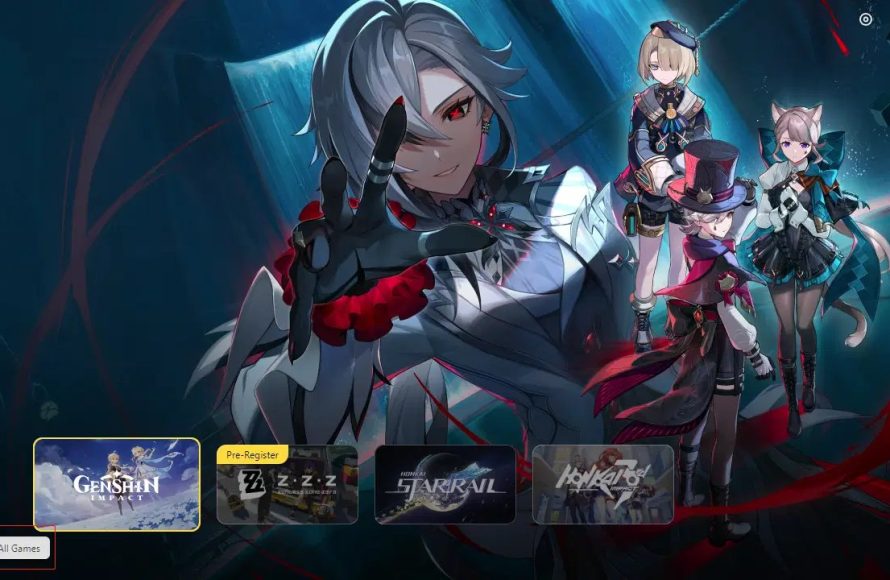
To connect Hoyoplay from Epic Games to HoYoLAB, you must first link your Epic Games account to the same email address you use for your HoYoLAB account.
Have you ever wished your game progress and social experience were neatly aligned? Many players using Hoyoverse titles, specifically those from Epic Games, have wondered how to connect Hoyoplay from Epic Games to HoYoLAB. It’s a common question, and we’re here to simplify the process. Let’s explore how you can easily link these two platforms. This connection will give you access to all your HoYoLAB features.

How to Connect HoyoPlay from Epic Games to HoyoLab
Okay, gamers! Let’s talk about something super important for all you Hoyoverse fans out there. You’ve probably got your favorite games like Genshin Impact or Honkai Star Rail, maybe you play them through the Epic Games Store using HoyoPlay. And you’re also likely using HoyoLab, the official community forum where you can chat with other players, read guides, and participate in cool events. But did you know you can connect these two worlds together? Connecting HoyoPlay (through Epic Games) to your HoyoLab account lets you easily see your game info, participate in community activities, and sometimes even get special in-game rewards. It’s like having all your Hoyoverse stuff in one awesome place! Let’s dive into exactly how to do this.
Understanding the Connection
Before we jump into the steps, it’s good to understand what we’re actually doing. Think of HoyoPlay as the launcher, like a doorway, that you use through Epic Games to play your Hoyoverse games. HoyoLab, on the other hand, is your profile within the wider Hoyoverse community. Connecting them simply means linking your game data to your HoyoLab account. This doesn’t change how you play the game, but it enhances your experience with the community features. Imagine showing off your characters to your friends, or reading about strategies that help you in game. That’s what the connection allows.
It’s also important to know that this process is usually a one-time thing. Once you’ve linked your accounts, they’ll stay connected unless you specifically decide to unlink them. So, take a deep breath, follow the steps carefully, and get ready to take full advantage of the Hoyoverse experience.
Why Connect Your Accounts?
Connecting your HoyoPlay game account to HoyoLab is more than just a formality; it’s the key to several benefits. Here are the main reasons why you should do it:
- Show Off Your Game Progress: Want to share your amazing characters or your achievements with others? Connecting your account allows HoyoLab to show your game details, so everyone can see your progress.
- Participate in Events and Activities: Many HoyoLab events and community activities require you to have a connected game account. This way, the system knows you’re a real player, which can help you to get amazing in game rewards.
- Get Community Support: Need help with a game puzzle or a tough boss? Connecting your account lets other players know which games you play, making it easier to get advice from the right people.
- Stay Updated on Game News and Updates: HoyoLab is a great place to find the latest news and announcements about your favorite games. Connecting your account helps you receive information tailored to what you’re playing.
- Easy Access on Different Devices: Whether you are gaming on your PC or mobile, this connection streamlines access and information for all your devices.
Step-by-Step Guide: Connecting Your HoyoPlay Account to HoyoLab
Let’s walk through the steps to connect your HoyoPlay account with your HoyoLab profile. Don’t worry, it’s quite straightforward.
Step 1: Log In to Your HoyoLab Account
First, you’ll need to be logged into your HoyoLab account. If you don’t have one yet, now is the time to create it! You can do this either through the HoyoLab website or using the mobile app.
- On the Website: Open your web browser and go to the official HoyoLab website.
- On the Mobile App: If you prefer, download the HoyoLab app from the App Store (iOS) or Google Play Store (Android), and install it.
Once you’re on the website or app, find the “Log In” or “Sign In” button, usually at the top right corner. Use your registered email or username and password, or any connected social media account that you use with your Hoyoverse account to log in to your account.
Step 2: Navigate to the “Account Management” Section
After logging in, you’ll want to find your “Account Management” settings. This is where you manage your connections and personal information. The exact location of this option might vary slightly depending on whether you are using the website or the app.
- On the Website: Look for your profile avatar or username, then click on it. A drop-down menu should appear; select “Account Management” or something similar.
- On the Mobile App: Tap on your profile avatar. This will take you to your profile page. On this page, look for an option like “Account Settings,” “Settings,” or “Account Management.” Tap to open that up.
Step 3: Locate the “Game Accounts” or “Linked Accounts” Option
In your “Account Management” settings, look for a section related to game accounts or linked accounts. The specific wording might be different, but it should be easy to spot since it will likely mention linking your game. It could be called “Linked Accounts”, “Game Accounts”, or something similar. Click or tap on that to continue.
Step 4: Connect Your HoyoPlay Account
Now you will see different options for connecting your game accounts. The options displayed will typically be the games that Hoyoverse makes available. Since you want to connect your HoyoPlay account (from the Epic Games Store), you might not see HoyoPlay specifically listed. What you are looking for, instead, are the individual game names.
For example, if you play Genshin Impact through HoyoPlay on Epic Games, then you’ll look for the Genshin Impact logo or name here. If you play Honkai: Star Rail through HoyoPlay, you’ll look for Honkai: Star Rail here. The important thing to note here, is that connecting your game account here connects it through HoyoPlay, meaning that it will connect it from Epic Games. Once you find the game you play, click or tap on that option to link it.
When you click on that, a new window or page might show, asking you to confirm the connection. This confirmation process may look different depending on how your specific Hoyoverse game account is set up.
Step 5: Confirm and Verify
Here’s where you might see some differences depending on your game and setup. After selecting your game, a prompt might appear to have you confirm or verify your connection. This could include a few different methods:
- Direct Link: In some cases, it might automatically detect that you play the game on your device, and ask you to confirm the connection without any further steps.
- Log In Verification: You might be asked to sign in with your account information specific to the game you selected. This might be your email address or username you use to play that game.
- Verification Code: You might receive a verification code, either through your email or the game itself. You’ll need to enter this code to confirm that you are the right person making this request.
Follow all the prompts that appear carefully, and provide all the information that is requested to confirm the connection correctly. Once you complete this step, your HoyoPlay account is now connected to your HoyoLab account!
Troubleshooting Common Connection Issues
Sometimes things don’t go as planned. If you are facing some problems connecting your accounts, don’t worry! Here are some common issues that you might face and how to solve them:
Issue: Account Already Linked
Problem: You might receive a message saying that your game account is already linked to another HoyoLab account. This happens if you used a different email or account in the past and linked to that one instead.
Solution: If you know which other account your game is linked to, log in to that one and check the linked accounts. You will likely need to unlink the game from the old HoyoLab account before connecting it to the new one.
Issue: Verification Code Problems
Problem: You’re not receiving the verification code, or the code is not working.
Solution:
- Check your spam or junk folder: Sometimes, emails containing verification codes end up in spam folders.
- Make sure your email is correct: Verify that you have entered your email address correctly.
- Try again: Click the “resend code” button to request the code again.
- Contact Support: If you still can’t get the code, you may need to contact Hoyoverse’s customer support for further assistance.
Issue: Connection Errors
Problem: You are getting a general error message when you try to link your accounts.
Solution:
- Check your internet connection: Make sure you have a stable internet connection to ensure a proper link.
- Restart the game or the HoyoLab app: Sometimes restarting the game or HoyoLab app might solve temporary issues.
- Try later: Sometimes, there might be a temporary problem with the server, so try linking it again later.
- Contact Support: If the issue continues, contact Hoyoverse customer support for more help.
Issue: Incorrect Game Selection
Problem: You might have accidentally chosen the wrong game in the linked account menu.
Solution:
- Double-check your selection: Go back to the linked accounts page, and verify that you have selected the correct game that you play through HoyoPlay.
Additional Tips for a Smooth Connection
Here are a few extra tips to make sure your connection goes off without a hitch:
- Use the same email: When creating or logging in to your HoyoLab and game accounts, using the same email address may simplify linking your accounts and remembering your details.
- Keep your information up to date: Make sure your email and phone number are correct on both your HoyoLab account and your Hoyoverse game accounts.
- Read carefully: Pay attention to each prompt that appears on the screen while linking your accounts, to avoid any problems.
- Be Patient: Sometimes the process might take a little bit of time. Try to be patient and follow each step carefully.
By keeping these points in mind, you should have a smooth and easy connection between your HoyoPlay account on Epic Games and your HoyoLab profile.
Connecting your HoyoPlay games from Epic Games to HoyoLab brings the community and your game journey much closer together. You get to showcase your achievements, join in on exciting events, and get in-depth support from the wider Hoyoverse gaming community. Now that you know how to connect your accounts, why not give it a try and get the full enjoyment out of your game and the Hoyoverse community today?
Beat my graphics
Final Thoughts
To connect your HoyoPlay account from Epic Games to Hoyolab, first ensure you use the same email when creating both accounts. Then, navigate to the Hoyolab website and log in. Go to your profile settings, find the “Account Management” section, and link your Epic Games account.
This link will make sure your progress and data are synchronized across platforms. Therefore, how to connect hoyoplay from epic games to hoyolab is crucial for seamless gameplay. You will now have a connected experience.

