
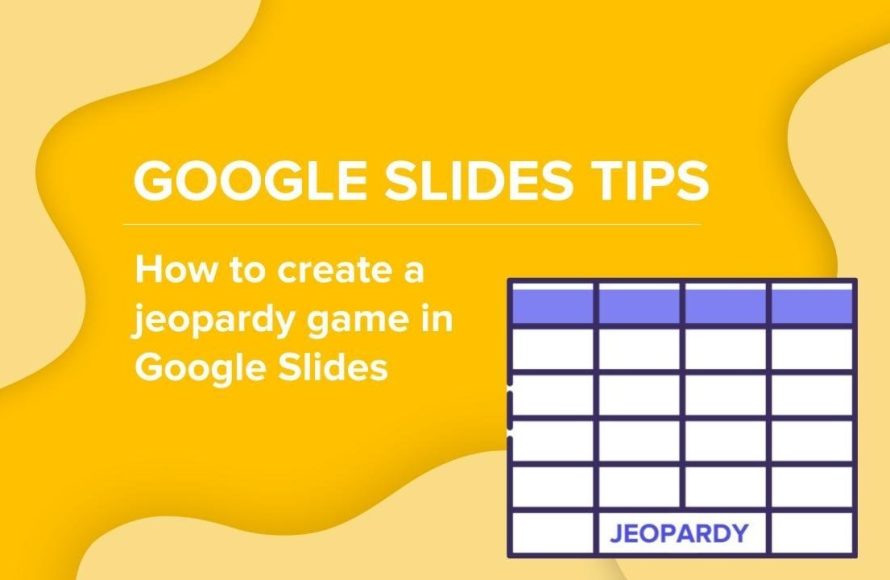
Creating a Jeopardy game on Google Slides involves designing a game board with categories and point values, linking each point value to a question slide, and using animations to reveal answers.
Want to add some fun and interactive learning to your next presentation? You can learn how to create a jeopardy game on google slides easily, turning a simple slide show into an engaging activity. It is a perfect method for quizzes, reviews, or even a fun game night.
This approach is very simple and requires no prior tech expertise. You will use basic Google Slides features to design an effective game. Now, it’s time to start creating your own game!

How to Create a Jeopardy Game on Google Slides
Alright, let’s dive into the fun part – making your very own Jeopardy game using Google Slides! It’s easier than you might think, and by the end of this guide, you’ll be a Jeopardy-creating pro. We’ll go step-by-step, so even if you’ve never used Google Slides much, you can follow along. Get ready to impress your friends, family, or classmates with an interactive and engaging game! We will cover everything from setting up the main game board to linking each question and answer slide for a seamless gameplay experience. So, let’s get started!
Planning Your Jeopardy Game
Before we even touch Google Slides, let’s think about what we want our game to look like. This is like drawing a map before a big road trip.
Choosing Your Categories
Think about the topics that will make your game fun and engaging. Here’s a few ideas to get you started:
School Subjects: Math, Science, History, English. You can even get more specific, like “Ancient Rome” or “Fractions.”
Pop Culture: Movies, Music, TV Shows, Video Games. Think about what your audience likes!
Hobbies: Sports, Cooking, Art, Reading. Are there shared interests everyone has?
General Knowledge: Animals, Geography, Famous People. This could cover lots of ground!
Funny and Random: Silly trivia, made-up facts, jokes. Time for some laughs!
You’ll need 5-6 categories for a classic Jeopardy board. Make them related if you want them to be thematic, or completely different if that’s what you desire. Write down the categories you chose, they will be helpful to us in the next steps.
Determining Difficulty Levels
Now that you have your topics, we have to think about how difficult the questions should be. Just like in the real Jeopardy! the questions will increase in value as you go down each category. In a Jeopardy, the points are typically: 100, 200, 300, 400, and 500. You can adjust these points, depending on age level and difficulty of questions.
For each category, you’ll need:
Easy questions: 100 points, these questions are simple.
Medium questions: 200 and 300 points. These questions are a bit harder and may require a little more thinking.
Hard questions: 400 and 500 points, these need in-depth knowledge of the topic and are challenging.
Think about what makes a question easy, medium, or hard for your audience. For example, for a 4th grader, a simple addition problem could be 100 points while multi-digit multiplication is 500 points.
Gathering Questions and Answers
This is where the real work begins. But don’t worry, it can be fun! For each category and point value, you will need a question or prompt and its matching answer.
Here are a couple ways to gather questions and answers:
Brainstorm: Think up questions yourself! This is a great way to customize the game.
Use resources: Websites like Brainly, Quizlet, or even textbooks can be great sources. Just be sure to double-check the answers are correct.
Ask others: Get some help from friends or family! They might have great ideas or favorite topics to include.
Write down all of your questions and their answers in a document. Keep them organized by category and point value. It’ll make it easy when you start putting everything into Google Slides.
Setting Up Your Google Slides Game Board
Now for the exciting part: actually building your Jeopardy game!
Creating a New Presentation
1. Go to Google Slides.
2. Click the “+” button to start a new presentation.
3. Give your presentation a title, like “My Awesome Jeopardy Game”.
Designing the Main Game Board
1. Clean the slide: Select all the text boxes on the first slide and press the “Delete” key to get rid of them. You want a blank canvas for your game board.
2. Create a table: Go to “Insert” > “Table”.
3. You need to make a table with the number of categories you have, plus one row for the category titles. For example, if you have 5 categories, you would create a 6×5 table.
4. Resize the table: Click on one of the corners of the table and drag to make it fill the slide nicely.
5. Add Category Titles: In the top row of the table, write your categories in each cell.
6. Add Point Values: In each cell under the categories, write the point values (e.g., 100, 200, 300, 400, 500). You can put this in number format, by just putting numbers instead of text, if you want.
7. Adjust the design: Use the formatting tools (like font, color, and background fill) to make your board look cool! Pick a font that’s easy to read, and use contrasting colors, so that the words are easy to see.
8. Customize Table Borders: You can change the color, thickness, and style of the table’s border lines. This makes the game board look polished and organized. To do this, select the table, then go to the border color and border weight tool to change the appearance of the table border.
9. Add a background image: You can go to the background menu under the format tab, to add a background image. This can be a simple picture or design that suits your game theme.
10. Double Check: Make sure all your category titles and point values fit nicely within their boxes. If they are too big or too small, adjust the font sizes accordingly.
Creating Question and Answer Slides
Now that the game board is done, we will move to creating the individual question and answer slides.
Making Question Slides
1. Create New Slide: Add a new slide for each question in your game. Each cell in your table will need a matching slide. So if you have 5 categories and 5 points per category, you’ll need 25 question slides.
2. Add the Category and Point Value: On each slide, you can write the category name and point value in a text box at the top. This will help the players understand which question they are answering.
3. Add Question: Make sure to copy the questions in the center of the slide, clearly and with a good-sized font. You can also add an image or a simple design to each slide to make them visually engaging.
4. Duplicate and Customize: You could create one basic question slide first, then duplicate it and adjust the text so that each slide doesn’t need to be manually formatted. This method can save you valuable time when creating a lot of slides!
Making Answer Slides
1. Duplicate the Question Slides: Duplicate each question slide. Then, on each new slide, write the answer to the questions in the center.
2. Keep the Format Similar: Try to maintain a similar format for all answer slides, just like you did with the questions, so that there is consistency in style.
3. Option to reveal the answer: Instead of having an answer on the slide, you could make the answer appear after clicking the screen. This can make the game more fun for your players. To do this, select the text box with the answer, click on “Animate,” and then select “Appear.” Then, change the setting to “On Click.”
Linking Game Board to Question Slides
The next step is linking your game board to the correct question slides so the player can go to the correct slide when they choose a point value.
Adding Hyperlinks
1. Go back to the Game Board slide: Find the game board slide.
2. Select the Text Box: Click on the text box with a point value, like “100.” Make sure to choose the point values in the table, not the category title.
3. Insert Hyperlink: Go to “Insert” > “Link” (or use the keyboard shortcut Ctrl + K).
4. Link to a Slide: In the window that appears, select “Slides in this presentation”.
5. Choose Correct Slide: Now, select the question slide that matches that category and point value. For example, you would link the 100 points cell in the ‘Math’ category, to the math question slide that is worth 100 points.
6. Apply to all boxes: Do the same steps for every point value box on your game board. It can be tedious, but if you go one at a time it is quite simple. This is an important step so the player can navigate to the correct question when they select a category and point value.
Making “Back to Board” Buttons
1. Create a Shape: Go to “Insert” > “Shape,” and then choose a shape like a rectangle or a rounded rectangle. Place this shape somewhere on each question slide.
2. Write on it: Inside the shape, write “Back to Board”.
3. Add a Hyperlink: Select the shape, and then insert a link to the main game board slide, just like you did before. This button allows players to go back to the main board after they answer a question.
4. Duplicate: Repeat this for every single question slide and answer slide. You can copy and paste the button on all of the slides to save time.
5. Test the Buttons: Click through all the buttons and test if they go to the correct place to make sure they all work properly!
Adding Extra Touches to your Jeopardy game
Now that you know how to create the main board and the questions, let’s look at some extras to make the game more exciting.
Adding Music or Sound Effects
1. Find Audio: Go to a website that allows free sound effect downloads, like Pixabay or ZapSplat.
2. Insert Audio: In the main board slide, go to “Insert” > “Audio”. You can choose a sound file that you have already downloaded.
3. Control Playback: Choose if the music will play automatically when you get to that slide, or if it should play with a click.
4. Make sure it fits the game: Choose music that is fun and exciting!
5. Add sounds to reveal questions: Similarly, you can add sounds when a player clicks a question to make the game more exciting!
Using Animation to make it more interactive
1. Select an Object: Select the text box or object that you want to animate. For instance, you might animate the answers to appear after a short delay.
2. Add Animation: Go to “Animate” on the top bar and choose an animation effect, such as “Fade In,” “Fly In,” or “Zoom In.”
3. Adjust the timing: Select if the animation will start on click, with previous animation, or after the previous animation.
4. Test it out: View your slideshow in present mode to make sure all the animation and the timing of animation work the way you want it.
Keeping Score
You could add a score tracker on the side of your screen, so that you can easily keep count of how much each player is winning. You could simply keep the scores written in a text box and adjust the numbers after each question, or you could add other visual methods such as color coding or a specific design.
Adding a “Final Jeopardy” Round
1. Create a New Slide: Add a new slide for the Final Jeopardy question.
2. Add Category: Write the category for this question.
3. Add the Question: Have the Final Jeopardy question on this slide.
4. Add a Place for Bets: Also, on this slide, you can have players write their bets or points in text boxes.
5. Add the Answer Slide: Create a duplicate of the final jeopardy slide and add the answer to that slide.
6. Add a Link: Link this slide at the very end of your game.
Tips for a Great Jeopardy Game
Test Thoroughly: Before playing, test all the links and animations to make sure everything works smoothly.
Make it Visually Appealing: Use colors, fonts, and images to make your game engaging and fun.
Adjust Difficulty: Make sure the questions are appropriate for your audience’s knowledge level.
Have Fun: Remember, the goal is to have a great time. Be creative and enjoy the process of building your game!
That is how you create a Jeopardy game on Google Slides! Now that we’ve covered the ins and outs, you can create a fun and interactive Jeopardy game using Google Slides. This guide will help you through every step, from planning your categories to adding fun animations and sound effects. Feel free to adjust your game to your liking and explore the options that Google Slides offers.
Create a Jeopardy Game with Google Slides!
Final Thoughts
In short, creating a Jeopardy game on Google Slides involves designing a game board, adding questions, and linking slides. You must use hyperlinks to navigate between the main board and question slides. Remember to create a final slide for scoring and to use animations.
This process enables you to make engaging and interactive quizzes. With just a few simple steps, you can effectively learn how to create a jeopardy game on google slides. This interactive format helps to make learning fun.

