
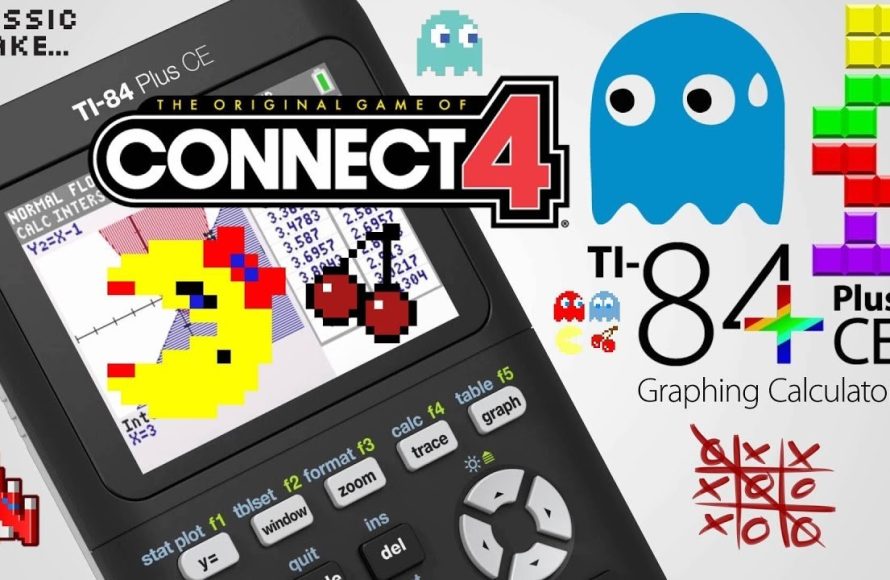
To play games on your TI-84 Plus, you need to transfer game files (.8xg or .82g) from a computer using TI Connect CE software or a similar program, and then access them through the PRGM menu on the calculator.
Ever wonder what your old TI-84 Plus calculator is truly capable of? Beyond math equations, this trusty device holds a library of simple games. You can relive some classic text-based adventures or try basic puzzle games, all on your calculator.
So, how to play games on ti 84 plus? It’s surprisingly straightforward once you know the steps. You’ll need to connect to a computer for the initial setup, then it’s all about navigating the calculator’s menus. Let’s explore the easy process of adding these games.

How to Play Games on TI 84 Plus
So, you have a TI-84 Plus calculator, and you’re not just using it for math, right? You want to play some games! Good news: your trusty calculator can actually be a fun little gaming device. It’s not going to rival the latest consoles, but it’s a great way to pass the time during a boring class or a long car ride. Let’s explore how to get games onto your TI-84 Plus and start playing.
Understanding the Basics: How TI-84 Games Work
Before we jump into downloading games, let’s talk about how it all works. Unlike your phone or computer, your TI-84 Plus doesn’t run games in the same way. It uses a language called assembly (or sometimes BASIC). Think of it like a set of simple instructions the calculator can understand. People create games by writing this code, then you transfer it to your calculator.
Types of Games You Can Play
You’ll find a variety of games available, ranging from simple text-based adventures to more complex graphical puzzles and platformers. Some popular categories include:
- Puzzle Games: These usually involve logic and problem-solving, like Sokoban or number puzzles.
- Platformers: Imagine a very simple version of Mario. You’ll jump and navigate through different levels.
- Arcade-Style Games: Games like Tetris or Snake fit into this category, often with simple graphics and fast-paced gameplay.
- Text-Based Adventures: These games rely on text descriptions, and you make choices that affect the story.
- Simple Racing Games: Usually top-down view, you try to navigate around a track without crashing.
What You’ll Need
To get started you will need a few things:
- TI-84 Plus Calculator: Of course! This guide is specifically for the TI-84 Plus and similar models like the TI-84 Plus Silver Edition. TI-83 Plus and other models may also work with slight alterations.
- A Computer: You’ll need access to a computer (Windows, macOS, or Linux) to download game files and transfer them to your calculator.
- TI Connect CE Software: This free software from Texas Instruments allows you to connect your calculator to your computer. You can usually find it on the Texas Instruments website.
- A Mini-USB Cable: This is the cable that connects your calculator to your computer. You might have one for your printer, or you can easily get one online.
- Game Files: These are the special files containing the game code. They usually have extensions like “.8xg”, “.8xp”, or “.hex”.
Finding Games: Where to Look
Now that we know what we need, let’s find some cool games. A lot of communities online dedicate themselves to creating and sharing games for these calculators. Here are some places where you can find game files:
Websites and Online Communities
These websites are great starting points for finding calculator games:
- ticalc.org: This is one of the oldest and most well-known sites for TI calculator resources, and it has a very big library of games.
- cemetech.net: A helpful forum where users post games and support other calculator enthusiasts, you will find many interesting games in this site.
- UnitedTI.org: This is a community-driven website and forum for sharing calculator software.
- Omnimaga.org: Another forum full of calculator users who create and share games.
Using Search Engines
You can also use search engines like Google to find specific games. Try searching for things like “TI-84 Plus games download” or the name of a game you might know, such as “TI-84 Tetris”.
Important Tip: Always be careful when downloading files from the internet. Make sure you’re getting them from a reliable source to avoid getting any viruses. You also need to make sure the games are specifically designed for your TI-84 Plus model. Games for older or newer calculators may not work.
Setting Up Your Calculator and Computer
Before you can play, let’s get everything connected.
Installing TI Connect CE
The TI Connect CE software is crucial to making the link between your computer and calculator. Here’s what to do:
- Go to the Texas Instruments website and search for “TI Connect CE.”
- Download the software version for your operating system (Windows, macOS).
- Follow the on-screen instructions to install it on your computer.
Connecting Your Calculator
With the software installed, now you can connect your TI-84 Plus:
- Turn on your TI-84 Plus calculator.
- Connect one end of the mini-USB cable to your calculator and the other end to your computer.
- Open the TI Connect CE program you just installed.
- The software should recognize your calculator. If it doesn’t, you might need to check your cable or try restarting both the calculator and the software.
You should see the name of your calculator displayed in TI Connect CE when it’s successfully connected.
Transferring Games to Your Calculator
Now for the fun part: getting the games onto your calculator!
Using TI Connect CE to Send Files
TI Connect CE allows for easy file transfer. Here’s how:
- Open TI Connect CE.
- Make sure your calculator is connected and recognized.
- On the TI Connect CE program, look for the “Send to TI Device” button (or something similar).
- A file explorer window will open. Navigate to where you saved your downloaded game files.
- Select the game files you want to transfer (you can usually select multiple files at once).
- Click “Send”.
- You will likely see a message that the file transfer is complete on TI Connect.
The files are now copied to your calculator’s memory.
Playing Games on Your TI-84 Plus
Alright! Time to play the games you’ve just transferred. Here’s how to access them on your calculator:
Accessing the Program Menu
The games are stored as programs on the TI-84 Plus. To see them, follow these steps:
- Press the
PRGMbutton on your calculator. - This will open the program menu.
- You will see a list of program names. These include all games and programs on your calculator.
- Use the up and down arrow keys to navigate this list.
Starting a Game
Once you’ve located the game you want to play:
- Use the arrow keys to highlight the game.
- Press the
ENTERbutton. - The game will now begin running.
Game Controls
The controls for each game may be different, but usually use the following buttons:
- Arrow Keys: Used to move characters or make selections in a menu.
- ENTER: Usually used to make selections, jump, or start actions.
- CLEAR: Can be used to pause a game or quit and return to the program menu.
- Other buttons: Some games may use other keys like the number keys or specific function keys for different actions, usually instructions are provided at the beginning of a game or in a help menu.
Tip: If a game doesn’t start, or if it shows an error message, make sure you transferred the file correctly and that it is designed for your calculator model. Some games may require certain operating system versions on the calculator, so checking for that might help as well.
Managing Games: Memory and Organization
Over time, your calculator’s memory can fill up with different games. Here’s how to manage them:
Deleting Games
To remove a game you no longer need:
- Press the
PRGMbutton. - Highlight the game you wish to delete.
- Press the
DELbutton. - Confirm that you want to delete it.
Using Archive
If you have limited memory but want to keep games, consider archiving them.
- Archiving: Moves the program to a special section of memory, thus freeing up space for other programs, but the archived program cannot be run until it’s unarchived.
- To archive a program: On the program menu (
PRGM), select the program, and press[2nd]then[MEM]to access the memory menu. Then choose the archive option. - To unarchive a program: Go to the memory menu and unarchive the program.
Troubleshooting Common Issues
Sometimes things might not work the way you expect. Here are a few common issues you might encounter:
“Error: Invalid Dim” or Similar Errors
This kind of error can be caused if the game is designed for a different model or an operating system version that your calculator doesn’t have. Always check if the game is compatible with your exact TI-84 Plus model.
Game Doesn’t Show Up in the Program Menu
If you don’t see the game after transferring, make sure:
- You used the correct transfer method using TI Connect CE.
- The game file is compatible with your model.
- Your calculator is properly connected to the computer during the transfer process.
Game Freezes or Crashes
Some games may have bugs or issues. Try restarting your calculator by removing the batteries for a short time and try again.
Low Battery
If the battery is low you can get all sort of errors, so make sure that your calculator is charged. Try using new batteries to get the best results.
Exploring More Advanced Options
As you get more experienced, you might want to try more advanced methods:
Assembly Games
Assembly games are coded in a language that’s closer to the calculator’s hardware, making them potentially faster and more graphically advanced than BASIC games. There are plenty of resources online that will help you to create or load games using this language.
Using Different Operating Systems
Some users install custom operating systems or ‘shells’ on their calculators that enable features, like running more complex games. Be aware that doing so can carry some risks, so make sure you are familiar with the process.
Creating Your Own Games
If you are really into it, you can even create your own games for the TI-84. Look for online tutorials and communities that teach you how to program in BASIC or Assembly for your calculator.
Playing games on your TI-84 Plus can turn a tool for math into a fun little gaming device. With a little patience and the steps we’ve covered, you should be ready to explore the world of TI-84 gaming. Have fun!
How to Put Games on the TI 84 Plus CE
Final Thoughts
To play games on your TI-84 Plus, you must first download compatible games onto your computer. Next, connect your calculator and transfer the game files. After transfer, access the program menu on your TI-84 Plus and select the game to begin.
Using the calculator’s program feature, you can enjoy a range of fun, simple games. These steps demonstrate how to play games on TI-84 Plus effectively. It’s a great way to add some entertainment during breaks or down time.

