
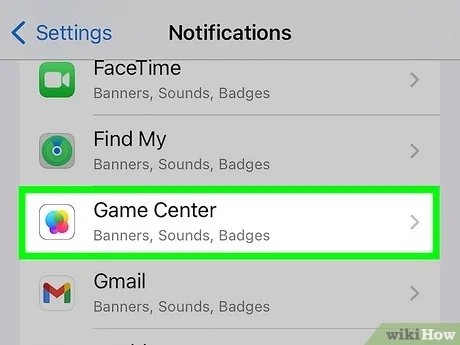
To deactivate a Game Center account, you must sign out of Game Center in your device’s settings, since there isn’t a direct “deactivation” option.
Ever felt the need to step away from the competitive world of Game Center? Maybe you’re switching devices, or perhaps you simply want a break from gaming. Understanding how to deactivate game center account can seem tricky because there is no “deactivate” button.
It’s quite simple. You won’t find a specific button to deactivate it, so instead you will need to sign out of the account. This process effectively achieves the same result.

How to Deactivate Game Center Account
Okay, let’s talk about Game Center. It’s that fun place on your Apple device where you can play games, see how you stack up against your friends, and sometimes, maybe even make new buddies. But what if you decide you don’t want to use it anymore? Maybe you’re taking a break from gaming, or perhaps you’d like to keep your gaming data private. Whatever the reason, it’s good to know how to deactivate your Game Center account. Don’t worry; it’s not like shutting down a rocket ship! It’s pretty straightforward. This guide will take you step by step through the process, making it easy even for tech beginners. So, grab your iPhone or iPad, and let’s get started!
Understanding What Deactivating Means
Before we jump into the “how-to” part, let’s understand what deactivating your Game Center account really means. It’s not the same as deleting your Apple ID. Your Apple ID is like the master key to all things Apple, while Game Center is just one of the rooms inside that big house. When you deactivate Game Center, you’re essentially telling your device to stop using Game Center features. Your game progress, your friends list, and any saved data won’t show up anymore on your device when you open a game that has Game Center integration. It’s important to know that this doesn’t delete all your game data or your Apple ID. Your game progress might be stored by the individual games themselves, or it might be associated with your Apple ID. So, even if you deactivate Game Center, some of it may be still somewhere, but you won’t see it through Game Center anymore.
What Happens When You Deactivate Game Center
Let’s break down what actually happens when you deactivate your Game Center account. Here is what you will likely notice:
- No More Game Center Achievements: You won’t see achievements popping up on your screen while you are playing games. The satisfaction of those little trophies will be paused.
- No Leaderboards: You won’t be able to see where you rank on leaderboards, so you won’t know how your scores compare with other players.
- No Friends Activity: You won’t see what games your friends are playing or how well they’re doing.
- No Multiplayer Options: Some games use Game Center to connect you to other players for multiplayer. Deactivating Game Center can affect these options.
Different Ways to “Deactivate” Game Center
Now, here’s a small but important detail: There isn’t an actual button that says “Deactivate Game Center.” Instead, we’re going to accomplish deactivation by using a few methods. These methods will achieve the same result, which is to stop your device from actively participating in Game Center. It’s like turning off the lights in that room we talked about earlier. The room is still there, but it’s dark and not in use. So, let’s explore these different ways to achieve this.
Method 1: Signing Out of Game Center
One way to achieve deactivation is by signing out of Game Center. This is the closest you will get to “deactivating” the Game Center functionality. It’s like logging out of your game profile. Here’s how you do it:
- Open the Settings App: On your iPhone or iPad, find the Settings app (it looks like a gray gear) and tap on it to open.
- Tap on Your Name/Apple ID: At the very top of the settings menu, you’ll see your name (or “Apple ID”). Tap on it.
- Scroll Down: Now you’ll need to scroll down this page. Keep scrolling until you spot the option for “Game Center.”
- Tap on Game Center: Select the Game Center option. You’ll likely see that Game Center is turned “On.”
- Sign Out: If Game Center is “On,” you’ll see your Apple ID listed below the Game Center toggle switch. Tap on your Apple ID and then tap “Sign Out”.
Once you’ve signed out, Game Center won’t be actively running on your device. You won’t see leaderboards, achievements, or any of the Game Center features. If you ever want to use it again, you will simply sign back in the same way. When you sign out, it’s like saying to Game Center, “I’m going to take a break for now.”
Method 2: Turning Off Game Center
Another way to stop using Game Center is by turning off its toggle switch. This is also super easy, and a lot of people find it quite straightforward. It’s like flipping a switch in the Game Center room we talked about.
- Go to Settings: Find and tap the Settings app on your iPhone or iPad.
- Tap Your Name/Apple ID: Tap on your name (or “Apple ID”) at the top.
- Scroll to Game Center: Scroll down on this page until you find “Game Center” and tap on it.
- Turn Off the Game Center Switch: On the Game Center settings screen, you’ll see a toggle switch to turn Game Center on or off. If it is turned “On” (the switch will be green), tap it to turn it “Off” (the switch will be gray).
When you turn off Game Center in this way, it will no longer function on your device. Any apps or games that use Game Center won’t be able to use it. It’s like telling Game Center to take a nap.
Method 3: Adjusting Privacy Settings
While not deactivating Game Center entirely, this approach allows you to control how your data is seen by others. This is good if you want to stay part of Game Center, but you want to have more control over what other people see about your activity. It’s like closing the curtains in the Game Center room.
Limiting Who Can See Your Profile
You can choose who can see your Game Center profile, activities, and what games you play. Here’s how to adjust these privacy settings:
- Open Settings: Go to the Settings app on your iPhone or iPad.
- Tap Your Name: Tap on your name or Apple ID at the top.
- Find Game Center: Scroll down until you see “Game Center” and tap on it.
- Adjust Profile Privacy: You will see an option called “Profile Privacy”. Tap on it. Here you can choose who can see your profile. Choose between “Everyone,” “Friends Only,” or “Only Me”. Selecting “Only Me” makes your profile completely private.
- Adjust Other Settings: You can also adjust other settings such as whether people can find you by your email address, and whether you want to allow friend requests.
Controlling Sharing Data with Games
You can control which apps or games can access your Game Center data. This means you can block specific apps from sending your information to Game Center. This way, some games you play will not be able to access Game Center, even when it is on.
- Go to Settings
- Tap on Privacy & Security.
- Tap on Game Center
- Now you’ll see a list of all apps that have requested access to Game Center. You can toggle each app’s permissions on or off.
Why Consider Deactivating Game Center
You might be wondering why someone would choose to deactivate Game Center. There are lots of good reasons! Here are some common ones:
- Privacy Concerns: Some people worry about how their gaming activity is tracked, or who can see their game data. Deactivating gives you more privacy.
- Focus and Productivity: Sometimes, seeing what your friends are playing can be a little distracting. Deactivating Game Center can help you focus on your work or other things.
- Reduced Notifications: Game Center can sometimes send a lot of notifications. Deactivating can help you reduce the noise and have a more peaceful experience on your device.
- Taking a Gaming Break: If you decide to take a break from games, it’s a great way to make a clean separation.
- Battery Saving: Sometimes, if you’re worried about your battery being drained, especially on older devices, turning off Game Center can save a little battery power.
Reactivating Game Center
Now, what if you decide you want to use Game Center again? That’s easy! You can turn it back on by doing the reverse of the steps to deactivate it. Here’s how:
- Go to Settings: Go to the Settings app on your iPhone or iPad.
- Tap on Your Name/Apple ID: Tap your name at the top of the settings menu.
- Find Game Center: Scroll down and tap on “Game Center.”
- Turn On the Switch: If Game Center is turned “Off” (the switch will be gray), tap the toggle switch to turn it “On” (it will turn green).
- Sign In if Needed: If you had signed out before, it will prompt you to sign in with your Apple ID.
And that’s it! Once you follow these steps, Game Center will be back and ready to go. Your old data will also come back, allowing you to view your friends, leaderboards, and game progress again. It’s like turning on the lights again in that room we talked about.
Important Things to Keep in Mind
Here are a few more important points to think about when you’re dealing with your Game Center account:
- Data Persistence: Remember, deactivating Game Center doesn’t mean all your game data disappears. Game data is often stored by the individual games and may be linked to your Apple ID.
- Third-Party Games: Some games might have their own way of storing data or connecting you with friends. Deactivating Game Center will affect Game Center features, but might not change a game’s internal features.
- No Permanent Deletion: You can’t completely “delete” Game Center from your Apple ID. You can only control how it behaves. If you are using an Apple product, you will always have Game Center, you just have control over how you are using it.
Final Thoughts
Deactivating your Game Center account might seem like a complex task, but it’s very straightforward. You now know multiple ways to stop Game Center from actively running on your device. Whether you need some privacy, want to reduce distractions, or simply want to take a break from gaming, you now have the know-how to get it done. And if you ever change your mind, you can reactivate it just as easily. It’s all about finding the settings that work best for you! Keep playing and keep learning, and most importantly, have fun!
How to Delete Game Center Account Easily
Final Thoughts
To summarize, you can’t fully deactivate a Game Center account, but you can sign out on your device. This prevents others from seeing your activity or accessing saved game progress. You manage your Apple ID, which also manages Game Center.
Therefore, if you want to reduce its presence, simply signing out will do the trick. Understanding how to deactivate game center account is key for privacy. It’s the most effective way to control your visibility within the platform.

