
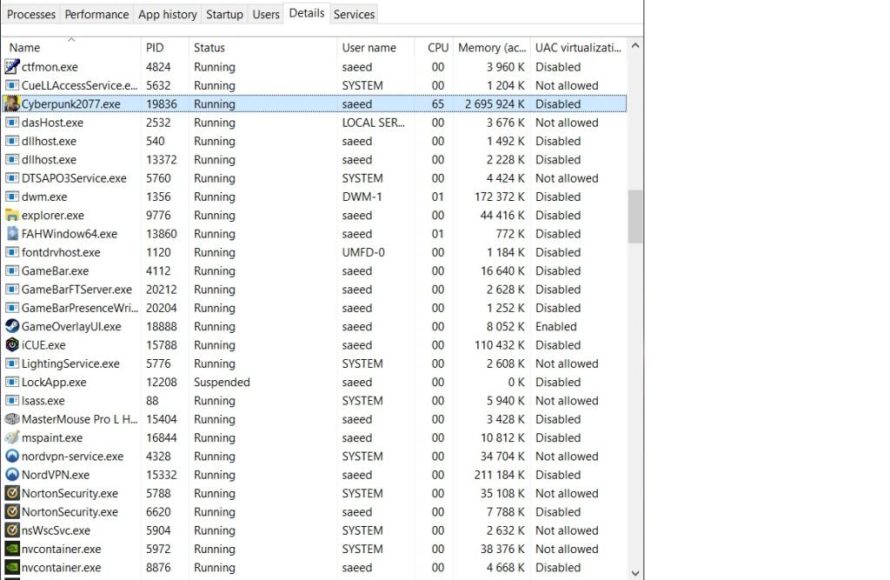
Unfortunately, you cannot directly dedicate RAM to a specific game. The operating system manages RAM allocation automatically, distributing it as needed.
Have you ever felt your game stuttering or lagging? It’s a frustrating experience. Many gamers believe that dedicating more RAM to their favorite game will solve the issue, and this is where the question of how to dedicate ram to a game arises. Although you can’t manually assign RAM to a game directly, there are ways to improve your system’s RAM management. Understanding these methods can help your gameplay experience. We will explore the key approaches.

How to Dedicate RAM to a Game
Have you ever been playing your favorite game and it suddenly starts to slow down, or even freeze up? It can be super frustrating! One of the main reasons this happens is because your computer doesn’t have enough memory (RAM) to handle everything the game is trying to do. It’s like trying to fit too many toys into a small box – things get messy! Now, you might be wondering, “Can I give my game more RAM?” Well, the short answer is, sort of! You can’t directly tell your computer, “Hey, this game gets this much RAM,” but you can manage how your computer uses RAM, which can help your games run smoother.
Understanding RAM and Its Role in Gaming
Before we jump into how to make things better, let’s talk about what RAM actually is. RAM stands for Random Access Memory. Think of it as your computer’s short-term memory. When you open a game, all the important bits—like the characters, the environment, and all the game’s rules—are loaded into RAM. This allows your computer to quickly access this information and keep the game running smoothly. The more RAM you have, the more stuff your computer can keep readily available, which generally leads to better performance.
Here is an example. Let’s pretend your computer is like a chef, and the ingredients for a recipe (the game) are kept in different places. Your hard drive (or SSD) is like a big storage pantry where all the ingredients are stored. RAM is like the chef’s workbench. The chef takes the necessary ingredients from the pantry and puts them on the workbench so that they’re easily accessible while cooking. The more counter space (RAM) the chef has, the more ingredients they can have out at one time, making it quicker and easier to prepare the food. If the counter is too small, they’ll be constantly running back to the pantry, slowing down the cooking process. In the same way, if your computer doesn’t have enough RAM for a game, it has to constantly load stuff from your hard drive, making the game slow and stuttery.
How Much RAM Do Games Typically Need?
The amount of RAM a game needs can change drastically. Some older games, or simple games, don’t need a lot, maybe just 2GB or 4GB. But newer, more complex games, especially those with really detailed graphics, can require 8GB, 16GB or even more RAM to run well. It’s always a good idea to check the game’s system requirements which is usually found on the game’s packaging or on the game’s webpage. This will tell you the recommended amount of RAM for the game.
Here is a small example showing typical RAM usage for various games:
| Game Type | Typical RAM Requirement |
|---|---|
| Simple 2D Games | 2GB – 4GB |
| Mid-Range 3D Games | 8GB |
| High-End 3D Games | 16GB or More |
Methods to Optimize RAM Usage for Games
So, you can’t directly dedicate RAM to a game, but there are many things you can do to help your games run better by managing how your computer uses RAM. Let’s go through some effective methods:
Close Unnecessary Programs
One of the simplest ways to give your game more RAM is to close other applications that are running in the background. Even when you’re not actively using them, many programs use up RAM. Things like your web browser with multiple tabs, music players, document editors, and other apps might be hogging memory that your game could be using.
Here’s how to close these programs:
- On Windows: Press Ctrl + Shift + Esc to open the Task Manager. Look at the “Processes” tab. You’ll see a list of all running programs and how much RAM they are using (look at the “Memory” column). Click on the programs you don’t need, and then click “End Task”. Be careful not to close any essential system processes.
- On macOS: Press Command + Space to open Spotlight and type “Activity Monitor”. Open the Activity Monitor application, click on the “Memory” tab. Find the applications you don’t need. Select them, and then click the “X” button at the top of the window to quit them.
By closing these programs, you are freeing up RAM for your game.
Adjusting Visual Settings in Games
Sometimes, games are set to really high visual settings which can be very demanding on your system, especially the RAM and graphics card. Lowering these settings can free up resources.
Here’s how you can adjust the settings in most games:
- Open the game settings: Usually there will be an “Options” or “Settings” button on the main menu.
- Find graphics or video settings: Look for something like “Graphics,” “Video,” or “Display.”
- Lower the graphics options: Adjust settings like texture quality, shadow quality, anti-aliasing, and resolution. Try lowering them one at a time and see if your game runs smoother. You may not even notice a big difference in game quality but will notice a big difference in game speed.
Using the Windows Game Mode
Windows has a feature called “Game Mode” that can help improve game performance by prioritizing system resources towards your game. It can prevent background applications from causing hiccups.
Here’s how to turn on game mode:
- Click the Start button (the Windows logo in the bottom left corner).
- Click the Settings icon (it looks like a gear).
- Click on “Gaming”.
- Click on “Game Mode”.
- Toggle the “Game Mode” switch to “On”.
Now, when you are gaming, Windows will prioritize the game.
Managing Startup Programs
When you turn on your computer, some programs automatically start in the background. Some of them might not be necessary, using RAM without you even realizing it. Stopping unnecessary programs from starting up can give your game more resources.
Here’s how to manage them:
- On Windows: Open the Task Manager (Ctrl + Shift + Esc). Click on the “Startup” tab. This tab shows the applications that start automatically. Click on a program you don’t need and click the “Disable” button. Be careful not to disable anything you need, like antivirus software.
- On macOS: Go to “System Settings” (Apple menu > System Settings). Click on “General,” then “Login Items.” You’ll see a list of apps that start when you log in. Click on the apps you don’t need, and then click the “-” button to remove them from the list.
By disabling unnecessary startup programs, you can make sure that RAM is not being wasted on programs you don’t need, which can be helpful for your game.
Updating Your Graphics Card Drivers
Outdated graphics card drivers can sometimes cause games to run poorly. Updating to the newest drivers can often improve performance, by giving your computer the newest information on how to display the game on your monitor or tv.
Here’s how to update them:
- For NVIDIA cards: Go to the NVIDIA website and download the newest drivers for your specific card. Or you can use the Nvidia GeForce experience app, if you have it already installed on your computer. This program will help you install the newest drivers.
- For AMD cards: Go to the AMD website and download the newest drivers for your graphics card. Or you can use the AMD software app on your computer to update your drivers.
- For Intel cards: Go to the Intel website and look for the newest drivers for your Intel integrated graphics.
Make sure to restart your computer after updating the drivers for the changes to take effect.
Consider Upgrading Your RAM (If Necessary)
If none of the above steps are significantly improving your game’s performance and your games still run slow, it might be time to consider upgrading your computer’s RAM. This is usually a better option if you are consistently running into RAM limitations. However, before doing this it is a good idea to try the above methods first.
Checking Your Current RAM:
- On Windows: Open the Task Manager (Ctrl + Shift + Esc), click the “Performance” tab, then click on “Memory” on the left side. This will show you how much RAM you have installed in your computer.
- On macOS: Go to “About this Mac” (Apple menu > About This Mac), click on “More Info”. Scroll down the list to “Memory”. This will show you how much RAM your computer has.
If your computer is consistently using most of its RAM while you are gaming, adding more RAM will likely improve performance. But, check your computer specifications first to make sure that you can even add more RAM to your computer, some computer models are limited to the amount of RAM you can have.
Use ReadyBoost (Windows Only)
Windows has a feature called ReadyBoost that lets you use a USB flash drive or SD card to help improve your computer’s performance. It’s like giving your computer a little extra “RAM” boost by using the storage space on the USB drive. This is helpful if you don’t want to install more RAM in your computer.
Here’s how you can use ReadyBoost:
- Insert your USB flash drive or SD card into your computer.
- Open File Explorer (the folder icon on your taskbar).
- Right-click on the USB drive or SD card and choose “Properties.”
- Click on the “ReadyBoost” tab.
- Choose “Use this device” and choose how much storage you want to use for ReadyBoost.
- Click “Apply”, then “OK”.
Keep in mind that this works best with faster USB drives, and it is not as effective as actual RAM, it can help improve overall system responsiveness.
Adjusting Virtual Memory (Page File)
Virtual Memory is a feature that can help if you run out of RAM. It uses space on your hard drive or SSD as extra RAM, although it’s slower than regular RAM. This is an option to consider if your computer is running out of RAM but you cannot install more RAM on your computer.
Here is how to adjust virtual memory:
- Type “Advanced system settings” into the Windows search box (on the taskbar).
- Click “View advanced system settings”.
- In the System Properties window, click the “Advanced” tab.
- Click the “Settings” button under the “Performance” section.
- Click the “Advanced” tab in the Performance Options window.
- Click “Change” under the “Virtual memory” section.
- Uncheck “Automatically manage paging file size for all drives”.
- Click on “Custom Size”.
- Enter the Initial Size and Maximum Size for the virtual memory (usually, the initial size is 1.5 times your RAM and max size is 3 times your RAM. If you have 8 GB of RAM, then try initial size as 12288 MB and maximum size as 24576 MB).
- Click “Set”, then “OK”.
It’s a good idea to set both the initial and maximum sizes, otherwise, Windows might use too much space on your hard drive if not limited. Restart your computer for the changes to take effect.
Keep Your System Updated
Keeping your operating system up to date is important. Updates include important bug fixes and performance enhancements. This helps improve how your computer runs and how well your games run.
Here’s how to update your operating system:
- On Windows: Click the Start button, then the Settings icon. Click on “Update & Security” and then “Windows Update”. Click the “Check for updates” button and install any available updates.
- On macOS: Click the Apple menu, then “System Settings.” Then, click on “General” and “Software Update”. Download and install any available updates.
Installing the updates can help improve game performance and overall computer speed.
These are some of the best methods for managing your system resources to give your games the best possible performance. By using a combination of these steps, you can help your games run smoother, and have more fun!
By understanding how RAM works and implementing these easy to follow steps, you can make a big difference in how your games perform. Remember that consistent cleaning of your computer can also be very beneficial for your gaming performance. Happy Gaming!
How to Allocate More RAM to Specific Programs On Windows
Final Thoughts
To dedicate RAM to a game, you generally can’t directly assign it. Instead, close unnecessary applications. This frees up RAM for the game, boosting performance. Operating systems automatically manage memory allocation.
Adjusting virtual memory settings can also affect game performance. However, do this cautiously. Incorrect changes may cause system instability. The system decides how to dedicate RAM to a game; user input is indirect.

