
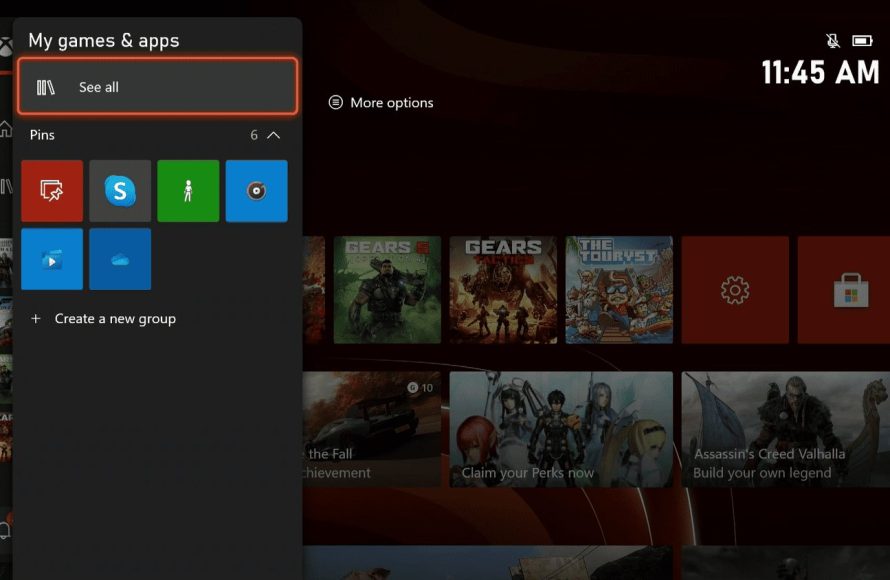
To delete a game on Xbox Series X, navigate to “My games & apps,” select the game, press the menu button, and choose “Uninstall.”
Is your Xbox Series X storage feeling cramped? We’ve all been there, juggling multiple large game installs. Learning how to delete a game on Xbox Series X is essential for managing your console’s available space. This will allow you to make way for new adventures and keep things running smoothly.
It’s quite simple, actually. You just need to follow a few steps. No need to struggle with a full storage, manage your game library effectively.

How to Delete a Game on Xbox Series X
Running out of space on your Xbox Series X? It happens to the best of us! Those awesome games can take up a lot of room. Knowing how to delete games is super important to keep your console running smoothly and make space for new adventures. Don’t worry, it’s not hard at all! We’ll walk you through the process step-by-step so you can easily manage your games library.
Why Delete Games?
Before diving into the ‘how’, let’s talk about ‘why’ you might need to delete games. Several reasons can prompt you to remove games from your Xbox Series X:
- Free Up Space: This is probably the biggest reason. New games are often big, and you need room to install them!
- Improve Performance: A full hard drive can sometimes slow down your console. Keeping it tidy can help things run faster.
- Simplify Your Library: Maybe you’ve finished a game and know you won’t be playing it again soon. Deleting it can make it easier to find the games you do play regularly.
- Reduce Clutter: A smaller game library can be less overwhelming to navigate.
Understanding Xbox Storage
Your Xbox Series X comes with a built-in storage drive. This drive is where you install and store all your games, apps, and game saves. It’s important to know how much space you have and how to manage it. Here’s a quick overview of what takes up space on your Xbox:
- Games: These are the biggest space hoggers. Big games can easily take 50-100GB or even more.
- Game Add-ons: Downloadable content (DLC) for your games also takes up space.
- Apps: Streaming apps and other utilities use storage, though generally not as much as games.
- Game Saves: These files are usually quite small, but they do take up some space.
To check your storage status, follow these easy steps:
- Press the Xbox button on your controller to open the guide.
- Go to “Profile & system”.
- Select “Settings”.
- Go to “System” and then select “Storage”.
Here, you can see how much space you’ve used and how much you have left.
Different Ways to Delete Games
Now, let’s get to the main event – how to delete a game! There are actually several ways to do this on your Xbox Series X. We will look at each of these methods to help you decide which works best for you.
Deleting from “My Games & Apps”
This is the most straightforward way to remove games, and probably the one most people will use frequently.
Steps:
- Press the Xbox button to open the guide.
- Select “My games & apps”.
- Choose “See all”.
- Select “Games”.
- Find the game you want to remove.
- Press the Menu button (the button with three horizontal lines) on your controller.
- Select “Manage game and add-ons.”
- Select “Uninstall All”.
- Confirm that you want to delete the game.
That’s it! The game will be uninstalled from your console.
Deleting From the Storage Settings
You can also manage your storage directly from the settings menu, which is helpful for seeing exactly how much space each game is taking up.
Steps:
- Press the Xbox button to open the guide.
- Go to “Profile & system”.
- Select “Settings”.
- Go to “System” and then select “Storage”.
- Select the internal storage drive.
- Select “Manage games and apps”.
- Select “Games”.
- Choose the game you want to delete.
- Select “Uninstall All”.
- Confirm that you want to delete the game.
This method provides more of a storage management overview alongside the game deletion function.
Deleting Directly from the Game Icon
Sometimes, you might prefer a quick way to delete a game directly from the dashboard. This approach is fast and easy.
Steps:
- Go to your Xbox home screen.
- Find the game you want to delete among your recently played titles.
- Highlight the game you want to uninstall.
- Press the Menu button on your controller.
- Select “Uninstall All”.
- Confirm the deletion.
This approach is especially useful for recent titles, as they often appear on the home screen.
Deleting Games From the Xbox Mobile App
Did you know you can manage your Xbox storage and delete games using the official Xbox mobile app? This is a great option for when you’re not near your console.
Steps:
- Download and install the Xbox app from your phone’s app store (if you don’t already have it).
- Open the app and sign in with the same Microsoft account you use on your Xbox.
- Tap on the console icon at the bottom of the app screen.
- Select “Manage console and games”.
- Choose “Games” from the top navigation bar.
- Find the game you want to delete from the list.
- Tap on the game.
- Choose “Uninstall All”.
- Confirm that you want to delete the game.
This approach can be helpful when you need to delete a game while you are on the go.
What Happens When You Delete a Game?
When you delete a game from your Xbox Series X, you’re only removing the game files from your console’s storage. This means the game is no longer installed and playable on your system. However, a couple of key things remain:
- Game Saves: Your game save data is usually not deleted. It’s typically stored separately in the cloud, so you can pick up where you left off if you reinstall the game.
- Your Game License: You still own the license to play the game. This means if you decide you want to play it again, you can simply reinstall it without having to buy it again.
Think of it like removing a book from a shelf. You’ve taken it off the shelf, but the book still belongs to you.
Reinstalling a Deleted Game
If you decide you want to play a game again after you’ve deleted it, reinstalling it is easy. You just need to locate the game in your library.
Steps:
- Go to “My games & apps”.
- Select “See all”.
- Choose “Games”.
- Select “Ready to install”.
- Find the game you want to reinstall from the list.
- Select it to start the installation.
The game will download and install onto your console and you can resume from where you left off (unless you’ve specifically deleted save data).
Managing Game Add-Ons
Sometimes, you might only want to delete a game’s add-ons to save a bit of space without removing the entire game. Here’s how you can do that:
Steps:
- Go to “My games & apps”.
- Select “See all”.
- Choose “Games”.
- Find the game you want to manage.
- Press the Menu button on your controller.
- Select “Manage game and add-ons.”
- Choose “Add-ons”.
- Select the add-ons you want to remove.
- Select “Uninstall”.
- Confirm the removal.
This method allows you to manage extra content, such as DLC, separately from the base game.
Tips for Managing Your Storage
Here are a few handy tips to keep your Xbox Series X storage in good shape:
- Regularly Uninstall Finished Games: Make a habit of deleting games you’ve completed or aren’t playing anymore.
- Consider Using External Storage: You can connect an external USB hard drive or solid-state drive (SSD) to increase your storage space.
- Use Quick Resume: Quick Resume is amazing, but keep in mind it does use up a tiny bit of storage to maintain states. So, if you are very short on space, try to close the game completely sometimes to free space.
- Be Mindful of Game Sizes: Before you start downloading a new game, consider its size, especially if you are running low on space.
- Move Games to External Storage: If you use an external drive, you can move games instead of deleting them, saving you some download time.
Why Is This Important?
Managing storage is a key part of owning a game console like the Xbox Series X. Efficiently handling game installations ensures your console runs efficiently, provides room for new games, and allows for better game management. You don’t want to have to skip the latest game because you have no space, or suffer poor performance because your hard drive is constantly full.
Learning these simple methods allows you to keep your Xbox performing its best and your gaming experience enjoyable.
Deleting a game on Xbox Series X is quite easy. Using these methods, you can maintain your console, make room for new games, and keep your game collection organized.
How to Delete/Uninstall Games on Xbox Series X/S
Final Thoughts
To delete a game, navigate to “My games & apps,” select “See all,” and highlight the game. Press the menu button, then pick “Uninstall.” This removes the game from your Xbox Series X console.
This action frees up valuable storage space for new titles. Remember, deleting a game doesn’t erase your saved progress or data. You can redownload it anytime.
Therefore, following these steps clarifies how to delete a game on xbox series x, quickly managing your console’s storage.

