
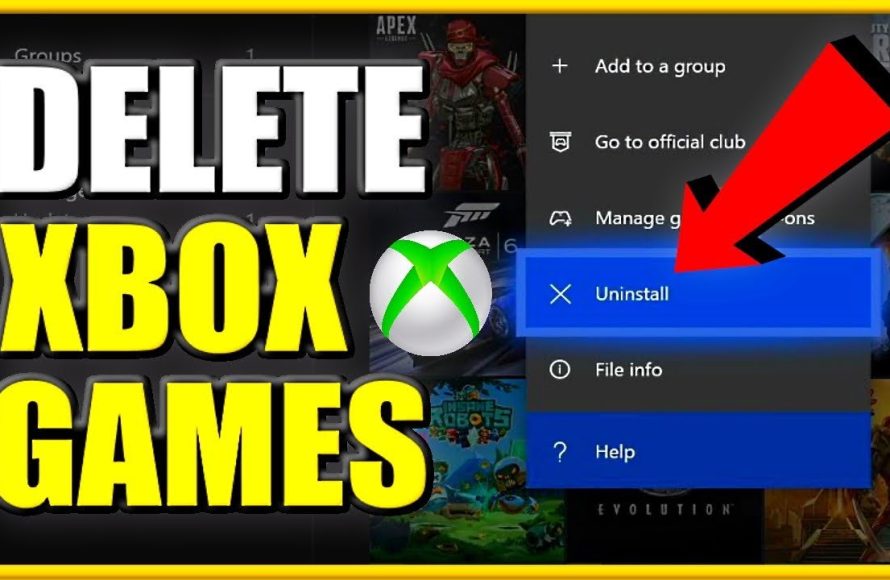
To delete a game on Xbox, highlight the game, press the menu button, select ‘Manage game and add-ons’, then choose ‘Uninstall’.
Running out of space on your Xbox? Games these days are massive, and sometimes you just need to make room for something new. Many people wonder how to delete a game on Xbox, and thankfully, the process is quite simple and fast. I am sure you will find this article helpful as it will explain step by step. This article shows you exactly how to free up some precious storage space so you can keep gaming.

How to Delete a Game on Xbox: A Complete Guide
Okay, let’s talk about something that every Xbox gamer runs into at some point: needing to make space on your console! Whether you’re downloading a shiny new release or just need to clear out old titles you’re not playing anymore, knowing how to delete a game on your Xbox is a super useful skill. It’s not tricky at all, and we’re going to walk through all the ways you can do it, step-by-step. We’ll cover deleting games from your internal hard drive, external storage, and even managing game saves. So, get comfy and let’s dive in!
Deleting Games from Your Xbox Console’s Internal Storage
Your Xbox console comes with a built-in hard drive, which is where your games usually land when you download them. When this space gets full, it’s time to do some digital decluttering! Here’s how you can remove those games you’re no longer playing:
Using the “My Games & Apps” Section
This is the most common and easiest way to remove games from your console. Here’s how:
- First things first, turn on your Xbox. Make sure you’re logged into your profile.
- Now, press the Xbox button on your controller. It’s the big glowing button in the center. This will open the guide menu.
- Using your controller’s thumbstick, navigate to the “My games & apps” section. You’ll usually find it on the far right of the guide menu.
- Select “See all.” This will open your full games and apps library.
- Look through the list of games that you have. You can scroll up and down to see everything you have downloaded. Find the game that you want to delete.
- Highlight the game you want to remove. Don’t select it just yet.
- Now, press the Menu button on your controller. It’s the one with the three horizontal lines, usually to the right of the Xbox button.
- A menu will pop up. Select the “Manage game & add-ons” option.
- Here, you’ll see all the details for the game. Look at the information presented. You’ll usually see the game title, and under that, information about the storage. On the left side, you will see multiple options, one of which is ‘Uninstall’. Choose this option.
- A confirmation prompt will appear. It will ask if you really want to delete this game. Confirm your decision and the game will be removed from your console. The game will now be removed from your internal storage.
Understanding Game Saves and Cloud Sync
Before you get too enthusiastic about deleting, you should know that deleting a game from your Xbox does NOT delete your saved game progress. Your saved game data is stored separately in the cloud and on your hard drive. This is super handy because if you reinstall the game later, you can pick up right where you left off.
- Cloud Saves: Your Xbox automatically saves your progress to the cloud when you play while connected to Xbox Live. This ensures that if something happens to your console or you play on another Xbox, you don’t lose your progress.
- Console Saves: Your local saves are stored on your console’s hard drive. When you delete the game, these saves generally remain on your console. However, you will not be able to access the save games until you re-download the game.
- Deleting Saves: If you want to delete the saved data, you have to take extra steps, which we will cover in a bit!
Deleting Games from an External Hard Drive on Xbox
Using an external hard drive is a great way to expand your storage space on your Xbox. You can easily move games to an external drive to free up your internal storage. And, just like with internal storage, you can delete games from an external drive when needed. Here’s how you can do it.
Locating Games on External Storage
The process to locate and then delete a game from your external drive is very similar to that of the internal storage, but we’ll go through it all step-by-step.
- Just like before, turn on your Xbox and sign into your profile.
- Press the Xbox button on your controller.
- Open the guide menu, using your thumbstick go to “My games & apps”, and select “See all.”
- Now, when you get to your games library you will notice a filter button on the left side of your screen, use your controller to highlight this filter button, and select it.
- A new menu will pop up on the screen. Here, you should see ‘All storage’ selected as your current filter. Highlight and then select ‘Change Filter’.
- A menu will appear with two options: ‘Internal’ and ‘External’. Select ‘External’ to see the games saved on your external drive.
- The game list will refresh, and you will now only see the games that are saved on your external drive.
- Find the game you want to delete from your external drive.
- Highlight the game, and then press the Menu button on your controller.
- From the menu, select “Manage game & add-ons”.
- Select the ‘Uninstall’ option, and confirm your decision.
Considerations When Deleting from an External Drive
When deleting games from an external drive, keep a few things in mind:
- Backup: If you are thinking about re-formatting your external drive, and you want to keep some of your game files, then move the game back to your internal storage before you format your external drive.
- Game Locations: Sometimes, game updates or add-ons might be on a different drive than the game itself. When managing the game, make sure you are deleting all the components of the game that you wish to remove.
- Performance: Games on external drives might sometimes load a little slower than games on the internal storage, depending on your external drive. Keep that in mind.
Managing Game Saves on Xbox
As we touched on earlier, deleting a game does not automatically delete your game saves. Sometimes, you might want to remove these, too, either to start a game over or free up space. Here’s how to deal with game saves on your Xbox.
Deleting Local Save Data
Deleting local save data means that the information will be erased from your console, but will still be saved on the cloud. Here’s the process.
- Turn on your Xbox, and log into your profile, just like always.
- Press the Xbox button on your controller.
- Open the guide menu, and go to “My games & apps,” then select “See all”.
- Find the game for which you want to remove the local game save data, and then highlight the game title, but do not open it.
- Press the Menu button on your controller.
- Select “Manage game & add-ons”.
- Go to “Saved data.” This will show you the profile linked to the game, and it should show your storage information under your profile.
- Highlight and select your user profile.
- A new screen will pop up. Here, you can select to delete the saved data from your console by selecting ‘Delete from console’. There is also the option to delete data from both your console and the cloud by selecting ‘Delete everywhere’. If you want to play the game later you may just want to ‘Delete from console’.
- Confirm your decision. Once you have done that, the local data save has been deleted from your console.
Deleting Cloud Save Data
If you choose to delete your data ‘everywhere’ when going through the steps above, you will delete the save data from both your console and the cloud. That’s the fastest way to do it. But, if you previously deleted local game data, and now want to remove it from the cloud, here’s how.
- Turn on your Xbox, and log into your profile, just like always.
- Press the Xbox button on your controller.
- Open the guide menu, and go to “My games & apps,” then select “See all”.
- Find the game for which you want to remove the cloud game save data, and then highlight the game title, but do not open it.
- Press the Menu button on your controller.
- Select “Manage game & add-ons”.
- Go to “Saved data.” This will show you the profile linked to the game, and it should show your storage information under your profile.
- Highlight and select your user profile.
- On this new menu, there will be an option to ‘Delete from everywhere’. Selecting this option will remove the data from both the console and the cloud.
- Confirm your choice, and then your cloud data will be deleted.
Note: Be very careful when deleting cloud saves. They are not recoverable and will remove all your game progress.
Tips for Managing Your Xbox Storage Space
Running out of space is never fun, so here are some tips to keep your Xbox storage clean and organized.
- Regular Check-ups: Make a habit of checking your storage every so often. See which games you aren’t playing anymore. Deleting the games you’re no longer using will free up space.
- Move to External: If you have a game that is a very large file size, or you don’t play it often, moving it to an external drive will help save the space on your console, and allow your console to function better.
- Clean Up Add-Ons: Games often have add-ons like DLC, and even game trailers. Removing these extras can save some space. It’s a good idea to go to “Manage game & add-ons” regularly to keep your game installs tidy.
- Uninstall Games with Game Pass: If you’re using Xbox Game Pass, remember that games you play through the service are still installed on your console. Uninstalling games once you’re finished will make space for new games.
- Cloud Gaming: Consider cloud gaming. Games that are on the cloud don’t take up space on your console. This is a nice option for saving the amount of storage you’re using.
You’ve made it through the whole guide! Knowing how to delete games, manage external storage, and handle saves are important skills for every Xbox gamer. Keeping your console tidy helps it run smoothly, and means you have more space for new adventures! So, go forth and game without fear of running out of room!
How to DELETE GAMES on XBOX ONE & Uninstall APPS (Easy Method!)
Final Thoughts
To delete a game, navigate to ‘My games & apps’. Select ‘See all’, then ‘Games’. Highlight the game, press the Menu button. Choose ‘Manage game and add-ons’, then ‘Uninstall all’ or select specific items to remove.
This action removes the game from your console. Remember that saves are usually in the cloud. This process explains how to delete a game on xbox.

