
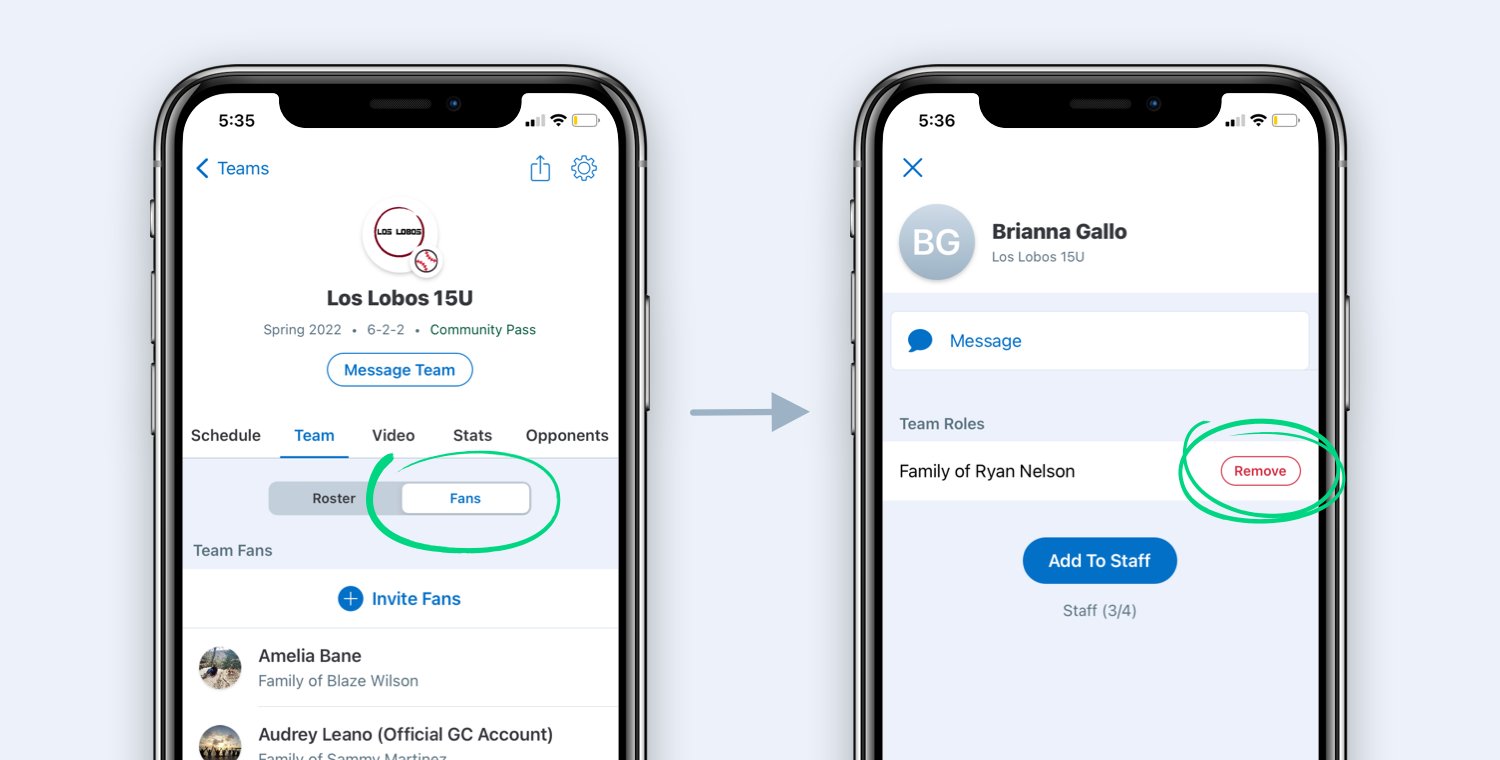
To delete a team on GameChanger, navigate to the team’s settings, find the “Delete Team” option, and confirm your action.
Ever found yourself needing a clean slate in GameChanger? Maybe a season ended, or a team structure changed. Knowing how to delete a team on GameChanger becomes essential in such situations. It’s a simple process once you know where to navigate within the app.
We’ll guide you through the steps. This way, you can manage your GameChanger account more effectively. This will help you quickly remove teams you no longer need.

How to Delete a Team on GameChanger: A Step-by-Step Guide
So, you’ve decided to part ways with a team on GameChanger. Maybe the season is over, or perhaps you’re managing your teams and want to clean things up. No matter the reason, knowing how to delete a team is essential for keeping your GameChanger account organized. It’s important to understand that deleting a team is a permanent action. All the data associated with that team, such as player information, game stats, and schedules, will be gone for good. Therefore, it’s best to be completely sure before you proceed with deleting a team.
Understanding Team Deletion on GameChanger
Before we jump into the deletion process, let’s discuss what it means to delete a team on GameChanger. When you delete a team, you’re essentially removing it and all its associated data from your GameChanger account. Think of it as clearing out a file folder on your computer. Once it’s gone, it’s really gone, and getting it back isn’t easy. This is why being cautious is very important.
Important Considerations Before Deleting
Deleting a team should be the last resort after you’ve considered all other options. Before proceeding, ask yourself these questions:
- Is the season truly over? Perhaps you just need to archive the team instead of deleting it, so you can access the data later if needed. Archiving keeps the information saved but removes the team from your active list.
- Have you saved all important data? Download any statistics or reports that you might want to have access to later. You may need the reports later for some reason.
- Have you informed other team members? Make sure that any coaches or players are aware of your intentions. They might want to save some information.
- Are you sure there’s no other option? Deleting is final. There is no ‘undo’ button. Are you absolutely sure that you don’t want this team anymore?
If you’ve thought everything through and are certain that deletion is the right choice, then you can move on to the actual steps.
Steps to Delete a Team on GameChanger: The Full Process
GameChanger, like many apps, might update its interface periodically. However, the general steps for deleting a team tend to remain fairly consistent. Let’s go through it step-by-step.
Step 1: Accessing Your GameChanger Account
The first thing you need to do is to access your GameChanger account. Here is what you should do:
- Open the App: Launch the GameChanger application on your phone or tablet. It usually has a blue icon with a white “GC” logo on it.
- Log In: If you’re not already logged in, enter your username or email address and password to access your account.
- Go to the Teams Tab: Once you are logged in, you should see the “Teams” tab usually at the bottom of your screen. Tap on it to view all of your teams.
Step 2: Selecting the Team to Delete
Now that you have all your teams in front of you, you need to choose the team that you wish to delete. Here’s how:
- Find the Team: Scroll through your list of teams until you locate the specific team that you want to delete.
- Tap on the Team: Once you’ve found the correct team, tap on it. This will bring you to the team’s overview page.
Step 3: Locating Team Settings
From the team overview page, you’ll need to find the settings section for the team you selected. Usually, you will see a gear icon or three dots. These symbols mean there are settings for this page. Here’s where you typically find these settings:
- Look for a Gear Icon (⚙️): Usually, a gear symbol or icon represents settings. This symbol is almost universal in apps, so you shouldn’t have trouble locating it. It is usually in the top-right or top-left corner of the team’s page.
- Look for Three Dots (…): Sometimes settings are shown as three dots, in a vertical or horizontal row. Look for these if you don’t see the gear icon.
- Tap the Icon: Once you have found the correct icon, tap it. This should open up a menu with various options for your team.
Step 4: Navigating to Team Management or Settings
After you open the settings menu, you’ll need to find the option that allows you to manage the team. This option may vary slightly depending on which version of the app you use, but it should have a name such as:
- Manage Team: This is a common label for team management settings.
- Team Settings: This is another straightforward label that should lead you to the correct section.
- Edit Team: This might also be an option that takes you to team management.
Carefully look through the menu and select the correct option. This will usually take you to another page.
Step 5: Finding the Delete Option
Now that you are in the team settings or team management, you will need to find the actual deletion option. Remember to take your time, because you don’t want to accidentally delete the wrong team. Here is how you find it:
- Look for “Delete Team”: Usually, the delete team option is listed at the end of the settings options. The option might be written in red to warn you, or to make it stand out.
- Be Careful: Take a moment to verify that you’re about to delete the correct team. Double checking is very important before you take an action like this.
- Tap Delete Team: Once you are 100% certain, tap the delete team option.
Step 6: Confirming the Deletion
After you tap the delete team option, GameChanger usually asks you to confirm that you really want to delete the team. This is done to prevent accidental deletions, so pay close attention and read what is shown on the screen.
- Confirmation Message: A pop-up box or message will appear. This message will most likely warn you that this is a final action and can not be undone.
- Confirm: You will need to click or tap the “Yes”, “Delete,” or “Confirm” button to agree to deleting the team.
- No Backing Out: Once you confirm, the team will be deleted. There is no easy way to get it back.
Step 7: Verifying Team Deletion
After you confirm the deletion, GameChanger should bring you back to the list of all your teams, or another appropriate page. Here’s how you can verify that the team is actually gone:
- Check the Team List: Go back to your list of teams, and check to see if the deleted team is still visible. It should no longer be on the list.
- Search if Needed: If you are unsure, you can search for the deleted team name. It should not appear in the results anymore.
- You Are Done: If the team is gone from your list and does not appear in a search, then you are all set.
What Happens After You Delete a Team?
You may be wondering what happens to all the team’s information once you click the delete button. It’s important to understand this, so you know what to expect when you are done deleting a team. Here’s a detailed look at what happens when you delete a team on GameChanger:
Permanent Loss of Data
- All Data Is Gone: When you delete a team, GameChanger removes all associated data. This includes player information, statistics, game schedules, photos, messages, and any other information related to the team.
- No Recovery: This data is usually not recoverable by you or even by GameChanger support. Once deleted, it’s gone for good. There are times when customer support can restore data, but that’s usually done on a case by case basis, and it’s not usually a fast process. It’s very important to save any info that you want to keep before deleting.
Team Disappears From Your Account
- No Longer Visible: The deleted team no longer shows up in your list of teams. It is completely removed from your account.
- No Active Access: You cannot access any of the team’s content or statistics.
Impact on Other Team Members
- Team Access Removed: Other coaches and players who were members of the deleted team can not access it either.
- Inform Team Members: Make sure they are aware, as they will also lose access.
Alternatives to Deleting a Team
Before you go through the permanent action of deleting a team, you might want to consider other options. These options keep the team data, while allowing you to move it out of the way so that it’s not cluttering your current team’s list.
Archiving a Team
Archiving a team is a great option if the season is done, but you may still need the data later. Here’s why it’s beneficial:
- Keeps Data Intact: All your team’s information, statistics, and history are kept but hidden from the active team list.
- Access Later: You can access archived teams and their data whenever you want.
- Organization: Archiving helps keep your active team list clean and organized.
How to Archive a Team
The process for archiving a team is similar to deleting it. Instead of picking the delete option, you will pick the archive option. Here’s a general idea of what the steps may be:
- Go to team settings.
- Select the “Archive” option. This could also be called “Move to Archive”.
- Confirm the archive.
Leaving a Team
If you’re a coach or player that doesn’t need to manage the team, you can leave the team instead of deleting it. This will just remove you from the team, but it doesn’t delete the team from the account of the person who is the manager. Here’s what this does:
- No More Notifications: You won’t receive any more updates or messages from the team.
- Still Existing: The team still exists, so someone else is still able to see the data, if you do not have the management rights to delete a team.
- Option to Rejoin: Depending on the setup, you may be able to rejoin the team later if needed.
How to Leave a Team
To leave a team, follow these steps:
- Go to the team’s page.
- Find the settings.
- Find an option labeled “Leave Team” or a similar option, and select it.
Best Practices for Managing Teams
To keep your GameChanger account efficient and organized, here are a few best practices for managing your teams:
Regularly Review Your Teams
- Keep Things Organized: Check your team list often to make sure only the correct teams are showing.
- Archive When Done: If a season is finished, and you won’t need the team for a while, archive it.
Download Reports
- Save Data: Before deleting or archiving, download any reports or data you might want in the future.
- Keep Your Records: This gives you a record of the team’s stats and history.
Communicate with Team Members
- Inform Coaches and Players: If you plan to delete or archive a team, inform all involved members.
- Check for Issues: Make sure everyone is on the same page to prevent misunderstandings.
Use Proper Naming
- Clear Team Names: Use team names that are clear and easily recognizable.
- Avoid Ambiguity: Use consistent naming practices for all your teams.
Use GameChanger’s Support
- If Needed: If you have any trouble, GameChanger has a support page.
- Support Team: Their team is there to answer questions and help resolve issues.
Quick Guide: Deleting a Team on GameChanger
To help recap, here is a quick step-by-step guide on how to delete a team:
- Open the GameChanger app and log into your account.
- Go to the “Teams” tab.
- Find the team you want to delete, and tap on it.
- Locate the settings for that team (gear icon or three dots).
- Tap on the “Manage Team” or “Team Settings” option.
- Scroll down, and tap “Delete Team”.
- Confirm the deletion by tapping “Yes”, “Delete”, or “Confirm”.
- Check to see if the team has been removed from your team list.
Remember, deleting a team on GameChanger is a final action. All data associated with the team will be lost. Make sure you consider all options, like archiving, before you decide to delete. Careful planning and communication will help ensure your account stays organized and useful.
✅ How To Uninstall/Delete/Remove GameChanger App (Full Guide)
Final Thoughts
To delete a team on Game Changer, you first navigate to your team page. Then, locate the team settings area. Select the option to remove the team.
A prompt will appear, asking you to confirm the deletion. Confirming this action is permanent. There isn’t an undo function.
Essentially, that is how to delete a team on game changer. Keep in mind that deleting a team is a final step.

