
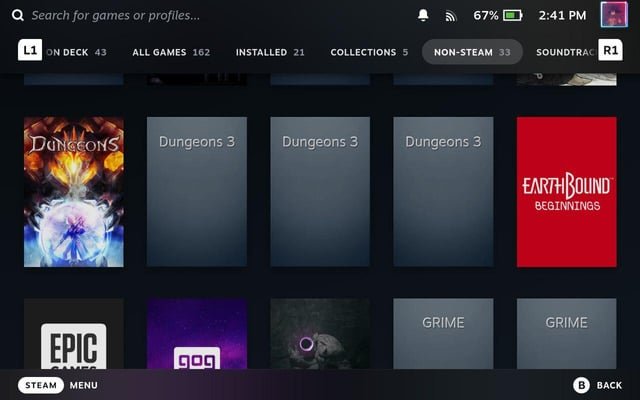
To delete duplicates of nonsteam games, manually locate the game folders on your hard drive and remove the redundant copies. Ensure you delete the correct folders to avoid losing your save files.
Having multiple copies of the same game can clutter your storage and create confusion. It’s a common problem, particularly with non-Steam games, where organization isn’t automatic. This guide addresses the question of how to delete duplicates of nonsteam games effectively.
We’ll walk you through the simple steps to find and remove these unnecessary files, freeing up precious hard drive space. This approach will keep your game library clean and manageable. Let’s get started.

How to Delete Duplicates of Non-Steam Games
It’s super annoying when your computer gets cluttered with duplicate files, especially when it comes to your games. You might have downloaded the same game from different websites or copied game folders without realizing it. These extra files not only waste precious space on your hard drive, but they can also slow down your computer and make it harder to find the game you actually want to play. If these duplicates are non-Steam games, things can get a bit trickier compared to Steam games. Steam has its own system to manage games and prevent duplicates, but when you get games from other places, you’re responsible for keeping things tidy. Let’s get into the nitty-gritty of finding and removing these pesky duplicate games and learn how to manage them easily.
Understanding Why Duplicates Happen
Before we jump into deleting duplicate non-Steam games, it’s helpful to understand why they appear in the first place. Knowing this can help you prevent duplicates from building up again in the future. Here are some typical reasons:
- Multiple Downloads: You might download the same game from different sites, or perhaps you’ve downloaded it more than once by mistake, without realizing that you have already downloaded it. For example, you downloaded a game from a game store and later found the same game free on other sites, you may have downloaded it.
- Copying Game Folders: Sometimes, we copy game folders from one place to another for backup or sharing purposes, not knowing that we already had a copy. These copied folders can easily become duplicates if you are not very organized about your game library.
- Accidental Installations: Sometimes during installation process you may have installed to an existing path by mistake and created duplicate folders. If you install game to a previous folder, you may mistakenly create a duplicate game folder.
- Using Different Game Launchers: If you use different game launchers, you might not know exactly where your game files are located and how many times you’ve installed the same game.
- Lack of Organization: A lack of a good file management system can make it hard to keep track of what you have and can increase the chance of creating duplicates.
Identifying Duplicate Non-Steam Games
Finding the duplicates is the first and most important step. It’s like being a detective, looking for clues that show there are two or more of the same game lurking on your computer. These clues often appear in the folder names and the files inside them.
Manual Checking – A Slow But Sure Method
One way to do this is by manually checking your game folders one by one. This can be slow, especially if you have lots of games, but it’s a good method for finding all the games by going through each folder carefully. Here’s how to approach it:
- Start with your most common game locations: Check your downloads folder, program files folder, and any other location where you know you may have installed games.
- Look for similar folder names: Duplicates often have similar folder names. For example, you might see “MyGame” and “MyGame_copy”. Also, check for folders that may be named “My Game” or “MyGame v1” or “MyGame 1.0”. This can indicate duplicate versions or game copies.
- Check the folder contents: Once you’ve identified a suspect folder, open it and compare the files inside. If you see many of the same files in different folders, you’ve likely found a duplicate. Check if there are any extra folders or extra files, this can also help you find a duplicate folder.
- Pay attention to file sizes and dates: If two folders have similar file names, check the file sizes and creation dates. Duplicates may have the exact same sizes and close dates.
Using Search Features
Using the search function built into your operating system can speed up the process. This method helps you quickly identify games by using file or folder names.
- Search by game name: Open File Explorer (Windows) or Finder (Mac) and use the search bar at the top-right corner. Type in the name of the game you suspect of having duplicates.
- Use specific keywords: If a game has a version number, include that in your search, for example “MyGame 1.0”, “MyGame v1.0”. This can help you pinpoint multiple installations.
- Sort by file type or modified date: When you get search results, you can sort them by file type or modified date to look for potential duplicates.
Using Third-Party Duplicate Finder Tools
If manual checking seems like too much work, there are many third-party tools designed to automatically find duplicate files. These programs scan your computer and identify duplicate files using different methods. They often offer options for you to choose which files to delete.
- How they work: These tools use different ways to find duplicates. Some compare the names of files and folders, while others analyze the files themselves using file size, hash algorithms, and other methods to make sure they are exact matches.
- Popular tools: There are many free and paid tools available, such as Duplicate File Finder, Auslogics Duplicate File Finder, dupeGuru, and more.
- Careful selection: Read reviews and descriptions to choose the right tool. Make sure it suits your needs and it’s safe to use.
- Usage: Most tools allow you to choose the locations or directories you want to check for duplicates, this lets you narrow down the scan to only the game locations that you want to check.
- Preview and Confirmation: Before you delete anything, always preview the identified duplicates and make sure the files are actually duplicates. Delete the wrong files by mistake can be a problem.
Deleting Duplicate Non-Steam Games
Now that you’ve identified the duplicates, it’s time to remove them. Remember to be careful and double-check that you’re deleting the right folders. Follow the steps below to avoid deleting files you actually need.
Manual Deletion Method
Manual deletion gives you total control over what gets deleted. Here’s how to do it:
- Review identified duplicates: Go through the list of duplicate game folders that you identified earlier.
- Select the duplicate folders: Choose the duplicate folder that you want to delete. You may also delete each individual duplicate file but deleting folder would be much simpler and easier.
- Right click and delete: Right-click on the selected folder and choose the delete option.
- Empty the recycle bin: Once you’ve deleted the folders, you must empty the recycle bin to permanently remove the files. If you do not empty recycle bin, it is still consuming disk space.
Using the Delete Option in Duplicate Finders
If you’re using a third-party tool, it will have its own deletion method. Most programs use a similar process, but there will be some differences in options.
- Preview and select duplicates: Once the scan is complete, the tool will show all found duplicates. You will be able to review and select which of these duplicate files you want to delete.
- Select deletion options: The tool may give you different delete options, such as sending to recycle bin or deleting permanently, or moving to a new folder. Make sure to select the right option before continuing.
- Confirm deletion: Before deleting, the tool may ask you to confirm. Always check the selected duplicates carefully.
- Complete deletion: Finally, let the tool delete the selected duplicates. Once deletion is complete, check the recycle bin or your computer if the files were permanently deleted.
Best Practices for Deleting Duplicates
There are some best practices to keep in mind as you delete the duplicate files, to keep your computer safe and clean and avoid any kind of loss of data.
- Always keep a backup: Before deleting any game files, consider backing up your game files to an external drive or a different location. In case you delete the wrong file, you may restore it easily.
- Delete only the exact duplicates: Make sure the files you are deleting are exact duplicates and not parts of the game you actually need. Deleting files randomly may cause your game to not work.
- Carefully review file names: Always review the file names of the folders and files you plan to delete. This will help you to make sure you are only deleting duplicates and not parts of original game.
- Empty your recycle bin: Remember to empty the recycle bin after deleting to fully clear the files from your computer. If you do not clear recycle bin, your files will still be consuming disk space.
Preventing Duplicates in the Future
Deleting duplicates is a good first step, but the real goal is to avoid getting duplicates again. It is always better to prevent problems than trying to fix them afterwards. Here are a few simple habits that can help you maintain a clean and organized game library.
Organized Game Folder Structure
Having a well-organized system to save your games is a great step to keep things clean. When you put your games into their own separate folders, and follow these folder naming rules, things will be much easier.
- Create dedicated game folders: Create a main folder where all your game files are stored, such as “My Games” on a specific hard drive.
- Use clear and consistent naming: Name your game folders carefully to make sure they are descriptive and easy to understand. Example, “My Game Name v1.0”, or “My Game Name ReleaseDate”.
- Use sub-folders for multiple versions: If you have multiple versions of same game, keep them in sub folders with different names. Example, “My Game Name V1”, “My Game Name V2”.
- Keep it consistent: Use a consistent system for naming and storing games. This will make it easy to know which game is where and make it easier for you to avoid duplicate copies.
Download Games Responsibly
Where you download your games from can affect whether you get duplicates. Download games only from trusted and well known sources, this can help you avoid duplicate downloads and potentially harmful files.
- Use one source or launcher: Try to get your game from only one place. Using multiple launchers may make it more difficult to remember which files you already have, and you may end up downloading the same game from different launchers.
- Check your download folder: Before downloading, double-check your downloads folder to avoid accidentally downloading the game again.
- Use trusted websites: Try to download games only from well known and trusted websites. Avoid downloading from unknown sources because they may also have hidden malware or viruses in the file.
- Clean up after installing: After you’ve installed a game, clean up any unnecessary download files to make sure no duplicates remain in download folder.
Regular File Maintenance
Just like how you clean your room, your digital space also needs regular tidying up. Creating a habit of regularly checking for duplicate games is a great way to prevent problems.
- Schedule periodic checks: Make a habit to check for duplicates. Set a schedule to regularly check your game folders, may be once a month or few weeks.
- Keep your folders tidy: Delete unnecessary files or old backups once you are done with them to avoid clutter.
- Use automated tools if needed: Use automatic tools that help you identify duplicates. These tools are convenient and save a lot of time.
Keeping your non-Steam games organized can feel a bit tough at first. But when you follow these steps and build these simple habits, it will help you stay organized and make your gaming experience much better. You will have more free space on your hard drive, games will be easier to find and your computer will run better.
How to COMPLETELY UNINSTALL Non-Steam Games on STEAM DECK | Steam Deck Tips & Tricks #steamdeck
Final Thoughts
To delete duplicates of nonsteam games, manually locate and remove redundant shortcuts or game folders. Carefully check each entry before deleting it. This action clears clutter and ensures you don’t accidentally launch the same game twice.
Additionally, examine any third-party launchers or tools you might use. These programs could create extra entries and impact your library. Clean up these programs by removing or disabling extra shortcut creating processes. Remember, regular maintenance is key.

