
Deleting Game Center data requires you to sign out of your Apple ID in Game Center settings, then you can choose to disable Game Center entirely to prevent future data collection.
Frustrated by accumulated game progress and want a clean slate? Perhaps you’re concerned about privacy. Whatever the reason, understanding how to delete Game Center data is essential for managing your gaming experience on Apple devices. It’s actually quite simple once you know the right steps. This guide will provide you with the specific directions you need.
We will walk you through the process of signing out of Game Center and disabling the service if necessary. This will effectively remove associated data and prevent future accumulation. By following these steps, you gain full control over your data.

How to Delete Game Center Data
Game Center, Apple’s social gaming network, is a fun place to connect with friends, track your progress, and challenge yourself in various games. But sometimes, you might want to clear your Game Center data. Maybe you’re starting a game fresh, or perhaps you just prefer a clean slate. Whatever the reason, understanding how to manage or delete your Game Center data is helpful. This article will guide you through different scenarios and show you how to handle your gaming information. Let’s dive in and learn how to tidy up your Game Center profile.
Understanding Game Center Data
Before we begin deleting, let’s talk about what kind of information Game Center actually holds. It’s not just your game scores; it’s a whole collection of data that helps track your gaming activity. Think of it as your gaming diary with these types of data:
Game Progress and Achievements
Saved Games: Game Center stores your progress in games that support iCloud syncing. This lets you pick up where you left off, even on a different device.
Achievements: These are like virtual trophies you earn in games. Game Center keeps a record of the achievements you’ve unlocked.
Leaderboards: Your scores and ranks on leaderboards are stored within Game Center, showing where you stand compared to other players.
Profile Information
Nickname: This is the name that people see when you play games on Game Center.
Profile Picture: Your chosen avatar helps you stand out to your friends.
Friend List: Game Center keeps track of the friends you’ve added for playing together or comparing scores.
Game History: Game Center has a record of the games you’ve played, even if you don’t play them anymore.
Data Storage
Game Center data primarily lives within your iCloud account. This means deleting it can impact other devices that share the same account. It also means that some deletion actions might not be reversible, so be cautious. It is important to remember that Game Center is linked to your Apple ID. When you modify or remove data, the change affects all devices using the same Apple ID. This is very important to understand because deleting data on one device will also remove it from all your other devices if they use same Apple ID.
Why Would You Delete Game Center Data?
There are many reasons why you might want to delete Game Center data. It’s not always about making a clean start. Let’s look at some of the most common scenarios:
Starting Over in a Game: Sometimes, you might want to reset your progress in a game completely, without deleting the game itself.
Privacy Concerns: If you are not a game lover anymore and if you don’t want the data in your Apple ID, then you may want to delete the game center data.
Troubleshooting Issues: If your saved games are not syncing correctly or you are experiencing problems with achievements, removing your Game Center data can sometimes be a solution.
Changing Apple IDs: Switching between different Apple IDs could mean needing to remove all the previous data associated with your old account.
Preparing to Sell a Device: If you’re selling an iPhone or iPad, you might want to clear all of your personal information including Game Center data.
Methods to Manage Game Center Data
Now that you understand the why and what, let’s explore how to make changes to your Game Center data. There are several methods, depending on exactly what you want to achieve.
Deleting Individual Game Data
Sometimes you don’t need to wipe everything. If you are only interested in removing game data from a particular game, this is your option. Keep in mind that not all games support deleting data from Game Center directly.
How to Delete Game Data within the Game:
Open the Game: Launch the game for which you want to delete data.
Check Game Settings: Look for game options or settings menus.
Search for Data Options: See if the game has options for deleting saved data, clearing progress, or resetting. It might be labeled something like “Reset Game,” “Clear Save,” or “Delete Local Data”.
Follow the Prompts: The process might vary between games. Most will require you to confirm your decision.
Be Careful: Deleting game data from inside a game might only remove the local data, or it could delete saved game progress stored in iCloud. Always check the game’s descriptions and if you want to delete the data from your local device only, ensure that you have disabled the iCloud syncing feature.
Limitations of this Method
Not All Games Support It: Some games do not allow you to delete their data within the game.
Limited Control: This method might not allow you to remove leaderboard entries or achievements that are stored on Game Center.
Data Sync: If the game syncs data via iCloud, the data you deleted locally might get restored if you have iCloud sync enabled.
Deleting Game Center Data via iCloud
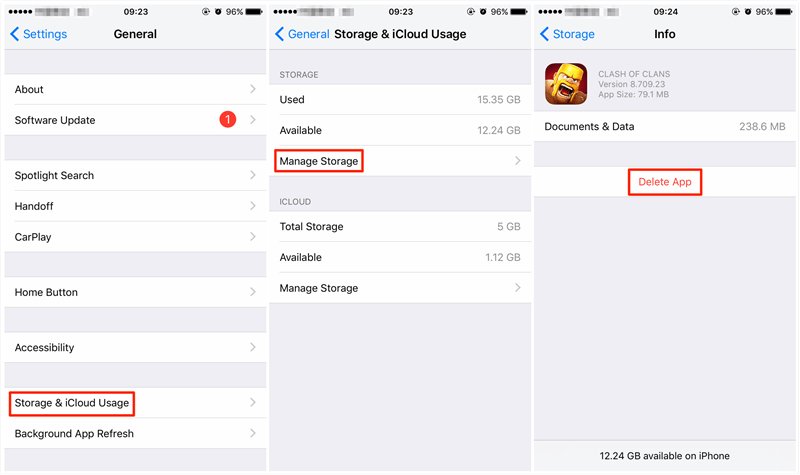
This method is more comprehensive but requires a bit more caution. Keep in mind that changes here will affect all devices using the same Apple ID. There is no direct way to clear all the data with one step from the game center, but by removing the game data from iCloud, you will remove the major chunks of game center data.
Steps to Delete Game Center Data using iCloud:
1. Open Settings: Go to the Settings app on your iPhone or iPad.
2. Tap Your Name: Tap on your name at the top of the Settings menu to access your Apple ID settings.
3. Go to iCloud: Tap on “iCloud.”
4. Manage Storage: Find and tap on “Manage Storage” or “Manage Account Storage”.
5. Select Games: Look through the list of apps using iCloud, and tap on “Games”. You might also find it listed as ‘Game Data’.
6. Select a Game: Find the specific game whose data you want to remove and then tap on that game name. You will see a list of your data for each game.
7. Delete Data: Tap on ‘Delete Documents and Data”. Once you confirm this option, the data from that particular game will be deleted from iCloud. It is important to remember that if the local data of the game is still available, it will sync again on iCloud when you play again.
8. Repeat: Repeat for all the games you want to clear the data for.
Things to keep in Mind When Using iCloud
Impact on All Devices: Remember, this action removes the game data from all devices connected to your Apple ID using iCloud.
Backup: Deleting data in iCloud can remove backup data. Therefore, you may need to back up the data first.
Restore if Needed: If you accidentally delete something, you might be able to restore from a recent iCloud backup (if you have backups enabled).
Changing Your Game Center Nickname
Sometimes you do not want to delete the full game data, but just prefer to change your Game Center name. Luckily, this is a fairly easy thing to do:
How to Change Your Game Center Nickname:
1. Open Settings: Go to the Settings app on your device.
2. Go to Game Center: Scroll down and tap on “Game Center.”
3. Tap Nickname: Find the “Nickname” option and tap it.
4. Enter New Name: A text field will appear, where you can enter the new name.
5. Save the New Name: Click on done when you are happy with your new nickname.
6. Confirm the change: Your new Game Center nickname will now be shown on the Game Center profile, and your friends or other players will be able to see the change.
Important Notes:
Uniqueness: Your new name needs to be unique, so if someone else has already used the name, you will need to choose a different one.
Visibility: This name will be visible to other players on Game Center.
Changing Your Game Center Profile Picture
If you want to change your Game Center avatar or profile picture, follow these steps:
How to Change Your Game Center Profile Picture:
1. Open Settings: Go to the Settings app on your device.
2. Go to Game Center: Scroll down and tap on “Game Center.”
3. Tap on Your Profile: Tap on your profile picture in the Game Center settings.
4. Select New Picture: Tap on the edit option and a new screen will appear where you can select a new profile picture.
5. Choose Photo: Now select from your photos or select from the provided memoji options.
6. Apply: Click done once you have selected the picture.
7. Confirm: Your new Game Center profile picture will now be shown on the Game Center profile and it will be visible to other users.
Important Notes:
Public Visibility: This picture will be visible to other players on Game Center.
Memoji: You can also use a custom Memoji as your profile picture.
Removing Game Center Friends
If you are planning to remove all the game center data, then you should also remove game center friends. Sometimes you might want to remove some friends from your Game Center list because you don’t play games with them anymore or for any other reasons.
How to Remove a Game Center Friend:
1. Open Settings: Go to the Settings app on your device.
2. Go to Game Center: Scroll down and tap on “Game Center.”
3. Tap on Friends: Under the “Friends” section, tap on the number of friends, and a new screen will show all your friends
4. Tap the Friend: Find the friend you want to remove and tap on that friend’s profile name.
5. Remove Friend Option: Scroll down on their profile and you will see an option to “Remove Friend”.
6. Confirm: Click on Remove Friend, a confirmation will be shown that you want to remove the friend. Click yes to confirm, and the friend will be removed from the friend list.
Important Notes:
Notification: The person you remove won’t be notified that you removed them.
Re-adding: You can always re-add them as a friend later if you want.
Completely Removing Game Center (Disabling Game Center)
If you do not want to use Game Center anymore, then you can also disable it to prevent it from collecting data, and showing it to other users. If you want to completely get rid of Game Center and all its data, the best way is to disable it altogether. Keep in mind that this action only prevents Game Center from working and it won’t delete the game data from iCloud, you must follow the steps to clear iCloud data for that.
How to Disable Game Center:
1. Open Settings: Go to the Settings app on your device.
2. Go to Game Center: Scroll down and tap on “Game Center.”
3. Toggle Off Game Center: At the top, you’ll see a switch to enable or disable Game Center. Slide it to the OFF position.
4. Confirm: Game Center is now disabled. All the Game Center features will stop working. You will also not receive any new game invites or friend requests.
Limitations of Disabling Game Center:
Data is Still Stored: Disabling Game Center will not remove the already stored game data on iCloud. To remove that, you still need to go to the iCloud settings and follow the relevant methods.
Can Be Enabled Again: You can enable Game Center again at any time using the same steps by sliding the toggle back to the ON position.
Understanding iCloud Sync and Game Data
iCloud plays a big role in Game Center by keeping your game data synced across devices. It’s beneficial for playing your games wherever you are. But if you plan to reset your game data, you must understand how this works.
How iCloud Sync Works
Automatic Backups: iCloud can automatically back up your game data when your device is connected to wifi and is in charging.
Seamless Play: It allows you to start a game on your iPhone and continue it on your iPad, picking up exactly where you left off.
Shared Data: Your progress, scores, and achievements are shared across all devices linked to your Apple ID.
Turning Off iCloud Sync for Individual Games
If you don’t want data from a specific game to sync, you can turn off iCloud sync for that specific game. It’s helpful when you want to play that game separately across different devices or have a clean slate in the game.
How to Turn off iCloud Sync for a Game:
1. Open Settings: Go to the Settings app on your device.
2. Tap Your Name: Tap on your name at the top of the Settings menu to access your Apple ID settings.
3. Go to iCloud: Tap on “iCloud”.
4. Show All: Now tap on “Show All” under “Apps Using iCloud”.
5. Turn Off: Scroll down through the list and find the game for which you want to turn off the iCloud sync and toggle that off.
Important Considerations
Local Data: Turning off iCloud sync means your data will only be saved locally on the device where the changes are made.
Conflicts: Disabling sync can cause conflict if you are playing the same game on different devices.
Manual Backup: If you later enable the sync again, you may lose data, so it is important to have a backup of data if needed.
What to do If You Are Still Facing Issues
Sometimes, even after following all the steps, you might still face issues with Game Center data. Here’s what to do if you are still facing the same issues:
Restart Your Device: A simple restart of your device can often resolve minor issues related to game data or sync problems.
Update Software: Make sure that your device software is up to date with the latest iOS or iPadOS versions. Software updates often include bug fixes that can fix Game Center issues.
Check Apple Server Status: Sometimes, problems can be due to Apple’s servers experiencing issues. Visit Apple’s system status page and see if there are any known issues with Game Center.
Contact Apple Support: If you’ve tried everything and are still facing issues, you may need to contact Apple support. They can provide personalized help and identify the problem you are facing with your game center data.
Check the Game’s Support: If the problem is with one game only, the game might have known issues and it’s better to check the game’s support or forum pages.
Taking control of your Game Center data can be really straightforward if you understand the different methods to remove or modify it. By following the steps described above, you can manage your game progress, achievements, friends, and profile with ease. Whether you want a clean slate, fix some sync issues, or just prefer privacy, knowing these different ways will be beneficial for your gaming experience on your Apple device. Remember to always backup your important data before deleting it.
How To Erase Game App Data From Game Center For iPhone iOS 16 restart game progress [ 2022]
Final Thoughts
To delete Game Center data, you must first understand that Apple does not provide a direct ‘delete all’ button. Your progress is tied to your Apple ID. You must remove the games’ data from iCloud individually if you wish to delete game-specific information.
Therefore, for those asking ‘how to delete game center data,’ the process involves managing game data via iCloud storage. Unfortunately, there’s no single action, you need to manage each game individually. This involves accessing device settings and deleting data on a per-game basis.

