
To delete game data from iPhone, you can either offload the app, which retains documents and data, or delete the app entirely, removing all associated data.
Are you running out of storage on your iPhone, or perhaps wanting a clean slate with a particular game? Many of us have been there. Knowing how to delete game data from iPhone is a handy skill for managing your device and freeing up valuable space. We’ll explore the easy methods to clear that data, whether you want to temporarily make space or permanently remove it. It’s easier than you might think.

How to Delete Game Data from iPhone
Have you ever played a game on your iPhone and then decided you needed a fresh start? Maybe you wanted to play again without all your old progress, or maybe you just needed to clear up some space on your phone. Deleting game data isn’t always as simple as just deleting the game app itself. Sometimes, the game keeps your information even after you remove it from your phone. Let’s dive deep into how to completely delete game data from your iPhone.
Understanding Game Data Storage
Before we get started, it’s important to understand how games store your information. Games on your iPhone can keep data in different ways:
- Local Storage: This is data stored directly on your iPhone, like your game progress, settings, and saved games.
- iCloud: Some games use iCloud to back up your data. This is helpful if you play on multiple devices, but it means deleting the app doesn’t remove your game data from Apple’s servers.
- Game-Specific Servers: Some games store your data on their own servers, and you might need to contact the game developer to completely remove it.
Knowing where your game keeps its data is the first step in making sure that you delete everything when you need to.
Deleting Game Data: Step-by-Step Guide
Here is a detailed guide on how to delete game data from iPhone. We’ll cover deleting data stored locally, in iCloud and sometimes on the game’s own servers.
Deleting App Data Directly
When you delete an app, some of its data might still be on your phone. Here’s how you can check and remove it.
- Delete the Game App: Find the game icon on your home screen. Press and hold the icon. A menu will pop up. Choose “Remove App” and then “Delete App.” This will remove the main app from your iPhone.
- Check iPhone Storage: After removing the app, check your iPhone’s storage to see if any leftover data is still taking up space. To do this go to Settings, then tap General and iPhone Storage. You’ll see a list of all the apps and how much space they use. Sometimes, some game data is shown here, even after app deletion.
- Remove Leftover Data: If you see the game listed, tap on it. You will see options to “Offload App” or “Delete App” again. If the app is listed, it means there is still some data on your phone. Choose the “Delete App” option again to make sure you are getting rid of everything.
Deleting Game Data from iCloud
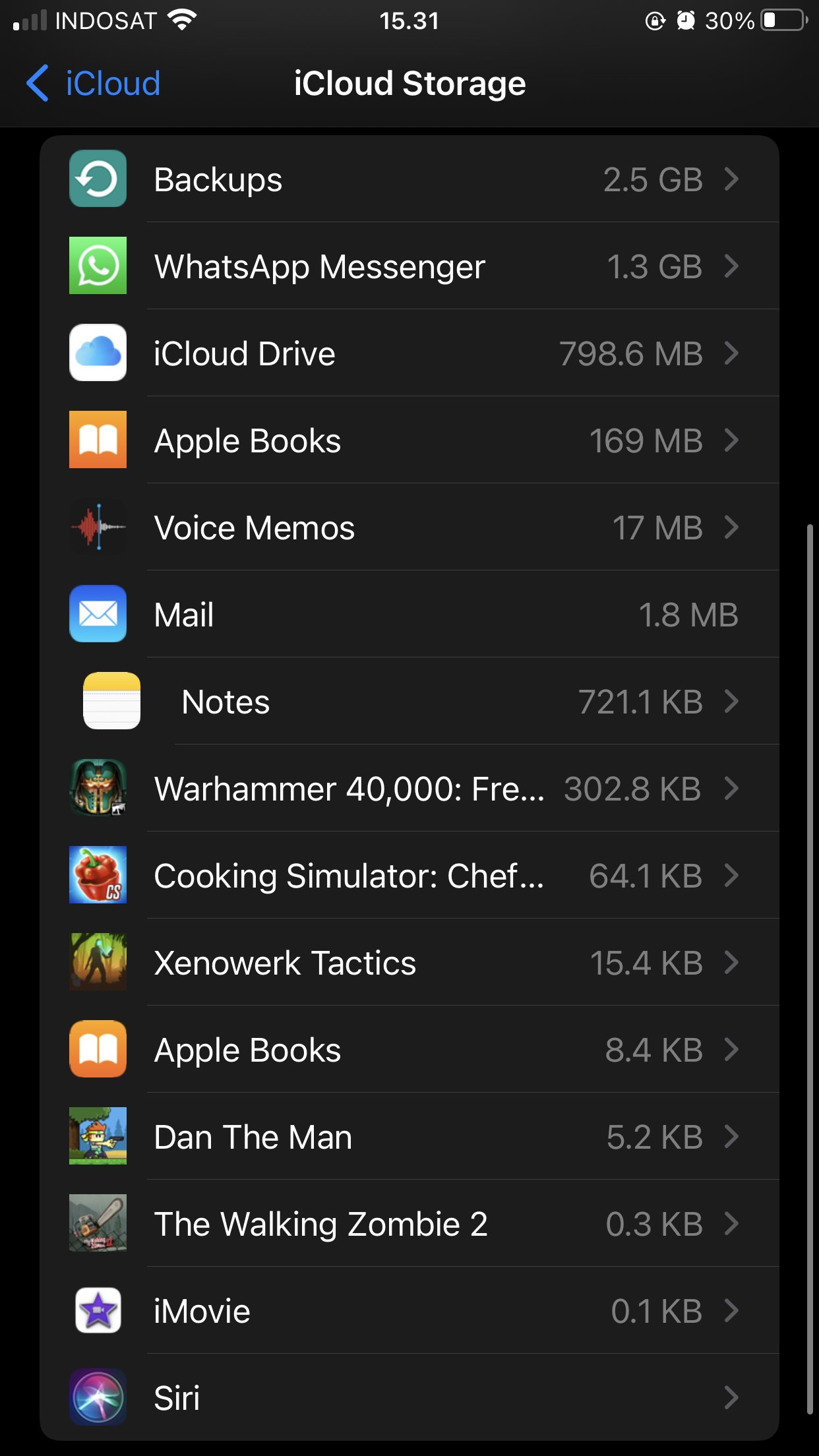
If the game uses iCloud to save your progress, simply deleting the app won’t remove it. You need to manage your iCloud storage too.
- Access iCloud Settings: Open the Settings app on your iPhone. Tap on your name at the top, then tap iCloud.
- Manage iCloud Storage: Tap on Manage Storage. You’ll see a list of all the apps that are saving data to iCloud. Scroll down and tap on the game.
- Delete Data: You should see an option to delete the game’s data. Tap the “Delete Data” option. This will remove the game data from iCloud.
Dealing with Game Center Data
Apple’s Game Center sometimes stores game information too. Here’s how to manage it:
- Open Game Center: Go to the Settings app, and scroll down until you find Game Center, and then tap it.
- Edit Your Profile: If you want to remove all your gaming history, you can sign out from here. Signing out will stop Apple from storing your activity and scores in Game Center, but be aware that some games may use the Game Center information to link up to your game and your scores.
Deleting Game Data from Game-Specific Servers
Some games store your data on their own servers. If you want to completely remove all your information from these games, you might need to contact the developers directly. Here are some ways you can usually get this done:
- Check Game Settings: Open the game and look for any options like “Account Settings” or “Privacy Settings”. Some games have options to delete user data within the game’s settings.
- Contact Game Developers: If there’s no option to delete your data in the game settings, contact the developer directly. Most games have a support or “Contact Us” option on their website or app store page. Tell them that you want all your game information deleted.
- Follow the Developer’s Instructions: Every game has a different way to handle data removal requests, so you will need to follow what they tell you to do. It might include sending an email to a specific address or filling a form, but that depends on the game.
Using Third-Party Apps (Use with Caution)
There are some apps that say they can help you clean up all the data on your iPhone, including game data. While they might be helpful, it’s important to be careful when using these types of apps. Some may not do what they claim, or could even collect your personal information. It is always best to use Apple’s own tools to manage your data first.
- Research the App: Before you download a cleaning app, check reviews and see what other people are saying about it. Make sure it is a real app and it is trusted.
- Read Permissions Carefully: Check what the app wants access to before you allow it. If an app is asking for too much information, like contacts or location, it might be a better idea to avoid it.
Why You Might Need To Delete Game Data
There are many reasons why you might want to delete game data from your iPhone. Here are some common ones:
- Starting Over: You might want to play a game again but from the very beginning, as if you have never played it.
- Freeing Up Space: Games can use a lot of space on your phone. Removing old data can give you more storage.
- Privacy Concerns: If you are worried about your data being shared or stored, you might want to delete it.
- Game Issues: Sometimes, old game data can cause problems with a game. Removing it might fix those problems.
- Changing Game Accounts: You might want to use a different account for a game and need to remove the old data to do this.
Important Considerations When Deleting Game Data
Before deleting game data, there are a few important things to keep in mind:
- Backups: If you are not sure, make sure you create a backup of your iPhone before deleting anything. You can do this from your iPhone using the iCloud or connect your iPhone to your computer and back it up that way.
- Data Loss: Deleting game data is often permanent, so you can not get it back after you have removed it. Make absolutely certain that you want to do it before you delete the data.
- iCloud Sync: Remember that iCloud is designed to keep your data the same across multiple devices. Deleting data on your phone might also remove it from other devices.
Common Problems and Solutions
Sometimes, you might run into problems when deleting game data. Here are some common issues and what you can do about them.
Game Data Remains After Deletion
If you are still seeing game data even after deleting the game app, make sure you follow the steps above for checking the iPhone storage and iCloud settings. Sometimes, there is more than one type of storage where the game could be keeping your information. You might also need to contact the game developer if they are storing it on their servers.
Can’t Delete Data from iCloud
If you find you are having trouble deleting your data from iCloud, make sure your iPhone is connected to the internet. Sometimes, it takes a bit of time for iCloud to completely remove the data. If the problem still remains, you could try signing out from iCloud, restarting your phone, and then sign back in, but be careful when doing this, as you might loose other valuable information.
Game Data Resets When App Is Reinstalled
If you reinstall a game, it sometimes brings back your previous information. This is because the data might still be in the iCloud. Check your iCloud settings to make sure you have removed the game data from there. You may also need to contact the game’s developer to have them remove data from their servers.
Tips for Managing Game Data
Here are some extra tips to help you better manage your game data and avoid problems:
- Check iCloud Storage Regularly: If you play many games that use iCloud to save your information, you should periodically check your iCloud storage to clear out data from games that you are no longer playing.
- Review Game Settings: Each time you start playing a new game, take some time to go through the settings. This will help you understand how the game saves and uses your information, so you are aware of how and where it stores your information.
- Be Careful with Game Accounts: Keep track of the game accounts you are using. Sometimes, deleting data and switching accounts can cause data loss.
Deleting game data from your iPhone is something you might need to do for several reasons. By understanding where the data is stored and following the correct steps, you can successfully remove it. Just always remember to backup before you remove any information and be careful about the third-party apps that you choose to use.
How To Delete Game Data On iPhone
Final Thoughts
To summarize, deleting game data from iPhone involves navigating to Settings, then General, followed by iPhone Storage. Locate the game app and tap on it. You can choose to either offload the app while retaining its documents and data, or completely delete it, including all data.
Selecting ‘Delete App’ removes everything related to the game. This action frees up valuable space on your device. Remember this important information when you consider how to delete game data from iPhone.

