
To delete a game from your Steam library, right-click on the game title, select ‘Manage’, and then click ‘Uninstall’. This removes the game from your computer.
Do you have a game taking up space on your hard drive that you no longer play? Sometimes, we accumulate games that we don’t use. Learning how to delete a game from steam library is a simple process.
This action will free up space on your computer. It’s a great way to keep things tidy. Follow our easy guide to remove unwanted titles.

How to Delete Game From Steam Library
Okay, so you’ve got a Steam library overflowing with games, some you love, others you haven’t touched in ages, and maybe a few you wish you never bought. It happens! You might want to clean up your list, free up some space, or just get rid of a game you don’t plan to play. Whatever your reason, learning how to remove a game from your Steam library is really simple. Don’t worry; we’re here to guide you step-by-step. This process helps you manage your gaming collection better. Let’s jump right in!
Understanding Game Removal on Steam
Before we get into the actual steps, let’s clarify a few important points. When you remove a game from your Steam library, it doesn’t mean you’ve permanently lost it forever. It’s more like hiding a book on a shelf rather than throwing it away. You can still find it and get it back later. This is different from deleting it completely from your computer. The game’s files might still exist on your hard drive, unless you’ve specifically uninstalled them first. We’ll talk about that too. Think of it as managing your collection rather than permanently getting rid of stuff.
The Difference Between Uninstalling and Removing from Library
It’s essential to understand the difference between uninstalling a game and removing it from your library.
Uninstalling: This process takes the game files off your computer’s hard drive, freeing up storage space. It’s like taking the book off the shelf and putting it back in a box in the attic. You can’t play it without downloading it again.
Removing from Library: This action just hides the game from your main Steam library view. The game files might still be on your computer if you haven’t uninstalled them, and you can always add the game back to your library whenever you want. It’s like hiding a book on your shelf behind other books. You still have it, but you don’t see it unless you move the others.
Think of it this way: uninstalling is about deleting data from your storage and removing from the library is managing the view of your games.
Steps to Remove a Game from Your Steam Library
Now, let’s get to the actual process of removing a game from your library. It’s very easy and can be done in just a few steps.
Using the Steam Client
This is the most common method, as most people use the Steam client to play games.
1. Open Steam: First, make sure you have the Steam client open on your computer. You will see a list of your games on the left side of your screen.
2. Find the Game: Scroll through the list or use the search bar to locate the game you want to remove. Click on the game to select it. This is the game you want to hide in your library.
3. Access the Game’s Manage Menu: You should see a “Manage” button (it looks like a gear) on the right side of the game’s page. Click this button to view a dropdown menu.
4. Select “Manage” option: Once you click the “Manage” button, a list of options will appear.
5. Choose the “Remove from Account” option: From that menu, choose the option “Remove from Account”. Once you select this option, the game will not appear in your library.
6. Confirm Removal: Steam will ask you to confirm if you are sure you want to remove the game. Click on “Remove” to confirm the removal.
7. Game Removed: After you confirm, the game is no longer visible in your library. The game is still in your account, but you can’t see it right now.
Using the Steam Website
You can also manage your Steam library through the Steam website. This is useful if you are using a computer that doesn’t have the Steam client installed.
1. Go to the Steam Website: Open a web browser and go to the Steam website (store.steampowered.com).
2. Log into Your Account: Log in to your Steam account with your username and password.
3. Access Your Account Details: Once you are logged in, hover over your profile name (it’s usually at the top right) and click on “Account Details”.
4. View Purchase History: On the account details page, find and click on “View purchase history.”
5. Find the Game: In your purchase history, locate the game that you would like to remove.
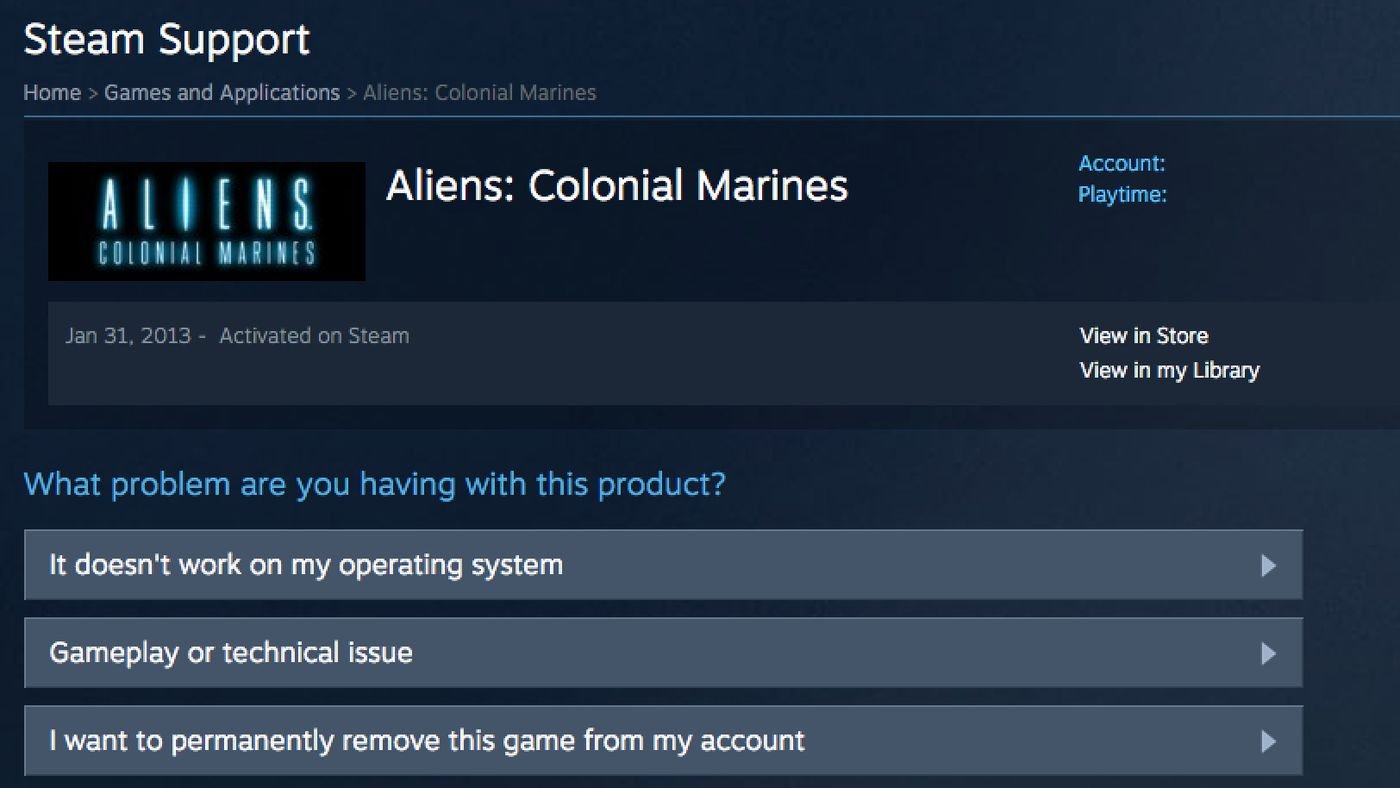
6. Select “Remove this game from my account” Click on the game and on the right side of the game, you will see the option “Remove this game from my account.” Click on this option.
7. Confirm the Removal: Steam will ask you to confirm that you want to remove the game. Click “Ok” to confirm.
8. Game is Removed: The game is no longer visible in your library.
What Happens After You Remove a Game?
After removing a game from your Steam library, you might be wondering what happens next. Here is what to expect:
Game is Hidden: The game is removed from your library view. It won’t appear in the list of games you own. This helps with cleaning up your list, so you can focus on the games you are currently playing.
Game Still in Your Account: Even though it’s hidden, the game is still associated with your Steam account. You haven’t lost your ownership of the game.
Achievements Remain: If you earned achievements for the game, they will still be linked to your account. This means you will still keep your progress and any badges you earned from playing this game.
Game Files Might Still Exist: If you have not uninstalled the game separately, the game files might still be on your hard drive. You will need to uninstall the game to free up space.
Can Be Added Back: You can always add the game back to your library later, free of charge, as long as it is still tied to your Steam account.
How to Permanently Remove a Game
Now that you know about removing a game from your library, you might also want to permanently get rid of a game so that you can’t play it again on your computer.
Uninstalling Games via Steam Client
To permanently remove a game from your computer, you must first uninstall it. Here is how to do it:
1. Open Steam: Open the Steam client.
2. Select the Game: Find the game you want to uninstall in your library and click on it.
3. Access the Manage Menu: Click the manage button (the gear icon) on the right side of the game’s page.
4. Choose Uninstall: From the dropdown menu, select “Uninstall.”
5. Confirm Uninstall: Steam will ask you to confirm that you want to uninstall the game. Click “Uninstall” to continue.
6. Game Uninstalled: Steam will uninstall the game and remove the game files from your computer. This action will free up some storage space on your hard drive.
What Happens After Uninstalling?
After uninstalling, the game will no longer be on your computer, but you can still add it back to your library using the method above. It is very easy to reinstall the game once it is re-added to your library. When you want to play, it’s just a matter of finding the game in your library, clicking to download, and enjoying. This gives you flexibility to manage your games and computer resources.
Adding a Game Back to Your Library
If you decide that you want to play a game again that you removed, you can easily add it back. Steam makes this process easy.
How to Restore a Removed Game
Here’s how you can bring a removed game back to your library:
1. Open Steam: Launch the Steam client.
2. Click on Your Profile Name: Click on your name on the top of your Steam application. This will reveal a menu.
3. Select “Account Details”: From the dropdown menu, select “Account Details.”
4. View Purchase History: On the account details page, click on “View purchase history.”
5. Find the Game: Scroll through your list or search for the game you want to restore.
6. Click on the Game: Click on the name of the game.
7. Select “Add to my Account”: You will see an option on the right side of the game that says, “Add to my Account”. Click this option.
8. Game is Back: The game will now be back in your library. If you had uninstalled it earlier, you will need to download it again before you can play.
Organizing Your Steam Library
Now that you know how to remove and add games, let’s talk about how to organize your library for easier browsing. Steam provides tools to organize your game collection.
Using Categories and Collections
You can create categories or collections to group your games.
Creating a Collection: In your Steam library, right-click on a game and select “Add to” then choose “New Collection”. You can name this collection based on the genre or type of games that you would like to include.
Adding Games to a Collection: To add more games, you can also right-click on any other game and select the “Add to” option and then select the collection name you previously made to include that game in the collection.
Managing Collections: You can change, edit, and delete collections whenever you want.
Here’s a table summarizing the different actions we’ve discussed:
| Action | Description | Impact on Storage | Game Visibility |
|---|---|---|---|
| Uninstalling a Game | Removes game files from your computer | Frees up storage space | Hides game files from your computer |
| Removing from Library | Hides game from your main Steam library view | Does not free up space if files are present | Hides game from view in library |
| Adding Game Back to Library | Restores game visibility in your Steam library | No change to storage, only adds visibility | Game appears again in the library |
By using these tools, you can keep your library nice and tidy. This will allow you to find the games you want to play faster.
So, there you have it! You’re now equipped with the knowledge to manage your Steam library effectively. Removing games, uninstalling them, and adding them back are simple tasks that can keep your collection organized. You can easily manage your Steam games so you can get the most out of your gaming time. Remember, you have full control of what you want to see in your list. So, take your time to organize your games so that it’s comfortable for you.
How to permanently remove a game from Steam – Quick Guide
Final Thoughts
To remove a game, right-click it within your Steam library. Select “Manage,” then choose “Uninstall”. This action removes game files from your computer. This will free up space but the game remains listed in your library.
If you want to permanently remove the title, go to Steam Support. Search for the game you want to delete. Select “I want to permanently remove this game from my account”. This method explains exactly how to delete game from steam library.

