
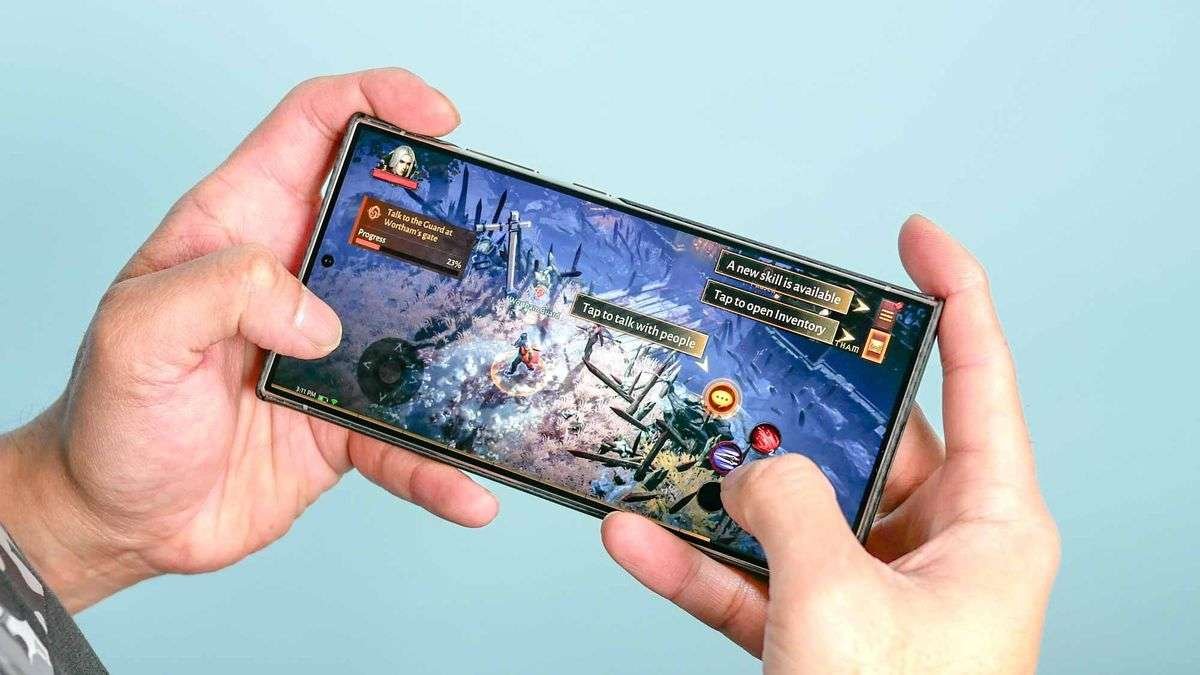
To delete games from your Android phone, you can either uninstall them from the app drawer, through the Google Play Store, or within your phone’s settings under the applications menu.
Do you ever find your phone’s storage quickly vanishing thanks to those captivating games? It happens to many of us, and sometimes we just need to clear space. Learning how to delete games from android phone is actually quite straightforward and can be done in a few simple steps. This guide will show you the quick ways to remove those storage hogs.

How to Delete Games from Android Phone
Okay, so you’ve got a bunch of games on your Android phone, and maybe it’s time to say goodbye to a few. Maybe you need space for new photos, or maybe you’re just not playing those games anymore. Whatever the reason, deleting games on your Android phone is actually pretty easy. Let’s walk through the different ways you can do it, step by step.
The Basic Method: Deleting from Your App Drawer
The most common way to remove games is through your app drawer. This is where all your apps live, neatly organized (or sometimes, not so neatly!). Let’s see how this is done:
Finding Your App Drawer
First, you need to find your app drawer. This is often done by swiping up from the bottom of your screen. Some phones might have a special button (often a circle with dots) that you tap to see all your apps. Once you’ve found it, you’ll see a list of all the apps installed on your phone, including your games.
Uninstalling the Game
Now that you’re in your app drawer, it’s time to get rid of those unwanted games. Here’s how:
- Find the game’s icon: Scroll through the list until you see the game you want to delete. The icon is like a little picture that represents the game.
- Long Press: Instead of just tapping the game icon, press and hold your finger on it for a second or two. This will bring up a small menu.
- Look for “Uninstall” or “Remove”: In the menu, you should see an option that says something like “Uninstall,” “Remove,” or a trash can icon. The exact wording can be slightly different depending on your phone model and Android version.
- Tap and confirm: Tap the “Uninstall” or “Remove” option. Your phone will likely ask you to confirm your decision. This is just a precaution, to make sure you don’t delete something by mistake. Tap “OK” or “Confirm,” and the game will be deleted from your phone!
That’s it! The game should be gone from your app drawer, and it’s no longer taking up space on your phone. This method is super useful because it works for pretty much any app, not just games.
Using the Google Play Store to Delete Games
Another way to get rid of games is through the Google Play Store. This is the app you used to download them in the first place, so it makes sense that you can use it to remove them too.
Accessing the Play Store
Find the Google Play Store app icon on your phone (it usually looks like a colorful triangle). Tap it to open the app. If you haven’t logged in with your Google account already, you’ll need to do that first.
Finding Your Games List
Once you’re in the Play Store, you need to find the section that shows all the apps you’ve installed. Here’s how:
- Tap your profile icon: Look for your profile picture (or an initial) in the top right corner of the screen. Tap it.
- Tap “Manage apps & device”: In the menu that appears, you’ll see an option called “Manage apps & device” or something similar. Tap this.
- Select “Manage”: You’ll now be on a screen with two tabs: “Overview” and “Manage”. Select “Manage”.
- Find the game: You’ll see a list of all the apps you’ve installed. You may need to scroll down to find the game you want to delete.
Uninstalling the Game
Now it’s time to uninstall the game from within the Play Store. Follow these simple steps:
- Select the game: Tap on the game’s icon you wish to delete.
- Tap Uninstall: On the game’s page, you’ll see a big button that says “Uninstall.” Tap it.
- Confirm: The Play Store will ask you to confirm that you want to remove the game. Tap “Uninstall” or “OK” to proceed.
Just like that, the game will be removed from your phone. The Google Play Store method is handy when you want to delete several games at once, or if you prefer to manage your apps from one place.
Deleting Games from Your Phone’s Settings
A third way to delete games is through your phone’s settings app. This might feel a bit more technical, but it’s just another path to the same destination, which is a phone with less clutter and more space!
Opening Your Phone’s Settings
First things first, you need to find your phone’s settings app. It usually has a gear-like icon and can be found in the app drawer or by swiping down from the top of your screen and tapping the gear icon. Once you’ve found it, tap it to open it.
Accessing the Apps Section
Inside the settings app, you’ll need to find the section that lists all your installed apps. Here’s how to get there:
- Look for “Apps” or “Apps & notifications”: Scroll through the settings menu until you see an option labeled “Apps”, “Apps & Notifications”, or just “Applications”. The exact name depends on your Android version. Tap on it.
- Tap “See all apps” or “App info”: You will see a list of your recently opened apps. To see the complete list, tap “See all apps” or a similar option. Sometimes you may need to tap “App info” first.
Finding and Uninstalling the Game
Now that you’re in the app list, it’s time to remove that game:
- Find the game: Scroll down the list until you see the game you want to delete. The apps are often arranged alphabetically to make them easier to find.
- Tap the game’s name: Tap on the game’s name to open up its dedicated information page.
- Tap “Uninstall”: On the game’s info page, you will see an “Uninstall” button. Tap on that button.
- Confirm: A message will appear asking you to confirm that you want to uninstall the game. Tap “OK” or “Uninstall”.
Your phone will now remove the game and free up storage. This method is useful if you’re having trouble finding the game in the app drawer, or if you prefer managing apps through the settings menu.
Handling Games with Pre-Installed Apps (Bloatware)
Sometimes, your phone comes with games already installed, also known as bloatware. These can often be a bit trickier to remove compared to regular apps that you’ve downloaded from the Play Store.
The difference between uninstalling and disabling
The most important thing to understand about bloatware is that you might not always be able to completely uninstall it. Instead, you’ll often find you have the option to ‘disable’ the app. Here’s what that means:
- Uninstall: This means the app is completely removed from your device, freeing up storage space.
- Disable: This means the app is still on your device, but it won’t run, appear in your app drawer, or take up much memory. It’s kind of like putting the app to sleep. You can enable it again later if you want to.
How to disable pre-installed games
To disable a pre-installed game, follow these steps:
- Go to Settings> Apps: Go to your phone’s Settings, then go to the apps section, as previously explained.
- Find the game: Find the bloatware game from your list.
- Check for the “uninstall” button: If the “uninstall” button is not present, look for the “Disable” button. If you see a “Disable” button, you can disable the game.
- Disable it: Tap the “Disable” button and confirm. The game will no longer be active and won’t be visible in your app drawer.
Disabling bloatware is not the same as uninstalling, but it’s the best you can do in many cases. This will make the game effectively go away and should also free up a small amount of resources. If the disable option is not available, you can try force stopping the app from the same screen, although this doesn’t uninstall the app.
Clearing App Cache and Data
Sometimes, even after uninstalling a game, some residual data or cached files might still linger on your phone. It’s good to clear these to free up even more space and ensure the game is fully gone.
Accessing App Info Again
Like before, you need to go to your phone’s settings and find the ‘Apps’ or ‘Apps & notifications’ section. From there you can select the game you wish to clear the cache and data from.
Clearing Cache and Data
Once you’ve opened the app info page for the game, you can proceed with cleaning up that data. Here’s how:
- Tap “Storage”: On the app information page, find the “Storage” or “Storage & cache” section and tap on it.
- Tap “Clear Cache”: On the storage page, you’ll see an option labeled “Clear cache”. Tap it to remove temporary files related to the app.
- Tap “Clear Data”: There will likely be another option labeled “Clear Data” or “Clear Storage.” Tapping this will remove all game data, including your settings, progress and other data. This might be useful if you want a fresh install or if you are experiencing issues with an app before you decide to uninstall it. Be aware this is permanent.
By clearing the cache and data, you’re making sure the game doesn’t leave any traces behind. This is good practice to help your phone stay tidy and efficient.
Managing Large Games and Space
Some games can be really big, especially those with high-quality graphics and lots of levels. These can take up a significant amount of space on your phone. It’s helpful to understand this, so you can manage your storage well.
Checking Game Size
Before you delete a game, you might want to see just how much space it’s taking up on your phone. You can do this in the Settings or in the Play Store, as already described in the previous sections. This lets you know which apps are the biggest hogs for space.
- Settings method: In your phone settings, go to ‘Apps’, find the specific game, and check the storage section. The app size will be shown.
- Play store method: In the google play store, find the game, open its page and find the ‘about this game’ section. Here, you can find its approximate size.
Tips for Saving Storage Space
If you have a lot of games or your phone is always full, here are some things you can do to save space:
- Uninstall Unused Games: Start by removing games that you don’t play very often. Be honest with yourself!
- Clear Cached Data Regularly: As mentioned, regularly clearing the cached data of your apps, including games, helps free up space.
- Use a Memory Card (if applicable): If your phone has a slot for a memory card, consider using it to store less important apps, or your data.
- Cloud Storage: If you have game saves stored on the cloud (many games have this option), you can delete the game from your phone. If you wish to play it again later, you can download the game and your progress would still be there.
Managing the space on your phone, especially with games, means being aware of how much space each game takes up, clearing out old data, and choosing storage locations wisely.
Reinstalling Deleted Games
Sometimes you might delete a game and later regret it. The good news is, it’s very easy to reinstall games that you’ve previously deleted. All you need is the Google Play Store.
How to Reinstall
Here’s how to get a game back on your phone:
- Open the Google Play Store: Find and open the Play Store app on your phone.
- Search for the game: Use the search bar at the top of the Play Store to type the name of the game you want to reinstall.
- Find the game in the search results: It will show up in the search results. Tap on the game’s icon.
- Tap “Install”: On the game page, you will see a green “Install” button. Tap it, and the game will start downloading and installing on your phone.
After reinstalling a game, you can start playing it again. If the game saves your progress in the cloud, you may even be able to continue playing from where you left off.
Keeping Your Phone Organized
Deleting games is just one part of keeping your phone organized. A clutter-free phone is faster, more efficient, and easier to use. Here are a few ideas for phone organization:
Folder Organization
Organize your apps into folders to keep your app drawer less cluttered:
- Long press and drag: You can drag the app icon onto another app to create a folder.
- Drag additional apps: You can drag additional app icons to this new folder and all app icons will be inside it.
- Rename the folders: You can rename the folders so that they have descriptive names and make it easier to navigate.
Uninstalling Unused Apps
Delete not only games, but also other apps you aren’t using. Over time, apps you don’t use can accumulate and take up space.
Regular Clean-Ups
Get into the habit of regularly checking your app list and deleting things you don’t need. A quick clean-up once a week or once a month can make a big difference. Having good phone habits can make a huge difference.
Deleting games from your Android phone is simple. By knowing multiple ways you can free up space and keep your phone running smoothly. Keep this information handy, and it will be easier to manage all your apps. Happy gaming! (Or, happy not gaming, if that’s what you prefer!)
How to Delete Apps on an Android Device
Final Thoughts
To delete games, you can either uninstall through Google Play Store or directly from your device’s settings. Find the game you want to remove in either location. Select the uninstall option.
Confirm your choice when prompted. This action will remove the game and free up storage space on your phone.
In summary, how to delete games from android phone involves locating the app in settings or the Play Store and selecting uninstall. It is a straightforward process.

