
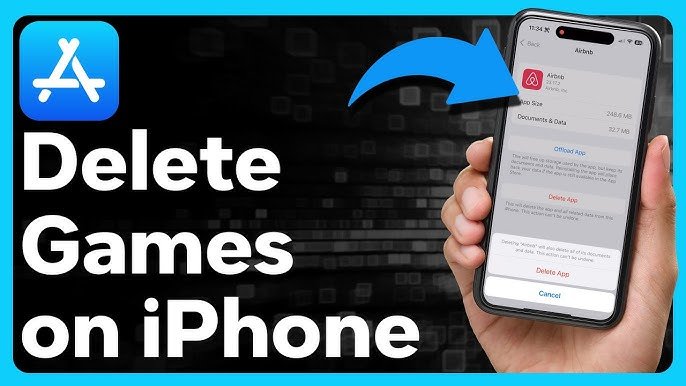
Deleting games from your phone involves either uninstalling them through the app settings or using the phone’s application manager.
Is your phone’s storage constantly screaming for mercy? Maybe it’s time to address that digital clutter. Having too many games you no longer play takes up precious space and slows your device. Let’s explore how to delete games from phone and reclaim your phone’s resources.
This process is surprisingly simple, and we will guide you through the steps. You’ll soon have a tidy device ready for more important things. You can say goodbye to those old games with just a few taps.

How to Delete Games from Phone
Okay, let’s talk about getting rid of games on your phone. Maybe you’re running out of space, or maybe you just don’t play that one game anymore. It’s totally normal! Phones can get cluttered easily, especially with games that take up lots of room. Learning how to delete them is an easy and important thing to know. It’s like cleaning your room, but for your phone!
Why You Might Want to Delete Games
Before we dive into how, let’s think about why you might want to remove games from your phone. There are several good reasons:
- Free Up Space: Games, especially the really detailed ones, take up a LOT of storage space. This space is needed for other important things, like pictures, videos, or even other fun apps. Getting rid of games you don’t play can make your phone run faster and have room for new things.
- Battery Life: Some games use a lot of battery power, even when you’re not playing them! They might be running in the background, checking for updates or sending you notifications. Removing these games can help your battery last longer.
- Reduce Distractions: Sometimes, those game notifications can be distracting! If you’re trying to focus on schoolwork or just want some quiet time, deleting games can help. It removes the temptation to play when you should be doing something else.
- Simply Not Playing: It’s common to download games that sound fun but then never play them. If a game is just sitting there, taking up space and not providing enjoyment, there’s no need to keep it.
Deleting Games on Android Phones
Now, let’s get to the actual deleting part! Android phones are used by many people, and the process is usually straightforward. Here are the most common ways you can remove games from your Android device:
Method 1: Deleting from the App Drawer
The app drawer is where you see all the apps installed on your phone. It’s usually accessed by swiping up from the bottom of your screen. Here’s how to delete a game this way:
- Find the Game: Go to your app drawer and look for the game you want to delete.
- Press and Hold: Tap and hold your finger on the game icon for a second or two.
- Drag to Uninstall: A menu or option will pop up. Look for “Uninstall”, “Delete”, or a trash can icon. Drag the game icon to this option.
- Confirm: Your phone will ask you to confirm you want to delete the game. Tap “OK” or “Uninstall” to confirm.
- Done! The game will be removed from your phone.
A Tip: Sometimes, you might accidentally drag an app to create a shortcut on the screen. If this happens, simply drag the icon back to the app drawer and start again.
Method 2: Deleting from the Settings Menu
You can also delete games from your phone’s settings. This method gives you a little more information about the apps you are deleting. Here’s how you do it:
- Open Settings: Look for the gear-shaped icon that represents your phone’s settings and tap it.
- Go to Apps: Scroll down (or search) until you find “Apps,” “Applications,” or “App Management” and tap it.
- Find the Game: You’ll see a list of all apps on your phone. Scroll through to find the game you want to remove and tap on it.
- Tap Uninstall: Once you tap on the game, you’ll see an “Uninstall” option. Tap it.
- Confirm: A popup will ask you to confirm if you want to uninstall. Tap “OK” or “Uninstall” to confirm.
- Done! The game is now gone.
Good to Know: In this settings menu, you can also see how much space each game takes up. This is helpful if you need to free up space and want to see which games are the biggest.
Method 3: Using the Google Play Store
You can also remove the games from the same place where you usually download them, which is the Google Play Store.
- Open the Play Store: Find the Google Play Store app icon on your phone and tap it.
- Tap your profile: In the top right corner, you’ll see your profile picture or an icon. Tap on it.
- Select Manage Apps & Device: In the menu, select “Manage apps & device.”
- Go to Manage: Under the overview tab you’ll see “Manage” tab, tap on the “manage” tab.
- Select the App: This will show you all the apps and games you have installed. Find the game you want to uninstall, and tap the checkbox next to the game’s name. You can select multiple games to uninstall if you want to.
- Tap the Uninstall icon: At the top right corner you’ll see a trash can icon, tap that icon.
- Confirm: A popup will ask you to confirm if you want to uninstall. Tap “Uninstall” to confirm.
- Done! The game is now gone.
Deleting Games on iPhones (iOS)
If you have an iPhone, the process of removing games is similar, but with a few slight differences. Here’s how to delete games on your iPhone:
Method 1: Removing from the Home Screen
This is the most common way that people remove games from their iPhone. Here is how you do it:
- Find the Game: Locate the game icon on your home screen.
- Press and Hold: Tap and hold your finger on the game icon. Don’t press too hard, just hold it.
- Tap the Minus Sign: After a moment, a little menu will appear. Select “Remove App.” Sometimes an “x” or minus sign will appear on the app icon itself, tap on that icon.
- Confirm: Your iPhone will ask if you want to delete the app or remove it from the home screen. Choose “Delete App”.
- Confirm again: Your phone will ask you to confirm one last time if you want to delete the app. Tap “Delete” to confirm.
- Done! The game will disappear from your home screen and your phone.
Important Note: If you choose “Remove from Home Screen,” the game will still be on your phone in the App Library, but it won’t appear on your home screens. If you want to completely delete the game, you should choose “Delete App”.
Method 2: Deleting from the Settings App
Like on Android, you can remove apps and games through your iPhone’s settings menu. Here’s how:
- Open Settings: Tap the gear icon on your home screen to open the Settings app.
- Go to General: Scroll down to find “General” and tap it.
- Go to iPhone Storage: In the general settings menu, tap “iPhone Storage.”
- Find the Game: This will display a list of all your apps. Scroll through to find the game you want to delete. Tap on it.
- Tap Delete App: Tap “Delete App” on the next screen.
- Confirm: Your iPhone will ask you if you are sure. Tap “Delete App” again to confirm.
- Done! The app is now removed from your phone.
Extra Tip: This settings menu also shows how much space each app and game takes up. It’s a great place to go if you’re trying to make more room on your iPhone.
Method 3: Using the App Store
Just like on Android, you can also delete the games from the place where you got them, which is the App Store.
- Open the App Store: Find the app store on your phone and tap on it.
- Tap your profile: At the top right corner you’ll see your profile picture or an icon, tap on that icon.
- Tap Purchased: You’ll see an option for “Purchased,” tap that.
- Find the Game: Find the game you want to uninstall from the list of your purchased apps.
- Swipe Left: Swipe left on the app, and an uninstall or remove option will appear, tap on that.
- Confirm: Your phone will ask you if you are sure. Tap “Delete” or “Remove” to confirm.
- Done! The game is now deleted.
What Happens After You Delete a Game?
Once you remove a game from your phone, it’s gone from your device. Here’s what to expect:
- Game Data: Usually, your progress and settings within the game are deleted along with the app. But some games save your data to a cloud service. In these cases, you might be able to get your progress back if you reinstall the game and connect to the same account.
- Storage Space: Your phone will free up the storage space that the game was using. This should make your phone run a little bit faster, especially if you have removed a large game.
- Notifications: You won’t receive any more notifications from that game.
- Reinstalling: If you change your mind later, you can always reinstall the game from the Google Play Store or the Apple App Store. Just remember, if your game data wasn’t saved to the cloud, you might have to start from the beginning.
Tips for Managing Your Phone’s Games
Here are a few helpful tips to make managing your games easier and help you keep your phone in good shape:
- Regular Check-Ups: Take some time every month to check the apps on your phone. If you find any games you aren’t playing, it’s a good time to remove them.
- Utilize Folders: If you have a lot of games that you do play, but don’t want them on your home screen, try using folders to keep them organized in your app drawer. On an Android phone, you can simply drag app icons on top of each other to create folders. On an iPhone, tap and hold an app icon, and select “Edit Home Screen.” Then you can drag apps on top of each other to create folders.
- Storage Management: Regularly check your phone’s storage in the settings to see what is taking up space. This can help you identify which apps and games to remove.
- Cloud Saves: When starting a new game, see if it has a cloud save feature. This can be useful if you delete the game but may want to play it again later.
- Kids Mode: If you have younger siblings or kids that use your phone, consider using a kids mode to help you manage what apps and games they can access and when they can play them.
Deleting games from your phone is easy and can help keep your phone tidy. It’s a good habit to get into, just like regularly cleaning up your room. By following these simple steps, you’ll be able to keep your phone working well and have more space for what you need.
How To Delete Apps On iPhone – Full Guide
Final Thoughts
To delete games from phone, you can typically tap and hold the game icon then select “uninstall.” Alternatively, find the game in your phone’s settings under the apps section and choose to delete it there.
Remember that deleting a game removes it and its data. Different phones have slightly different methods, but these steps should work. So that is generally how to delete games from phone.

