
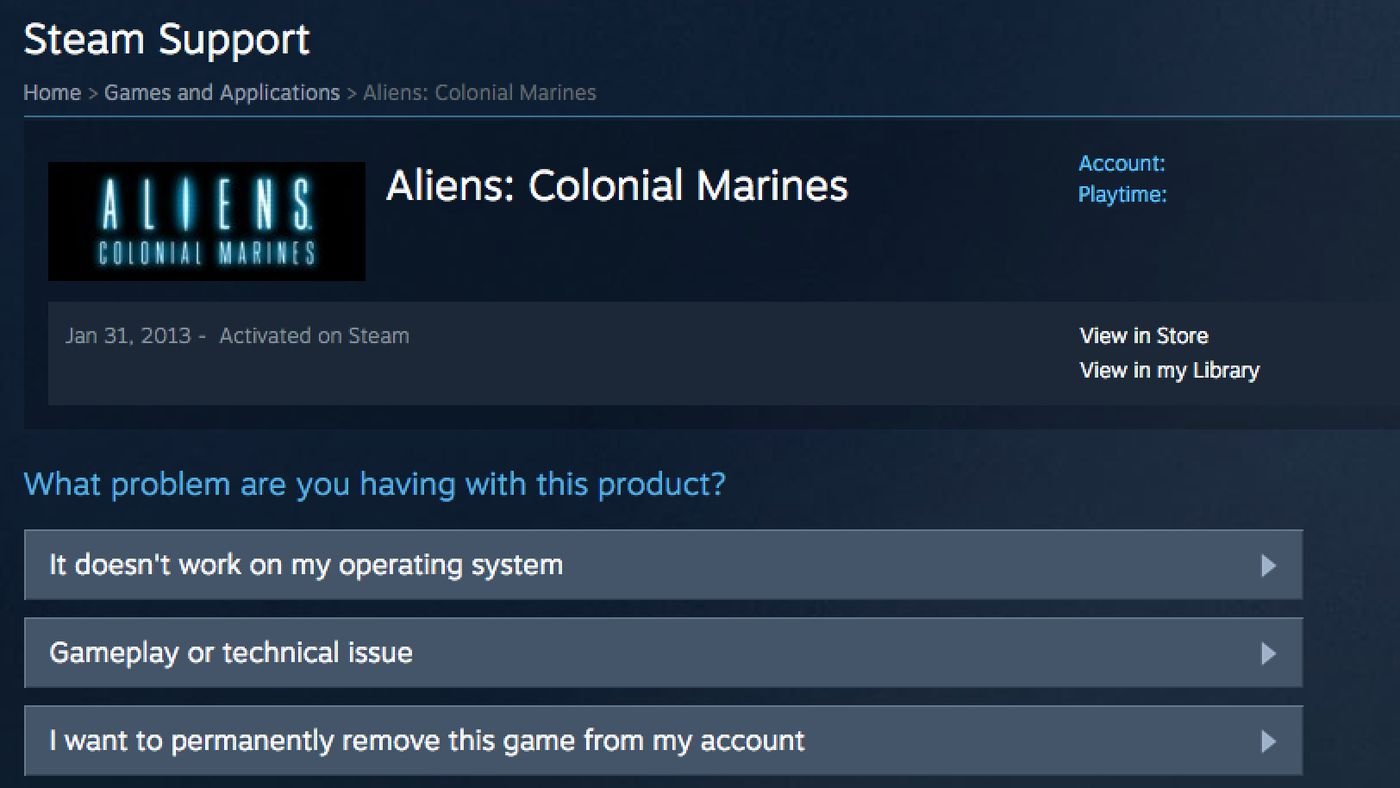
To delete games from your Steam library, right-click the game and select “Manage,” then “Uninstall.” This removes the game from your computer, but it remains in your Steam library. To remove it from your library permanently, you need to contact Steam support.
Have you ever felt that your Steam library is becoming too cluttered with games? It can sometimes feel overwhelming. Maybe you’ve played a game and don’t want it anymore, or you need some extra storage space.
Knowing how to delete games from steam library is a useful skill. The process isn’t as simple as deleting a file, but it is easily managed. We’ll guide you through it to keep your collection nice and organized.

How to Delete Games from Steam Library
Okay, so you’ve got a bunch of games in your Steam library, and maybe some of them are just collecting digital dust. You might be wondering, “How do I get rid of these games?” It’s actually pretty simple, and you have a few choices depending on what you want to do. This guide will walk you through all the different ways to remove games from your Steam account. Let’s dive in!
Understanding the Different Types of Removal
Before we jump into the steps, it’s important to know the difference between removing a game from your library and uninstalling it from your computer. They are not the same thing! Let’s break it down:
Uninstalling a Game
When you uninstall a game, you are only removing the game files from your computer’s hard drive. The game is still in your Steam library, and you can download it again whenever you want. Think of it like putting a book back on the shelf after you’re done reading it. You haven’t thrown the book away, it’s just not in your hand at the moment. This is perfect if you need to free up some hard drive space but might want to play the game again sometime.
Removing a Game from your Account
Removing a game from your Steam account is like giving that game away or throwing it away. You will not see it in your library anymore and, most of the time, you will need to purchase the game again to play it. This is a more permanent action. It’s useful if you’re absolutely sure you never want to play a certain game again and want to clean up your library. Sometimes, Steam gives you the option to permanently remove it or to get a refund within a certain time period, if you purchased it recently. We’ll explore these options more later.
How to Uninstall a Game from Steam
Let’s start with the easiest part, uninstalling a game. This is the most common way to make room on your computer.
Steps for Uninstalling a Game
- Open Steam: Start up the Steam application on your computer.
- Go to your Library: Click on the “Library” option at the top of the Steam window.
- Find Your Game: Look for the game you want to uninstall in the list of games.
- Right-Click the Game: Right-click on the game’s name. A menu will pop up.
- Select Manage: In the pop-up menu, hover over “Manage.”
- Click Uninstall: In the “Manage” submenu, click the “Uninstall” option.
- Confirm Uninstall: Steam will ask you to confirm that you want to uninstall the game. Click “Uninstall” again to confirm.
That’s it! The game will now be uninstalled from your computer. You’ll still see it in your Steam library, but it will say “Install” next to it. Remember you can simply click “Install” again to redownload the game.
How to Remove a Game Permanently From Your Steam Library
Now, let’s move on to the more permanent removal of a game from your Steam account. This process will completely remove the game from your list.
Steps to Permanently Remove a Game
- Open Steam Support: In the Steam client, click on the “Help” menu at the top of the screen. Then select “Steam Support”.
- Choose Games, Software, etc.: Select the “Games, Software, etc.” option from the Steam Support main menu.
- Find the Game: Locate the game you want to remove from the list or use the search bar to search by the game’s name.
- Select “I want to permanently remove this game from my account”: After choosing the game you will see the options related to it, in these options select “I want to permanently remove this game from my account.”
- Confirm Removal: Steam will give you a warning that this is a permanent action and if you want to proceed, select “Okay, remove the listed games from my account permanently.”
- Game Removed: The game will now be removed from your Steam library.
This method is how you permanently remove a game from your Steam account. Be certain about your decision, because in most cases you have to purchase the game again if you want to play it again. It also can’t be reversed. Now, let’s look at some more options related to removing games.
Steam Refund Options
Sometimes, you might buy a game and not enjoy it. The good news is that Steam often offers refunds if you meet certain requirements. This is not exactly deleting a game from your library but it effectively does the same if you got your money back.
Steam Refund Rules
- Purchase Time Limit: You must request a refund within 14 days of purchasing the game.
- Playtime Limit: You must have played the game for less than 2 hours.
- Game is bought from the Steam store: If the game is bought from a third-party vendor, the refund may be denied
- Exceptions may apply: Sometimes, Steam makes exceptions to these rules, but that’s not guaranteed.
How to Request a Refund
- Go to Steam Support: Just like before, click “Help” and select “Steam Support.”
- Select “Purchases”: Choose “Purchases” option.
- Find your Game: Look for the game you want to refund from your list of game purchases.
- Select “I would like a refund”: Click on the game you want to get a refund from, and select “I would like a refund.”
- Choose Refund Reason: Pick the best reason for requesting the refund and select “Submit request”.
- Wait for Review: Steam will review your request, and you will get a response regarding the status of your request.
If Steam accepts your refund request, the game will be removed from your library and the money you spent will be added back to your Steam wallet, or in some cases back to your bank. If you got a refund you won’t be able to play the game anymore, unless you buy it again, and it won’t be visible in your library anymore.
Hiding Games in Your Steam Library
Sometimes, you may not want to remove a game completely but rather want to hide it from view in your list. Steam provides a way to do this too.
Steps to Hide a Game
- Open Steam: Start the Steam client.
- Go to Library: Click on “Library” at the top of your Steam screen.
- Find Your Game: Find the game you want to hide from your library list.
- Right-Click the Game: Right-click the game’s name.
- Select Manage: In the menu, hover over “Manage”.
- Click “Hide This Game”: In the submenu, click “Hide this game”.
The game will now be hidden from your default game list. It’s still in your library but is now hidden. This is good for keeping games that you don’t play often, or that you don’t want anyone else to see, out of the way.
How to Find Hidden Games
If you want to see hidden games again:
- Go to the “View” Menu: At the top of the Steam client, click on “View”.
- Click “Hidden Games”: Select “Hidden Games.”
This will show you all the games you have hidden. You can then right-click a game and select “Manage” then “Remove from hidden” if you want to show the game in your normal library list again.
Dealing with Free-to-Play Games
Sometimes, you might have free-to-play games that you want to get rid of. The process for removing these games is similar to paid games, but it is important to note that most free-to-play games can be added back into your library, free of cost again, if you want to play them again in the future.
Steps to Remove a Free-to-Play Game
You can either uninstall it from your computer or remove it from your library permanently, just as shown above.
Usually, the process is the same, you’ll open Steam support, find the game and select the option “I want to remove this game from my account permanently”. After confirmation, you’ll see that the game is no longer in your account. If you decide to add it back into your library again, you’ll simply find the game in the Steam store and add it to your account like you usually do.
Troubleshooting
Sometimes things don’t go as planned. Here are a few common issues you might run into and how to fix them.
Game Won’t Uninstall
- Restart Steam: Sometimes, simply restarting Steam can fix the problem.
- Restart your Computer: If that doesn’t work, restarting your computer could help.
- Check for Updates: Make sure Steam is up to date, as an outdated client might have bugs.
- Run as Administrator: Try running Steam as an administrator. Right-click the Steam icon and select “Run as administrator.”
Game Not Removing from Library
- Check for Refund Period: If you recently purchased the game and are within the refund period, try requesting a refund instead.
- Steam Support: Sometimes, you will be required to contact Steam support, if none of these mentioned options work for you, to get help with removing the game.
Accidentally Removed a Game
If you removed a game from your library by mistake, you might be able to get it back. If it was a free-to-play game, simply add it to your account again from the Steam store. If you got a refund, you can purchase it again from the store. If it was a permanently removed game, and you didn’t receive a refund, in most cases, you’ll have to purchase the game again.
Keeping Your Library Organized
Removing unwanted games is just one part of keeping your Steam library organized. Here are some other tips:
Creating Collections
Steam allows you to make custom “Collections” where you can group your games by genre, favorites, or however you like. This will make navigating your library much easier.
Using the Search Bar
The search bar in Steam is an easy way to quickly find the specific game you are looking for, if you have a big list of games.
Reviewing Your Games
If you have the habit of reviewing your games regularly and sorting them into categories, it will be easier to manage your library. If you don’t like to play specific games anymore, you can delete them.
So, there you have it. Everything you need to know about how to delete games from your Steam library, whether you want to uninstall them to free up space, remove them permanently, hide them, or get a refund. Taking a little time to keep your library clean and organized can make your gaming experience much more enjoyable. Remember that it’s good to keep your games organized because It helps you quickly find the games you like to play and it also makes it easier for you to decide which games you might want to get rid of. Happy gaming!
How to permanently remove a game from Steam – Quick Guide
Final Thoughts
To remove games, you can either uninstall them which keeps the game in your library, or permanently delete them. To permanently remove a game, go to Steam support, find the game, and choose “I want to permanently remove this game from my account.” This action removes it fully.
Remember that deleting a game means you’ll have to buy it again should you want to play it later. You now know how to delete games from steam library; this action provides good management.

