
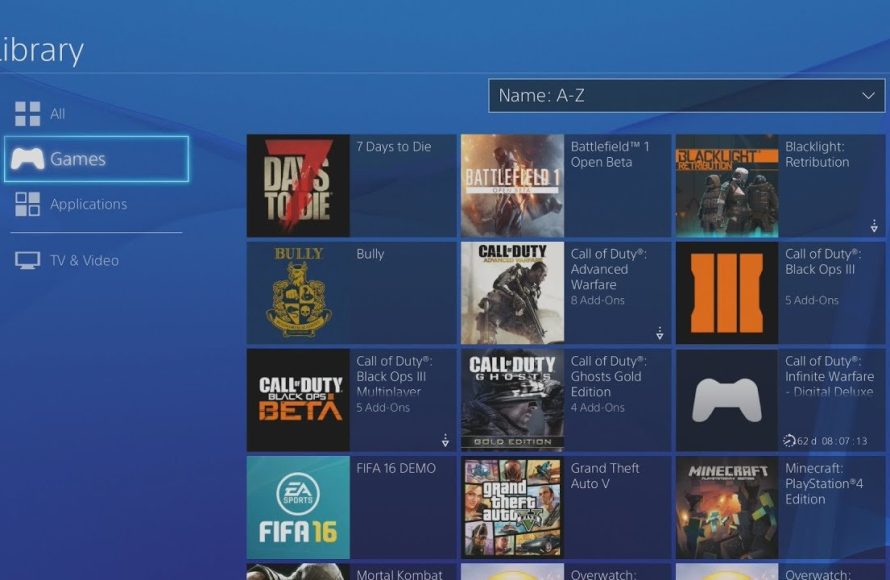
To delete games on the PS4, navigate to the game in your library, press the Options button on your controller, and then select ‘Delete’.
Running out of space on your PlayStation 4? It happens to the best of us, especially with those large game downloads. You might be wondering how to delete games on the PS4 to free up some valuable storage. It’s actually a very simple process. This will make way for new experiences.
This quick guide will show you the exact steps. You can easily remove games that you are no longer playing. This will let you quickly jump back into your favorites.

How to Delete Games on the PS4
Okay, so you’re ready to clean up your PlayStation 4. Maybe you’ve played a game to the very end and don’t need it anymore. Or perhaps you need some more space for a brand new title. No matter the reason, knowing how to delete games on your PS4 is very important. This isn’t difficult, and we’ll walk you through all the steps so you can quickly free up that precious storage space. We will explore various methods, including how to delete games directly from the home screen, and how to do it from the storage settings.
Deleting Games from the Home Screen
The easiest way to remove a game from your PS4 is right from the main menu. Think of it as quickly throwing away a finished toy – simple and effective! Let’s see how to do this:
Finding the Game You Want to Delete
First things first, turn on your PS4 and go to the home screen. This is where all your games and apps are lined up like colorful boxes. Use the directional buttons on your controller to move left or right until you find the game you want to say goodbye to.
Pressing the Options Button
Once you’ve found the game, don’t start it up! Instead, press the ‘Options’ button on your controller. It’s usually the button with the three horizontal lines. A menu will pop up, and it has several choices.
Selecting ‘Delete’
Look through the menu options. You’ll see one that says ‘Delete’. Use the directional buttons to highlight it and then press the ‘X’ button to select it. The system will ask you to confirm if you are absolutely sure you want to delete the game. It’s like saying, ‘Are you sure you want to throw this toy away?’. If you are ready, select ‘OK’ by pressing ‘X’ again.
The Game is Gone!
And just like that, the game will vanish from your home screen! It’s that easy. Keep in mind that doing this only removes the game from your hard drive; your saved data is usually safe unless you specifically delete it too. We’ll cover more about that later.
Deleting Games from Storage Settings
Sometimes, you might want a more detailed way to see what’s taking up space on your PS4. This is where the Storage settings come in. This method is like cleaning out your toy box and seeing everything organized. Let’s see how to do it:
Going to ‘Settings’
On the PS4’s home screen, go up to the top where you see all the icons like ‘PlayStation Store’ and ‘Settings’. Use the directional buttons on your controller to move to the ‘Settings’ icon (it looks like a toolbox) and press ‘X’.
Finding ‘Storage’
In the Settings menu, scroll down until you find ‘Storage’. Select it by pressing ‘X’. This is where you can see how much space is left on your PS4’s hard drive and what is taking up the most space.
Selecting ‘System Storage’ or ‘Extended Storage’
You’ll see two choices here: ‘System Storage’ and maybe ‘Extended Storage’ if you have an external hard drive plugged in. ‘System Storage’ is where all your games are installed on your PS4’s internal drive. If you installed some games on an external hard drive, it will be listed under ‘Extended Storage.’ Select the storage location where the game you want to delete is installed using the ‘X’ button.
Finding ‘Applications’
Inside the storage menu, you’ll find various categories, such as ‘Applications,’ ‘Saved Data’, and ‘Capture Gallery’. Choose ‘Applications’ by pressing the ‘X’ button. This is where you will find all the games and apps that are taking up storage on that particular location.
Choosing Your Game and Options
Now, you’ll see a list of all your installed games and applications. Scroll up or down with the directional buttons to find the game you want to delete. When you find the right one, press the ‘Options’ button on your controller again. Just like deleting from the home screen, a menu will appear.
Selecting ‘Delete’ in Storage
In this menu, just as before, choose ‘Delete’ by using the directional buttons and pressing ‘X’. Once again, the system will ask you if you’re sure. Select ‘OK’ to confirm the deletion by pressing ‘X’ again.
The Game Is Removed
The selected game will be deleted. You will see the storage used on the console reduce, which means it is successful. You now have more space for new games, screenshots, or anything else that you want to save.
Managing Game Save Data
Deleting the game removes the game itself, but what about your game saves? All your progress, your high scores, your characters are saved separately. Game save data are very small in size but can also occupy some space if you have lots of it. Here’s how to manage them:
Accessing Saved Data Settings
Just like before, head to ‘Settings’ from the home screen. Then, find and select ‘Application Saved Data Management’. This option is different from the ‘Storage’ we used earlier. It focuses just on your game saves.
Choosing ‘Saved Data in System Storage’ or ‘Saved Data on USB Storage’
You’ll find that you can access saved data on your PS4’s main drive and also on any USB drives you use for transferring game saves. Choose the location where the saves you want to manage are stored. You can choose either ‘Saved Data in System Storage’ or ‘Saved Data on USB Storage’.
Finding and Deleting Saved Data
A list of your games will appear. Choose the game whose save data you want to manage by pressing ‘X’. You’ll then see the save files associated with that game. You can choose to delete single saves or multiple saves, or all the saves that are related to the game. It will ask you to confirm the deletion just to make sure, select ‘OK’ to delete them.
Be Careful!
Deleting save data cannot be undone! Once gone, it’s gone forever. So, be extra careful when deleting saves. Sometimes, you might want to keep your progress even if you delete the game. Deleting game data will make you start over from the beginning if you want to play it again.
Deleting Game Data from Extended Storage
If you’ve got an external hard drive connected to your PS4 to hold even more games, it is very important to understand how to remove them from there as well. It’s a similar process to deleting games from your PS4’s main hard drive.
Accessing Extended Storage Settings
Again, start at the ‘Settings’ menu. Then go to ‘Storage’ and select it by pressing the ‘X’ button. This will lead you to the storage overview page, where you see the main drive and any external drives that you have connected.
Choosing Your External Hard Drive
Instead of selecting ‘System Storage’, you’ll see a listing for your external drive under ‘Extended Storage’. Select the external drive that you wish to work on using the ‘X’ button.
Selecting ‘Applications’ on the Extended Drive
Once you are inside the external drive’s menu, you will see several options. Select ‘Applications’, just as you did for internal storage, using the ‘X’ button. This takes you to a list of all the games and apps on your external drive.
Finding and Deleting the Game on Extended Drive
Use the directional buttons to find the game you wish to remove. Press the ‘Options’ button on your controller once you have the right game selected. The menu will appear, just as before, and now simply select ‘Delete’ using the ‘X’ button.
Confirming and Removing the Game
The system will ask you if you are sure. Select ‘OK’ with the ‘X’ button to delete the game from the external hard drive. Your game is now gone, and the space it took is now free for new games and other data.
Important Things to Remember When Deleting Games
Before you start deleting games all over the place, here are some key things to keep in mind.
- Digital vs. Disc Games: If you have a digital game, you can re-download it later from the PlayStation Store if you ever want to play it again. But if you have a physical disc game, you must have the disc to play it again. Deleting the game doesn’t remove it from your PlayStation account.
- Game Updates: Deleting a game also removes its updates. If you re-download the game later, it might take some time to download all of its updates again.
- Game Save Data: As we discussed before, be careful when deleting game save data. Make sure you don’t delete your progress if you plan to play the game again.
- Reinstalling: If you own a digital game, you can easily re-download it from the ‘Library’ section of your PS4. This is useful if you need to free up space temporarily.
- PS Plus Games: If you deleted a game that you had from PS Plus, you can re-download it as long as you have an active PlayStation Plus subscription.
Tips for Managing PS4 Storage
Running out of space on your PS4 can be very annoying. Here are some tips to help you keep your PS4’s hard drive in good shape:
- Regularly Check Storage: Try to check your PS4’s storage once a week or a month, depending on how many games you play. It is useful to keep track of how much space you have.
- Delete Unnecessary Content: Get rid of old game demos or any games you know you won’t play again. This will create more free space for the other content you want to save or install.
- External Hard Drive: Consider buying an external hard drive to expand your storage space. It’s like having a bigger toy box, especially if you have lots of games.
- Transfer Data to USB: You can move your saved game data to a USB drive as a backup before deleting a game. This lets you keep your progress if you delete a game temporarily.
Deleting games on your PlayStation 4 is a simple process once you know how to do it, and it is very important in keeping your console running well. Whether you delete them from the home screen or the storage settings, make sure you know where your games are stored and what happens to your save data. By following these steps and keeping some good storage habits, you’ll always have enough space for all your favorite games!
How to Delete Games on PS4 (Easy 2023 Guide) PS4 Uninstall Games For More Storage FAST!
Final Thoughts
You can easily delete games on the PS4 through the system menu. First, go to the games area. Next, highlight the game you wish to remove.
Press the “Options” button and select “Delete”. The system will then ask for confirmation. Confirm your choice and the game will be gone.
This straightforward method is how to delete games on the ps4. This frees up space on your hard drive. It allows you to manage your game collection.

