
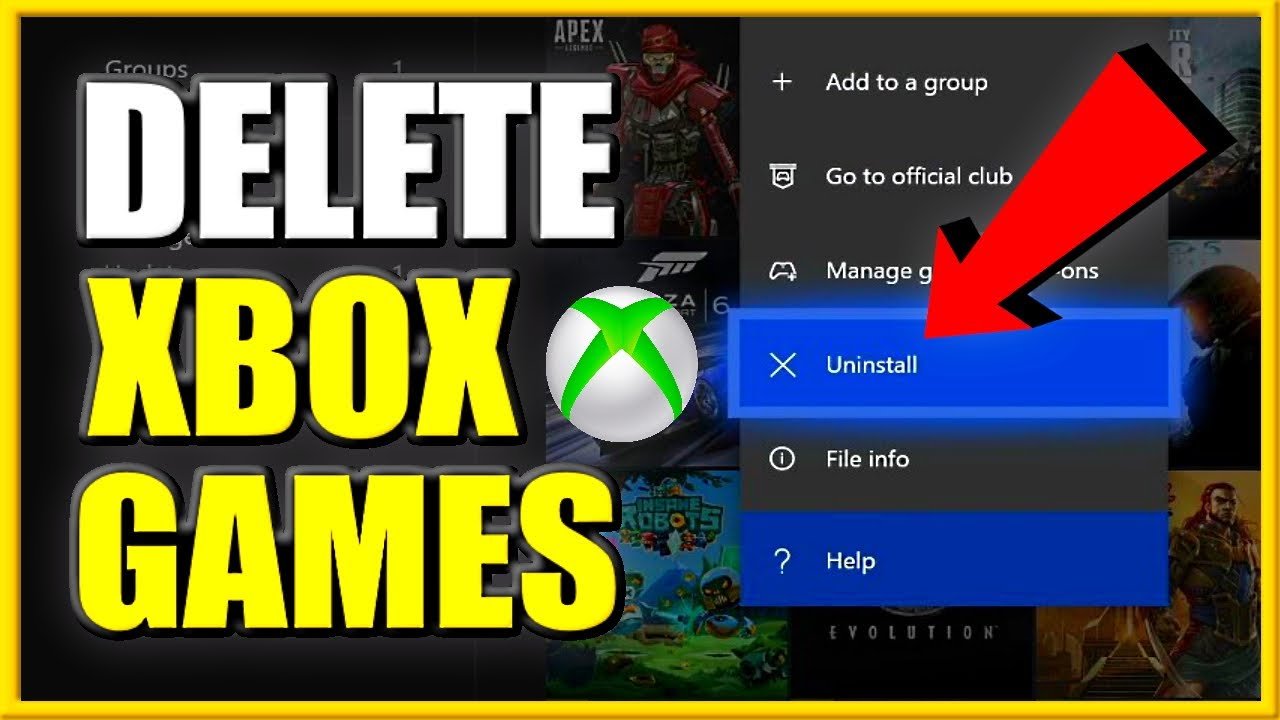
To delete games on Xbox One, navigate to ‘My games & apps’, select the game, press the menu button, choose ‘Manage game & add-ons’, and then select ‘Uninstall’.
Running out of space on your console can be a real pain. You might find yourself needing to free up storage quickly to make room for new titles. Knowing how to delete games on Xbox One is crucial for managing your library efficiently. We’ll guide you through the simple process, step by step.
It’s a really straightforward procedure. By following the easy instructions provided, you can reclaim precious storage space. It won’t take much time and you can download your favorite games faster.

How to Delete Games on Xbox One: A Comprehensive Guide
Running out of space on your Xbox One can be a real bummer. You’re ready to jump into a new adventure, but then you see that dreaded “Not enough space” message. Don’t worry! Deleting games is a simple way to free up storage and get back to playing. This guide will walk you through all the ways you can remove games from your Xbox One, so you can manage your game library like a pro. We’ll cover everything from the basic steps to some tips and tricks for keeping your storage organized.
Deleting Games from Your Xbox Home Screen
The quickest way to delete a game is right from your Xbox dashboard. Here’s how you do it:
- First, turn on your Xbox One and make sure you’re on the Home screen.
- Use the controller to find the game you want to get rid of. You can usually find the game in the “My games & apps” section or on your Home screen if you’ve pinned it there.
- Highlight the game tile (but don’t click it).
- Now, press the Menu button on your controller. It’s the button with three horizontal lines.
- A menu will appear. Select “Manage game & add-ons” from the options.
- You’ll see a new screen with information about the game. Look for the “Uninstall” option, and select it.
- A confirmation box will appear asking if you’re sure. Select “Uninstall” again.
- And that’s it! Your game is now gone from your console.
Remember, uninstalling a game doesn’t remove it from your Xbox account. You can always download it again if you want to play it later.
Deleting Games from “My Games & Apps”
Another easy method to remove games is by going into your “My games & apps” area, which is often where you manage all your content. Here’s how it works:
- On your Xbox One Home screen, press the Xbox button in the middle of your controller. This opens the guide menu.
- Use the left stick or the D-pad to move through the guide menu until you reach “My games & apps.” Select it.
- This will show you a list of everything you have installed on your Xbox. Scroll through and find the game you wish to delete.
- Highlight the game (without clicking it) and press the Menu button on your controller.
- Just like before, a menu will come up. Choose “Manage game & add-ons.”
- Select “Uninstall” on the next screen.
- Confirm your choice when prompted, and you have successfully removed the game.
Managing Storage Effectively on Your Xbox One
Knowing how to delete games is good, but it’s also helpful to learn how to manage your storage space smartly. This keeps your console running smoothly.
Checking Your Storage Space
Before you start deleting, it’s a good idea to know how much space you actually have. Here’s how to do it:
- Press the Xbox button on your controller to bring up the guide.
- Go to “Profile & system,” then select “Settings.”
- Choose “System,” and then “Storage.”
- You’ll see a breakdown of all your storage devices (your console’s hard drive, and any external drives). It will tell you how much space is used and how much is free.
Identifying Large Games
Sometimes you might not know which games are taking up the most space. Here’s an easy way to see:
- Go to “My games & apps” just like when deleting a game.
- Make sure you are on the “Games” tab.
- Press the “View” button (the one with two squares) on your controller.
- A menu will appear, select “Sort by size”.
- Now the games are listed from largest to smallest, so you can easily spot the ones taking up a lot of room.
Using External Storage Devices
Another great way to make more room for games is to use an external hard drive. You can plug it into your Xbox One via USB and use it to store games, apps, and other content.
Setting Up an External Drive
- Plug your external hard drive into one of the USB ports on your Xbox One.
- Your Xbox will recognize the drive. A pop-up will appear, follow the instructions on-screen to format the drive and use it as storage for your console.
- Make sure the drive is formatted correctly, this might delete data, so be careful.
- Once the drive is set up, you can move games to the external drive instead of keeping them on your console’s hard drive.
Moving Games to an External Drive
- Go to “My games & apps.”
- Find the game you want to move.
- Highlight the game and press the Menu button.
- Select “Manage game & add-ons.”
- Now select the option to move or copy the game. Choose the external drive as the destination.
- The game will then start transferring to the external drive, which might take some time.
Deleting Game Add-ons and DLC
Sometimes it’s not just the game itself, but the extras that are taking up space. These are things like game add-ons, DLC, and updates. Here’s how to handle them:
- Go to “My games & apps” and find the game you are working on.
- Highlight the game and press the Menu button on the controller.
- Select “Manage game & add-ons”.
- You will see the base game listed and below it, you’ll see a list of the add-ons. Select the one you want to remove.
- Press the Menu button again and choose “Uninstall”.
- You have now deleted the selected add-on.
Managing Saved Game Data
Don’t worry, deleting a game doesn’t mean you lose your saved progress! Your game saves are stored separately in the cloud. However, you might need to manage some of the space for saves locally on the console itself, especially if you have too many saves or if you play without internet connection sometimes.
Deleting Local Save Data
Here’s how to delete local save data:
- Open the guide by pressing the Xbox button.
- Go to “Profile & system” and then choose “Settings.”
- Select “System” and then “Storage.”
- Choose the storage device with the game data.
- Select “Clear local saved games.” Be careful here as this will delete data on the console!
- You will be warned again to make sure you understand that you are deleting data.
- Once complete, the local saved data is now gone. Remember, your cloud saved data is still safe.
Reinstalling Games You’ve Deleted
Don’t worry if you accidentally delete a game or decide to play it again, it’s easy to reinstall games.
Reinstalling from the Microsoft Store
- Go to the Xbox Home screen and find “Store.”
- Select “Search,” and type the name of the game you removed and want to reinstall.
- Once you find the game, go to the game’s page.
- If you own the game, instead of saying “Buy” it will say “Install”. Select it to begin re-downloading.
- The game will install and you can then start playing!
Reinstalling from “My games & apps”
- Go to “My games & apps”.
- Select “Ready to install” on the left side.
- You’ll see all of the games you own, including those you uninstalled. Find the game you wish to reinstall.
- Select the game, and it will begin downloading again.
Tips for Keeping Your Xbox Storage Organized
Keeping your storage organized makes gaming more fun. Here are some tips:
- Uninstall games you don’t play: Go through your list every once in a while. Uninstall games you haven’t played for weeks or months.
- Move games to an external drive: This is a good option to get extra storage space. It’s especially good for games you don’t play all the time, or for big games.
- Delete old game demos: If you have old game demos, consider removing them. They take up space and are often not something you’ll play again.
- Keep an eye on your storage: Check your storage regularly so that you know what games are taking up the most space. This also lets you know when you should be deleting or moving games.
- Think about what you play: Are you done with a single-player game? Are you only playing online with certain games? Think about what you’re actively playing and delete games you no longer play.
Deleting games on your Xbox One is straightforward and is a great way to manage space. By understanding these easy methods and using the advice, you can keep your storage clean and make room for new adventures!
How to DELETE GAMES on XBOX ONE & Uninstall APPS (Easy Method!)
Final Thoughts
To quickly clear up storage, select the game you want to remove. Then, press the menu button and choose ‘Manage game and add-ons.’ Finally, pick ‘Uninstall’ on the next screen.
This simple process works for all Xbox One titles. Remembering these steps makes managing your console storage easier. Knowing how to delete games on xbox one is important for keeping things tidy.
You now have the information you need.

