
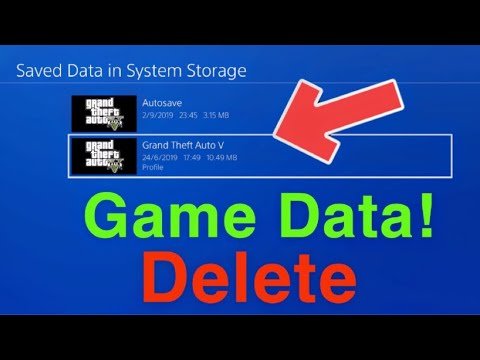
To delete PS4 game data, navigate to ‘Settings’, then ‘Storage’, select ‘System Storage’ or ‘Extended Storage’, choose ‘Applications’, highlight the game, press the ‘Options’ button, and select ‘Delete’.
Running out of space on your PlayStation 4? It happens! Many gamers find themselves needing to clear out old titles to make room for new ones. Knowing how to delete PS4 game data is essential for maintaining optimal performance and maximizing your console’s storage.
This process doesn’t have to be confusing and with a few simple steps, you can remove unwanted game files quickly and easily. We’ll guide you through the process, making sure you’re back to gaming with ample space in no time.

How to Delete PS4 Game Data
Okay, so you’ve been playing a bunch of awesome games on your PlayStation 4, right? Maybe you’re finished with some of them, or maybe your PS4’s storage is starting to get full. That’s when you might need to delete some game data. It’s like cleaning out your toy box to make space for new stuff! This might sound a little complicated, but it’s actually pretty easy. Let’s break it down so anyone can do it!
Understanding Different Types of PS4 Game Data
Before we dive into deleting, it’s good to know what kind of game stuff the PS4 keeps track of. Think of it like this: there are two main types of game data:
- Game Installs: This is the actual game itself. It’s the big chunk of data that makes the game work on your PS4. It takes up a lot of space. Think of it like the game disc, but stored right on your PS4.
- Save Data: This is your progress in the game, like how far you got, what levels you finished, and what items you collected. It’s much smaller than the game install itself. Think of this as the little notebook where you write down how well you’re doing in the game.
It’s important to know the difference because you might want to delete one but not the other. For example, you might finish a game and want to delete the game itself, but keep your saved progress in case you want to play again someday.
Deleting Game Installs
Alright, let’s talk about getting rid of those big game files. This is how you free up the most space on your PS4. Follow these steps:
Step 1: Go to Your Settings
First, you need to go to the main PS4 menu. Find the toolbox icon; that’s your settings. You’ll usually find it at the far right of the screen.
Step 2: Find Storage
In the settings menu, look for the option called “Storage.” It’s often represented by an icon of a hard drive or some similar symbol. Click on this.
Step 3: Select Your System Storage
Your PS4 has its own hard drive called “System Storage.” Sometimes you might have added an external hard drive too. Make sure you select the correct storage where your game is installed. Select “System Storage” to see the games on your internal hard drive.
Step 4: Choose Applications
Inside System Storage, you’ll see different categories. Choose “Applications.” This is where all your games and other apps live.
Step 5: Select the Game to Delete
You’ll see a list of all your games. Scroll down to the game you want to delete. Highlight it using your controller.
Step 6: Press the Options Button
Once you’ve highlighted the correct game, press the “Options” button on your DualShock controller. It’s the small button with the three lines on it, located near the touch pad.
Step 7: Choose Delete
A menu will pop up. Select the “Delete” option. A warning message will appear to make sure you really want to delete the game. Confirm by selecting “OK.”
And that’s it! The game and all of its install data will be removed from your PS4. The progress in a game is kept separately, so it won’t be removed if you delete the game install. This method works to delete most of the game data stored on the ps4 system storage.
Deleting Game Save Data
Now let’s get into how to delete your game progress. Maybe you want to start a game over or you don’t need the save data anymore. Here’s how:
Step 1: Head to Settings Again
Just like before, start by going to the Settings menu on your PS4.
Step 2: Find Application Saved Data Management
This time, look for “Application Saved Data Management.” It’s usually in the main settings menu or under the “Storage” menu.
Step 3: Select Saved Data in System Storage
Next, you’ll see a few options. Choose “Saved Data in System Storage”. This shows you all the saved data on your internal hard drive.
Step 4: Pick the Game
Now you’ll get a list of the games on your PS4. Choose the game that has the save data you want to delete.
Step 5: Select the Save Files to Delete
Inside the game, you will see the specific save files. You might have multiple save files for the game. This might be different depending on the game. Highlight the save file that you wish to delete.
Step 6: Press the Options Button
Just like deleting a game install, press the “Options” button on your controller.
Step 7: Choose Delete and Confirm
From the options menu, choose “Delete.” A confirmation screen will pop up, asking if you’re sure. Confirm your choice to delete the save data.
Keep in mind that when you delete save data, it’s usually gone for good. You won’t be able to get it back, unless you backed it up somewhere. So, be extra sure before deleting your progress in a game.
Deleting Game Data From External Storage
If you have an external hard drive hooked up to your PS4, you might have some games on that too. Here’s how to delete game data from an external hard drive:
Step 1: Go to Settings and Storage
First, navigate to the “Settings” menu and then select “Storage”, just like before.
Step 2: Select Your Extended Storage
This time, instead of “System Storage”, choose the “Extended Storage.” This should be the name of your external hard drive.
Step 3: Choose Applications
Once you are in the “Extended Storage” menu, you’ll see the “Applications” option. This is where games installed on the external hard drive are located.
Step 4: Select the Game
Pick the game you wish to delete from the list of games. Highlight the game using your controller.
Step 5: Use the Options Button and Delete
Press the “Options” button on your controller. Then select “Delete,” and confirm it. The game and all the associated data will be deleted from your external drive.
The process for deleting game save data from an external hard drive is pretty similar to the system storage. You would go to “Application Saved Data Management”, but this time you would select “Saved Data in Extended Storage” when choosing where to locate saved data.
Important Things to Remember
Here are a few things to keep in mind when deleting game data on your PS4:
- Back Up Your Save Data: Before deleting any saved game data, you can back it up to a USB drive or to the PlayStation Plus online cloud storage. This way, if you decide you want to play again later, you can restore your progress.
- Deleting an Install Does Not Delete Saves: Just deleting a game install does not get rid of your saved game progress. That’s kept separately.
- Double Check: Before deleting anything, double-check that you’ve selected the correct game or saved file. Deleting data can’t usually be undone.
- Space Management: Deleting games and save data is a good way to keep your PS4 running smoothly. Make sure to remove data that you no longer use so that there is space for new games.
If you follow these instructions carefully, you’ll have no problem managing the game data on your PS4 and keeping it tidy.
Clearing PS4 Data to Prepare for Resale
If you plan to sell or give away your PS4, deleting game data isn’t enough. You need to do a full factory reset to make sure all of your personal information is removed. A factory reset is like setting up your PS4 when it was brand new from the store.
Step 1: Back Up Your Data
Before doing anything, back up all the saved data you want to keep from your PS4. This can be to a USB drive or to PlayStation Plus cloud storage. You don’t want to lose any game progress!
Step 2: Deactivate Your Account
Go to “Settings,” then “Account Management,” then “Activate as Your Primary PS4.” Choose “Deactivate”. This removes your account from the system. You need to do this before doing factory reset.
Step 3: Initialize Your PS4
Go back to “Settings”. Then find “Initialization”. Choose “Initialize PS4”. You’ll see a few options; the one you want is “Full”. This will take some time to complete. It will remove all your game saves, user data, and settings. Confirm your choice, and the PS4 will start the process. This can take several hours, so plug your PS4 into power and leave it alone. Be careful, because you can’t stop the reset until it’s finished, and you could permanently damage the console if you do.
Step 4: Set Up Your PS4 Again
Once the reset is complete, the PS4 will restart and you’ll be at the first-time setup screen. It’s now clean and ready for someone else to use. Remember, if you did not back up anything, it’s all gone for good after a factory reset. The new user can make their own PSN account.
By following the steps above, your console is totally clean, which will be necessary if you’re giving it to someone else.
Using PlayStation Plus for Game Data Management
PlayStation Plus has some features that are quite helpful for managing your game data. Let’s see how you can make use of it.
Automatic Cloud Saves
One of the perks of PlayStation Plus is automatic cloud saves. Your PS4 saves data automatically to the internet cloud storage provided by PlayStation Plus. If you are a PlayStation Plus member, your save files will automatically be copied to the cloud whenever you start or shut down a game, ensuring that your progress is safe in case your local game data on your PS4 is damaged, deleted, or lost. If you want to use save data from the cloud, you can easily download it to your PS4.
Managing Cloud Storage
Even if your saves are automatically backed up, it is still possible to remove cloud save data directly. You can delete cloud saves in a few different ways. On the PS4, go to “Settings”, then “Application Saved Data Management”, then “Saved Data in Online Storage”. From here, you can download saves to your PS4, delete save files, or manage your cloud saves in other ways. You can also log in to the PlayStation website and manage your cloud saves from there.
With PlayStation Plus you can safeguard your game progress and easily manage your save data, so you don’t need to worry about losing it if you accidentally delete game saves from your console.
Deleting game data on your PS4 is a straightforward process that can help you keep your system organized and free up much needed space. Whether it’s removing large game installs or managing individual save files, by carefully following the instructions detailed above, you can control your PS4’s data and enjoy your games worry-free. Remember to back up your game data, and to be careful before you permanently remove any data you want to keep.
How to Delete Saved Game Data On PS4 Console (Easy Tutorial)
Final Thoughts
Deleting game data is straightforward. Select the game, press options, then choose “delete.” This removes save data and installed files. Manage storage effectively by regularly removing games you no longer play.
Remember, deleting a game only removes it from your console. You can re-download it from the PlayStation Store. This also frees up valuable space, improving system performance.
To ensure you understand how to delete ps4 game data, follow the steps. Regular cleanup helps keep your console running smoothly.

