
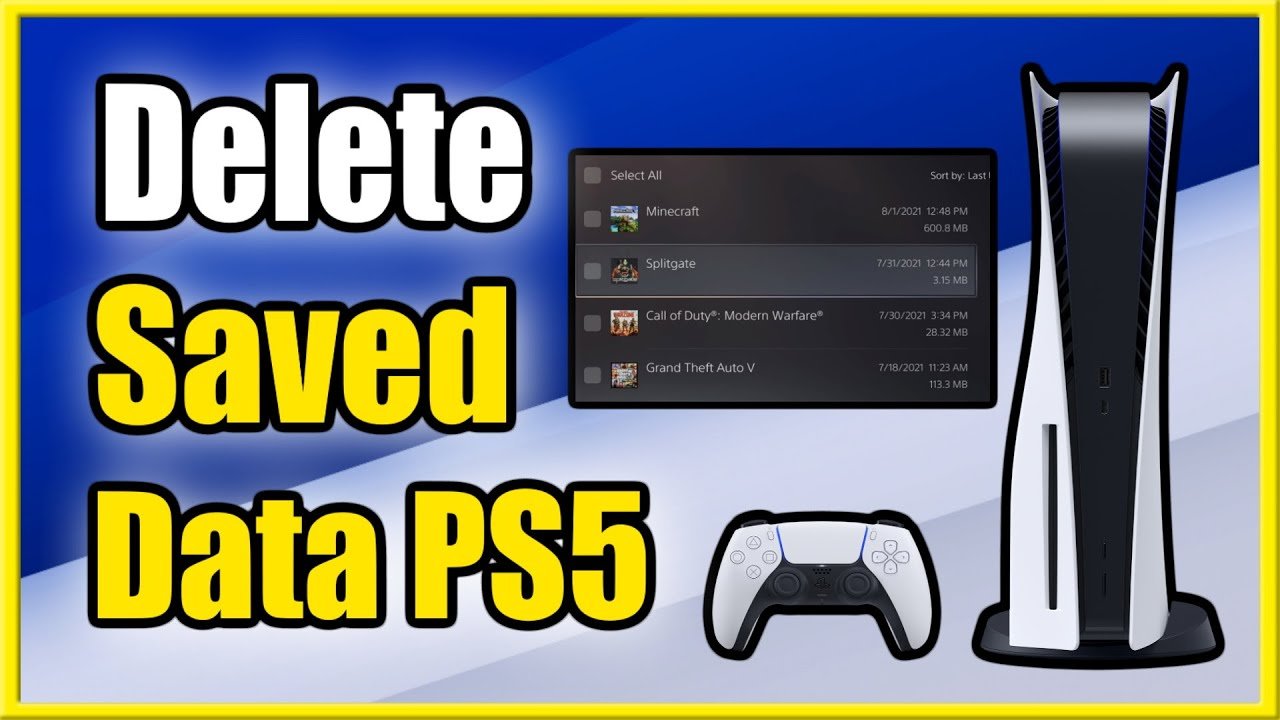
To delete save game data on PS5, go to Settings > Storage > Saved Data > select a game > choose the save data and delete it.
Have you ever needed to start a game completely fresh, maybe after a bad playthrough or to give a friend a clean slate? Or are you running low on that precious console space? Knowing how to delete save game data on PS5 is essential for these situations. It’s a simple process, but we’ll guide you through every step.

How to Delete Save Game Data on PS5
Sometimes, you might want to start a game fresh or free up some space on your PlayStation 5. That’s where deleting your saved game data comes in handy. It’s a pretty straightforward process, but there are a few different places where your save data might be hiding. Let’s dive into how you can clear out those old saves.
Understanding Where Your Save Data Lives
Before we get into the ‘how’, let’s talk about the ‘where’. Your PS5 stores game saves in two main locations:
- Console Storage: This is the main storage inside your PS5 where most of your games and their saves are kept.
- Cloud Storage: If you have a PlayStation Plus subscription, your saved games might also be backed up to the cloud automatically. This means you can pick up your game on another PS5, or restore your progress if something goes wrong.
It’s important to know that deleting saves from one location doesn’t automatically delete them from the other. You’ll need to manage them separately if you want to completely get rid of them.
Deleting Saved Data from Console Storage
This is the most common place to delete saved games. Here’s a step-by-step guide:
Accessing the Saved Data Settings
- Turn on your PS5 and go to the main home screen.
- Use the controller to navigate to the “Settings” icon, which looks like a little gear, and press the X button.
- In the Settings menu, find and select “Storage”. You may need to scroll down a little.
- From the Storage menu, choose “Saved Data”.
Choosing the Game Save to Delete
You’ll see two options here:
- PS5 Games
- PS4 Games
Select the one that matches the type of the game save you want to delete.
After making the selection, a list of your games will appear. Find the specific game you want to delete saves for and select it.
You’ll now see a list of all the save files for that game. Each save file may have a date and time associated with it, helping you identify the ones you want to remove. Sometimes you have multiple save files for a game. You might have one for the auto save, and others for manual saves you made at different points in the game.
Deleting the Save Files
Now for the part where you get to remove the data:
- Select the save file or files you wish to delete. You can choose multiple files by holding down the square button.
- Once you have selected all the files you want to remove, press the “Delete” button, which might be shown as a trash can icon on the screen.
- A confirmation message will appear. Confirm that you want to delete the files.
- The selected files will be deleted.
That’s it! The save data you chose is now gone from your console storage.
Deleting Saved Data from Cloud Storage
If you have a PlayStation Plus membership and your game saves are also backed up in the cloud, here’s how to manage those:
Navigating to Cloud Save Settings
- Go back to the PS5 main menu and access “Settings” like before (the gear icon).
- Go to “Saved Data and Game/App Settings” , you will find this a little down in the settings menu.
- Select “Saved Data (PS5)” or “Saved Data (PS4)”, depending on the save files you want to manage.
- Then select “Cloud Storage”.
Managing Cloud Save Files
You will be given two options:
- Download to Console Storage: This option allows you to copy saved data from the cloud to your PS5.
- Delete Cloud Storage Saved Data: This option allows you to remove saved data from the cloud.
Select “Delete Cloud Storage Saved Data”.
You’ll see the familiar list of games. Find the game whose saved data you want to remove. Then select the save files you want to delete.
Deleting from the Cloud
After you’ve selected your files:
- Press the “Delete” button.
- Confirm that you want to delete these save files from the cloud.
- The selected saved data will be removed from your cloud storage.
Now you’ve deleted the saved data from the cloud. This step is important if you want to make sure you have a completely fresh start with a game or if you want to remove all traces of your progress.
Specific Scenarios and Considerations
Here are a few things to keep in mind when deleting save game data on your PS5:
Starting a New Game
If your intention is to start a new game without your old progress, deleting the game save files will do that. When you launch the game again, it will start fresh. If you don’t delete saved data it might continue from the save points.
Managing Limited Storage
If your console’s storage is getting full, deleting old saved data from games you don’t play anymore can free up space. However, game save files are usually small, so don’t expect this to clear up tons of space. Focus on deleting games and media if you need a lot of room.
Accidental Deletion
Be very careful when deleting saves. Once they are gone, you can’t get them back unless they are still in the cloud. So, double-check before confirming a deletion.
If you accidentally delete a game save from console storage, you might be able to get it back by downloading it from the cloud if your saves are backed up. This is why cloud saves are helpful. Always double-check you have chosen the correct file before you remove it.
Multiple User Accounts
The saved game data is specific to the user account. If you have multiple profiles on your PS5, each profile will have its own separate saved data. This means that removing the saves of one user will not affect the saves of other users.
If you are sharing a console with others and need to delete saved files, make sure you are logged into the right account before removing any files.
PlayStation Plus Benefits
PlayStation Plus members can access cloud saves. Cloud saves are useful for having backups and also play games from different consoles. Always remember that if you have cloud saves enabled, your saved games are stored in two locations (console and cloud) and if you want to remove them completely then you have to remove them from both locations.
Using Game Options
Some games have their own in-game options for managing saved data. Although this is rare, some games do provide a menu that allows you to delete save files from in the game itself.
Check within the settings menu of the game itself to see if there are any save management options that you can access. This is another way of removing unwanted save files.
A Quick Checklist
Here’s a simple checklist to help you remember the steps:
- Go to Settings
- Select Storage
- Select Saved Data
- Choose the Game
- Select save files you want to remove
- Delete
If you have PS Plus, remember to remove cloud saves too! This checklist is very helpful and will serve as a quick guide if you forget the steps above.
Deleting your save game data on the PS5 is an easy task that you can perform in a matter of minutes. Just remember to always check and double-check the game save data that you intend to remove. Removing saved data is a great way to free space from your console and also to start your favorite game with a new, fresh experience. Remember that the game data is specific to the user accounts.
How to Delete Saved Data on PS5 (Game Saves Tutorial!)
Final Thoughts
To delete save game data on PS5, go to Settings, then select Saved Data and Game/App Settings. Choose Saved Data (PS5), pick your game, and select the save files you want to remove. You can delete individual or all game saves.
This process lets you clear unwanted progress, making space or starting fresh. Remember, deleting is permanent. Make sure you are choosing the correct save files.
Remember these steps if you want to manage your game saves. This is how to delete save game data on PS5.

