
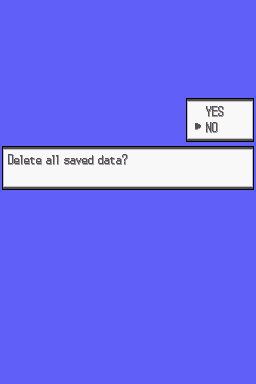
To delete a saved game on Pokémon White, you must press Up + Select + B on the title screen.
Have you ever wanted to restart your Pokémon White journey? Maybe you picked the wrong starter, or you just want to experience the game again fresh. If so, you’re probably wondering how to delete saved game pokemon white. It’s a common question for trainers who want a clean slate.
The process is not immediately obvious, and some people might assume they must use a complex menu. Thankfully, it’s actually quite simple and doesn’t involve wading through any complicated settings. We will quickly guide you on how to achieve this.

How to Delete Saved Game Pokemon White
Okay, so you’ve been on an amazing adventure in the Unova region, catching Pokemon and battling trainers in Pokemon White. Maybe you’ve finished the game, want a fresh start, or perhaps you’re sharing your game with a friend or family member. Whatever the reason, you’re now wondering how to delete your saved game. It’s totally understandable, and don’t worry, it’s not super complicated! This guide will walk you through everything you need to know to clear that save data and get ready for a brand new journey.
Understanding Save Data on Nintendo DS
Before we jump into the process, it’s important to understand a bit about how your game saves data on a Nintendo DS (or a Nintendo 3DS, which also plays DS games). Unlike some newer game systems, the game data in Pokemon White is stored directly onto the game cartridge itself. This means that the saved game is actually written onto a small memory chip inside that little plastic rectangle. When you save your progress in the game, you’re writing to this chip. When you delete the saved game, you’re essentially clearing that chip and preparing it for a new save file. It’s also good to know that deleting the saved data on the game cartridge will not harm it or any other games you own.
The Simple Method: Deleting Your Save Data In-Game
Luckily for us, the developers at Game Freak made deleting your save data pretty straightforward. You don’t need any special tools or complicated button combinations. The most common way to delete a Pokemon White saved game involves a few simple steps right from the game’s main menu.
Step 1: Power Up Your Nintendo DS/3DS and Insert the Game
The first step is always the same: make sure your Nintendo DS or Nintendo 3DS is powered off. Insert your Pokemon White game cartridge into the appropriate slot on your system. Then, power on your DS or 3DS. Make sure your system is charged to prevent any issues during the process. If your system’s battery dies while deleting the saved data, it could lead to problems with the game’s data, so it’s best to avoid that from the start.
Step 2: Access the Main Menu of Pokemon White
Now, wait for the Nintendo DS or 3DS logo to appear and then the Pokemon White title screen to load. You’ll see options like “Continue,” “New Game,” and sometimes a few others depending on your system settings. Don’t press anything just yet! This screen is where the secret to deleting your save file lies. Look for a specific command, or the options presented at the bottom of the screen.
Step 3: Pressing the Secret Combination for Deletion
This is where things get a tiny bit tricky, but it’s easy once you know the secret! To get the option to delete your save file, you have to press certain buttons on your Nintendo DS or 3DS while you are on the main menu of Pokemon White. The combination to clear save data is to simultaneously press Up on the D-pad, Select, and the ‘B’ Button. Be sure to press them at the same time. You must be on the title screen of Pokemon White (where “New Game”, “Continue” and such are available) for this to work. If you are not on the title screen this method won’t work.
- Up on the D-pad: This will be found on the cross-shaped controller pad on the left side of your DS or 3DS. Press upwards on the pad.
- Select: The Select button is typically found on the bottom-left part of the handheld.
- B Button: The B button is the button on the right side of the handheld, most often beneath the A Button.
Step 4: Confirming Your Choice
After you’ve pressed the Up, Select, and B button combination together, you should now see a message appear on the screen that asks if you are sure you want to delete the saved game. It will warn you that this action cannot be undone and that all of your current progress will be lost. This is your final opportunity to back out if you’ve changed your mind. If you are still sure about deleting your save data, then you must press “Yes”. This confirms the deletion and initiates the process. If you pressed the combination by mistake and do not wish to delete your game, press “No”.
Step 5: The Game Resets
Once you confirm that you want to delete your save data, the game will reset. This might take a few seconds. You will be brought back to the very start of the game, where Professor Juniper greets you and sets you off on your new adventure. You’ll have to go through the opening cinematic and dialogue again and you will now have a completely new game to play!
Why Would You Delete Your Save Data?
You might be wondering why someone would even want to delete all their hard-earned progress in a game like Pokemon White. There are many reasons! Here are a few of the most common:
- Starting a New Playthrough: Many people love to play Pokemon games multiple times. Deleting the saved data allows you to experience the game fresh, pick a different starter Pokemon, and make different choices along the way. It’s like reading your favorite book for the first time again.
- Sharing the Game: If you’re sharing your game with a family member or friend, they may want to start with a blank slate and not play on your character. This is an easy way for everyone to have their own unique experience.
- Trying a Challenge Run: Sometimes players want to add extra difficulty to the game. You might want to try a Nuzlocke challenge or a specific type challenge. Deleting the data lets you try these special playthroughs.
- Fixing Glitches or Errors: Sometimes, an error or glitch can happen with a save file. Deleting it may help fix the problem and allow you to play again. Though less common, it can happen.
- Trying a different strategy : If your existing saved game has you stuck in a particularly challenging part of the game, you might want to start over with a different team build or battle strategy.
Potential Issues and Troubleshooting
While the process of deleting your saved game in Pokemon White is usually straightforward, there are a couple of things that might prevent the process from working. Don’t panic! Let’s review some potential issues and how to resolve them.
Not Pressing Buttons Correctly
The most common issue is not pressing the Up, Select, and B buttons all at the same time. If you press them too slowly, it won’t register the command and the deletion screen will not show up. Try pressing them all firmly and at the exact same moment, using your thumb and a finger.
Dirty Game Cartridge
A less common issue might be a dirty game cartridge. If the little metal connectors on the cartridge are dirty, your DS or 3DS might not be reading the game properly, leading to issues. Try removing the game cartridge, and gently cleaning the contacts using a dry, soft cotton swab. If that doesn’t work, very gently use a slightly damp cotton swab, with water only. Make sure to let it fully dry before trying again.
System Issues
On the rare occasion, the issue might not be with the game but with your DS or 3DS. Try using a different Pokemon game to check if that game works correctly. If all games are having the same problem, there might be a problem with the DS or 3DS. You might need to contact a repair service if this happens.
Fake Game Cartridge
It’s possible, though less common now, that you may have accidentally purchased a counterfeit game cartridge. These fake games might have some issues deleting the game. The quality is not the same as genuine cartridges and might not work correctly, though sometimes the deletion process is the same as a genuine cartridge. If you believe that your game is not genuine, then you might need to contact a retailer or seller.
Backing up your Pokemon Save Data (Generally)
While we’ve been focused on deleting save data, it’s important to note there’s no official method for backing up save data directly from the Pokemon White game cartridge itself on a standard Nintendo DS or 3DS system. The game simply isn’t designed for this. Once a save file is deleted, it’s gone. You can’t just “undo” the deletion process. This is why it is so important to make certain that you do want to erase your saved data. If you do make a mistake, there’s no easy way to get it back. However, there are various third party methods of backing up save files, though they are beyond the scope of this article, but it’s important to be aware of their existence. You can always research other methods if you are very worried about losing your game data.
A Note About Trading
If you’re planning on deleting your save data and also want to trade your Pokemon with another game, be sure to do your trading first! Once you delete your save file, all the Pokemon you’ve caught, trained, and leveled up will be gone too. You won’t be able to transfer them to another game. The best idea, if you have another DS and a Pokemon game, would be to trade them over before you begin deleting, as you can always trade your Pokemon back to your new file if you desire.
Enjoy Your New Adventure
Now you know everything you need to know about deleting your save data in Pokemon White. With a little bit of knowledge, you can now confidently reset your game and begin another wonderful journey in the Unova region. Whether you’re trying a new challenge, sharing with a friend, or just want to replay it, have fun catching those Pokemon, defeating those gym leaders, and becoming the best Pokemon trainer!
How to delete data from pokemon black and white
Final Thoughts
To erase your progress, start your Nintendo DS with the game. At the title screen, hold Up on the D-pad, Select, and B buttons simultaneously. This will prompt a confirmation screen for deleting.
Confirm your choice, and your old save will be gone. The game will now begin a new playthrough. Successfully implementing these steps explains how to delete saved game pokemon white completely.

