
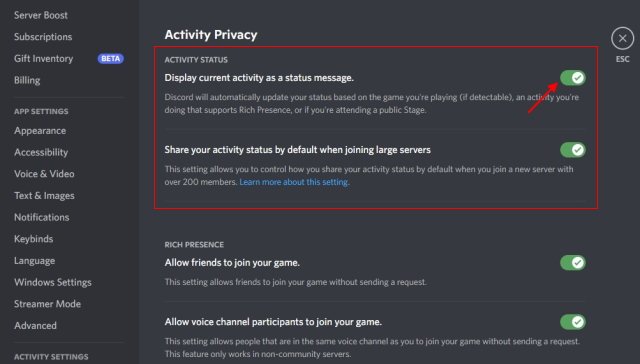
To disable Discord showing what game you’re playing, navigate to User Settings, then Activity Privacy, and toggle off “Display current activity as a status message”.
Ever felt like you want a bit more privacy while gaming? It’s completely understandable. Sometimes, you might prefer your friends not to know exactly what you’re engrossed in. Maybe you are having a casual game session or trying a new title, and you don’t want the world to know.
The good news is, Discord offers easy ways to control what information is shared. You can adjust these settings quickly and easily so that your friends do not get to know what your are playing. This is how to disable discord showing what game you’re playing with a simple change in settings.

How to Disable Discord Showing What Game You’re Playing
Have you ever been trying to sneak in a game session, but your Discord friends keep seeing what you’re up to? It’s a common thing – Discord, by default, shares your game activity with everyone on your server. This can be fun, but sometimes, you just want a little privacy. Maybe you’re trying to focus on a single-player game, or perhaps you’re playing something you’d rather keep to yourself. Don’t worry; it’s super easy to control what information Discord shares about your gaming habits. Let’s explore all the different ways you can hide your game activity on Discord.
Understanding Discord’s Activity Status
Before we dive into hiding your game status, it helps to understand why Discord shows it in the first place. Discord is designed to help friends connect and play games together. Sharing your game activity is part of that social experience. It lets your friends know what you’re interested in and can even prompt them to join you in a game. The game activity status appears as a little message right under your username in server lists, showing the name of the game you are playing. It might also show the specific mode of the game if the game has that functionality supported by Discord. This automatic feature is pretty useful in some cases, but it’s not always what you want.
This feature works by detecting the application window of the game you’re playing. If discord recognizes the active application as a game, it will display its name. However, this process is entirely in your control, and thankfully discord provides settings to manage this feature.
The Basics: Turning Off Game Activity Display
The easiest way to stop Discord from sharing your game activity is to disable it completely. This will stop Discord from showing what you are playing to your friends. Here’s how to do it:
How to Hide Your Game Activity Through the Privacy Settings
This method will hide your activity from everyone on the entire discord platform. Here’s how to do it in a few simple steps:
- Open Discord and click on the cogwheel icon next to your username at the bottom-left of the application. This opens your “User Settings”.
- In the User Settings menu, find and click on “Privacy & Safety”. You’ll see this option listed under the “App Settings”.
- Scroll down until you find the “Activity Status” section.
- Look for the toggle that says “Display current activity as a status message”. Simply click on this toggle to turn it off. When the toggle is grey, it means game activity is hidden.
That’s it! Now, nobody will see which game you are playing on discord. This disables the visibility of all your game activity. If you want to turn the activity status back on later, just repeat these steps, and turn the toggle back on. If you want finer control over what discord display, keep reading.
Managing Activity Status on a Per-Game Basis
Sometimes, you might want to show your game activity for some games but not for others. Discord lets you do this, providing a way to pick and choose which games to hide. This method is slightly more involved than the first, but still easy to manage.
How to Manually Add and Hide Games
You can manually tell Discord which games to show or hide. This allows a very granular control over your activity visibility.
- Navigate again to User Settings and then find “Registered Games”
- If discord has detected the game you were recently playing, it should be listed here. It may also include non-game applications. If the game you’re playing isn’t listed you’ll have to add it manually.
- To add a game manually, click on “Add it!” discord will now look for any actively running applications and present it to you, just select the game.
- Once you’ve selected the game, you will see a toggle to the right of the game entry. This toggle controls whether the activity for this specific game is shown or not.
- Turning this toggle off will hide the status for this game. Turning it on will make your status visible for this game.
- You can repeat this process for all the games you’d like to manage. This provides control over your visibility with each game.
This method is very powerful if you want very specific control over your status visibility. It also means you’ll have to go through this process for every game you don’t want to show activity for. In the next section, we will talk about another method that is more automatic and requires less management.
Using the ‘Invisible’ Status Mode
There’s another simple way to hide your activity while still appearing online. This is using the ‘invisible’ status mode on Discord. When you choose this, your activity will be hidden completely, and you will appear offline to all your friends.
How to Set Your Status to Invisible
Here’s how to set your Discord status to invisible:
- Click on your profile picture at the bottom left, next to your username.
- This will open a status menu with a few options: “Online”, “Idle”, “Do Not Disturb”, and “Invisible”.
- Select “Invisible.”
This is the quickest way to hide your game activity, and you’ll show up as offline to everyone. This can be useful if you do not want to be disturbed, but still want access to the app.
The ‘Do Not Disturb’ Mode
If you don’t want to appear completely offline but still wish to hide your activity and also not be bothered, the “Do Not Disturb” mode is a good middle ground. This mode hides your game status but keeps you appearing online.
How to Set Your Status to Do Not Disturb
- Like setting your status to invisible, click on your profile picture at the bottom left of the discord app.
- In this menu, select the “Do Not Disturb” option.
This setting keeps you online but mutes notifications. This can be useful when you want to play without interruptions, but still show online. However, your game activity will still be hidden.
Why Hide Your Discord Game Activity?
There are many valid reasons why you might want to hide your game activity on Discord. Here are some common scenarios:
- Privacy: You might want to keep your gaming habits private. Maybe you don’t want everyone to know what you’re playing at any given time.
- Focus: Some games require intense focus, and seeing your friends’ notifications can be distracting. Hiding your activity allows you to concentrate better.
- Surprise: Perhaps you’re playing a new game you want to surprise your friends with later, or maybe you want to keep the gameplay a secret.
- Playing Something Embarrassing: Sometimes, we play games that we’d rather keep private. It’s okay, we’ve all been there!
- Avoiding Invites: You might be in the mood for some alone time, and want to avoid joining your friends in a game.
Whatever your reason, it’s good to know you have the power to control your game activity visibility on Discord.
When Should You Show Your Game Activity?
While hiding your game activity can be useful, there are times when showing it can be beneficial. Here are a few instances where you might want your activity to be visible:
- Finding Teammates: If you are playing a multiplayer game and looking for more players, showing your activity can prompt your friends to join you.
- Coordination: When playing with friends, they can see what game mode you’re playing, and join you quickly in the same mode.
- Socializing: Seeing what games your friends are playing can help you start a conversation and maybe even discover new games to play.
- Community: Many communities on Discord like to see what you play to be able to make suggestions and find other people to join you.
Specific Game Considerations
Some games can have special Discord integrations. This means that Discord shows much more detailed information. This may include the mode or level you are playing. Sometimes it will show a “join game” button to help people join you easily. Whether you want to show this information depends on the game, and you may be able to configure it within the game’s settings as well.
Troubleshooting Activity Display Issues
Sometimes, even after you’ve adjusted your settings, Discord might still show your activity. Here are some troubleshooting tips:
- Restart Discord: Sometimes, simply restarting the Discord application can fix temporary glitches.
- Check the Game Settings: Some games have built-in settings to control Discord integration. Ensure those are set correctly.
- Update Discord: Using the latest version of Discord helps ensure that all settings are working correctly.
- Check Activity Status: Ensure the toggle mentioned before in the Privacy & Safety menu is indeed set to off.
- Re-add the Game: Removing and re-adding the game to your “Registered Games” list can fix some issues.
- Check for Overlays: Some in-game overlays from other applications could interfere with Discord’s game detection. Try turning those off temporarily to see if that resolves the problem.
Discord Mobile Activity Status
The steps discussed above are mostly for the desktop version of discord. The options and menus might be slightly different on a mobile device, but you can still configure visibility of your activity on mobile discord as well.
Hiding Game Activity on Mobile
To hide your game activity on the mobile version of discord, follow these steps:
- Open the Discord app on your phone or tablet.
- Tap your profile picture located in the bottom right of the screen to open User Settings.
- From here, scroll down to “App Settings”, then select “Privacy & Safety”.
- Under “Activity Status” tap the “Display current activity as a status message” toggle, this will turn it off.
The same options as the desktop version applies, so using the ‘invisible’ or ‘do not disturb’ status modes will also hide your game activity.
As long as your discord account is synced across devices, changes you make in mobile will also affect desktop and vice-versa. However, be careful when changing settings on multiple devices at the same time, as some settings might not sync correctly if changes are made too close together.
The Impact on Your Discord Experience
Choosing whether or not to show your game activity is a personal decision. It depends on how you use Discord and what you value in your online interactions. Remember, you have control over this feature, and it’s easy to adjust your settings based on your current needs. Experiment with different settings to find what works best for you.
By understanding how Discord activity status works, and knowing how to manage the visibility, you can greatly improve your user experience. Whether you want to share your game activity or keep it private, it’s all about being in control of your digital space and being comfortable online.
With Discord’s simple settings, you can make sure that you’re always in control of your privacy, and use discord in a way that suits your style. It’s not about completely hiding from your friends, it’s just having a way to control what you share and when you share it.
How To Hide Game Activity On Discord | Turn Off Game Activity Discord
Final Thoughts
You can easily disable Discord from displaying your current game activity. Navigate to User Settings, then Activity Privacy. There you will find the “Display current activity as a status message” toggle.
Turning this setting off will prevent Discord from showing what game you are playing. This concludes the process for how to disable discord showing what game youre playing. Now your gaming sessions will remain completely private.

