
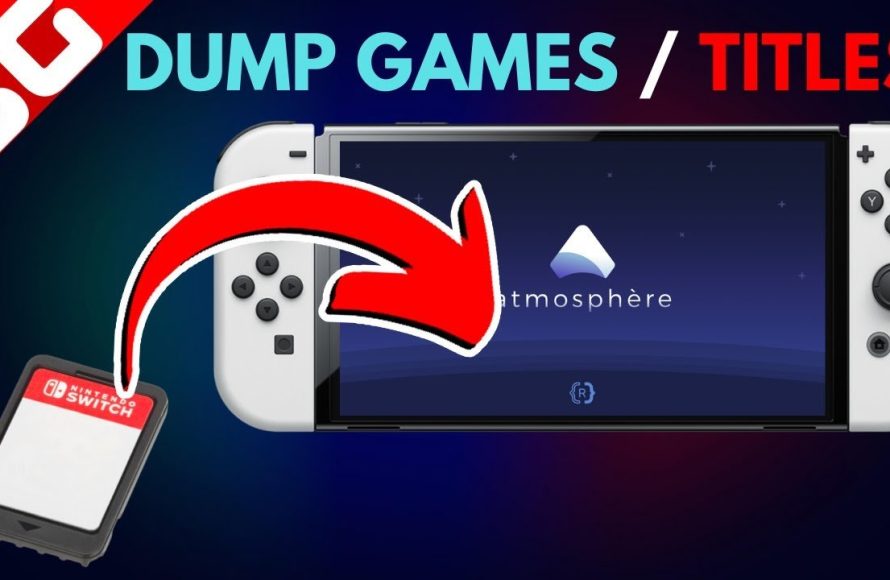
Dumping Nintendo Switch games requires a modded console and specific software to create digital backups of your game cartridges.
Want to create backups of your Nintendo Switch games? The process involves a bit of technical know-how. It isn’t as simple as copying a file. You will need a console that has been modified.
This modification allows you to run custom firmware. Then, using the right software, you can create digital copies. Understanding the steps is vital to successfully learn how to dump Nintendo Switch games. This also protects your game cartridges.

How to Dump Nintendo Switch Games
Dumping your Nintendo Switch games essentially means creating a digital copy of your physical game cartridges or downloaded games. This process allows you to back up your games, play them on emulators, or even modify them. It’s a bit like making a copy of your favorite book so you can read it in different ways. However, it’s really important to remember that doing this is only okay if you own the game, and you’re making a copy for your own personal use. Sharing copies is like lending out a book to someone without the author’s permission, which isn’t fair or legal. So, let’s explore how to do this the right way!
Why Would You Want to Dump Games?
There are several good reasons someone might want to dump their Nintendo Switch games. Here are a few of the most common:
- Backups: Just like you back up your important files on your computer, making a copy of your game can prevent you from losing it if your original cartridge gets damaged or lost. It is like having a spare copy so you don’t have to worry about the main one.
- Playing on Emulators: Emulators are like special computers that can pretend to be a Nintendo Switch. If you have a copy of your game, you can play it on your computer using an emulator, which can be fun.
- Modding and Customization: Some people enjoy making changes or additions to their games. Having a digital copy of the game allows them to experiment with mods without impacting the original game cartridge.
- Preservation: Physical game cartridges may become unavailable in the future, and digital copies help to make sure games are available for future enjoyment.
Tools of the Trade: What You Need
Before you can start dumping your games, you’ll need some specific tools. Think of it like preparing the ingredients before you bake a cake – you need everything in place before you begin.
A Modified Nintendo Switch
This is really important! Your Nintendo Switch needs to have special software installed, which is called a custom firmware (CFW). Using a custom firmware means that you’ve made some changes to your Switch’s regular software. This is what enables you to dump games. It’s like having a special key that opens the door to these advanced options.
An SD Card
You will need a good SD card with a decent amount of space for all your games and files. This is where your dumped game files will be saved and stored. A bigger SD card will let you save more games. It’s like having a bigger backpack to carry all your things when going for an adventure.
Special Software
There are several programs designed to dump games from your Nintendo Switch. The most commonly used are:
- Hekate: A crucial bootloader for launching CFW. Think of this as the starting button for the specialized software on your console.
- Lockpick_RCM: This is used to get the unique keys needed to decrypt your game files. This is like having a decoder that lets you understand how the game works.
- Goldleaf or DBI: These are applications that you use on your Switch to copy the game files to your SD card. Consider these the copy machines for your games.
- Nxdumptool: Another very popular option used for the same purpose. It gives you flexibility in selecting what you want to dump.
Preparing Your Nintendo Switch for Dumping
Okay, let’s get ready to actually start the game dumping! This involves some important steps that will ensure you can do it safely and efficiently.
Install Custom Firmware
Installing custom firmware (CFW) is a more complex step, and this part requires attention to detail and caution. You’ll need to follow a guide specific to your console and firmware version. It’s very important to understand the instructions completely before you proceed. This is a delicate process and if you are not careful, you could potentially damage your Nintendo Switch or make it unusable. There are many tutorials available online, so make sure you follow a trusted one.
Note: This step might require you to put your Nintendo Switch into RCM mode, which is a special start up method. This often involves using a small device called a jig or a specific method of pressing buttons while turning on your console.
Get Lockpick_RCM Keys
After you have the CFW installed, you need keys to be able to work with your game data. Lockpick_RCM helps you extract these keys from your Switch. These keys are unique to your specific Nintendo Switch. Think of it like a key that you have to get from your Nintendo Switch, which allows you to open the game files. It’s like a personal password for your games.
The process usually involves placing the Lockpick_RCM application onto your SD card, booting into your CFW, and starting Lockpick_RCM. The application then generates the needed keys and saves them to your SD card.
Dumping Games Using Goldleaf
Now that you have all your tools ready and the switch is set up, you can start dumping your games. Let’s begin with Goldleaf, one of the user-friendly options for this task.
Launch Goldleaf
First, you will launch Goldleaf via the Homebrew menu on your modified Nintendo Switch. The homebrew menu is like a special launcher for all these added applications. Once you open the menu, choose Goldleaf and start it. It might take a few seconds for the program to launch.
Choose the Game
Once Goldleaf is open, you will see a lot of options. Navigate to “File Browser” or a similar option that allows you to browse the games on your system. This is like exploring your game library on the Switch. You’ll see all the installed titles whether they are digital or physical.
Select the game you want to dump and press “A” button to select. Goldleaf gives you different options for dumping such as “Dump to NAND” for digital games, or “Dump to SD Card”. If you have a physical game card in the console, you will see a “Game Card” option which you will choose for dumping cartridge.
Select the Dump Option
Choose where you would like to save your dump. If it is a game card, you should choose “Dump to SD Card”. Goldleaf may also ask you which file format you would like to use. You have options to save your game as an XCI or NSP. Choose XCI if you want to work with a file that is similar to how the game cartridge is on your switch, or choose NSP if you want a file that works better for software. Usually, you will prefer XCI, but if you are going to use the game with a special application called “LayeredFS”, then you will need NSP.
After you select all the options you will see that Goldleaf will start to copy your game and save to SD card. This is very similar to copying something from your computer. You may be able to see the copy progress, just wait for Goldleaf to complete the dump. Depending on the size of the game, this process can take a while. It may be like watching a progress bar while downloading an update.
Locate Your Dumped Game
When the dump is complete, you can find your new game file in a pre-determined folder in your SD card. Most of the time Goldleaf will automatically create the folder if it does not exists. Check your SD card using your computer to verify that it has been copied. Now you have the digital version of your Nintendo Switch Game.
Dumping Games Using DBI
DBI is another good option, and some people may find it easier to use. Its main feature is the simplicity of its menu and options. Here’s how you do it:
Launch DBI
Similar to Goldleaf, you start DBI from the Homebrew Menu on your Switch. This should look very similar to how you launch other applications.
Select Dump Games
Once DBI is running you’ll see an interface with different options. You should choose “Browse SD Card”. DBI will show you all the available files and games. Choose “SD card”, “Installed Games”. It should show you a list of all the games on your console. Navigate to your desired game and press A to select.
Start the Dumping Process
After choosing your game, the menu will change to different dumping options. Select “Dump to SD Card” and choose the type of file you want. It will begin copying. Just wait for the process to finish. You can see the process in the percentage bar that DBI displays.
Game Verification
After the copy is done, go back to your computer and check to see if the files were correctly copied to the correct folder in your SD card. Just like with Goldleaf, DBI creates the folder to save your game. You now have your game ready to use!
Dumping Games Using NxDumpTool
Nxdumptool is another popular option among users for game dumping. It is known for its extensive features and compatibility. Let’s explore how to use it.
Open NxDumpTool
Like the other tools, you have to start NxDumpTool from the Homebrew menu. Choose NxDumpTool from your list of homebrew applications. It will take a few seconds to load, just wait.
Select Dump Options
Once you have NxDumpTool running, you will see several options. Navigate to “Dump Gamecart” or “Dump installed games”. You will have to select if you have the physical game cartridge or you are dumping from the eShop downloaded version. Select what you want to dump.
Begin the Dumping Process
Nxdumptool is known for having lots of options in the game dumping process. For simplicity’s sake, the basic option is to choose the file type (XCI or NSP) then simply select start. Wait for the process to complete and watch the progress on screen.
Find Your Dumped Game
When the dump is complete, your dumped file will be in your SD card. NxDumpTool also creates the folder to save the files. Just like before you can find and check on your computer. Your game is ready to go!
Important Notes about Game Dumping
While dumping games can be a fun and useful process, there are a few things you have to always keep in mind:
- Legality: You must only dump games that you legally own. Dumping and sharing games that you do not own is illegal and unethical. This is like making a copy of a book from the library and never giving it back.
- Updates: Game dumping is usually an evolving process, as new firmware is released, new ways to dump games might also be released. You might have to update your tools regularly and check for the newest versions.
- Risks: You must be careful when following guides and doing procedures, If you are not careful you could potentially damage your Nintendo Switch. Always follow guides that you completely understand, and from sources that you trust.
- Ethical Use: Dumping your games is for your own use and backup purposes. Please do not distribute the game files to other users, this is against copyright law.
By following these steps and being careful you can successfully dump your Nintendo Switch games, and get to enjoy using them in ways that you want. Just remember that this is only ethical if you own the game, and you do it for personal use. This should let you explore the advanced functions of your Nintendo Switch.
Dump Nintendo Switch Games and Play them on The Computer [Yuzu or Ryujinx] Tutorial [2023]
Final Thoughts
To dump Nintendo Switch games, you typically need a custom firmware setup on your console. This allows you to access and copy game data to an external storage device. The process involves specific software and tools.
Remember that how to dump nintendo switch games can be complex. Always prioritize safe practices and follow community guidelines for responsible use. This helps avoid any issues.

