
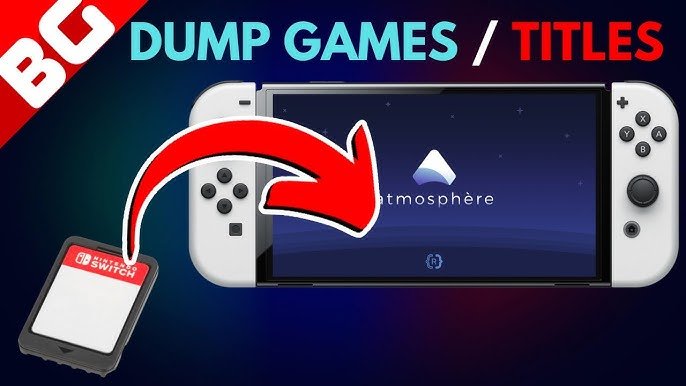
To dump Switch games for Yuzu, you need a modded Nintendo Switch, specific software like Hekate and a means of transferring the game files to your computer.
Want to play your favorite Nintendo Switch games on your PC using the Yuzu emulator? It’s a great way to experience those titles with potentially enhanced graphics. The first step is to understand how to dump switch games for yuzu. This involves getting your game files from your console.
This process isn’t difficult, but it does require a modded Switch to access the necessary files. We’ll guide you through the basics, so you can enjoy your legally obtained games on the emulator. It is also worth checking the legal requirements in your jurisdiction before doing any of this.

How to Dump Switch Games for Yuzu
So, you want to play your favorite Nintendo Switch games on your computer using the Yuzu emulator? That’s awesome! But to do that, you can’t just download the games from the internet. You need to make a copy of your own game cartridges or digital downloads. This process is called “dumping” and is totally legal as long as you own the game. This guide will show you, step-by-step, how to safely and properly dump your Switch games so you can enjoy them on Yuzu. We’ll cover everything, including what you need and how to get everything set up.
What You’ll Need
Before we jump into the how-to, let’s gather all the stuff you need. Think of it like preparing ingredients before cooking a tasty meal. Here’s your list:
- A Nintendo Switch Console: You’ll need your Switch to dump the games from. It doesn’t matter if it’s an original Switch, a Switch Lite, or an OLED model, any model will work!
- A Computer: You’ll need a computer to copy the game data to. It should have a decent amount of storage space.
- An SD Card: Your switch needs to use a memory card with enough space to store the games. We advise at least a 64GB card. Higher is better, especially if you have a lot of games!
- Homebrew Access (CFW): We’ll need to modify the software on your Switch to access the game data. This is done using a “Custom Firmware” (CFW) like Atmosphere or ReiNX. If you have already installed Custom Firmware on your switch then you can skip this step.
- Required Software for CFW: You will need to install certain files on your switch’s memory card so that it is able to run the Custom Firmware.
- Atmosphere: This is a popular CFW that allows you to run homebrew applications and game dumps. Download the latest version of Atmosphere for your Switch’s system software version.
- Hekate: This is a bootloader that allows you to launch Atmosphere. Get the latest version of Hekate.
- sigpatches: These are required to run the dumped games. Make sure you get sigpatches that match the version of Atmosphere you are using.
- Dumping Software: You will require the appropriate homebrew software on the Nintendo switch, this software is to help copy your game data.
- NX-Dumping-Tool: This homebrew application makes copying the game data on your Switch easy.
- USB cable: A USB-C cable to connect your Switch to your computer.
Important Note: Modifying your Nintendo Switch can sometimes void its warranty, so proceed carefully and at your own risk. Make sure you’re completely comfortable before you start.
Getting Your Switch Ready
Before we start dumping, we need to prepare your Switch. This means getting it ready for homebrew and installing the custom firmware (CFW). If you’ve already done this, you can skip ahead to the next section.
Preparing Your SD Card
First we need to make sure that our memory card is setup with the necessary files for the custom firmware.
- Format your SD card to FAT32 or exFAT. FAT32 is generally more compatible, but exFAT can handle files larger than 4GB. If you have one or two games you wish to dump, then FAT32 would be enough, but for several games we recommend using exFAT. You can format using windows by right-clicking on your memory card drive and selecting the format option.
- Download the Atmosphere, Hekate, and sigpatches that we have mentioned.
- Extract Atmosphere to the root of the SD card. This means you should move all the files in the folder you extracted into the first folder you see when you open your SD Card. You should see folders like “atmosphere”, and “bootloader” on the root of your SD card.
- Extract Hekate to the root of the SD card. This should be next to the folders you previously moved.
- Extract the sigpatches to your SD card. Usually these go in the “atmosphere/kips” folder.
Entering RCM Mode
RCM stands for “Recovery Mode”. This mode will help us boot into the custom firmware. The process of putting your switch into RCM can vary between different versions of the Switch, for some you may require an RCM jig or special accessory to get it into RCM. The RCM method for the regular switch is as follows.
- Power off your Switch completely.
- Remove your Joy-Cons.
- Short the RCM contact pins (usually the right-most pins) on the right Joy-Con rail using a RCM jig or a small piece of wire. Be very careful not to force or damage the rails.
- While keeping the contact pins shorted, hold down the volume-up button and tap the power button. The Switch screen will remain black, indicating it’s in RCM mode.
Booting into CFW
With your switch in RCM, we can now boot into CFW. To do this we need a computer. You will need to download a tool that will help us inject the CFW into the switch while it is in recovery mode.
- Download the TegraRcmGUI tool onto your computer.
- Connect your switch to the computer via USB cable.
- Open the TegraRcmGUI tool, if the program detects your switch, it will display a message saying “RCM OK”.
- Browse to your SD card and find the “hekate_ctcaer_.bin” file. This is the Hekate file that we previously extracted.
- Select this Hekate file, then click the “Inject Payload” button in TegraRcmGUI.
- Your Switch should now be booting into Hekate.
Configuring Hekate
Hekate is a boot menu, here we will tell it to start the custom firmware, Atmosphere.
- Using the buttons on your switch, select the “Launch” option in Hekate.
- Select “CFW (emuMMC)” from the menu.
- Your switch should now be booting into the custom firmware Atmosphere.
Dumping Your Games
Now that your Switch is prepared and has the custom firmware installed, you’re finally ready to start dumping your games. Here is the process on how to do it.
Installing the Dumping Software
We need to install the NX-Dumping-Tool homebrew on the Nintendo Switch.
- Download the NX-Dumping-Tool software from a trusted source.
- Place the extracted “.nro” file into the “switch” folder on the root of your SD card.
- Insert the SD card back into the Nintendo Switch.
Launching the Dumping Software
We need to launch the application on the custom firmware.
- Power on your Switch, it should automatically boot into Atmosphere.
- Go to the “Homebrew Menu” on the switch. You can typically do this by launching any game, or holding the “R” button when launching any game, this will take you to the homebrew menu.
- Select the “NX-Dumping-Tool” from the homebrew menu, this will load up the application.
Dumping Cartridge Games
Lets start with dumping the games from physical cartridges.
- Insert the game cartridge into your Nintendo Switch.
- In the NX-Dumping-Tool, the game should appear on the list.
- Use the buttons to navigate the program and select the game you want to dump.
- Select the “Dump” option, and it will ask you where you want to store the game. select the SD card option.
- The dumping process will start, this could take a little while depending on the size of the game.
- Once it has finished the dumping process, select done and remove the game card from your Nintendo switch.
Dumping Digital Games
Dumping digital games that you have downloaded is also possible using the homebrew program.
- In the NX-Dumping-Tool, the digital games should appear on the list, if not, click on the “Show installed Games” button.
- Use the buttons to navigate the program and select the game you want to dump.
- Select the “Dump” option, and it will ask you where you want to store the game. select the SD card option.
- The dumping process will start, this could take a little while depending on the size of the game.
- Once it has finished the dumping process, select done.
Transferring the Dumped Games to Your Computer
After the dumping process, your game files are stored on the SD card of your switch. You need to transfer these files onto your computer so Yuzu can access them.
- Power off the Nintendo Switch.
- Remove the SD card from the Nintendo Switch and insert it into your computer.
- Navigate to the folder where you saved the dumped game files, usually in a folder called “dumps”.
- Copy these game files onto your computer to a safe location.
Organizing Your Games
Once you’ve copied the game files to your computer, it’s good to get them organized. Creating folders for different games can help you keep track of everything, and also help yuzu find your games easier.
- Create a main folder for your switch games, you can name it “Switch Games” for example.
- Inside that folder, create a new folder for each game. Name these folders the name of the game. For example, “The Legend of Zelda: Breath of the Wild”.
- Place the dumped game files into their respective folders.
And there you have it! You’ve successfully dumped your Switch games and moved them to your computer. You’re now ready to enjoy them on Yuzu. Make sure you regularly backup your switch data, incase you need to re-setup the CFW at a later point.
Remember, this guide is for educational purposes and for creating backups of games you already own. You should always respect copyright and only dump games you legally purchased. Have fun playing!
Dump Nintendo Switch Games and Play them on The Computer [Yuzu or Ryujinx] Tutorial [2023]
Final Thoughts
To summarize, dumping your Nintendo Switch games for use with the Yuzu emulator requires a hacked console and specific software. You will need to install custom firmware and use a tool to extract game files. This process enables you to play your legally owned games on PC. Remember to obtain keys for proper operation.
Successfully learning how to dump switch games for yuzu means having the right tools and following the correct steps for a smoother experience. You can now enjoy your games on a different platform.

