
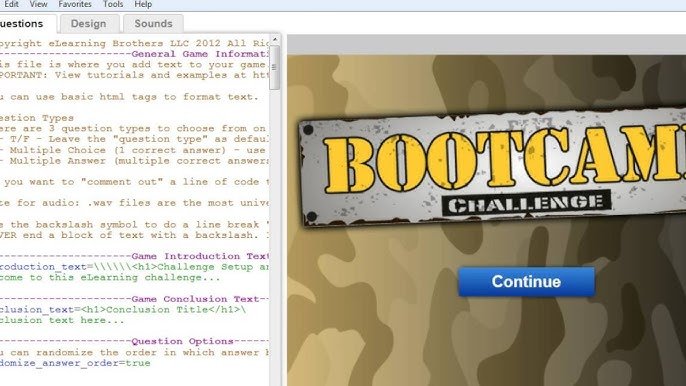
To edit online website games, you typically need access to the game’s source code or utilize development tools provided by the game platform, enabling modifications to the game’s logic, graphics, or other elements.
Ever wondered how those amazing online games you play are made? You might even want to know how to edit online website games yourself. It’s more achievable than you think, though it may require a little bit of technical know-how.
The process often involves understanding the game’s programming languages and potentially utilizing specialized software. Different platforms also have their ways and rules which you have to take care of when planning to make changes.

How to Edit Online Website Games
So, you love playing online games, right? Ever wished you could change them a little bit, make them even more fun? Well, guess what? Sometimes, you can! Editing online website games isn’t about making brand-new games from scratch (that’s a whole different adventure!), it’s more about tweaking things you already see, like the way a character looks, how fast they move, or even the game’s background. It’s like being a video game magician! This process might sound tricky, but with a little patience and some cool tools, you’ll be able to make these small changes. Let’s jump into the world of game editing and see what’s possible.
Understanding the Basics: What Can You Really Change?
Before we get to the “how,” let’s talk about the “what.” Not every game can be edited in the same way. Some games are very locked down and tough to change, while others are more open. You see, games made with technologies like Flash or HTML5 are often easier to tinker with because they use code you can often access, or because they rely on client-side code. These games live on the user’s computer while you are playing them in a browser. Other games, especially big online multiplayer ones, store much of their rules and information on a server computer ( a computer somewhere else), and those are really hard to change because you don’t have direct access to that server.
Client-Side vs. Server-Side Games
Think of it like this: Some games are like having a toy you can take apart and put back together (client-side), while others are like a toy that’s sealed up (server-side). Games that run primarily in your web browser (client-side) are more likely to be editable because their instructions (code) are sent to your computer. This means you can sometimes grab that code and make adjustments before the game runs. Games using server-side systems store a lot of its rules on a remote server. This is a good way to prevent hacking and make sure everyone plays fairly. Changes you make in a client-side game only affect your version, whereas in server-side games, the main game stays consistent for all players.
- Client-Side Games: Easier to modify because the game’s code is sent to your computer.
- Server-Side Games: Harder to modify because much of the code and game logic resides on the server, not on your computer.
Common Elements You Can Potentially Edit
Even if you can’t rewrite the whole game, you might be able to tweak things like:
- Game speed: Make characters move faster or slower.
- Character appearance: Change colors, clothes, or even the character model (sometimes).
- Game background: Swap out boring backgrounds for cool pictures.
- Sound effects and music: Add your own tunes or funny noises.
- Difficulty level: Sometimes it’s possible to alter variables that make the game harder or easier.
The Tools of the Trade: How to Get Started
So, how do we actually go about changing these things? Well, there are a few common tools and methods that we’ll explore. Don’t worry, you don’t need to be a super programmer to make these changes; much of it is simply knowing where to look and how to use some useful extensions and techniques.
Browser Developer Tools: Your First Step
Every major web browser (like Chrome, Firefox, Safari, and Edge) has built-in tools for developers (the folks who make websites). These tools can help you look at the code behind a web page, which includes the code for website games. These tools are free and already installed in your browser. Here’s how to access them in most browsers:
- Right-Click Method: Right-click anywhere on the web game page and select “Inspect” or “Inspect Element” or similar. A panel will appear, often at the bottom or side of your browser.
- Keyboard Shortcut: You can often use keyboard shortcuts:
- Ctrl + Shift + I (on Windows/Linux)
- Cmd + Option + I (on Mac)
- F12 on most browsers also open this panel
Once you open the Developer Tools, you’ll see a variety of tabs. The most important ones for game editing are:
- Elements (or Inspector): This shows the HTML code of the webpage. It lets you see the structure of the page and the elements that make up the game.
- Console: The console shows log messages and also lets you run JavaScript code. This is where you will do much of the modification in the later steps.
- Network: This tab shows the files the game is downloading while playing. You might need it for finding game assets.
- Sources (or Debugger): This tab shows the JavaScript, CSS, and other codes. If you want to edit those code files, you might need to edit in this panel.
The Power of JavaScript: Making Changes
JavaScript is a programming language used by lots of website games and tools. It is code written by developers that tells your computer how the game works. Most importantly, you can write some JavaScript code in your browsers dev console panel that can tweak the way games work. You don’t need to be a JavaScript expert to do some simple changes.
Here are a few ways you can use JavaScript to edit games:
Changing Game Variables
Many games have variables (like numbers) that store info about the game, like player speed or score. You can often find these variables using the Developer Tools and then change them using JavaScript. For example:
// Example of setting a variable value to a new one, if you know what variable is used to control speed in the game
game.playerSpeed = 10; // Increase player speed

// Change the game score
game.score = 1000000; // Give yourself a million points

// Change a name, if a game is storing name in a variable
game.playerName = "Super Gamer"; // Change the name to Super Gamer
To run this JavaScript code, you would usually type or paste the code into the console tab of the Developer Tools and press enter. If the game stores player speed in the variable game.playerSpeed, that line of code will modify the speed of the player in your game window. You will need to experiment and figure out how the game you are playing names it’s variables for different elements to change their behavior.
Altering Game Graphics Using CSS
CSS (Cascading Style Sheets) is used to style web pages and how they look. You can use CSS in the console to change how the game looks, for example:
// Example of using CSS, you will need to know the 'selector' to select the game element
// This will change the color of a certain element in the game
document.querySelector(".game-element-class").style.backgroundColor = "red"; // Change the color of a game element

//Change the size of an element
document.querySelector(".game-element-class").style.width = "200px";
document.querySelector(".game-element-class").style.height = "200px";

// To change the background of the whole game, if possible
document.body.style.backgroundImage = 'url("your_image_url.jpg")';
The document.querySelector() method selects the HTML elements to change in the game. The selector usually is a class name or an id of the HTML element in the HTML code. You can find the exact names in the Elements tab of your dev tool. Then style.backgroundColor changes the color. You can replace red with any color you want. You can use the same technique to change size, images, and position on the game screen. Like JavaScript, you type or paste this code in the console, if you want to change things live.
Using Extensions: Easier Editing
Sometimes, using extensions is easier than directly typing code. Browser extensions are like mini-programs that add extra features to your browser. There are many extensions that can help you with web game editing.
- Tampermonkey/Greasemonkey: These are script manager extensions that let you run your own JavaScript code on any web page. You can write or find scripts made by others to change how the game works. These extensions are popular for adding modifications to online games.
- Stylus: This extension lets you write your own CSS code, so you can change how a website or game looks. This is an easier way to change game graphics without needing to type CSS code each time you play a game.
- Custom JavaScript and CSS extensions: Many other extensions let you inject your own JavaScript or CSS code in the web page. You will need to search and see if any is good for you.
Extensions make game editing easier since they allow you to save the modifications for later sessions, and don’t require re-typing code into the console every time you play.
Step-by-Step Guide: A Simple Example
Let’s go through a simple example of changing a basic game using browser developer tools. For this case, let’s imagine a simple game where you click on a moving shape. Let’s say we have the following HTML and JavaScript code for the game, which you may be able to find in the “Sources” tab of the Developer Tools.
<!DOCTYPE html>
<html>
<head>
  <title>Simple Click Game</title>
  <style>
    #shape {
      width: 50px;
      height: 50px;
      background-color: blue;
      position: absolute;
      cursor: pointer;
      transition: all 0.5s ease;
    }
  </style>
</head>
<body>
    <div id="shape"></div>
    <script>
      const shape = document.getElementById('shape');
      let moveX = 10;
      let moveY = 10;
      function moveShape() {
        let left = parseInt(shape.style.left) || 0;
        let top = parseInt(shape.style.top) || 0;

        left += moveX;
        top += moveY;

        if (left > window.innerWidth - 50 || left < 0) {
          moveX = -moveX;
        }
        if (top > window.innerHeight - 50 || top < 0) {
          moveY = -moveY;
        }

        shape.style.left = left + 'px';
        shape.style.top = top + 'px';
        requestAnimationFrame(moveShape);
    }

    moveShape();

    shape.addEventListener('click', function() {
      alert('Clicked');
    });
</script>
</body>
</html>
Let’s say the goal is to increase the movement speed of the shape. Here’s what you would do:
- Open Developer Tools: Right-click on the page and select “Inspect” (or use the keyboard shortcuts we talked about earlier).
- Go to the Console: Click on the “Console” tab in the Developer Tools panel.
- Find the movement variables: Look at the code in the “Sources” or “Elements” tab. You can see let moveX = 10; and let moveY = 10;. These control the speed of the moving box.
- Change the variables: In the Console, type the following JavaScript code and press Enter:
moveX = 20;
moveY = 20;
This changes the moveX and moveY variables from 10 to 20 and the square should move much faster now.
You can also add your own messages using JavaScript. If you write the following in the console:
console.log("The game has been modified!")
You will see a message in the console pane. This is useful to confirm your changes worked or for debugging purposes.
Other modifications
Using the same methods, you can also modify other properties of this game. Here are some examples, you can try yourself:
- Change the box color: In the console, type:
document.getElementById('shape').style.backgroundColor = 'red'; - Make it bigger: In the console type:
document.getElementById('shape').style.width = '100px';
document.getElementById('shape').style.height = '100px';
Advanced Techniques: Exploring Further
If you want to go further, there are many other advanced techniques you can try to modify games.
Reverse Engineering JavaScript code
Sometimes, the game code will be hard to understand. This is very common, as developers will make their JavaScript code hard to read, to avoid editing. You might find names of variables and functions that look like gibberish. In these cases, you will need to try your best to analyze the code, and understand how the parts work. There are software tools and browser extensions that can make code more readable. You might also find videos and documentation online that help you understand the basics of JavaScript. There is no single solution for all games, so you will need to use your brain and experiment often.
Using Script Managers
As mentioned before, a script manager extension can let you add your own JavaScript code to the games that you play. These code will be saved for later use, and you don’t have to re-write code in the console each time. With script manager extension you can make larger modification of the game with a more complex code. You can find different kinds of pre-made scripts online, or you can write your own.
Finding game assets
Using the Network tab in the developer tools, you can find the files that are downloaded when you load the game. This could be images, videos, or audio files. If a game is loading an image that you don’t like, you can use a program to edit the image, and then in the developer tools, modify the URL of the image to point to your own modified image.
Limitations of game editing
It’s important to keep in mind that there are things you cannot change in games. As mentioned previously, server-side games are much harder to modify. You also cannot change parts of games that are programmed directly on the server or parts of the games that are heavily obfuscated by developers. You should also avoid using hacks and cheats in multiplayer games, as it is often unfair and is often against the terms of service. Also, you cannot make changes that violate copyrights. It’s best to explore game editing as a hobby for education and entertainment, and not use it to cause problems.
Editing online website games can be a lot of fun. It’s like taking a peek behind the scenes and making your own unique versions of your favorite games. Remember to be patient, experiment, and most importantly, have fun with it! Always remember to be ethical and respectful of other players and the game developers.
let's create – games #005: online editing
Final Thoughts
Editing online website games often involves accessing developer tools or using specific game editors. You can modify code or assets. These changes might affect game mechanics or visuals.
Understanding the game’s structure is key. You’ll want to explore files and identify editable parts. Remember, ethical considerations are important; respect original creators’ rights.
Ultimately, how to edit online website games depends heavily on the game’s design and the tools available. Always backup files before making edits and proceed with caution.

