
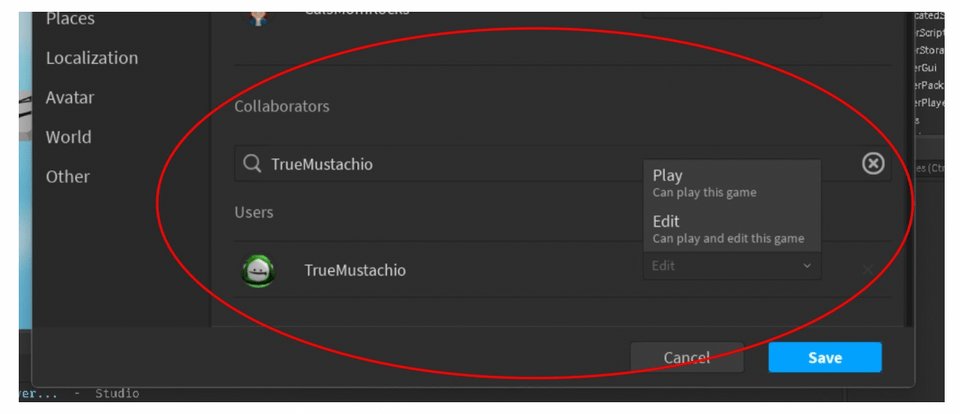
To edit your Roblox game, you need to use Roblox Studio, where you can modify maps, add scripts, and customize various aspects of your game.
Ever dreamed of tweaking that obstacle course or adding a secret hideout in your Roblox game? It’s not as daunting as you might think. Many players wonder how to edit your Roblox game, and the answer lies in the powerful tools provided by Roblox Studio. This free platform lets you take control of your game’s design.
With Studio, you can manipulate everything from the terrain to character interactions. Learn how to use its interface and your game can become something unique. Ready to begin?

How to Edit Your Roblox Game
Okay, you’ve created a cool Roblox game, and now you’re ready to make it even better! Editing your game is where the real magic happens. It’s like being the director of your own movie, where you get to decide how everything looks, feels, and plays. Don’t worry; it’s not as hard as it sounds. This guide will walk you through all the essential steps to make your game fantastic! This guide will help you understand how you can use Roblox Studio to make changes to your own game. This guide is made for beginners in mind and for those who want to brush up on their knowledge. Editing your Roblox game can help make your game better and it will help attract more players to your game.
Getting Started with Roblox Studio
First things first, you need Roblox Studio. This is the special program that lets you build and change your game. If you don’t have it yet, go to the Roblox website, click “Create,” and follow the instructions to download and install it. It’s like getting your art supplies ready before starting a big drawing project!
Opening Your Game
Once you have Roblox Studio installed and opened, you will see different options to choose from. To edit your game, you must first find your game. Here is how you do it.
- Click on the “My Games” tab.
- You should see a list of all of your Roblox games.
- Click on the game you want to edit.
- Roblox studio will load the game into the editor.
Now you’re in! This is where you’ll make all the edits and changes to your game. If it’s a new game, you’ll see a pretty empty space ready for you to build in. If you’re editing a game you have already made, you will see all of your hard work in Roblox Studio.
Understanding the Roblox Studio Interface
Roblox Studio might seem like a lot at first, but it’s actually organized pretty well. Let’s look at the main parts:
- The Toolbar: This is at the top of the screen, and it’s where you find the most common tools. You’ll use these tools for moving, rotating, and scaling objects. They are also for adding parts, and changing the game settings.
- The Explorer Window: This is usually on the right side, and it shows everything in your game – every part, script, model, and so on. Think of it like a map of your game.
- The Properties Window: This is right next to the Explorer, and it shows all the information about whatever you click on. You can change an object’s color, size, and more here. It’s like the object’s profile page.
- The Workspace: This is the big space in the middle where you actually see and build your game. It is where you can see all of the changes happening in your game.
Take some time to look around and get used to these parts. Don’t worry if it feels strange at first; it’ll become second nature with a bit of practice.
Adding and Editing Parts
Parts are the building blocks of your Roblox game. They are the basic shapes you use to create everything in your game. Let’s look at how to add and edit them:
Adding Parts
To add a part to the game, simply click on the “Part” button in the toolbar. A drop down menu will appear with different shapes that you can add to your game. Click on one of the shapes to add it. You will see the part appear in your workspace and your explorer window.
You can add different types of parts:
- Blocks: These are the basic rectangular shapes for building walls, floors, or any other straight structure.
- Spheres: These are perfect for making balls, planets, or other round objects.
- Wedges: Use these for ramps, roofs, or other angled designs.
- Cylinders: These are great for making pipes, pillars, or tree trunks.
Moving Parts
Once you add a part, you can move it around. Use the “Move” tool in the toolbar (it looks like a four-way arrow). Click on a part, and you will see three arrows coming out of it (red, blue, and green). Drag these arrows to move the part along different directions. Make sure that the “Move” button is selected or else the arrows won’t appear on selected part.
Rotating Parts
To rotate a part, select the “Rotate” tool from the toolbar (it looks like a curved arrow). When you click a part you will see three circles (red, blue, and green) appear on the object. You can drag the circles to rotate the part in different directions.
Scaling Parts
The “Scale” tool (it looks like a cube with arrows on its faces) helps you make parts bigger or smaller. Click on the scale button and then on the part and you will see small cube icons appear on it. Drag the small cubes to change the size of the part. You can scale the part in any direction you like.
Changing Properties
To change the color, material, or other properties of a part, select the part and then look at the “Properties” window. Here, you can see lots of options you can play with.
- Color: Click on the color box to choose a different color.
- Material: Click on the material box to choose a different material like wood, metal, or grass.
- Transparency: Use the slider or type in a number to make it see-through.
Experiment with these options to make parts look just the way you want them to.
Working with Models
A model is like a group of parts that act as one object. It’s useful for building complex structures and keeping things organized. Here is how you can use them:
Creating Models
You can create your own models by grouping parts together. Follow these steps:
- Select all the parts that you want to group together.
- Right click on one of the parts, and click on the “Group” option.
- You now have a model. You can rename your model in the explorer to something more relevant.
Importing Models
You can also import ready made models into your game. This can save you a lot of time when making your game.
- Go to the “Toolbox” tab in the top of the screen.
- Search for the model that you would like to add to your game.
- Click on the model, and it will be imported into your game.
Editing Models
Once you have a model, you can move, rotate, and scale it just like you would with a single part. To change individual parts inside the model, you can click the small arrow next to the model’s name in the “Explorer” window to see the parts it contains.
Adding Scripts
Scripts are what make your game interactive. They’re like little instruction booklets that tell your game what to do. Here’s how you can start using them.
Adding a Script
To add a script, follow these steps:
- Right click on a part in the “Explorer” window.
- Hover over “Insert Object”.
- Click on “Script”.
You will see a new script appear under the object that you added it to. Double click on the script to start editing it.
Basic Scripting
Roblox uses a programming language called Lua. Don’t worry; you don’t need to be a pro coder to start. Here are some super simple commands you can try:
- Changing a Part’s Color: In your script write this code:
script.Parent.Color = Color3.new(1, 0, 0). This code will change the part’s color to red. - Making a Part Disappear: In your script write this code:
script.Parent.Transparency = 1. This code will make the part invisible. - Making a Part Reappear: In your script write this code:
script.Parent.Transparency = 0. This code will make the part reappear.
Experiment with these different codes and different numbers to understand what they do. There are many other different codes that you can write to make different changes to your game. As you practice, you will learn more complex codes.
Adding Sound and Music
Sound effects and music can really bring your game to life. Here’s how you add them:
Adding Sound
You can add sounds to your game by following these steps:
- Go to the “Toolbox” tab.
- Select the “Audio” tab.
- Search for the sound that you want to add to your game.
- Click on the sound to add it to your game.
The sound will appear in the “Explorer” window. You can move the sound to any part or model in your game. This way, when something interacts with that part or model the sound will play.
Editing Sound Properties
When you click the sound in the “Explorer” window you can edit some properties of the sound. Here are some properties you can edit.
- Volume: You can change the volume of the sound.
- Pitch: You can change the pitch of the sound.
- Loop: You can check this box to make the sound loop. This means that once the sound is over, it will play again.
Testing Your Game
Testing is a very important part of editing your Roblox game. You have to keep on testing your game to see if everything works well. You don’t want players to experience errors in your game. Here is how you test your game:
- Click the play button at the top of the screen to start playing your game.
- Move around your game and see if everything works as you have planned it.
- If you find any problems, stop the game and go back to editing.
Remember to always test your game often. It’s easier to fix small problems along the way than to try to fix a whole lot of things at once later on.
Publishing Your Changes
Once you are happy with your game and all the changes you have made, it is time to publish it so other players can play it. Follow these steps:
- Click on “File” at the top left of the screen.
- Click on “Publish to Roblox”.
- If you have not published your game before, you will have to give the game a name, description, and some other information.
- Once you have done this, click “Publish” and your game will be updated.
- Your game is now ready to be played by everyone.
Advanced Editing Techniques
As you get better with Roblox Studio, you can start trying these advanced editing techniques.
Using Constraints
Constraints are special connections you can create between parts. They allow parts to move, rotate, and stay relative to each other. Some examples of constraints you can use are:
- HingeConstraints: These allow parts to rotate like a door hinge.
- SpringConstraints: These make parts behave like they are connected by a spring.
- WeldConstraints: These keep parts together.
Using Animations
You can create animations for your characters and objects to bring more life to your game. Here’s how to start:
- Add an animation rig to your game.
- Open the animation editor to create your animation.
- Use the “Script” to play the animation at the correct time.
Using Terrain
You can use Roblox’s terrain editor to create natural looking environments in your game, like mountains, forests, and oceans.
Editing your Roblox game is a journey of learning and creating. Be patient, keep experimenting, and most importantly, have fun. Every great game starts with small edits and a lot of creativity!
HOW TO CHANGE YOUR ROBLOX GAME ICON IN 2024
Final Thoughts
To edit your Roblox game, simply open Roblox Studio. You can then modify terrain, add objects, and write scripts. Remember to test changes frequently.
Experimenting with various tools allows you to adjust gameplay and overall feel. Explore properties of game elements, and customize visuals as desired. Understanding these steps is key to effective game development.
These are the core elements to understand when learning how to edit your roblox game. With some practice, you can build creative experiences.

