
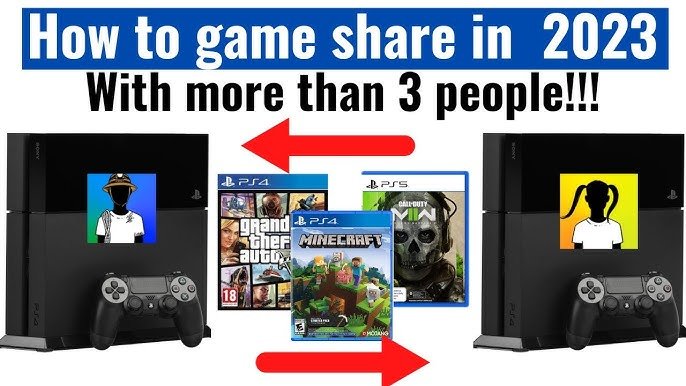
You can game share with one other person on PlayStation or Xbox.
Ever wondered about sharing your digital game library with a friend? It’s a great way to save money and explore a wider range of games. Figuring out exactly how many people can you game share with is key to making this work.
The specifics vary slightly between PlayStation and Xbox, but both consoles essentially limit game sharing to just two accounts. This allows for a single friend or family member to access your purchased games on their device. Keep reading for more info.

How Many People Can You Game Share?
So, you’ve got a bunch of awesome games and want to share the fun? That’s totally cool! Game sharing lets you spread the joy of gaming with your family and friends. But, just like sharing your toys, there are rules to follow. Figuring out how many people you can game share with isn’t always super simple. It depends on the system you’re using. Let’s break it all down so you can start sharing (and playing!) without any hiccups.
Understanding Game Sharing Basics
Before diving into the numbers, it’s good to know how game sharing actually works. Basically, you’re allowing someone else to play the games you own. This usually involves setting up an account on your console or computer. Think of it like having a digital lending library, but instead of books, you have games. The specifics depend on the type of gaming device you have.
The concept of game sharing focuses around the idea of primary and secondary accounts. Your main account is typically the one where all of your purchased digital games and subscriptions are located. Then, you have other accounts on the same console which are considered secondary accounts, which means they can use your games. There are always some limitations on how many secondary accounts you can have.
The Primary Console Concept
The key to most game-sharing systems is the concept of a “primary console.” This is the device that is designated as the main spot where your account’s games can be accessed by anyone who uses that console, even other user accounts. It is normally the console that you use the most, or the one that belongs to the main household user. Having a primary console is important to understand before you share games. Let’s look into this concept for each platform.
Game Sharing on PlayStation
PlayStation offers a pretty straightforward game-sharing system called “Console Sharing and Offline Play.” Here’s what you need to know:
How Many Can Share on PlayStation?
On PlayStation 5, you can activate “Console Sharing and Offline Play” on one PS5 console at a time. This means one other person who has a separate account can play your digital games on that primary PS5 console, even if you’re playing on another PS5 console or on your PC (via Remote Play or Playstation Plus Cloud Streaming). It’s a little bit different on the PS4.
PlayStation 4 Game Sharing Limitations
On a PS4, your account can be activated as the “Primary PS4” for one console at a time. Just like on the PS5, you can share digital games and PlayStation Plus benefits with other accounts on that console. So, again, it is one. The key thing to remember is that the primary console can be changed, but there can only be one at a time.
Setting Up Console Sharing
Setting up game sharing on PlayStation is simple:
- On the primary console (either PS4 or PS5), log into your PlayStation account.
- Go to Settings.
- Navigate to “Users and Accounts.”
- Select “Other.”
- Choose “Console Sharing and Offline Play” (PS5) or “Primary PS4” (PS4), and then select “Enable”.
After doing this, anyone with a secondary user account on that console can access your games and play them (as long as your primary account is logged in). You can disable this option by repeating these steps and select ‘Disable’.
PlayStation Plus Sharing
It’s good to know that if you have PlayStation Plus subscription, your online multiplayer benefits and monthly games are also shared with other accounts on your primary console. However, some PlayStation Plus benefits like cloud saves, game help, and special discounts are tied to the main account holder, but all the other basic benefits, like multiplayer access, do work for all accounts using the console. There is one very specific important note, and this is that Playstation Plus cloud streaming of games, is not shareable on the primary account. This is also true of game help.
Important Notes about Playstation Game Sharing
- You can only share games with other users on the console you have designated as your primary console.
- You can’t play your games on another console at the same time your secondary account is playing your games on the primary console, unless that game has online multiplayer.
- You can’t share games with other friends who have their own consoles.
- If you deactivate your primary console, you’ll have to go through the process of setting up a primary console again.
Game Sharing on Xbox
Xbox game sharing is done through the “Home Xbox” feature. This is very similar to the Playstation’s primary console. This system allows you to share your digital games and Xbox Game Pass subscriptions with others on your chosen console.
How Many Can Share on Xbox?
Like PlayStation, you can only designate one console as your “Home Xbox” at a time. This means that anyone who plays games on that specific console can access your digital library. The main user account holders, games, subscriptions, and benefits are shared with other accounts on the same console. So, yes, again, it is one.
Setting Up Home Xbox
Setting up your Home Xbox is a simple process:
- Make sure you are logged in to your main Xbox Account.
- Press the Xbox button on your controller to open the guide.
- Navigate to “Profile & System” and then “Settings.”
- Select “General” and then “Personalization.”
- Choose “My Home Xbox.”
- Click “Make this my Home Xbox.”
Just like on the Playstation, you can change your primary console, but that means all users on that previous console will no longer have access to your digital games. The console can only be your primary xbox, one at a time.
Xbox Game Pass Sharing
If you have an Xbox Game Pass Ultimate subscription, that also will be shared with other accounts on your Home Xbox. This means everyone on your Home Xbox can enjoy the Game Pass benefits like online multiplayer and access to the Game Pass library of games. However, this again is tied to the same console as the digital games, and not with other Xbox consoles. The subscription only works on the console that is set as your Home Xbox. The account that pays for the subscription can always use the subscription on other consoles, however the secondary accounts on the non-Home consoles cannot.
Important Notes about Xbox Game Sharing
- You can only share games with other users on the Home Xbox.
- Like PlayStation, you cannot play your games on another Xbox at the same time your secondary account is playing your games on the Home Xbox, unless the game has online multiplayer.
- If you decide to remove the primary status on your console, you will have to reassign the Home Xbox status.
Game Sharing on PC
Game sharing on PC is a little different because it depends on the platform you’re using to buy and play the games. The main services are Steam, GOG, Epic Games, and others. Let’s look into each one separately.
Steam Family Sharing
Steam has a great feature called “Steam Family Sharing” which allows you to share your games with a small group of close friends or family members, but it works in a different way than on Xbox or Playstation.
How Many Can Share on Steam?
You can share your Steam library with up to five other accounts at a time, all on different computers. This might seem like a lot more than the consoles, but there are more limitations. The main library account holder has priority when launching games, which means anyone else will be kicked out of a game if you start to play it. If you want to play a game in the library, and another user is playing it, you will have to wait, or choose a different game to play in the library.
Setting Up Steam Family Sharing
Here’s how to set up Steam Family Sharing:
- Log into your Steam account on the computer you want to share from.
- Go to “Steam” in the top left, and then select “Settings.”
- Choose “Family.”
- Check the box that says “Authorize Library Sharing on this computer.”
- Select the Steam account you want to allow access to, and click OK.
The person you shared with will then have to log into their steam account on the same computer, and request access. The sharing can be revoked at any time, by simply revoking access on the same menu as before.
Steam Family Sharing Limitations
- Only one person can play games from the library at a time. If someone is playing one of your games, you won’t be able to play other games in your library until they are finished (unless it is a free game).
- Not all games can be shared. Some games may have technical restrictions that prevent sharing.
- If you have multiple accounts sharing your games, it is unlikely that multiple people will be able to access the games at the same time.
GOG Galaxy Game Sharing
GOG Galaxy is a platform that connects and lets you play games from a variety of services, including GOG.com games, and games from other platforms. The main function is to play your games in one place, however, there are no official game-sharing features. GOG games are normally DRM-free (Digital Rights Management), which means that they do not have any protection to restrict how the game can be played. Since there are no restrictions in place, you can install the game on multiple computers, but you are meant to only share the games with members of your household.
Epic Games Store Sharing
The Epic Games Store does not have an official game sharing option like Steam’s Family Sharing. Since Epic Games do not have any protection on the game files, you are allowed to install the game on other computers, but you are meant to only share the games with members of your household. Like GOG, there is no restriction on installing games on different computers, but this is not a supported feature of the Epic Games platform.
Other PC Game Sharing Methods
Some PC games may have their own ways of letting you share. For instance, some older games may allow you to install the game onto multiple computers. However, these are all on a case-by-case basis, and will depend on the license that you purchased with your games.
Game Sharing and Digital Ownership
It’s important to remember that when you’re game sharing, you’re letting other people access your games. The game is still tied to your account, so in order for the other users to play the game, your account must have the purchased game. If you ever decide to change the passwords of your account, or delete your account, all the other users that were game sharing will not be able to play the games anymore.
This applies to all game sharing platforms. You are not giving away a copy of the game, just letting others play games that you own, as long as you have the access to the game yourself, and your primary console is linked to the secondary user accounts.
Things to Consider Before Sharing
Before setting up game sharing, think about a few things:
- Who will you be sharing with? Do you trust them to respect your account?
- Are there any age-related restrictions for the games?
- Is everyone okay with the rules and restrictions on the platform?
Game sharing is a fun and economical way to enjoy your favorite games with friends and family. The number of people you can share with varies depending on your gaming platform. On both Playstation and Xbox you can share games and subscriptions with one other account on the console that you have set as primary. On Steam, you can share your library with 5 accounts, but you can’t play at the same time as the secondary accounts. On GOG and Epic Games you can install the games on multiple devices but there are no explicit family sharing features. Understanding these limitations and following the instructions carefully, everyone can enjoy gaming while staying within the rules.
How to GameShare on PS5 – OverSimplified (2024)
Final Thoughts
You can game share with one other person on Xbox. This feature allows you and your chosen partner to access each other’s digital game libraries. It is a great way to save money.
It’s important to remember this limit. Only one person can benefit from your sharing, and vice versa. Therefore, how many people can you game share with? The answer is one.

