
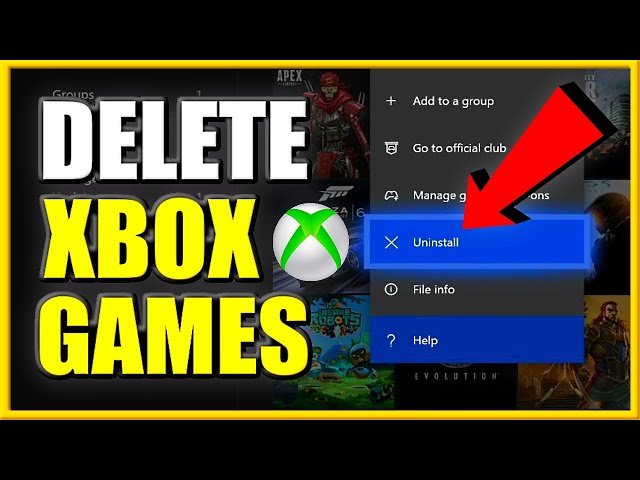
To erase games on Xbox One, highlight the game, press the Menu button, select ‘Manage game & add-ons’, then choose ‘Uninstall’.
Is your Xbox One filling up with games you no longer play? It happens to the best of us! You might find yourself needing to free up space for new titles. Learning how to erase games on Xbox One is actually quite simple.
The process involves navigating the console’s menus to manage your installed content. Once you know the steps, removing unwanted games becomes a breeze. This way, you can keep your storage optimized for the games you love.

How to Erase Games on Xbox One: A Comprehensive Guide
So, your Xbox One is getting a little full, huh? Maybe you’ve downloaded so many awesome games that it’s starting to feel like a digital closet overflowing. Or perhaps you’re just ready to move on from some titles and need that precious hard drive space back. Don’t worry; figuring out how to erase games on your Xbox One is easier than you might think! This guide will walk you through everything step-by-step, so you can manage your game library like a pro. We’ll cover not just deleting games, but also managing save data and even a little about freeing up space.
Understanding Game Storage on Xbox One
Before we jump into deleting games, let’s get a basic understanding of how the Xbox One stores games. Games aren’t just one big file; they often consist of the game itself, downloadable content (DLC), and your saved game data. Knowing this will help you make informed choices when you decide what to keep and what to get rid of. Think of it like this: the main game is the core book, the DLCs are extra chapters, and your save data is your bookmark showing where you left off.
Where are Games Stored?
Your games on Xbox One can be stored in two main places:
- Internal Hard Drive: This is the built-in storage inside your Xbox One. It’s usually the first place games are installed.
- External Hard Drive: You can connect a USB external hard drive to your Xbox One to expand storage. It’s a great way to keep more games without filling up the internal space.
Knowing where your games are stored helps you find them easily when you want to delete them.
What Happens When You Delete a Game?
When you delete a game from your Xbox One, you’re removing the game files themselves. This will free up storage space. However, it’s important to know that deleting a game does not automatically delete your save data. This means you can usually reinstall a game later and continue from where you left off. We’ll get into managing save data shortly.
Deleting Games from Your Xbox One
Now, let’s get to the main event: deleting games! The process is very simple, whether you are deleting a game on the console itself, or via Xbox mobile app. Here are the most common and effective methods to remove games.
Deleting Games Through ‘My Games & Apps’
This is the primary method most users employ. It’s straightforward and efficient. Here’s how to do it:
- Turn on your Xbox One: Get your console up and running.
- Go to ‘My games & apps’: You can usually find this on the Home screen. It’s the place where all your installed games and apps are located.
- Navigate to ‘See all’: Select this option to show all of your games.
- Select ‘Games’: This will filter the list to only show games.
- Highlight the game you want to delete: Use the directional pad or left thumbstick to highlight the game you wish to remove.
- Press the Menu button: This is the button with three horizontal lines on your controller.
- Select ‘Manage game & add-ons’: A menu will pop up, and you’ll want to find the option that says “Manage game & add-ons”. Choose it.
- Select ‘Uninstall’: Once you select that option, the console will show that the game is ready to be uninstalled. Now you need to select the ‘Uninstall all’ or ‘uninstall’, depending on the game. If there is any DLC for the game, then it’ll show ‘uninstall all’ option, otherwise, if there is no extra content or DLC related to the game, you can simply select ‘uninstall’.
- Confirm Your Choice: The Xbox One will ask you to confirm that you want to delete the game. Confirm, and the game will start uninstalling.
The uninstall time can vary depending on the size of the game. You’ll see a progress bar as it gets removed. Once it’s done, the game will no longer be on your storage. Remember, you can always re-download it later from your game library. The next method is to delete games via the Xbox mobile app.
Deleting Games Through Xbox Mobile App
This is a great way to delete games without turning on your console. Very handy, when you’re not sitting in front of the TV. Here’s how it works:
- Install the Xbox app: First you need to download and install the Xbox app on your smartphone or tablet. The app is available on both the App Store for iPhones/iPads and the Google Play Store for Android devices.
- Sign in to your Xbox account: Once the app is installed, log in with the same Microsoft account you use on your Xbox One.
- Tap the ‘Library’ icon: In the app, locate the ‘Library’ icon, usually located at the bottom of the screen. Tap on it.
- Select ‘Games’: This will filter your list, showing just the games you own.
- Find the game you want to delete: Scroll down to find the game you want to remove.
- Tap the three dots: Tap the three vertical dots (the ellipsis) next to the game’s name.
- Select ‘Uninstall from console’: From the menu that pops up, choose “Uninstall from console”.
- Choose the console: If you have more than one Xbox, the app will prompt you to select the console you want to remove the game from. Choose your Xbox One.
- Confirm: Confirm your action. The game will now be uninstalled from your Xbox One remotely.
Using the mobile app to delete games is very convenient and is a great option when you can’t access your console directly. Both methods described above are equally effective, and you can choose the one that suits you best.
Managing Save Data on Xbox One
As we discussed, game save data is not usually deleted when you uninstall a game. That’s a good thing because it means you won’t lose your progress. However, sometimes you might also want to remove save data, either to start a new game fresh, or to free up more space. Here’s how to manage your save data.
How to Delete Save Data from Xbox One
Here’s how to remove your game save data:
- Go to ‘My games & apps’: On the Home screen of your Xbox One, navigate to ‘My games & apps’.
- Select ‘See all’: Open all of your installed games and apps.
- Select ‘Games’: This will show you only games.
- Highlight the game: Use the directional pad or left stick to highlight the game whose saved data you wish to remove.
- Press the Menu button: Press the Menu button on your controller, and the option menu will appear.
- Select ‘Manage game & add-ons’: The menu will appear and you need to select the ‘manage game & add-ons’ option.
- Select ‘Saved data’: In this section, you’ll find the game save data.
- Select the save data: Here you’ll see the list of saved data for the selected game. You can have one save, or multiples. You can manage, view, or remove the specific game saves. Select the one you wish to remove.
- Select ‘Delete’: You will see an option to ‘delete’. Select this to remove the game save data.
- Confirm your choice: The system will ask you to confirm if you want to delete the save data. Select the confirm button to finalize the deletion of the save data.
Please note: that deleting saved data is permanent. Once you delete it, there is no way to recover it. Be 100% certain before you confirm the deletion. Also, consider, you might not be able to use the specific game’s cloud saves, and you have to start the game completely from the beginning if the cloud sync fails.
Understanding Cloud Saves
The Xbox One uses cloud saves, which means your save data is backed up to Microsoft’s servers. This is great because it protects your data if your console breaks down, and it allows you to pick up where you left off when you play the game on a different Xbox. When you delete your local save data, the cloud save is not deleted. If you reinstall the game, your save data will re-sync from the cloud, allowing you to continue where you left off. In simple terms, cloud saves are like a backup on the internet. However, if you delete all the saves, including cloud saves, then you won’t be able to recover it, and you’ll have to start from scratch if you install the game again.
Freeing Up Space on Your Xbox One
Deleting games is a very helpful way to free up space, but there are some other methods you should also consider. Here’s how to do it.
Moving Games to an External Drive
If you don’t want to delete games, but you’re running out of space on your Xbox One’s internal drive, moving them to an external hard drive is a great option. Here’s how to do it:
- Connect your external hard drive: Ensure your external hard drive is connected to your Xbox One via a USB port. The hard drive should be USB 3.0 or faster for the best performance.
- Go to ‘My games & apps’: Navigate to ‘My games & apps’ from the Home screen.
- Select ‘See all’: Click on the ‘See all’ to show all your installed games and apps.
- Select ‘Games’: Filter to view just games.
- Highlight the game to move: Select the game you wish to move using the directional pad or left stick.
- Press the Menu button: Open the menu options by pressing the Menu button on your controller.
- Select ‘Manage game & add-ons’: Find this option from the menu and select it.
- Select ‘Move or copy’: Choose the ‘Move or copy’ option.
- Choose your external drive: The Xbox will ask where you want to move the game. Select your external hard drive from the list.
- Select ‘Move’: Now select ‘Move’, and the game will transfer to the external drive. This will free up space on your internal hard drive.
Moving the game to an external hard drive doesn’t delete it from your library, it simply transfers the game files. You can play the game just as you normally would from the external hard drive.
Uninstalling Apps and Other Content
Games aren’t the only things that use up space. Apps, game trailers, and other types of content can also take up precious storage. Here’s how you can manage them.
Uninstalling Apps
- Go to ‘My games & apps’: Navigate to this option from the Home screen.
- Select ‘See all’: Open all of your installed content.
- Select ‘Apps’: Filter your list to only show installed apps.
- Highlight the app: Select the app you want to uninstall.
- Press the Menu button: Open the options menu by pressing the Menu button.
- Select ‘Uninstall’: Choose the ‘uninstall’ option.
- Confirm: Confirm that you want to uninstall the app.
The process for uninstalling apps is very similar to uninstalling games. Removing apps you rarely use can provide a noticeable amount of free space. Also, you can uninstall game trailers, previews, etc, using the same method. It can help you to free up some additional space.
Clearing Local Saved Games Cache
Sometimes, old game cache can still take up unnecessary space on your system, or can cause conflicts. You may want to clear this old cache. This can help optimize the performance and free up space. Here’s how to clear the local saved game cache on your Xbox One:
- Press the Xbox button: From the main menu or while in a game, press the Xbox button on your controller to open the guide.
- Navigate to Settings: Using the directional pad or left stick, navigate to the ‘Settings’ icon (the gear) in the guide. Select it.
- Select System: In the Settings menu, select the ‘System’ option.
- Select Storage: Then, choose the ‘Storage’ option from the system settings.
- Select ‘Clear local saved games’: When prompted, you’ll see the ‘Clear local saved games’ option, select this. You may see the message that this option will restart your console.
- Confirm and Restart: Confirm that you want to clear the cache. Your Xbox One will automatically restart. After the restart, the local save cache will be cleared.
This action only clears the local save cache. Your cloud saves will not be affected. This is useful when experiencing corrupted saved games or other game-related issues. It also frees up small amount of space.
Tips for Managing Storage
Here are a few tips to keep your Xbox One storage in check:
- Regularly review your games: Take some time every so often to go through your games and apps to see if there’s anything you no longer use.
- Use an external hard drive: Consider investing in an external hard drive, especially if you like to play a lot of games.
- Uninstall game demos: If you tried a demo and you won’t buy the game, go ahead and delete the demo to free up some extra storage.
- Manage cloud saves: Be careful about deleting save data, but if you are certain, use cloud saves to keep your progress safe, if you play on multiple consoles.
- Keep your system updated: Make sure your Xbox One is always running the latest software. Updates can help with storage management and performance.
Deleting games on Xbox One is an essential skill for managing your digital library. By following these steps, you can easily keep your Xbox running smoothly and make room for more of your favorite games. Don’t be afraid to remove games; you can always re-download them later. Remember to manage your saved data wisely, and use external storage to expand your game collection. With a little practice, you’ll be keeping your Xbox One optimized. Also, by using the xbox mobile app, you can manage your games remotely, which provides extra convenience. Always double check, before deleting anything, whether game saves, or game files to avoid any future hassle.
How to DELETE GAMES on XBOX ONE & Uninstall APPS (Easy Method!)
Final Thoughts
To erase games on Xbox One, navigate to ‘My games & apps’, select ‘See all’, highlight the game, press the ‘Menu’ button, choose ‘Manage game’, then select ‘Uninstall’. Confirm to remove it from your console. This process frees up valuable storage space.
Deleting games is simple, you must go through menu options for each title. Remember, this action removes the game but not your saved progress. You can always re-download games from your library.

