
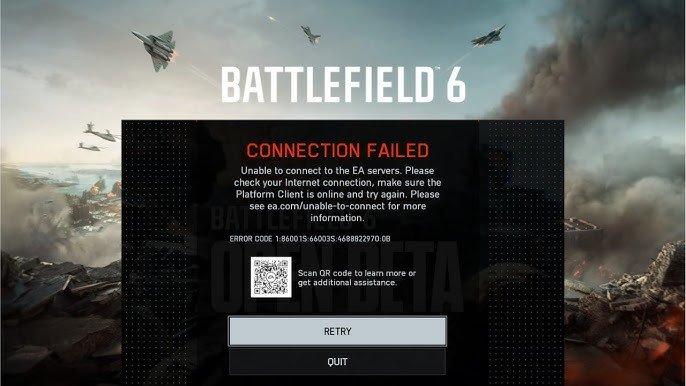
To fix Battlefield 6 beta connection issues on PS5, try restarting your PS5 and router. Also, check your internet connection speed, close unnecessary background applications, and ensure Battlefield 6 servers aren’t experiencing outages.
Experiencing frustrating connection problems with the Battlefield 6 beta on your PS5? You are not alone! Many players encountered similar hurdles.
If you are wondering how to fix Battlefield 6 beta connection issues on PS5, we’ve got some quick and easy solutions. Let’s get you back into the action and dominate the battlefield.
We will cover the most common troubleshooting steps to get you connected smoothly. Follow these simple steps, and you will hopefully be back to fragging in no time.

How to Fix Battlefield 6 Beta Connection Issues on PS5
Experiencing connection problems during the Battlefield 6 beta on your PS5 can be incredibly frustrating. You’re eager to jump into the action, but error messages and lag are holding you back. Let’s explore solutions to get you connected and playing smoothly.
Checking Battlefield Server Status
Before troubleshooting your own setup, confirm the game servers are operational. Sometimes the problem isn’t on your end. Server outages are common during beta periods due to high traffic.
Official Channels: Check the official Battlefield social media accounts (Twitter, Facebook) for announcements.
EA Help: Visit the EA Help website for updates on server status.
Community Forums: Look for reports from other players in online forums like Reddit or the EA Answers HQ.
If the servers are down, all you can do is wait. Keep checking for updates until they’re back online.
Troubleshooting Your Internet Connection
A stable internet connection is essential for online gaming. Even a brief interruption can disconnect you from the Battlefield 6 beta. Let’s check your connection and troubleshoot potential problems.
Testing Your Internet Connection on PS5
The PS5 has a built-in tool to test your internet connection. Use it to identify any issues. This can give you a baseline to start from.
Go to Settings: Navigate to Settings from the PS5 home screen.
Select Network: Choose the “Network” option.
Test Internet Connection: Select “Test Internet Connection.”
Review Results: Pay attention to the connection speed and any error messages.
If the test reveals low speeds or errors, continue with the following troubleshooting steps.
Restarting Your Router and Modem
A simple restart can often resolve temporary network glitches. Power cycling your modem and router is a basic troubleshooting step. Wait a full minute after unplugging them.
Unplug Your Modem and Router: Disconnect the power cables from both devices.
Wait 60 Seconds: Let them sit unplugged for a minute.
Plug in Your Modem: Plug the modem back in and wait for it to fully power on.
Plug in Your Router: Plug the router back in and wait for it to power on.
After they’re both back online, test your connection again on the PS5.
Using a Wired Connection (Ethernet)
Wi-Fi can be susceptible to interference and instability. A wired Ethernet connection offers a more reliable and faster connection. Consider switching from Wi-Fi to Ethernet for the Battlefield 6 beta.
Connect Ethernet Cable: Plug an Ethernet cable directly into your PS5 and your router.
Configure Network Settings (if needed): Your PS5 should automatically detect the wired connection. If not, configure it manually in the Network settings.
A wired connection often provides a significant improvement in stability and latency.
Optimizing Your Wi-Fi Connection
If you must use Wi-Fi, try to optimize it for gaming. Reducing interference can help. Distance and obstacles can weaken your Wi-Fi signal.
Move Closer to the Router: Place your PS5 closer to the router.
Reduce Interference: Keep the router away from other electronic devices that could cause interference (microwaves, Bluetooth devices).
Change Wi-Fi Channel: Use a Wi-Fi analyzer app on your phone or computer to find the least congested channel and change your router’s channel settings.
Optimizing your Wi-Fi can improve connection stability, even if you can’t switch to Ethernet.
Adjusting PS5 Network Settings
Tweaking your PS5’s network settings can sometimes improve connection stability and performance. Experiment with these options to see if they help. Incorrect network settings can lead to connection issues.
Using Google’s DNS Servers
Google’s DNS servers are often faster and more reliable than your ISP’s default DNS servers. Changing to Google’s DNS can improve your connection. This is a common tweak for gamers.
Go to Settings: Navigate to Settings > Network > Settings > Set Up Internet Connection.
Select Your Connection: Choose your Wi-Fi network or LAN cable.
Advanced Settings: Select “Advanced Settings.”
DNS Settings: Set DNS Settings to “Manual.”
Primary DNS: Enter 8.8.8.8.
Secondary DNS: Enter 8.8.4.4.
Save the changes and test your internet connection again.
Enabling UPnP (Universal Plug and Play)
UPnP allows devices on your network to automatically configure port forwarding. This can make it easier for your PS5 to connect to game servers. However, some security experts advise against enabling UPnP due to potential vulnerabilities.
Access Router Settings: Log in to your router’s settings page through a web browser.
Find UPnP Settings: Look for UPnP settings (usually under “Advanced” or “Gaming” settings).
Enable UPnP: Enable the UPnP option.
Restart Router: Restart your router for the changes to take effect.
Consider the security implications before enabling UPnP.
Port Forwarding for Battlefield 6
If UPnP isn’t working or you prefer more control, you can manually forward the ports required for Battlefield 6. This can improve connection reliability. You’ll need to know your PS5’s IP address for this.
Find Required Ports: Search online for the specific ports required for Battlefield 6 on PS5.
Access Router Settings: Log in to your router’s settings page.
Find Port Forwarding Settings: Look for port forwarding settings (usually under “Advanced” or “Gaming”).
Add Port Forwarding Rules: Create rules for each port, forwarding them to your PS5’s IP address.
Restart Router: Restart your router after adding the rules.
Be sure to research the correct ports for Battlefield 6 on PS5.
Closing Unnecessary Applications
Running multiple applications simultaneously can consume network bandwidth and system resources. Close any unnecessary applications to improve performance. This includes apps running in the background.
Close Games: Close any other games running on your PS5.
Close Streaming Apps: Close streaming apps like Netflix or Spotify.
Disable Downloads: Pause or cancel any ongoing downloads.
Freeing up resources can improve your connection to the Battlefield 6 beta.
Updating Your PS5 System Software
Outdated system software can sometimes cause compatibility issues and network problems. Make sure your PS5 is running the latest system software. Updates often include performance improvements and bug fixes.
Go to Settings: Navigate to Settings > System > System Software.
Update System Software: Select “Update System Software.”
Update via Internet: Choose “Update via Internet” to download and install the latest update.
Keep your system software up to date for optimal performance.
Checking for PSN Outages
The PlayStation Network (PSN) is required for online gaming on the PS5. PSN outages can prevent you from connecting to the Battlefield 6 beta. Check the PSN status before troubleshooting further.
PSN Status Page: Visit the official PlayStation Network Service Status page.
Social Media: Check PlayStation’s social media channels for updates.
Community Forums: Look for reports from other players experiencing PSN issues.
If PSN is down, you’ll need to wait until it’s restored before you can play online.
Reinstalling the Battlefield 6 Beta
Sometimes, corrupted game files can cause connection problems. Reinstalling the Battlefield 6 beta can resolve these issues. This ensures you have a clean installation.
Delete the Game: Delete the Battlefield 6 beta from your PS5.
Re-download the Game: Re-download the beta from the PlayStation Store.
Install the Game: Install the game again.
A fresh installation can fix corrupted files causing connection issues.
Contacting EA Support
If you’ve tried all the above steps and are still experiencing connection problems, contact EA Support for assistance. They may be able to identify specific issues with your account or network. Be prepared to provide details about your setup and the troubleshooting steps you’ve already taken.
EA Help Website: Visit the EA Help website.
Create a Support Ticket: Submit a support ticket describing your issue.
Provide Details: Include details about your connection, error messages, and troubleshooting steps.
EA Support can offer personalized assistance and help resolve complex issues.
PS5 Specific Network Considerations
The PS5 has a few network features that, while beneficial in many cases, may sometimes cause unforeseen issues during beta periods or with specific games like Battlefield 6.
Disabling the PS5’s Built-in VPN (If Enabled)
Some users configure VPNs directly on their PS5 for various reasons. During a beta, it’s wise to disable this to rule it out as a potential conflict. VPNs can introduce latency and routing issues, impacting your connection quality.
Go to Network Settings: Navigate to Settings > Network > Settings.
Check VPN Configuration: Look for any VPN configurations you may have set up. This might be under a separate advanced network section.
Disable the VPN: Disable the VPN profile or settings.
Restart PS5: Restart your PS5 for the changes to take effect.
Test your connection to the Battlefield 6 beta after disabling the VPN.
Checking MTU Settings
MTU (Maximum Transmission Unit) defines the largest packet size that can be transmitted over a network. Incorrect MTU settings can sometimes lead to connection problems.
Finding MTU Settings: The PS5 doesn’t directly expose MTU settings for manual adjustment. However, optimizing your router’s MTU can sometimes indirectly affect the PS5’s connection.
Router MTU Settings: Log in to your router’s configuration page.
Default MTU Value: The default MTU value is typically 1500. Some ISPs might require a smaller value.
Experimenting (Cautiously): If you suspect MTU issues, try slightly reducing the MTU value on your router (e.g., to 1472). After each adjustment, test your connection. Note that incorrect MTU settings can cause widespread connectivity issues, so change this only if you understand the implications.
It’s usually best to leave MTU settings at their default unless you have a specific reason to change them. Always note the original setting before making changes.
Fix Battlefield 6 Beta Online Services Connection Failed (Error 1:86001S:66003S)
Final Thoughts
To fix Battlefield 6 beta connection issues on PS5, verify your internet connection is stable. Restart your PS5 and router.
Check the Battlefield server status to ensure the issue isn’t on their end. This is a must-do step!
If problems persist, try changing your DNS settings or forwarding ports related to Battlefield. These steps will usually resolve ‘how to fix Battlefield 6 beta connection issues on PS5’.

