
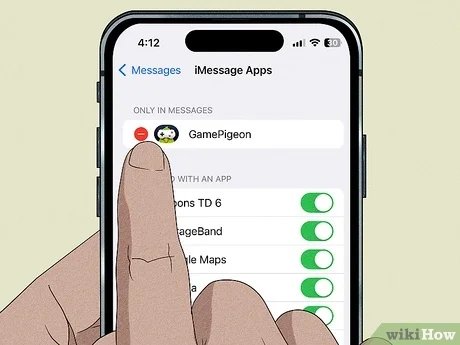
To fix Game Pigeon, try updating the app, restarting your device, or checking for a stable internet connection. If issues persist, reinstalling the app might help.
Game Pigeon, a fun iMessage extension, sometimes throws a curveball, leaving you frustrated. You’re not alone if you’ve been asking, “how to fix Game Pigeon.” Many users experience occasional glitches or connectivity problems that interrupt their gaming sessions. Let’s delve into some simple solutions you can quickly implement.
Often, a quick app update can resolve most issues. Similarly, rebooting your iPhone or iPad can help clear any temporary bugs affecting game play. A poor Wi-Fi or cellular signal is another frequent culprit so always confirm your connectivity is strong.

How to Fix Game Pigeon: A Comprehensive Guide
Game Pigeon is super fun, right? You get to play all sorts of mini-games with your friends through iMessage. But sometimes, things go wrong. Maybe the games aren’t loading, or you can’t connect with your buddy. Don’t worry! This guide is here to help you fix those annoying problems and get back to playing. We’ll cover all the common issues and give you easy steps to try.
Common Game Pigeon Problems
Before we dive into fixing, let’s talk about what might be going wrong. Game Pigeon can have a few hiccups. Here are some of the most common issues you might encounter:
- Games not loading or getting stuck.
- Difficulty connecting with friends.
- The app crashing or freezing.
- Lagging or slow performance during gameplay.
- The game not appearing in iMessage.
- Issues with specific games within Game Pigeon.
- Updates not installing correctly.
Checking the Basics: Simple First Steps
Sometimes, the fix is super simple. Let’s try these basic checks first before we move on to more involved solutions:
Internet Connection
A stable internet connection is key for online games. If your Wi-Fi is weak or your data signal is poor, Game Pigeon might have trouble connecting. Here’s how you can check:
- Check your Wi-Fi: Make sure your phone is connected to a strong Wi-Fi signal. If you’re far from your router, try moving closer.
- Switch to Mobile Data: If Wi-Fi isn’t working well, turn it off and try using your mobile data. Just be mindful of how much data you’re using.
- Test Your Connection: Open your phone’s browser and go to a website. If it loads slowly or not at all, your internet might be the problem, not Game Pigeon. Try restarting your modem and router.
Restarting the iMessage App
Sometimes, the iMessage app can get a little buggy. Simply closing it and reopening it might solve the issue:
- Close the iMessage app: Swipe up from the bottom of the screen and then swipe the iMessage app card off the screen to close it.
- Reopen the iMessage app: Tap the iMessage app icon to open it again. Try starting a new game and see if it’s working better.
Restarting Your iPhone
Like any computer or gadget, your iPhone might need a fresh start from time to time. This is a quick way to clear any temporary glitches:
- Turn off your iPhone: Press and hold the power button (and either volume button on newer models) until the “slide to power off” slider appears.
- Turn on your iPhone: Wait a few seconds and then press the power button again to turn your iPhone back on.
Checking for iOS Updates
Apple regularly releases updates for your iPhone software, and sometimes these updates can fix bugs that cause problems with apps like Game Pigeon. Here’s how to check:
- Open Settings: Tap on the Settings app icon on your iPhone home screen.
- Go to General: Scroll down and tap on the “General” option.
- Select Software Update: Tap on “Software Update.” Your phone will check for new updates.
- Install Update (if Available): If there’s an update, download and install it. Make sure your phone is connected to Wi-Fi and has enough battery power to complete the update.
Troubleshooting Specific Game Pigeon Issues
Now, let’s tackle some of the more specific problems you might be facing:
Games Not Loading
If a game is getting stuck or not loading at all, it could be a few things. Try these steps:
- Close and Reopen the Game: In iMessage, tap the “x” button to close the game conversation. Then open a new game and see if it loads correctly.
- Check for Game Pigeon Updates: Sometimes, the app itself needs an update. Open the App Store, search for “Game Pigeon”, and see if there is an “Update” button. Tap it if you see one.
- Free Up Phone Storage: If your phone is running low on storage space, it could slow down apps. Delete unnecessary apps, photos, or videos to free up some space.
- Try a Different Game: If one game won’t load, try a different one within Game Pigeon to see if the issue is specific to one game.
Difficulty Connecting with Friends
Having trouble connecting with your friend to play? Try these fixes:
- Check your friend’s iMessage: Make sure your friend has iMessage turned on and that they are not having any connection issues.
- Make sure you are connected to iMessage: Go to Settings, then messages, and ensure that iMessage is toggled on.
- Start a New Conversation: If you have an existing chat, try starting a brand-new message with the friend you want to play with, and start the game from there.
- Check Game Pigeon Permissions: Go to Settings, scroll down to find “Game Pigeon”, and make sure it has the necessary permissions enabled.
Game Pigeon App Crashing or Freezing
If the game crashes or freezes constantly, try these:
- Force Quit Game Pigeon: You can force quit the Game Pigeon app by swiping up from the bottom of your screen, finding the Game Pigeon app card, and swiping it up to close it.
- Reinstall Game Pigeon: If force quitting does not solve the issue, you might consider uninstalling and reinstalling Game Pigeon. To uninstall, tap and hold on the Game Pigeon icon until it begins to shake, then tap the “x” that appears. To reinstall, head to the App store, search “Game Pigeon” and then install it.
- Check For Phone Updates: Make sure that your phone software is up to date as this could be a reason why Game Pigeon is crashing on you.
Lagging or Slow Gameplay
Is the game running slowly, with lag? Here’s how to improve performance:
- Close Other Apps: If you have other apps running in the background, they might be using up your phone’s resources. Close any apps you’re not using to free up more space.
- Clear Your Phone’s RAM: Restarting your phone can also clear RAM, which might improve performance.
- Avoid Low Power Mode: Low Power Mode can sometimes slow down apps, so make sure it’s turned off for optimal performance.
Game Pigeon Not Appearing in iMessage
Sometimes, the game icon might disappear from your iMessage app drawer. Here’s what to do:
- Check the App Drawer: Make sure the app drawer isn’t hidden. Tap on the app drawer icon (it looks like a little “A”) to make sure it’s open, and then scroll through the apps to find Game Pigeon.
- Manage Apps: If Game Pigeon isn’t showing, tap the app drawer icon, then tap the “+” button near the bottom of the screen, scroll to the bottom, tap on “Manage”, and make sure that “Game Pigeon” is toggled on.
- Reinstall Game Pigeon: As mentioned before, uninstalling and reinstalling Game Pigeon could fix the issue.
Issues with Specific Games
Sometimes, a specific game within Game Pigeon might have a bug or issue that affects it specifically. Try these options to fix problems related to certain games within Game Pigeon:
- Try A Different Game: See if other games work. If other games work, then the issue is most likely related to that specific game, and you might need to wait for an update from Game Pigeon, or you can contact the support team for help.
- Check For Updates: There might be an update for the game, so make sure to go to the App Store and see if there is an update available for Game Pigeon.
Updates Not Installing Correctly
If an update isn’t installing for Game Pigeon correctly, here are some possible fixes:
- Check Your Storage: Make sure you have sufficient storage space to install any updates for Game Pigeon.
- Wi-Fi issues: Make sure your Wi-Fi signal is strong, and that there is no interference. Sometimes weak internet can lead to problems in installing an update.
- Restart your Phone: Restarting your iPhone is always a quick fix to clear up any temporary bugs.
- Pause and Resume Update: Sometimes, pausing and resuming the update in the app store can fix an installation problem.
- Reinstall Game Pigeon: If nothing else helps, delete Game Pigeon and install it again. This will ensure that you have the latest version.
Contacting Game Pigeon Support
If you’ve tried all of the above steps and you’re still having problems, it might be time to reach out for help. Here’s how you can contact the Game Pigeon support team:
- Find their contact information: Usually, app developers provide contact information on the App Store page for their app. Look for a link that says “App Support” or “Developer Website.”
- Explain your issue: Be very clear about what problems you are having and which steps you’ve already tried.
- Be patient: Support teams sometimes get many requests, so please be patient while waiting for a response.
Fixing Game Pigeon issues can sometimes take a bit of troubleshooting, but hopefully, these steps will help you get back to playing your favorite games with your friends. It is important to always check for updates, have a stable internet connection, and try the basic fixes before going to more advanced troubleshooting options. If you’re still facing problems after trying the given solutions, don’t hesitate to contact support to help you get the games running smoothly!
How to fix Game Pigeon showing up as a picture in messages
Final Thoughts
To summarize, restarting your device often resolves minor glitches. Ensure your iMessage is active, and the app is updated. These are the first steps to try when you face problems.
If simple solutions don’t work, reinstalling Game Pigeon might be necessary. Check your internet connection too, as poor connectivity impacts the game. This usually fixes issues.
Ultimately, the best advice on how to fix game pigeon includes checking for updates. A combination of these simple steps can get you back to playing.

