
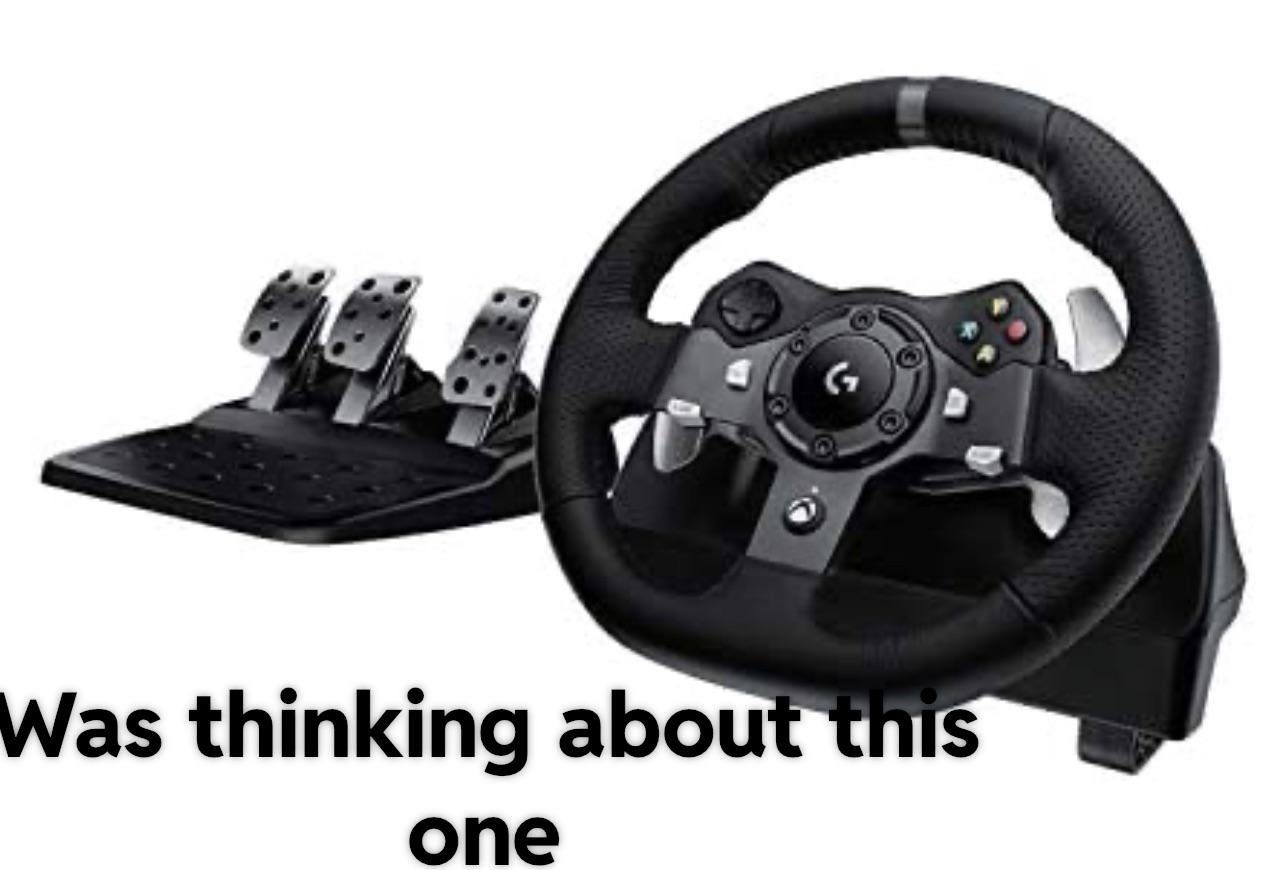
To fix the Logitech G29 steering wheel misalignment with the game, try recalibrating the wheel in the game settings or the Logitech G Hub software. Also, ensure your game profile is correct and the drivers are up-to-date.
Ever find yourself battling virtual corners with a wheel that just doesn’t quite match the action on screen? It can be incredibly frustrating when your Logitech G29 steering wheel is misaligned with the game, throwing off your entire driving experience. But don’t worry, you’re not alone and there are some simple steps you can take. This is a common problem and thankfully it is easily solved. Let’s talk about how to fix Logitech G29 steering wheel misaligned with game, so you can get back to racing.

How to Fix Logitech G29/G920 Steering Wheel Misaligned with Game
Having your Logitech G29 or G920 steering wheel not lining up correctly with what’s happening in your game can be super frustrating. Imagine trying to make a sharp turn in a racing game, but your virtual car is turning way more or less than your real-life wheel! It can ruin the whole fun and make it impossible to play accurately. This misalignment issue can come from a variety of things, and thankfully, there are several ways to tackle it. Let’s get your wheel and game working together perfectly again.
Understanding Why Misalignment Happens
Before we jump into fixing things, it helps to know why your steering wheel might be off. Several culprits often cause this problem. Let’s explore some of the most common reasons:
Game Settings Issues
Many games have their own settings for steering wheels. If these are set up incorrectly, it will cause a misalignment. Some common settings that can cause trouble are:
- Steering Wheel Sensitivity: If this is too high or too low, the game might not match the wheel’s movements. A highly sensitive setting can result in the game making sharper turns with minimal wheel movement and vice versa.
- Steering Deadzone: A dead zone is a range where the wheel’s movement doesn’t register. If it’s too large, the car might not turn when you expect it to, making it seem misaligned. A small deadzone will provide immediate feedback but may feel twitchy, while a larger deadzone will need more movement of the wheel to register in the game.
- Force Feedback Settings: While not directly causing misalignment, incorrect force feedback settings can make the wheel feel strange and might make it harder to control the vehicle, and giving an impression of misalignment.
- Degree of Rotation: Games may have an incorrect steering rotation setting compared to the wheel’s hardware settings. This mismatch causes the game and the steering wheel to have a discrepancy in how much the vehicle turns during gameplay.
Driver Problems
The drivers for your Logitech wheel are the software that lets your computer and the wheel talk to each other. If these drivers are old or broken, the wheel won’t work correctly.
Physical Issues
Sometimes, the issue is with the wheel itself. It is very rare though and in most of the case its software or game settings related issue.
- Wheel Calibration: Over time or after an impact, the wheel may not be properly calibrated by hardware and needs to be recalibrated.
- Loose Connections: Cables and connections on your wheel may get loose, causing problems with the signals sent to the computer, and leading to misalignment.
Simple First Steps to Try
Before we get into the deeper fixes, let’s try some quick checks. Sometimes, the solution is super easy:
- Restart Everything: Turn off your computer, wheel, and game. Turn them back on, and see if the problem is gone. Sometimes, a fresh start is all you need.
- Check Connections: Make sure all the cables for your wheel are plugged in tightly. Even a slightly loose connection can cause problems.
- Update Drivers: Make sure you are using the latest Logitech drivers. Go to the Logitech website, find your wheel, and download the most recent driver. This is important for your wheel to work properly.
- Try a Different Game: See if the misalignment is happening in another game. If the wheel works fine in other games, it’s likely that problem is with the game settings, and not hardware or driver related issue.
Dive into Game Settings
If the quick fixes didn’t help, it’s time to adjust your game’s settings. Here’s how you can do it:
Finding the Right Settings
Each game has its settings in different areas. Look for things like “Controls,” “Input,” or “Wheel Settings”. Here’s how to approach the most important settings:
- Steering Wheel Sensitivity: Start with a medium sensitivity and see how the steering feels. If you have to turn the wheel a lot to make a turn in the game, reduce the sensitivity. If the car turns too sharply with a small wheel movement, then decrease the sensitivity.
- Steering Deadzone: Begin with a small dead zone. If your car feels twitchy, increase it slightly. A small deadzone is good for the quick turn and response, but a larger one will provide stability in the game. Try a value of 5-10%, and adjust to what suits best for you.
- Force Feedback: You should set the feedback settings according to the feel you want, and it does not have any impact on the misalignment. You should always set this as per the game requirement and as per your preference.
- Degree of Rotation: Set this according to the Logitech steering wheel settings. A typical value for Logitech G29/G920 is 900 degrees, but it is always recommended that you set it as per the game requirement.
Saving Your Settings
After making the changes, remember to save the settings. Some games might not automatically save your changes. If you don’t see a “save” button, quit and relaunch the game, to verify if your changes saved or not.
Using Logitech G HUB
Logitech G HUB is a software that manages your Logitech devices. It has some extra tools that can help with steering wheel alignment:
Installing Logitech G HUB
If you don’t have it already, download and install Logitech G HUB from the Logitech website. It should automatically identify and set up your steering wheel.
Calibrating Your Wheel
G HUB usually calibrates the wheel automatically. However, if you have any issue with alignment or some sort of hardware error related to steering or wheel then you can do a manual calibration. Here’s how:
- Open G HUB.
- Click on your G29 or G920 wheel.
- Look for a “Calibration” or “Steering Wheel” section.
- Follow the on-screen steps to calibrate your wheel. It will require you to rotate the wheel completely in both directions.
- After Calibration is done, test in the game.
Checking Game Profiles
G HUB also lets you create custom profiles for different games. If the settings are misconfigured in the game, then G HUB profile will override the game setting. Creating profiles for the specific games makes it easier to setup. Here’s how:
- Open G HUB.
- Click on your wheel.
- Select Profiles.
- You can select predefined profiles, if there is for that specific game, or create new custom one.
- Add the specific game to the profile and adjust the settings, as per game settings requirements.
- Save the profile and launch the game, to test the setting.
Advanced Troubleshooting
If you are still having trouble, it might be time to try some advanced solutions:
Reinstalling Drivers
Sometimes, even the newest drivers can have problems. Reinstalling the drivers can often fix glitches. Here’s how:
- Open Device Manager (type it in the Windows search bar).
- Expand “Human Interface Devices.”
- Find your Logitech wheel.
- Right-click and select “Uninstall device”.
- Unplug the wheel from the computer.
- Restart your computer.
- Plug the wheel back in. Windows should reinstall the drivers automatically, but if it does not you can install it from the Logitech website.
Checking Windows Settings
Windows sometimes interferes with the way the steering wheel works. Check the following:
- Game Controllers Settings: Go to “Control Panel”, then select “Hardware and Sound”, and then “Devices and Printers”. You should see your wheel in this window. Right-click on the device and select “Game controller settings”. You will see a screen like this, in this screen you can test your steering wheel and buttons. Check for the correct movement of the virtual wheel.
- USB Power Settings: Sometimes, USB ports don’t supply enough power. Go to Device Manager, find “Universal Serial Bus controllers,” right-click on each USB Root Hub, select “Properties”, and then under the “Power Management” tab uncheck the “Allow the computer to turn off this device to save power” option, if this option is selected.
Hardware Checks
Although very rare, it is always recommended to check the hardware for any kind of issue.
- Inspect Cables: Check your wheel’s cables for any damage. Try using a different USB cable, if possible.
- Check the Power Supply: Ensure your wheel’s power supply (if it has one) is working properly.
- Wheel calibration: If your wheel needs hardware calibration, then you might need to follow the user manual of the wheel.
When to Seek Professional Help
If you’ve tried everything and the misalignment persists, it might be time to contact Logitech support or a professional technician. There might be some underlying hardware issues or defects, that you cannot fix on your own.
Hopefully, by going through these steps, you can get your Logitech G29 or G920 steering wheel perfectly aligned with your game and have a fantastic time racing again!
Logitech "Washer Fix" – G920/G29 Wheel Disloaction/Bending/Sync Fix
Final Thoughts
To address wheel misalignment, first try recalibrating within the game’s settings. If that fails, check the Logitech G Hub software for calibration options. Adjust wheel rotation values within software settings.
If the issue persists, try a fresh install of both the game and Logitech drivers. Remember to also check for firmware updates. These steps should fix ‘how to fix logitech g20 steering wheel misalligned with game’ issues.

