
To fix micro-stutter and frame pacing issues in Battlefield 6, try updating your graphics drivers, tweaking in-game settings like V-Sync and resolution, and ensuring your PC meets the game’s recommended specifications.
Are you experiencing frustrating micro-stutter and uneven frame rates in Battlefield 6? You are not alone! Many players encounter these problems, which significantly impact the fluidity and enjoyment of the game.
Luckily, there are several steps you can take. This article guides you through practical solutions. We’ll explore techniques on how to fix micro-stutter and frame pacing issues in Battlefield 6. These adjustments can get your game running smoothly. Get ready to dominate the battlefield!

How to Fix Micro-Stutter and Frame Pacing Issues in Battlefield 6
Micro-stutter and frame pacing problems can seriously ruin your Battlefield 6 experience. These issues cause the game to feel choppy and inconsistent, even with a high average frame rate. Let’s explore how to troubleshoot and fix these frustrating problems.
Understanding Micro-Stutter and Frame Pacing
Micro-stutter refers to tiny, almost imperceptible freezes that occur irregularly. These stutters break the smooth flow of gameplay. They often feel more jarring than a simple drop in frame rate.
Frame pacing describes the consistency in the time it takes to render each frame. Inconsistent frame pacing leads to a jerky or uneven feel, even if the average FPS is acceptable. Improper frame pacing makes the game feel less responsive.
Initial Troubleshooting Steps
Before diving into advanced fixes, try these basic troubleshooting steps first. These simple solutions can often resolve common performance issues. Remember to test the game after each step.
Update Graphics Drivers: Download and install the latest drivers for your NVIDIA, AMD, or Intel graphics card. New drivers often contain performance optimizations and bug fixes.
Restart Your Computer: A simple restart can clear temporary files and processes that might be interfering with the game. This is a quick and easy first step.
Close Background Applications: Programs running in the background can consume system resources, impacting performance. Close unnecessary applications like web browsers, streaming services, and chat programs.
Verify Game Files: Corrupted game files can cause instability and performance issues. Use the game launcher (Steam, Origin, etc.) to verify the integrity of the game files.
Adjusting In-Game Graphics Settings
Battlefield 6’s graphics settings significantly impact performance. Experiment with different settings to find a balance between visual quality and smooth gameplay. Start by lowering demanding settings first.
Lower Graphics Presets: Try switching from “Ultra” to “High” or “Medium” graphics presets. This will reduce the overall graphical load on your system.
Disable Ray Tracing: Ray tracing is a resource-intensive feature. Disabling it can significantly improve performance, especially on lower-end hardware.
Reduce Resolution Scale: Lowering the resolution scale can dramatically improve frame rates, but it may also reduce visual clarity. Find a balance that works for you.
Adjust Texture Quality: High texture quality can consume a lot of VRAM. Lowering it can help if you’re experiencing VRAM limitations.
Disable Ambient Occlusion: Ambient occlusion adds depth and realism to the scene. Disabling it can improve performance, especially in complex environments.
Turn Off Motion Blur: Motion blur can add a cinematic effect, but it can also contribute to perceived stuttering. Disabling it can improve clarity and reduce motion sickness.
Advanced Fixes for Micro-Stutter and Frame Pacing
If the basic troubleshooting steps and in-game settings adjustments don’t resolve the issue, try these more advanced fixes. These solutions involve modifying system settings and using third-party tools. Proceed with caution and back up your system before making any significant changes.
NVIDIA Control Panel Settings
The NVIDIA Control Panel allows you to customize graphics settings for individual games. Adjusting these settings can improve performance and reduce stuttering. These changes primarily benefit NVIDIA GPU users.
Set Power Management Mode to “Prefer Maximum Performance”: This ensures your graphics card is running at its full potential. This prevents the GPU from downclocking unnecessarily.
Enable “Low Latency Mode” or “Ultra-Low Latency Mode”: This reduces input lag and can improve responsiveness. Experiment with both settings to see which works best.
Set “Texture Filtering Quality” to “High Performance”: This prioritizes performance over visual quality. This is helpful if you’re experiencing VRAM limitations.
Adjust “Maximum Pre-Rendered Frames”: Lowering this value can reduce input lag, but it may also increase stuttering. Experiment with different values (1-3) to find the optimal setting.
AMD Radeon Settings
AMD’s Radeon Settings provide similar customization options for AMD graphics cards. These settings can improve performance and reduce stuttering on AMD GPUs. Experiment with the available options to fine-tune your gaming experience.
Enable “Radeon Anti-Lag”: This reduces input lag and can improve responsiveness. This is similar to NVIDIA’s Low Latency Mode.
Adjust “Texture Filtering Quality”: Similar to NVIDIA, set this to “Performance” for optimal performance. This prioritizes performance over visual quality.
Use “Chill” or “Frame Rate Target Control”: These features limit the maximum frame rate, which can reduce power consumption and heat. Setting a frame rate target can help smooth out frame pacing.
Disable Fullscreen Optimizations
Fullscreen optimizations can sometimes cause compatibility issues and performance problems. Disabling them can improve stability and reduce stuttering. This setting is found in the game’s executable file properties.
Locate the Battlefield 6 executable file. This is usually found in the game’s installation directory.
Right-click on the executable file and select “Properties”. This will open the file’s properties window.
Go to the “Compatibility” tab. This tab contains compatibility settings for the application.
Check the box labeled “Disable fullscreen optimizations”. This will disable fullscreen optimizations for the game.
Click “Apply” and then “OK”. This will save the changes.
Adjusting Windows Power Plan
The Windows power plan can affect CPU and GPU performance. Ensure you’re using a power plan that prioritizes performance. Using the “Balanced” power plan is not always optimal for gaming.
Open the Control Panel. You can search for it in the Windows search bar.
Go to “Hardware and Sound” and then “Power Options”. This will open the Power Options window.
Select the “High Performance” or “Ultimate Performance” power plan. If you don’t see these options, click “Show additional plans”. The “Ultimate Performance” power plan may require enabling it through the command line.
Isolating the CPU Cores
Assigning specific CPU cores to Battlefield 6 can prevent other processes from interfering with its performance. This can improve frame pacing and reduce stuttering. This is an advanced technique and should be done with caution.
Download Process Lasso. This is a third-party tool that allows you to manage CPU core affinity.
Install and run Process Lasso. Follow the installation instructions.
Right-click on the Battlefield 6 process in Process Lasso. The game must be running to appear in the list.
Select “CPU Affinity” and then choose the specific cores you want to assign to the game. It’s generally recommended to avoid core 0 and assign the game to the remaining cores.
Set the affinity to “Always”. This ensures the affinity is applied every time you launch the game.
Disable Game Mode and Hardware-Accelerated GPU Scheduling
While these features are intended to improve gaming performance, they can sometimes cause conflicts and performance issues. Disabling them can resolve stuttering and frame pacing problems. This might be counter-intuitive but it is worth a try.
Disable Game Mode: Open the Windows Settings app, go to “Gaming,” and turn off “Game Mode.”
Disable Hardware-Accelerated GPU Scheduling: Open the Windows Settings app, go to “System,” then “Display,” and then “Graphics settings.” Turn off “Hardware-accelerated GPU scheduling” (you may need to restart your computer after this).
Monitoring Hardware Performance
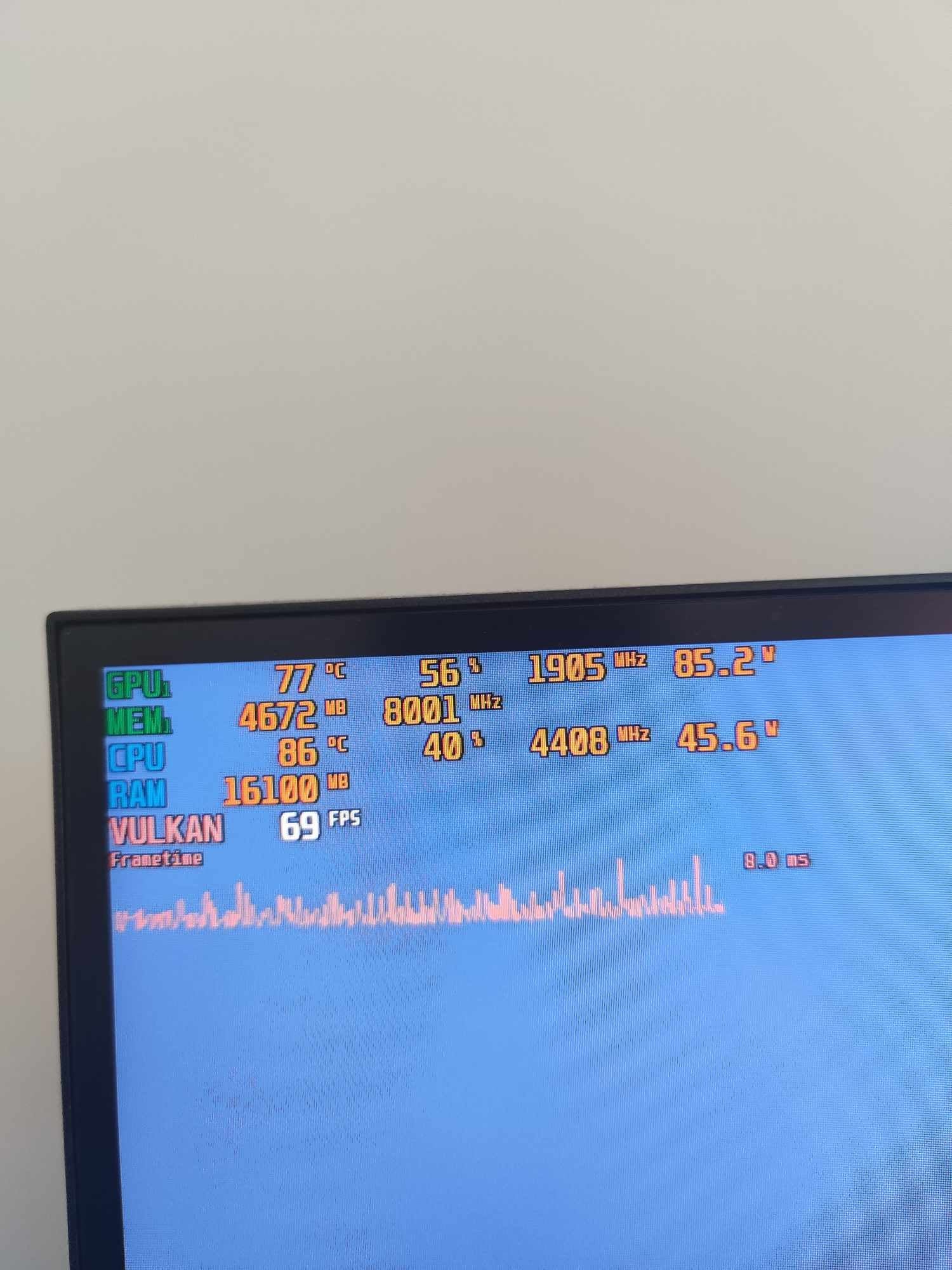
Monitoring your hardware performance can help identify bottlenecks and diagnose the cause of stuttering. Use monitoring tools to track CPU and GPU usage, temperature, and VRAM usage. This information can help you fine-tune your settings and optimize your system.
MSI Afterburner with RivaTuner Statistics Server (RTSS): This is a popular tool for monitoring hardware performance and displaying an overlay in-game. It shows the CPU and GPU usage. It also shows temperatures, frame rate, and other useful metrics.
NVIDIA Performance Overlay: This built-in tool allows you to monitor GPU performance in real-time. Press Alt+R to enable the overlay.
AMD Radeon Overlay: AMD’s equivalent overlay shows performance metrics. The shortcut is usually Alt+Shift+Ctrl+O.
Hardware Considerations
Sometimes, micro-stutter and frame pacing issues are caused by hardware limitations. Upgrading your hardware may be necessary to achieve a smooth gaming experience. Consider upgrading your CPU, GPU, or RAM.
CPU Bottleneck: If your CPU is consistently at 100% usage, it may be bottlenecking your GPU. Upgrading to a more powerful CPU can improve performance.
GPU Bottleneck: If your GPU is consistently at 100% usage, it may be struggling to render the game at your desired settings. Upgrading to a more powerful GPU can improve performance.
Insufficient RAM: If you’re running out of RAM, the game may start using your hard drive as virtual memory, which can cause stuttering. Upgrading to more RAM can improve performance. 16GB is often the minimum recommended, while 32GB offers more headroom.
Slow Storage: If your game is installed on a slow hard drive, it can cause loading times and stuttering. Installing the game on an SSD can significantly improve performance.
Battlefield 6 Specific Issues and Workarounds
Battlefield games have sometimes had their own unique performance quirks. Watch for community discussions and potential game-specific workarounds. Stay informed about any known issues with the game’s engine.
DX12 vs. DX11: Experiment with using DirectX 12 or DirectX 11. Some users report better performance with one over the other. Test both settings to see which works best for your system. This option is typically in the graphics settings menu.
Future Patches: Game developers often release patches to address performance issues. Keep your game updated to benefit from these fixes. Read patch notes for specific improvements.
By systematically working through these steps, you can identify the cause of micro-stutter and frame pacing issues in Battlefield 6 and implement effective solutions for smoother, more enjoyable gameplay. Remember to be patient and test different configurations to find the optimal settings for your specific system.
Fix Games Stuttering In 15 Seconds
Final Thoughts
To fix micro-stutter and frame pacing issues in Battlefield 6, first, ensure your drivers are up to date and your system meets the recommended specifications. Adjust in-game graphics settings, prioritizing lower settings for textures and shadows.
Next, enable V-Sync or Freesync/G-Sync to synchronize your monitor’s refresh rate with your GPU’s output. Test different refresh rates and resolutions to find the smoothest experience. It must be tested extensively.
Finally, monitor your CPU and GPU usage. Close background applications that might be causing performance bottlenecks. These steps should help you fix micro-stutter and frame pacing issues in Battlefield 6.

