
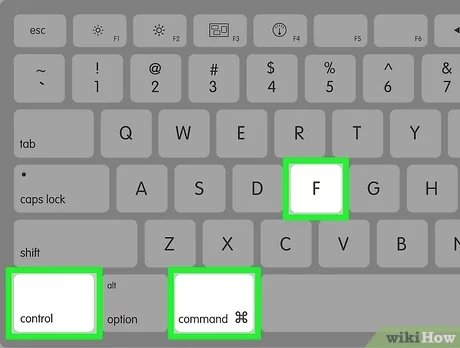
To full screen games on PC, press Alt + Enter, or check the game’s settings for display options.
Tired of those pesky borders stealing your gaming immersion? Many players face this, wanting their games to fill the entire monitor. Knowing how to full screen games on pc can dramatically improve your experience.
The frustration of playing in a windowed mode is real. It can make games feel small and less engaging, not what you’re aiming for. This guide provides simple methods to achieve that perfect full-screen view.

How to Full Screen Games on PC
Have you ever started a game on your computer, and instead of filling the whole screen, it’s stuck in a small window? It can be annoying, and it definitely doesn’t give you the best gaming experience. Luckily, getting your games to go full screen is usually pretty easy. Let’s explore all the different ways you can make that happen, and we’ll tackle common issues you might run into.
Why Full Screen Matters
Playing a game in full screen mode is more than just about making the picture bigger. It actually helps with your gaming experience in several ways:
- Immersion: When the game fills your whole screen, it’s easier to get lost in the game world. It feels more like you’re actually there, and that makes it more fun!
- Performance: Sometimes, games run a little better in full screen. This is because your computer can focus all its power on the game, instead of splitting it between the game and your other open windows.
- Better Focus: When you don’t have other windows or your taskbar around the edges of the screen, it’s easier to concentrate on the game.
The Simplest Method: The Alt + Enter Trick
The quickest and most common way to switch to full screen is by pressing the Alt key and the Enter key together. It’s like a magic combination! This works for most games, and it’s usually the first thing you should try when you want to go full screen.
How to Use Alt + Enter
- Launch the game.
- While in the game, press and hold the “Alt” key on your keyboard.
- While still holding “Alt,” press the “Enter” key.
- The game should now switch to full screen. If it doesn’t, try pressing the keys again. Sometimes it can take a moment.
If the game goes full screen but looks a bit weird (like stretched or blurry), don’t worry. We’ll talk about fixing that later on. Sometimes a game will also have a setting in the graphics menu specifically for switching to fullscreen mode which you should check too.
Game Settings: Your Best Friend
Most games let you change the screen settings within the game itself. These settings are usually found in the options or settings menu, often under “Graphics” or “Video”. It’s very helpful for selecting the best resolution for your monitor screen.
Finding the Full Screen Option in Game Settings
- Start the game and get to the main menu screen.
- Look for a button that says “Options,” “Settings,” or something similar. Sometimes it is a little gear icon.
- Click on that button.
- Now, look for a menu item that says “Graphics,” “Video,” “Display,” or something similar.
- Inside that menu, you should find an option for “Display Mode” or “Screen Mode.”
- Click the dropdown box and choose “Full Screen”.
- Click “Apply” or “Save changes.” Your game should now appear in full screen mode.
In these same settings, you will likely find other options like resolution (the size of the image) and refresh rate (how smoothly it changes). You can tweak these settings to get the game looking and running just right for your computer screen. It is common to have the best resolution match your monitor and have the refresh rate at the highest it can go. If the game slows down after setting these options too high, then it is okay to make them lower to improve game performance, even if the graphics may not be as good.
The Windowed Mode Border Problem
Sometimes, a game might not go into full screen even when you click “Full Screen” in the settings. It might be in something called “windowed mode”. This is where the game is in a window that can be moved around, and it will have borders. While it’s not technically full screen, there’s a method called “borderless windowed mode” which will make the game take up the entire screen without the window frame and feels just like full screen, plus its benefits.
Setting Borderless Windowed Mode
- Go to the game’s settings again.
- Find the “Display Mode” or “Screen Mode” setting.
- Look for “Borderless Windowed” or “Fullscreen Borderless” or “Borderless Fullscreen” in the options list.
- Select it and save your changes.
This often looks exactly like true full screen mode, but it is technically running in a window. It has the benefit that you can switch out of the game quickly without any problems. Some people prefer borderless windowed mode because it’s smoother when switching between the game and other applications.
If borderless windowed mode is not available you may want to try to set your game resolution to your monitor’s native resolution.
When Full Screen Doesn’t Work: Troubleshooting
Sometimes, even after trying all these tips, a game still might not go full screen. Let’s explore some of the common reasons why this might happen and how to fix them.
Problem: Incorrect Resolution Settings
If the game’s resolution doesn’t match your monitor’s resolution, the game might not fill the screen properly or it can look stretched or blurry. It is the first place to check when a game is not displaying properly.
- Solution:
- Go back into the game settings.
- Find the resolution option, and try to match it to your monitor’s resolution. Your monitors resolution is often displayed in your monitor settings under display. The most common resolutions are 1920 x 1080 and 2560 x 1440.
- Sometimes you can select Auto resolution for the game to auto detect.
Problem: Outdated Graphics Drivers
Graphics drivers are like the instructions that help your computer communicate with your graphics card. Outdated drivers can cause all sorts of problems, including issues with full screen display.
- Solution:
- Find out who makes your video card. It is most likely NVIDIA, AMD, or Intel.
- Visit the website of the company that makes your video card (NVIDIA, AMD, or Intel).
- Find the drivers section for your specific video card.
- Download and install the latest drivers. This might require you to restart your computer.
It’s a good idea to keep your graphics drivers up to date regularly. New drivers are often released to fix bugs, make games run better, and improve full screen functionality.
Problem: The Game’s Compatibility Mode
Sometimes, an older game might have trouble working correctly on newer computers. Games can often run in compatibility mode to help solve this issue, but compatibility mode might prevent the game from correctly displaying in full screen.
- Solution:
- Right-click on the game’s shortcut on your desktop.
- Select “Properties”.
- Click the “Compatibility” tab.
- If the “Run this program in compatibility mode for” box is checked, uncheck it.
- Click “Apply” and then “OK.”
Try running the game again. If it still doesn’t work, you can try checking the box again and experimenting with different operating system options in that menu. Some older games can sometimes have some issues with full screen even using compatibility mode.
Problem: Game Launchers or Overlays
Sometimes, programs that run at the same time as your game, such as game launchers or game overlay programs, can cause problems with fullscreen display. These can cause conflicts, especially with how the game displays.
- Solution:
- Close any game launchers (such as Steam, Epic Games Launcher, etc.) completely. You may need to go to the hidden icons at the bottom right of your screen to ensure they have fully exited.
- Turn off any game overlays (like the Discord overlay, NVIDIA GeForce Experience overlay, etc.) in the settings of those programs.
- Restart the game.
If that fixes the problem, you can try re-enabling each program one by one to figure out which one is causing the issue.
Problem: Multiple Monitors
If you have multiple monitors connected to your computer, sometimes a game will try to go full screen on the wrong monitor, or sometimes it might get confused between the two. This is usually easy to fix.
- Solution:
- Go to your Windows display settings.
- Find the option that says “Multiple displays.”
- Make sure that your primary monitor is set as the monitor you want to play the game on.
- Restart the game.
You can also try hitting the Windows logo key + Shift + Left Arrow or Windows logo key + Shift + Right Arrow to move your game from one screen to another.
Problem: Very Old Games
Some older games simply may not be designed to run in full screen mode on modern monitors. These games often have their resolution hard coded in and will not change even when you change it in the settings.
- Solution:
If it’s an older game that just won’t scale to modern screen sizes, there may not be a perfect fix. However, you can sometimes improve the appearance by using windowed mode and adjusting the resolution to fit your screen as much as possible. Also, a community patch might exist to solve that problem, so it might be worth searching online for fixes for the older game.
The Role of Graphics Settings
Graphics settings are very important for making games look good and run smoothly. But did you know they can also impact how well the game goes full screen? Here’s why you should explore these settings:
- Resolution: The resolution is the number of pixels displayed on your screen. A higher resolution means a sharper picture, but it also demands more from your computer. You need to make sure the game’s resolution matches your monitor’s native resolution for the best full-screen experience. If your computer is struggling to run the game at high resolutions, you may also want to lower them.
- Refresh Rate: The refresh rate is how many times your monitor updates the picture every second. It is measured in hertz (Hz). A higher refresh rate means smoother motion. It should match your monitor refresh rate, which can usually be found in your monitor settings or by searching online for the specifications of your monitor.
- Display Mode: This setting is what lets you choose between full screen, windowed, or borderless windowed mode, which we have already discussed.
Playing around with the graphics settings can help you find the best combination of performance and looks for your specific computer and monitor. It may take a while to get the settings just right for each game.
Remember, you can always check the game’s official forum or community pages to see if other players have had similar issues and what their solutions were.
With a little bit of patience, and by exploring the settings we have discussed, you should be able to get most games working in full screen mode on your computer.
So you are all set to start your game in full screen and enjoy the experience to the fullest.
How to Go Full screen on Pc
Final Thoughts
In summary, you can full screen games on pc using simple methods like Alt+Enter or selecting the fullscreen option in the game’s settings. Different games may have slightly different approaches. Check the graphics or display settings within the specific game you’re playing.
Experimenting with these options helps you find what works best for your game and setup. If you encounter issues, updating graphics drivers might resolve the problem. These steps provide the solutions for how to full screen games on pc.

